
Brand List
Table of Contents
1. Use Cases
Quick links: Categorizing products across multiple brands | Making brand-level business decisions | Maintaining brand info in one place
Scenario 1: Categorizing products across multiple brands
Situation: You distribute or run several brands, and your product count keeps growing. Without a consistent brand assignment, finding products or checking stock by brand later means scanning through the text in product names one by one.
Use this feature: Create a brand record for each brand you carry (see Add Brand), and assign the brand from the "Brand" dropdown when adding products.
Result: Every product has a clear brand from the moment it is created, and your entire catalog can be browsed, filtered, and analyzed by brand.
Scenario 2: Making brand-level business decisions
Situation: A supplier tells you some products under a brand will be discontinued, or at quarter-end you need to review a brand's sales and stock performance — you need the complete product list for that brand quickly, not a manual search from memory.
Use this feature: Once products carry a brand, go to "Product List" and filter by "Brand" to pull up every product under that brand in one click (see Search & Filter in Product List).
Result: Restocking, delisting, and promotion reviews all have a complete brand-level list to work from, without missing a single product of that brand.
Scenario 3: Maintaining brand info in one place
Situation: A brand changes its official name (for example from "Philips Taiwan" to "Philips"). If the brand name were free text written on each product, you would have to edit every product under that brand.
Use this feature: Products link to the brand record, not to text, so you only need to change the name once on the brand detail page (see Edit Brand in Brand Detail).
Result: Every linked product shows the new name in sync, with no need to touch a single product record.
2. Features
Brands are category labels for your products. Once a brand is created here, you can assign it when creating or editing products, then filter, batch-edit, and analyze products by brand in "Product List". The Brand List is your central place to manage all brands: search, add new ones, and open a brand to view and maintain its details.
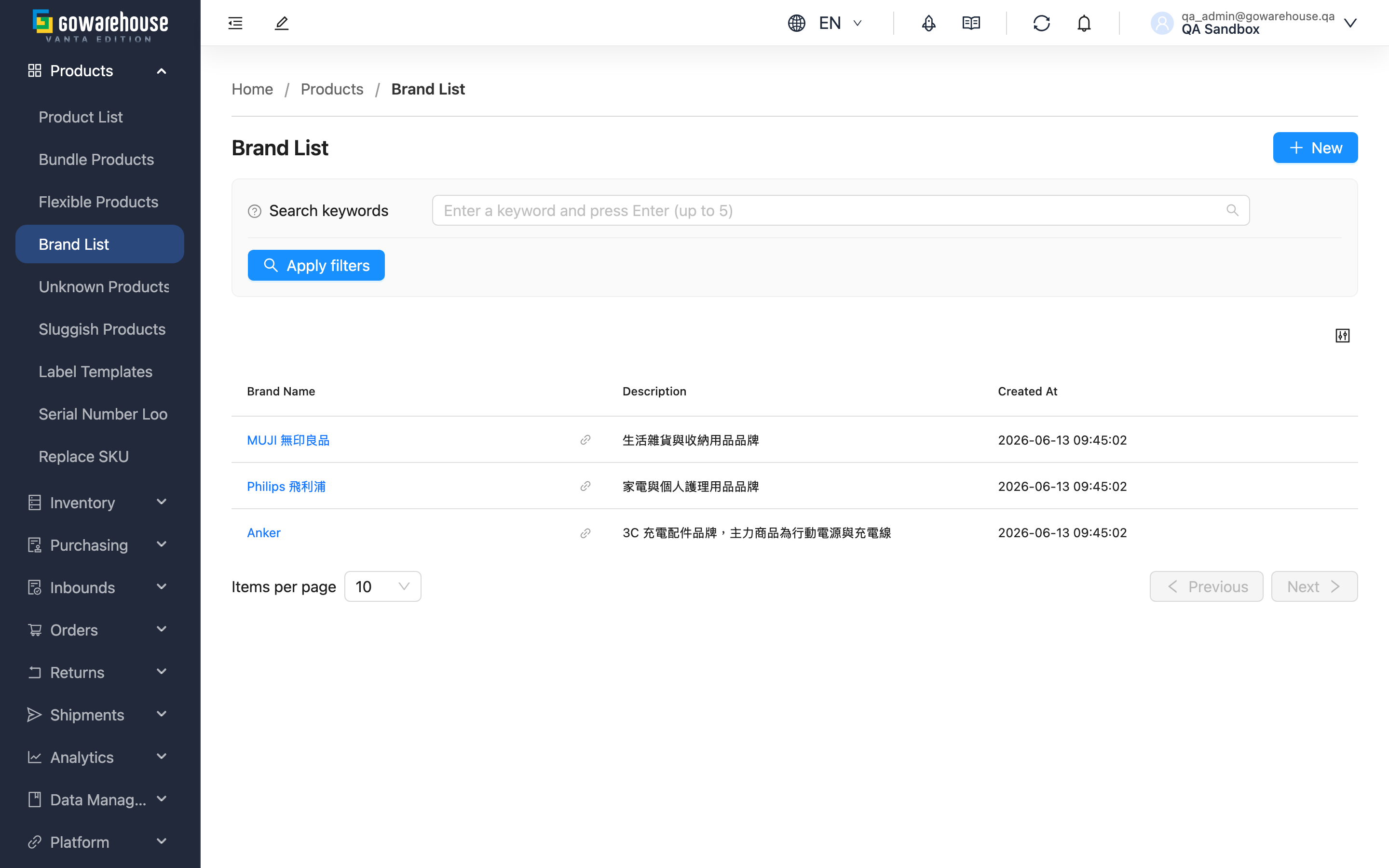
Quick links: Search brands | List columns & actions
2.1 Search brands
Type the beginning of the "Brand Name" into the search box at the top of the page and press Enter. The search matches from the start of the name: typing "Phi" finds "Philips", but typing "lips" does not — start from the first characters of the name.
2.2 List columns & actions
The list shows "Brand Name", "Description", and "Created At", sorted from newest to oldest by default; click the column headers of "Brand Name" or "Created At" to sort.
- Click a "Brand Name" to open that brand's detail page; the link icon next to it opens the page in a new window.
- The "New" button at the top right takes you to Add Brand; it is shown based on your permissions — contact your administrator if you cannot see it.
3. FAQ
Quick links: FAQ | Important Notes
3.1 FAQ
▪ Can brand names be duplicated?
No. Brand names must be unique within the same merchant; saving a duplicate name shows an error message. Before creating one, use the search box to check whether the name already exists.
▪ Do I need to create brands before adding products?
No. A product's "Brand" is optional — products can be created without one. However, creating brands first lets you pick them from the dropdown when adding products, and enables filtering and reporting by brand later.
▪ How do I see all products under a brand?
Go to "Product List", add a filter, and select the brand under "Brand" (see Search & Filter in Product List).
▪ Why can't I find a brand in the list?
The search matches from the start of the name — typing characters from the middle of the name returns nothing. Type the beginning of the name instead, or clear the search box to see the full list. If it is still missing, the brand may have been deleted by another team member.
▪ Can I merge two duplicate brands?
There is no merge feature. First go to "Product List", select the products under one of the brands, use "Batch Edit Products" to change their "Brand" to the brand you want to keep, then delete the redundant brand.
▪ Does deleting a brand affect its products?
Yes. Products under that brand become unassigned (no brand); the products themselves and their stock are not affected. See Delete Brand in Brand Detail for the full impact and steps.
▪ How many products can be linked to one brand?
There is no limit.
3.2 Important Notes
⚠️ Reminders
- Deleting a brand cannot be undone, and its products become unassigned (see Delete Brand in Brand Detail).
- Brand names must be unique within the same merchant.
💡 Tip: Create brands before adding products so every product is categorized correctly from the start, with no batch fixing later.
4. Related Features
| Feature | Description | Link |
|---|---|---|
| Add Brand | Create a new brand. | Go |
| Brand Detail | View, edit, or delete a single brand. | Go |
| Product List | Filter products by brand and batch-edit product brands. | Go |