
Inventory Movements
Table of Contents
1. Use Cases
Quick links: Tracing stock discrepancies | Auditing a batch's history | Month-end reconciliation
Scenario 1: Stock count doesn't match — where did the goods go?
Situation: During a stock count you find a product's physical quantity doesn't match the system stock, and you need to reconstruct every increase and decrease over the period to judge whether goods were under-shipped, over-shipped, or simply not recorded.
Use this feature: Inventory movements is each product's "stock ledger" — every inbound, outbound, stock take, and clearance leaves a tamper-proof record. Narrow down to the product and the problem time range and review entry by entry to see the source behind every change (see Columns and Movement Types).
Result: You identify the specific movements causing the gap and their source documents, so you can decide whether to add a missing record, coordinate a warehouse correction, or adjust the count.
Scenario 2: Auditing a batch's full journey from inbound to clearance
Situation: For a batch nearing expiry, or a problematic shipment, you want to confirm how much of it was shipped, adjusted, or cleared after arriving — as evidence for quality traceability or resolving a customer complaint.
Use this feature: Filter by batch plus product to line up all movements of the same batch in chronological order, each marked with the quantity change and source (inbound, outbound, stock take, clearance, etc.).
Result: You get the complete lifecycle trail of the batch — when it arrived, which orders it shipped to, and how much remains or why it was cleared.
Scenario 3: Month-end reconciliation with finance
Situation: At month-end close, finance needs a detailed list of all stock increases and decreases for the month to reconcile inventory and cost.
Use this feature: Set the time range to the month to filter out all movements, then export the file for finance.
Result: Finance receives a line-by-line list of the month's movements with quantities and sources, ready to cross-check against orders and inbound records to complete the close.
2. Feature Guide
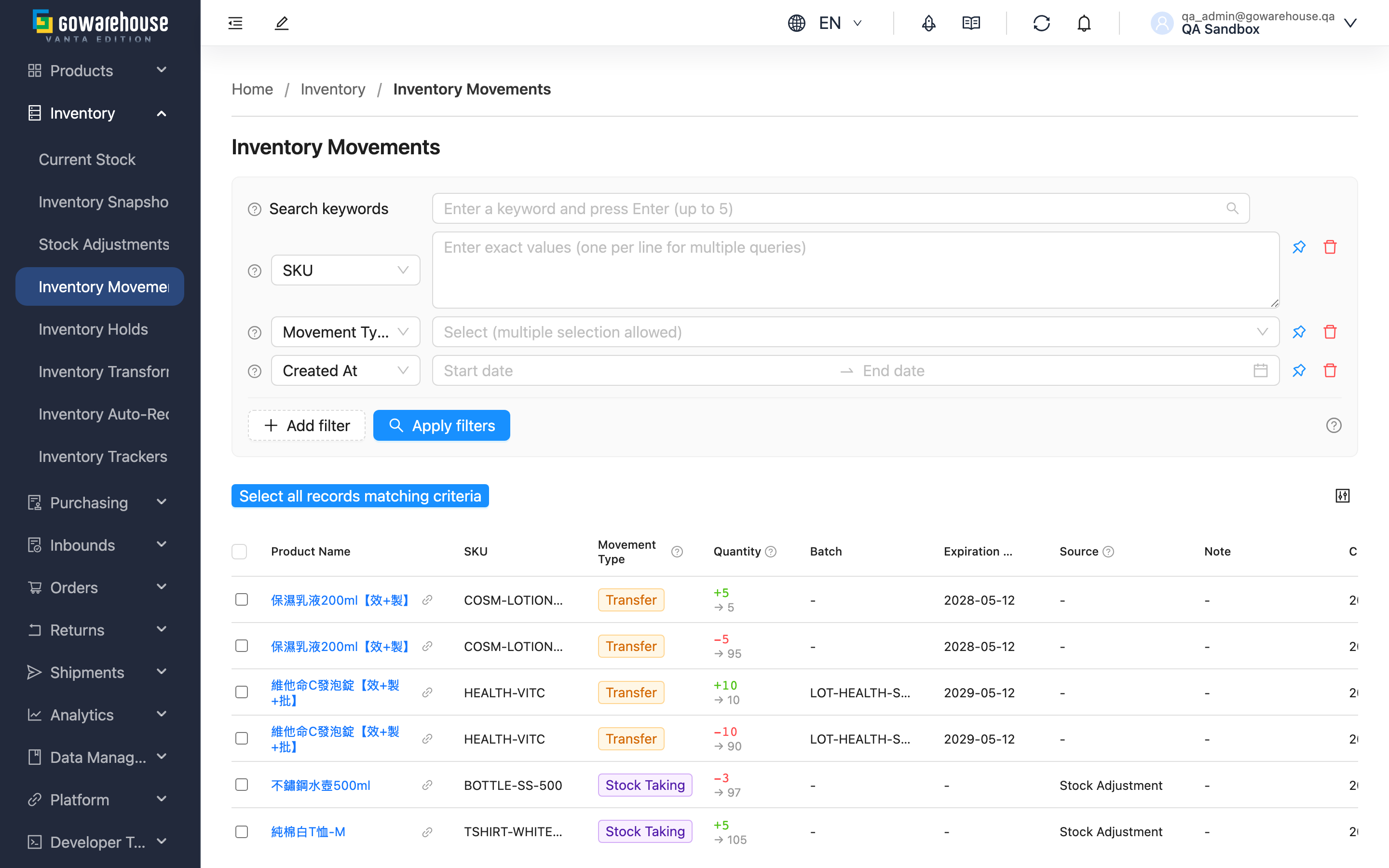
Inventory movements is the complete running ledger of each product's stock — every inbound increase, every outbound decrease, and every stock take or adjustment is automatically written as a permanent record. Whenever the stock figures don't match expectations, you need to trace a batch's journey, or you have to reconcile with finance, you can audit each change's quantity and source here, entry by entry — this is the most reliable basis for resolving discrepancies between system and physical stock.
Jump to: Search & Filter | Columns | Movement Types | Export
2.1 Search & Filter
The top search box looks up records directly by SKU, Product Name, or Batch (prefix match).
Click "Add filter" to expand advanced filters. Only the conditions that need explanation are listed below; enter the rest by their names:
| Filter | How to use | Notes |
|---|---|---|
| Movement Type | Select one or more movement types from the list | See Movement Types for meanings; pinned by default |
| Expiration Date | Set an expiry date range | Used to target a specific expiry batch |
| Created At | Set the time range when movements occurred | Most used for tracing discrepancies and month-end reconciliation; pinned by default |
2.2 Columns
| Column | How to read it | Notes |
|---|---|---|
| Product Name | The product of the movement | Click to open product details |
| SKU | The product's internal code | — |
| Movement Type | Which type of movement this is | Full reference in Movement Types |
| Quantity | The quantity changed this time | Green positive = stock increase, red negative = stock decrease; the arrow below shows the stock level after the movement |
| Batch | The batch identifier of the stock | Shows "-" when there is no batch |
| Expiration Date | The batch's expiry date | — |
| Source | The source document that caused this movement | When the source is "Inbound" it is clickable to open the inbound record; see the tip below |
| models.inventory_movement.note | Note about the movement | Shows "-" when empty |
| Created At | When the movement occurred | — |
💡 Tip: Among source entries, only "Inbound" (inbound) has a matching inbound record you can open in the seller backend. Stock takes, outbounds, processing, and stock adjustments are internal warehouse operations — the seller backend shows the name only. Contact the warehouse if you need the document details.
2.3 Movement Types
| Movement Type | Description | Stock Change |
|---|---|---|
| Inbound | Goods received into the warehouse | + |
| Inbound Reversal | Reversal when an inbound was recorded incorrectly, deducting the over-recorded quantity | - |
| Outbound | Order shipped, goods sent out of the warehouse | - |
| Transfer | Stock shifted between batches or inventory types (one minus, one plus); total stock unchanged | ± |
| Stock Taking | Adjustment after a stock take to correct the gap between system and physical counts | ± |
| Clear | Stock clearance or write-off | - |
| Work Order Consumption | Raw material consumed during processing/assembly | - |
| Work Order Production | Finished goods produced after processing/assembly | + |
| Inventory Import | Stock created directly via file import | + |
| Sales Return Inbound | Customer returns received back into stock | + |
| Transfer Order Inbound | Goods received after an inter-warehouse transfer | + |
2.4 Export
After setting your filters (limiting the time range first is recommended), select the records to export and click the "Export" button. The file downloads automatically once ready; you can also click the "Background Jobs" icon in the top-right corner to check progress and download. The exported file includes each movement's quantity, source, and time, ready to hand to finance for reconciliation.
3. FAQ
3.1 FAQ
▪ Can I manually edit or delete a movement record?
No. Inventory movements are written automatically by the system on every stock change and can never be manually added, edited, or deleted — that is exactly what makes them a trustworthy basis for reconciliation and traceability. If a movement is wrong, you correct it at the source (e.g. re-count, reverse an inbound), and the system records a new movement rather than altering the old one.
▪ My stock doesn't match — how do I trace the cause?
First confirm which product has the issue in "Current Stock", then return here and filter by that product's SKU plus the time range when the problem occurred, reviewing the records entry by entry. Common causes are stock take adjustments, returns received, and clearances — the Movement Types and source columns help you pinpoint them.
▪ What's the difference between "Transfer" and "Outbound"?
"Transfer" is stock shifted internally within the warehouse (e.g. from one batch to another, or from sellable to defective), appearing as one minus and one plus so your total stock is unchanged. "Outbound" is when an order ships and goods physically leave the warehouse, reducing total stock.
▪ Why does one order produce several movement records?
An order often contains multiple products, each recorded separately; and if a product's stock comes from different batches or inventory types, each is deducted and recorded on its own. So multiple movements for a single order is normal.
▪ Why are some source entries clickable and others not?
When the source is "Inbound" (inbound), the seller backend has a matching inbound record to open and check. Other sources (outbound, stock take, processing, stock adjustment) are internal warehouse documents with no corresponding page in the seller backend, so they show as plain text. Contact the warehouse if you need the document details.
▪ How long are movement records kept?
They are kept long-term — you can query movement records from any point in the past, and they are never purged for being old.
3.2 Notes
⚠️ Important
- Inventory movement records are generated automatically by the system and cannot be manually edited or deleted; corrections must be made at the source, and the system records a new entry.
- Each movement fully records the time, quantity, resulting stock level, and source — it is the authoritative basis for reconciliation and traceability, so treat it as the source of truth.
💡 Tip: Set the time range before exporting for month-end reconciliation to avoid pulling too many unrelated records at once; periodic exports are also recommended for easy reconciliation with finance.
4. Related Features
| Feature | Description | Link |
|---|---|---|
| Current Stock | View the real-time stock level right now | Go |
| Inventory Snapshot | View daily stock levels in the past to review historical stock | Go |
| Inventory Trackers | Set low-stock alerts to avoid running out of best-sellers | Go |
| Inbound List | View records of goods received into the warehouse | Go |