
Product Custom Attributes
Table of Contents
I. Use Cases
Quick Links: Standard fields can't capture your product traits | Carry product traits onto labels and exports | Tell product traits apart from batch differences
Scenario 1: Standard fields can't capture your product traits
Situation: The built-in SKU, name, and barcode cover the basics, but they can't capture the descriptions unique to your industry. Apparel needs material and fit; food needs flavor and package size; electronics needs warranty period and model tier. These are traits of the product itself—they don't change no matter how many batches arrive—but every industry needs different fields, so the system can't build them all in.
How this feature helps: Define up to 5 custom attribute fields for your products here (see Add Attribute). Once defined, these fields appear automatically when you create or edit products, ready for you to fill in.
Result: Product records are no longer limited to fixed fields—they fit the items you actually sell, so every product can fully record its real traits.
Scenario 2: Carry product traits onto labels and exports
Situation: On labels printed during warehouse receiving, on product label templates, and when you maintain products in bulk via Excel—you want these places to carry values like "Material: Cotton" or "Warranty: 3 years", not just the name and barcode.
How this feature helps: First define the attributes you need here (see Add Attribute). Defined attributes automatically become values your label templates can reference, content shown on inbound receiving labels, and matching columns when importing or exporting products.
Result: Define an attribute once here, and it flows automatically into labels, receiving, and Excel import/export—no need to set it up again in each place.
Scenario 3: Tell product traits apart from batch differences
Situation: You're deciding where a piece of information belongs. For shampoo, "scent" and "volume" are traits of the product itself—one set of values per product. But "origin" may differ batch to batch (a Taiwan batch, a Japan batch) and needs to be managed separately. Recording it in the wrong place throws your data off.
How this feature helps: Define traits that stay the same across batches (scent, volume, material) as product custom attributes here; define traits that differ per batch and need separate management (origin, dye lot) as Inventory Custom Attributes instead. The difference is explained in the FAQ.
Result: Product traits and batch differences each live in the right place, keeping inventory management and outbound allocation accurate.
II. Feature Guide
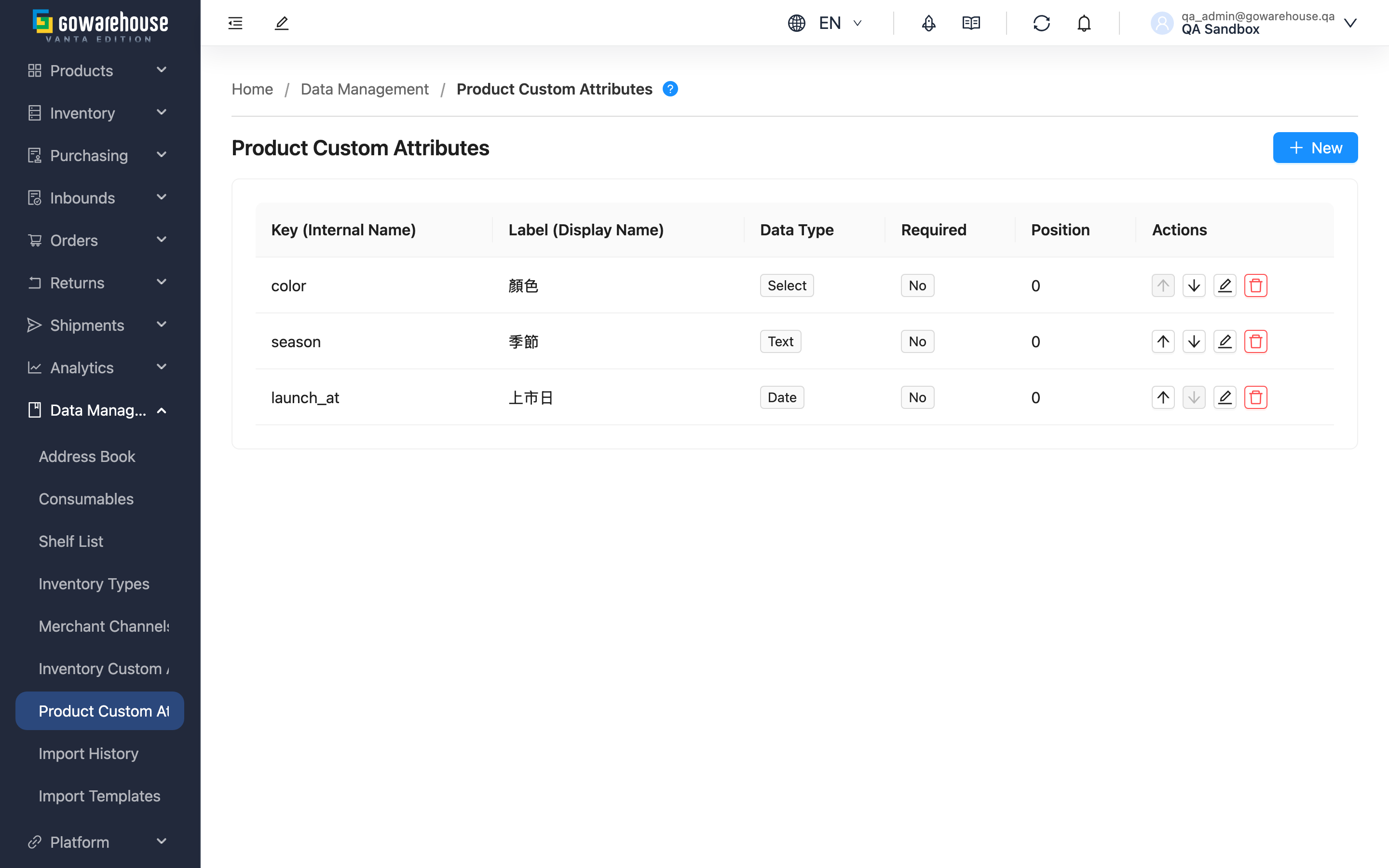
Product Custom Attributes lets you extend your products with up to 5 custom fields, filling the gap where built-in fields can't capture industry-specific traits. Once you define attributes on this page, the fields appear automatically when creating or editing products, and also flow into product labels, inbound receiving labels, and Excel import/export. Adding, editing, deleting, and reordering are all done in dialogs on this list page—there are no separate sub-pages.
Quick Jump: List Columns | Add Attribute | Edit & Delete | Reorder
2.1 List Columns
The page displays all the custom attributes you have defined:
| Column | Description |
|---|---|
| Key (Internal Name) | Internal identifier; only lowercase letters, numbers, and underscores allowed |
| Label (Display Name) | The field name you actually see on product forms |
| Data Type | Text, Number, Date, Select, or Boolean |
| Required | Whether this field must be filled when creating a product |
| Position | The display order of this field on product forms |
Each row has Move Up, Move Down, Edit, and Delete buttons on the right.
2.2 Add Attribute
Click "New" to open the add dialog. Each merchant can define at most 5 attributes; once the limit is reached, you cannot add more.
Fields marked with * are required
| Field Name | How to Fill | Notes |
|---|---|---|
| *Key (Internal Name) | Enter an English identifier, e.g., color, model_number | Only lowercase letters, numbers, underscores; cannot be changed after creation |
| *Label (Display Name) | Enter the name to show on product forms, e.g., "Color" | Can be modified after creation |
| *Data Type | Choose a suitable data type (see below) | "Boolean" type cannot be set as required |
| Required | Whether this field must be filled when creating a product | When checked, products can't be saved without it; the "Boolean" type has no such option |
| Options | Enter an option and press Enter to add; multiple allowed | Only needed for the "Select" type |
Data Type Descriptions
| Type | What products may enter | Use Cases |
|---|---|---|
| Text | Any text | Model number, notes, material description |
| Number | Numbers only (decimals allowed) | Warranty months, capacity, wattage |
| Date | A recognizable date | Launch date, discontinuation date |
| Select | One of your preset options only | Color, size, flavor (when options are fixed) |
| Boolean | Yes or No only | Flags like fragile or requires-cold-storage that only mark occasional exceptions |
💡 Tip: "Boolean" suits flags that are off by default and only mark occasional exceptions (e.g., fragile, cold storage). If a field has "both values possible, and you may need to pick either or leave it unspecified" (e.g., "labeled / unlabeled"), use "Select" instead.
2.3 Edit & Delete
Click "Edit" on any row to modify that attribute. Except for the Key (Internal Name), which cannot be changed after creation, you can adjust the display name, data type, required status, and the options of a Select type. To change the Key, you must delete the attribute and recreate it.
Click "Delete" to remove the attribute definition. Deleting does not clear the attribute values already recorded on products—existing products keep their original values; the field simply won't appear when creating or editing products from then on. See the FAQ.
2.4 Reorder
Use the Move Up and Move Down buttons on each row to change the order of attributes. This order is exactly the order in which the attributes appear on the product create/edit form, so putting the most-used attributes first speeds up data entry. Move Up on the first attribute and Move Down on the last are automatically disabled.
III. FAQ
Quick Jump: FAQ | Important Notes
3.1 FAQ
▪ Why can't I add more attributes?
Each merchant can define a maximum of 5 product custom attributes. To add a new one, delete an attribute you no longer need to free up a slot.
▪ What are the naming rules for the Key (Internal Name)?
Only lowercase letters, numbers, and underscores, e.g., color, model_number, warranty_months. Chinese characters, uppercase letters, spaces, and other symbols are not allowed. The Key cannot be changed after creation, so think it through before naming.
▪ Can I change the data type after creation?
Yes—you can re-select the data type when editing an attribute. But we recommend settling on it before products use the attribute widely. The data type determines what a product may enter (e.g., Number only accepts numbers, Select only accepts preset options), so changing it can easily leave old and new data in inconsistent formats.
▪ Will deleting an attribute affect existing products?
Deleting an attribute definition does not delete already recorded product data; existing products keep their original attribute values. The field just won't appear when creating or editing products in the future. Note, however: if you edit a product that still carries a deleted attribute's value, the system will require you to clear that field before saving.
▪ Why can't the "Boolean" type be set as required?
"Boolean" is meant to flag occasional exceptions (e.g., fragile, cold storage); its default state is "No", so there's no "unfilled" case and making it required has no meaning. If you genuinely need "must pick one of three (Yes / No / Unspecified)", use the Select type and define your own options.
▪ Can I add options to a Select type later?
Yes. You can add options to a Select type when editing the attribute. But avoid deleting options that products are already using—otherwise those products' old values become a format that's no longer in the list.
▪ What's the difference between Product Custom Attributes and Inventory Custom Attributes?
The key difference: Product Custom Attributes describe what a product IS—one set of values per product (e.g., scent, volume), the same no matter how many batches arrive. Inventory Custom Attributes describe where each batch COMES FROM—different batches of the same product can have different values (e.g., origin, dye lot), and they affect inventory allocation at outbound. How to decide: if the information doesn't change between batches, use a product attribute; if it can differ per batch and needs separate management, use an inventory attribute.
3.2 Important Notes
⚠️ Important Reminders
- Each merchant can define a maximum of 5 product custom attributes
- The Key (Internal Name) cannot be changed after creation; to change it you must delete and recreate
- A required attribute will block saving a product if the field is left empty
- After deleting an attribute, editing an old product that still carries that value will require clearing the field before saving
💡 Tips:
- Turn fixed options into a Select type to avoid format inconsistencies from manual entry
- Place the most-used attributes first to speed up product creation
- Use meaningful English names for Keys for easier identification in label templates and export columns
IV. Related Features
| Feature | Description | Link |
|---|---|---|
| Product List | Fill in the custom attributes defined here when creating and editing products | Go to |
| Inventory Custom Attributes | Define "where it comes from" fields for each inventory batch | Go to |