
EC Integrations
Table of Contents
Section 1: Use Cases
Quick Links: Auto-import orders from multiple platforms | Selling across platforms without overselling | Auto-report shipping status to buyers
Scenario 1: You no longer want to enter multi-platform orders by hand
Situation: You sell on Shopee and Momo while also running your own Shopify storefront. Orders pour in from every platform daily. Copying them into the warehouse system one by one is slow, error-prone, and during sales events with surging volume you may even miss orders.
How to Do It: Under "Platform" → "EC Integrations", create one account per platform (see Create), enable "Fetch Orders", and set the fetch times. New orders on the platform will then enter the warehouse on schedule, with no manual entry.
Result: Imported orders flow straight into the downstream picking and shipping process. You focus on stocking up, and no longer miss orders or make mistakes from manual transcription.
Scenario 2: The same product sells on several platforms and you fear overselling
Situation: The same product is listed on both Shopee and Momo. After restocking once, you have to log into each platform's backend to add stock manually. If you add the full restock amount to both, the on-paper stock is double the real amount, and buyers place orders you can't fulfill.
How to Do It: On the EC account, enable "Inbound Push" and set a "Push Percentage" for each platform. When inbound put-away completes, the system pushes the restock amount to each platform by its percentage (see Inbound Push & Push Percentage).
Result: One restock raises stock on each platform by its allocated share, with the total never exceeding the actual inbound amount. Overselling is prevented at the source, and you save the time of editing stock in each platform backend.
Scenario 3: You want buyers notified the moment the warehouse ships
Situation: Buyers keep asking "Has it shipped?", but after the warehouse ships you still have to paste tracking numbers back into each platform before buyers can see the progress.
How to Do It: Once the account is connected, the moment the warehouse ships, the system automatically reports the tracking number and shipping status back to the corresponding platform — no manual pasting.
Result: Buyers see the shipping notification and tracking number on the platform in real time, reducing customer inquiries; you no longer switch between platform backends just to report shipping status.
Section 2: Features
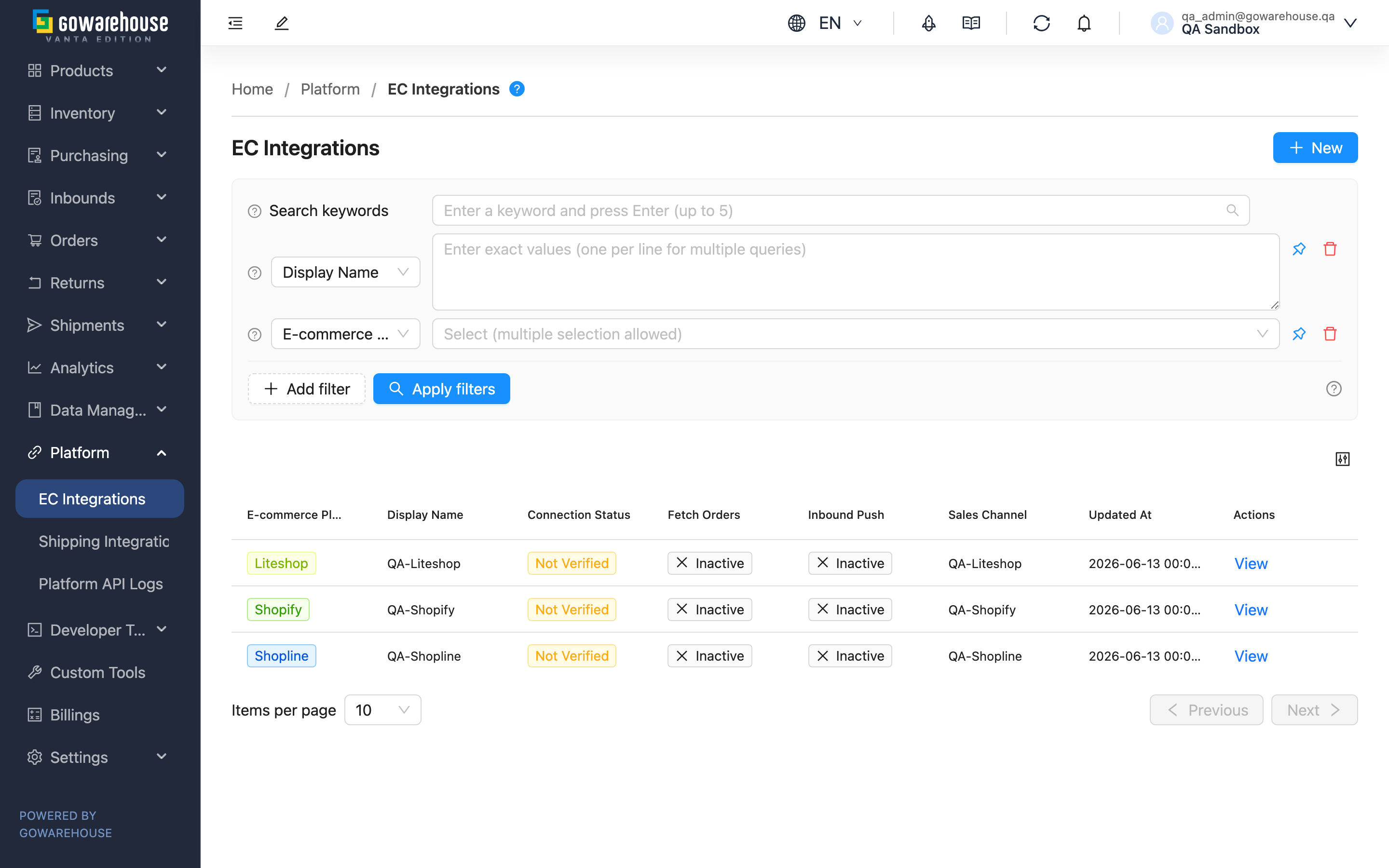
EC Integrations connects the warehouse system directly to your e-commerce platforms (Shopee, Momo, Shopify, Shopline, etc.). Once connected, orders import automatically, stock is pushed back to the platform on inbound, and shipping status is reported automatically — no more manual data shuffling. This list page is the management hub for all EC accounts, where you can see which platform each account connects to, whether the connection is healthy, and which automations are enabled.
Quick Jump: Search & Filter | List Columns | Connection Status | Inbound Push & Push Percentage
2.1 Search & Filter
The search box at the top finds accounts by "Display Name" or "E-commerce Platform" keyword. Expand filters to add:
| Filter | Purpose |
|---|---|
| E-commerce Platform | Show only a specific platform (e.g. only Shopee accounts), handy when you have several accounts on one platform |
| Connection Status | Filter for "Disconnected" accounts to quickly spot which ones need attention |
2.2 List Columns
| Column | Description |
|---|---|
| E-commerce Platform | The e-commerce platform this account connects to |
| Display Name | The name you gave the account, used to tell multiple accounts on one platform apart |
| Connection Status | Whether the connection is healthy; three states in Connection Status |
| Fetch Orders | Whether auto order fetching is enabled |
| Inbound Push | Shows the push percentage (e.g. 60%) when on, or disabled when off |
| Sales Channel | The sales channel this account is bound to |
Click "View" on the right of a row to open the Detail page to see the full setup and run sync actions.
2.3 Connection Status
Connection status determines whether orders import correctly — the column to watch most in daily operations:
| Status | Meaning |
|---|---|
| Connected | Connection healthy; orders import automatically on schedule |
| Disconnected | Connection broken; orders stop importing; re-test the connection or re-authorize to restore |
| Not Verified | The connection has not been tested yet, or credentials were changed and not re-verified |
📌 Note: When an account is disconnected, orders stop coming in. It's worth scanning this column regularly and acting on any disconnection promptly.
2.4 Inbound Push & Push Percentage
With "Inbound Push" on, every restock automatically pushes the added quantity to the platform. Two actions trigger a push: inbound put-away completion, and an "increase" via a stock adjustment. Decreases are not pushed automatically, so internal adjustments like shrinkage or scrapping never accidentally reduce platform stock.
If the same product sells on multiple platforms, "Push Percentage" controls what share of the inbound quantity each platform receives. For example, on an inbound of 100 units, Shopee at 60% and Momo at 40% add 60 and 40 units respectively — exactly the actual inbound amount. The percentages across platforms should not total more than 100%, and the system warns you on save if the total reaches 100%.
Ragic currently does not support "Inbound Push", so this column is blank for Ragic accounts. See the detail page for inbound fetching and receipt write-back settings.
Section 3: FAQ
3.1 FAQ
▪ What do I need before connecting an e-commerce platform?
You must first create a "Sales Channel". Every EC account must be bound to a sales channel at creation. The channel determines which inventory type this platform ships from, plus expiry and shipping rules. Without a channel, neither order import nor stock push works. Go to "Data Management" → "Merchant Channels" to create one first, then come back to add the EC account.
▪ If an account shows "Disconnected", do orders stop coming in?
Yes. While disconnected, orders stop importing. Enter the account and re-test the connection (key-based platforms) or re-authorize (authorization-based platforms like Shopee and Shopify). Orders resume only after it returns to "Connected".
▪ Does the push percentage have to add up to 100%?
No. It doesn't need to total 100% — leaving some slack absorbs returns and shrinkage. The key is that the total across platforms must not exceed 100%, or you risk overselling. See Inbound Push & Push Percentage.
▪ Why does a platform order carry a product the warehouse can't find?
When a platform product's SKU has no matching product in the warehouse system, it is classified as an "unknown product" and needs manual mapping before it can ship. Correct your platform product data early so SKUs match the warehouse system and orders don't get stuck.
▪ After connecting, can I still ship manually in the platform backend?
Not recommended. After connecting, run all fulfillment through the warehouse system. Don't ship or change status manually in the platform backend, or orders may fail to import and statuses become inconsistent.
▪ Can I create multiple accounts for the same platform?
Yes. For example, if you have two Shopee stores, create two Shopee accounts, each bound to a different sales channel. The list page tells them apart by "Display Name", so use easily recognizable names.
▪ How is inbound push different from "Sync Mapped Products" and "Manual Stock Sync"?
Inbound push automatically pushes the added quantity to the platform on restock; "Sync Mapped Products" and "Manual Stock Sync" are batch sync actions triggered manually on the Detail page. For day-to-day automation you only need inbound push on; the manual syncs are for cases that need immediate correction.
3.2 Notes
⚠️ Important
- When an account is disconnected (Disconnected), orders stop importing — check connection status regularly
- Push percentages totaling over 100% across platforms cause overselling — set them carefully
- After connecting, do not ship or change status manually in the platform backend, or orders won't import
💡 Tip: Before going fully live, run a few orders through the complete flow (import → pick & ship → status report) and confirm each step before enabling full-volume fetching, so any setup gaps surface early.
Section 4: Related Features
| Feature | Description | Link |
|---|---|---|
| EC Integrations (Create) | Create an EC account: pick the platform, fill credentials, set up automation | Go |
| Sales Channel | The channel setup you must create before adding an EC account | Go |
| Platform API Logs | View success/failure records of integration calls like order fetch and stock push | Go |