
EC Account Detail
Table of Contents
Section 1: Features
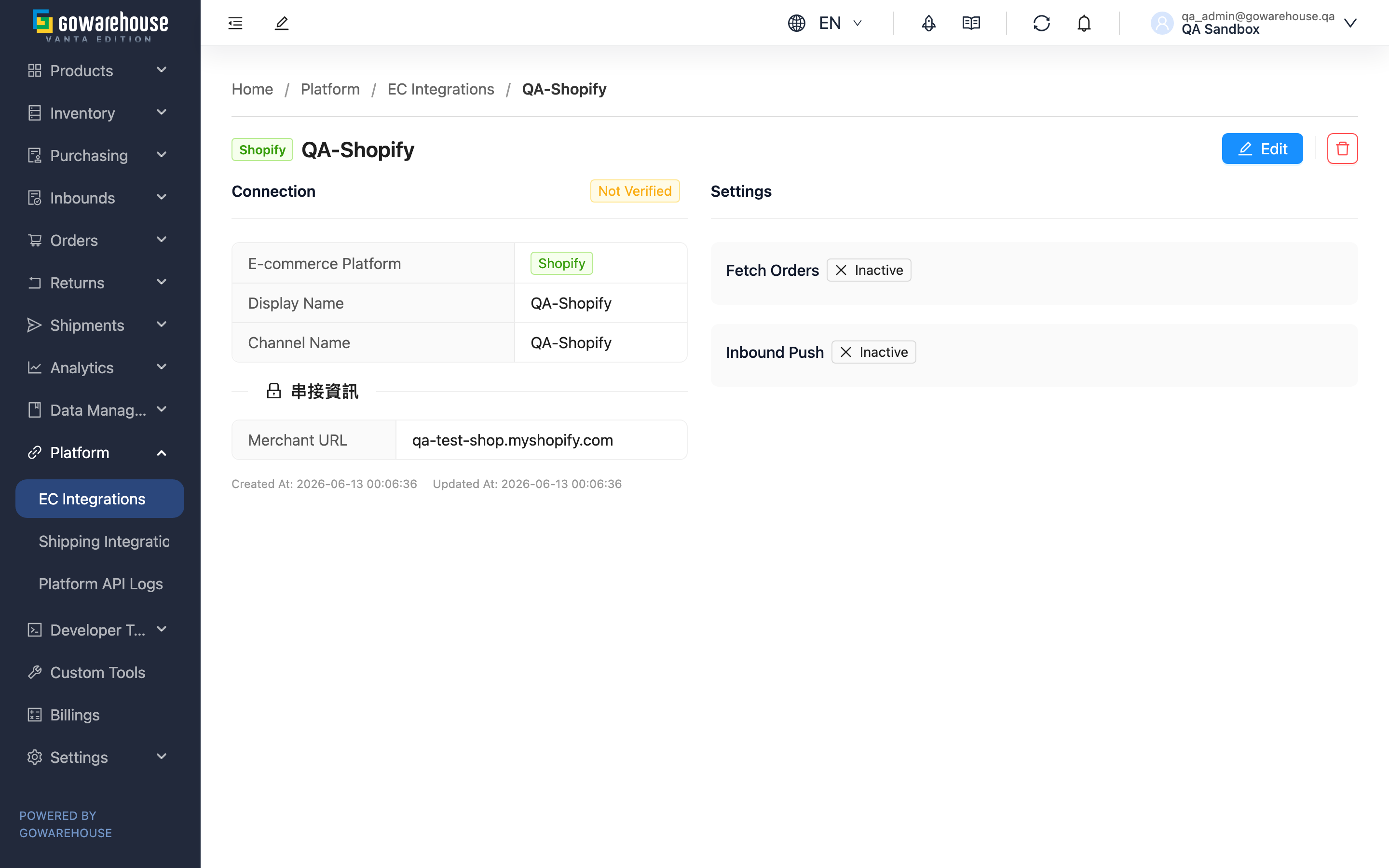
The EC account detail page presents an account's integration status and settings in full: the left half is "Connection", the right half is "Settings". Beyond viewing, you can run several manual sync actions here (schedule fetch, sync mapped products, manual stock sync), as well as enter Edit or delete the account. The sync history at the bottom of the page lets you look back at the result and failure reasons of every automatic sync.
Quick Jump: Connection Info | Function Settings | Manual Sync Actions | Automatic Real-Time Notification Check | Sync History
1.1 Connection Info (left half)
Shows the account's basic details and integration credentials: the platform, Display Name, the bound sales channel, and the platform's integration info (key fields are masked to protect secrets). The tag in the top right shows the current connection status; for the meaning of the three states, see EC Integrations list.
When the account is "Disconnected", a red alert appears at the top of the page: authorization-based platforms offer a "Re-authorize" button, key-based platforms offer an "Edit" button, so you can restore the connection directly.
1.2 Function Settings (right half)
| Block | What It Shows |
|---|---|
| Order Fetching | Whether enabled and the configured fetch slots; the next fetch time is listed only while it is on. Shopee accounts also show "Realtime New Order Fetch" (when on, new orders reach the system in about 5 minutes instead of waiting for a fetch slot). While order fetching is off, both the saved slots and realtime fetch are still listed and each is marked with "Takes effect only when Fetch Orders is enabled"; the realtime fetch tag keeps the saved "Active" or "Inactive" wording and only turns from a green check into a grey stop icon |
| Inbound Push | Whether enabled and the Push Percentage; while push is off, the saved percentage is still listed and marked with "Takes effect only when Inbound Push is enabled". The mapped product count and last sync time are listed only while it is on |
| Waybill Layout | Shown for Momo, Mo+ and Shopline accounts only: the layout currently used when printing waybills (A4 (the platform's original layout) or Thermal Label (split into two sections)) |
| Shipping Type Mappings | The list mapping platform shipping codes to warehouse-side shipping types |
Adjustments to these settings happen on the Edit page; the detail page is for viewing and running the manual syncs below.
▸ Ragic Inbound Integration
Ragic shows "Fetch inbounds", "Inbound fetch times", and "Next inbound fetch time" so you can check when inbound documents will be imported. Inbound and order fetching have independent switches and schedules. The next inbound fetch time is not shown while fetching is disabled or the account is disconnected. While inbound fetching is off, the saved fetch times are still listed, marked with "Takes effect only when Fetch inbounds is enabled".
"Inbound field mapping and import condition" lists the inbound sheet path, import template, line-item subtable, and import condition. "Receipt completion write-back" lists the status field, completion value, and receipt-date field used for write-back. Unconfigured fields display "-". Change these settings on the Edit page.
Ragic currently does not support stock pushing, so "Inbound Push" and "Push Percentage" are hidden. Writing receipt results back to the original inbound sheet is separate from pushing stock quantities to a platform. If inbound fetching is later disabled, receipt results for documents already imported are still written back as configured while the account is connected.
For inbound-only use, turn off order fetching. The order sheet path, fetch schedule, import template, import conditions, shipment writeback, and shipping code mappings are hidden. Of these, the fetch schedule is hidden on the edit page only: this detail page still lists the slots you saved, marked with "Takes effect only when Fetch Orders is enabled" so you can tell they are not in effect right now, not lost. Turning order fetching back on restores these fields; saving while disabled preserves the existing order settings. Retesting an existing account saves the current inbound switch and settings together. If inbound fetching is turned off, it stays off even when you also change the API key or source sheet. After switching inbound sheets, matching record IDs on the new sheet can still be imported (document numbers must remain unique). Existing inbounds write back to their original sheet using the writeback fields saved at import. Closing receipt again in the same receiving cycle preserves the first completion time; reopening and completing creates a new writeback cycle. Each writeback fills only blank fields in the original sheet, preserving existing status and receipt-date values. If a populated item lacks its SKU or an explicit date is invalid, the entire inbound is rejected. Correct the source data using the sync log.
Inbound items can use only inventory types currently enabled for the merchant. This also applies when an item falls back to the sales channel’s default type. If that type is disabled, the entire inbound is rejected. Correct the channel settings or enable the type, then fetch again.
Custom attribute defaults apply even without a mapped source column; an existing source value takes priority. Yes/no attributes accept Y/N or 1/0, and numbers and dates are converted according to the attribute type. Invalid values reject the entire inbound; correct them using the sync log, then fetch again. Failed receipt writebacks receive up to 2 automatic retries, then stop with a notification. See Inbound Details for the result and follow-up steps.
When the account is connected and inbound fetching is enabled, users with permission to edit ecommerce accounts can select “Fetch Inbounds Now” without waiting for the next scheduled time. Check the integration log for results. Each account allows one manual inbound fetch every 10 minutes, independently of manual order fetching.
1.3 Manual Sync Actions
The detail page offers three manual actions, shown depending on the account's status and settings:
| Action | When It Appears | Effect | Reversibility |
|---|---|---|---|
| Fetch Orders Now | Connection healthy and order fetching enabled | Queues a fetch immediately, without waiting for the next scheduled slot | Just fetches earlier; no side effects |
| Sync Product Mappings | Connection healthy, inbound push enabled, and the platform supports it | Re-matches the relationship between platform products and warehouse products | Updates the mapping table only; doesn't touch stock |
| Manual Stock Sync | Connection healthy, inbound push enabled, and the platform supports it | Overwrites platform stock in batch with current warehouse stock, by push percentage | Directly rewrites platform stock; a confirmation dialog appears before it runs |
📌 Note: "Manual Stock Sync" differs from day-to-day inbound push — inbound push only increases platform stock on restock, while manual sync overwrites the platform's numbers in batch with current stock, suitable for a one-time correction when the figures don't match.
1.4 Automatic Real-Time Notification Check
Every time you open this page, the system automatically checks with the e-commerce platform whether this account's real-time notification is set up, and fixes it on the spot if it is missing or no longer working. The check runs in the background, so it does not slow the page down, and there is no button to press.
Real-time notification is what makes the platform tell us the moment an order changes, so orders no longer have to wait for the next scheduled fetch. Accounts integrated before real-time order intake shipped — and accounts whose notification permission was granted later — used to need someone to go back and press the connection test again; now one visit to this page fixes them automatically.
| Result of this check | What you see |
|---|---|
| Not on the platform yet → created | A floating message saying it is now enabled, listing which notification events are covered |
| Expired or missing some events → rebuilt | A floating message saying the previous setup had stopped working and has been recreated, with the same event list |
| Already present and correct → nothing done | No message at all. Reloading the page still runs a real check, but with no new change there is no repeated message |
| The key lacks real-time notification permission | A message that does not close by itself, guiding you to grant the permission on the platform and regenerate the key |
| The platform refuses this system's connection source (our IP is not on its allowlist) | A message that does not close by itself, saying to contact support. Regenerating the key does not help here — this system's connection IP has to be added to the platform's allowlist |
| Platform timeout, error, or rate limit | No message at all. Scheduled order fetching is unaffected and the next visit retries automatically |
The check is not triggered at all when: the account is not "Connected" (never tested or disconnected accounts never call the platform), your account only has view permission for e-commerce integrations, or the platform has no real-time notification we can configure.
1.5 Sync History
"Sync History" at the bottom of the page lists the results of this account's most recent automatic syncs, one row per run. Order fetching, return order syncing and stock pushing leave no record when there was nothing to process and nothing failed, so every row you see for those three means the system actually did something or ran into a problem. "Product mapping" leaves a row whether it succeeded or failed; the only silent case is the daily incremental run finding no product changes on the platform at all, which is a normal result. Pressing "Sync Product Mappings", or the first full sync right after connecting, also leaves a row when no product list could be retrieved at all — and an account that has never yet retrieved a product list still has its sync progress at the starting point, so the daily run is treated as a full one and keeps leaving a row every night until it first retrieves products. For "Yahoo Shopping Center" the product file comes back asynchronously: a failure to trigger the export leaves a row immediately, while a successful trigger only writes its row once the platform sends the product file back, so it takes a few minutes to appear after the button is pressed; if that returned file cannot be downloaded or read, no row is written at all and the failure shows up as a notification instead.
| Column | What it tells you |
|---|---|
| Type | What was synced: "Order Fetch" pulls platform orders in, "Return Order Sync" turns platform returns into return orders, "Stock Push" pushes stock to the platform, and "Product mapping" rebuilds the product mapping. The four run independently — a failed return order sync does not affect order fetching |
| Status | "Success" everything went through; "Partial Failure" some succeeded and some failed; "Failed" nothing succeeded in this run, usually a credential or connection problem. "Product mapping" has one more state, "Cleanup Skipped": the run did not get a complete product list, so the system left every existing mapping untouched (and when it did not get any product list at all, the sync progress is not advanced either); the next run tries again |
| Result | For Order Fetch, Return Order Sync and Stock Push, how many succeeded and how many failed in this run; Product mapping has no per-record outcome and instead shows how many products were scanned, how many mappings were updated, and how many were removed |
Rows with failure details can be expanded. Each expanded row is one failure: "Target" points at what failed (for return order syncing this is the platform's return order number, which you can look up directly in the store admin), "Error" is the reason, and where a "View API Log" link is shown you can open the full record of that call. A row marked "Entire run" means the whole run never got going, rather than one item failing. You also get a notification when a sync fails; opening it brings you back to this page with that run expanded.
"Product mapping" has no per-item failures: when the platform blocks it, the row is "Failed" and expanding it shows a single "Entire run" line. The "Error" column reads one of three ways. Whenever the system itself stopped the run (the product data coming back unreadable, or the product list not being read all the way through), and for credential and connection problems, you get a readable explanation on its own. When the platform explicitly rejected the product list request, that explanation is followed by the platform's own wording (usually with some English technical text in it, and the only place the platform's actual reason shows up). Anything else the platform reported that the system could not classify (for example, the platform being busy) is shown exactly as it came. Where a "View API Log" link is shown you can open the full record of that call. This kind of failure almost always happens while reading the platform's list, before any existing mapping is touched, and it does not advance the sync progress — press "Sync Product Mappings" again later to retry.
Failures under "Return Order Sync" and what to do about them:
| Failure | What to do |
|---|---|
| A returned item could not be matched to a product | The whole return order is not created. The message contains the platform item codes that could not be matched, which you can look up in the store admin. Fix the mapping — press Sync Product Mappings to rebuild it, or go to "Unknown Products" and map the unmatched item on the source order to your product — and then do nothing else: any return order updated on the platform within the last 7 days is created on the next run |
| A returned item has no inventory type | The system does not know which inventory category these goods should come back into. Open the sales channel this account is bound to and make sure a primary inventory type is set; the return order is created on the next run |
| The whole run failed (Entire run) | Read the "Error" column — there are three cases. "Platform authorization expired" means the credentials or API key no longer work; the account is also marked "Disconnected" automatically, so reauthorize or update the credentials per the red alert at the top of the page and test the connection again. "The platform rejected this system's connection source" means our connecting IP is not on the platform's allowlist; reauthorizing does not help, so contact support for help. When the column shows the platform's own wording instead, these credentials most likely lack return-related permission on the platform, which you need to confirm in the store admin |
Section 2: FAQ
2.1 FAQ
▪ Why don't I see the "Fetch Orders Now" button?
This button appears only when the account is "connection healthy" and "order fetching enabled". If the account is disconnected, restore the connection first; if order fetching is off, enable it on the Edit page.
▪ Could "Manual Stock Sync" mess up platform stock?
It overwrites the platform's numbers in batch with the warehouse's current actual stock, by push percentage. If the platform had stock from other channels (not managed by this system), the overwrite makes this system's numbers authoritative. So confirm the push percentage is correct before running; the system also shows a confirmation dialog for you to confirm again.
▪ What does "Sync Product Mappings" do?
It re-matches the relationship between platform products and warehouse-system products. After you add products on the platform or fix a platform SKU, run a manual sync so the mapping updates immediately, preventing orders from becoming unknown products for lack of a match. It only updates the mapping table, not stock.
▪ Is "No mapped products" normal?
When you've just enabled inbound push and haven't synced mappings yet, it shows no mappings. Click "Sync Product Mappings" once to build them. Some platforms use real-time lookups and don't store a mapping table; for these, no mapped-product count is shown, which is normal.
▪ The account is disconnected — do I fix it on this page?
The red alert at the top guides you: authorization-based platforms click "Re-authorize" to re-authorize; key-based platforms click "Edit" to enter Edit, update, and re-test the credentials.
▪ What is "Return Order Sync" in the sync history? I never set it up
It is the record of Shopline return orders being brought in automatically. For a Shopline account that is connected and has order fetching turned on, Shopline notifies the system the moment a return is raised, completed or canceled, and the system reads the return order back from the platform and turns the ones your buyers requested or confirmed into return orders; it also checks the platform every 30 minutes to pick up any notification that went missing. These notifications are registered with Shopline automatically when a connection test succeeds — no setup from you, and neither you nor the warehouse has to create the return orders by hand. For the full behavior see the Return List.
▪ How do I stop return orders from coming in automatically?
Return order syncing follows the "order fetching" switch. Turn order fetching off on the Edit page and this account stops fetching orders and stops creating return orders. Return orders already created are not removed — process or cancel them as usual.
▪ The scheduled slot has passed but the orders are not in yet — why?
For your channels, the automatic fetches that run at the configured slots go one at a time, never simultaneously — this stops two channels from importing orders that contain the same product at the same moment and both being judged out of stock. A configured slot is therefore the earliest start time, not a guaranteed one: a channel waits for the one before it to finish, and the more channels you have (or the slower the platform responds), the more noticeable the delay.
This ordering covers scheduled fetches only. Pressing "Fetch Orders Now" yourself, and the single-order refetches triggered by a platform's real-time push, are not subject to it and may run alongside a scheduled fetch.
▪ The sync history is empty — does that mean nothing is syncing?
Not necessarily. Order fetching, return order syncing and stock pushing leave no record when there was nothing to process and nothing failed, so an empty list is normal right after connecting or when nothing changed on the platform. Pressing "Sync Product Mappings", on the other hand, always adds a row — success or failure alike (for "Yahoo Shopping Center", a failure to trigger the export shows up immediately, while a successful trigger is written once the platform sends the file back; if that returned file cannot be downloaded or read, no row is written at all and the failure shows up as a notification instead) — so if no row appears, that run never started. The daily incremental sync, by contrast, leaves no row when nothing changed on the platform. To tell whether anything is running, look at Next Fetch Time in the settings panel: for a scheduled round it only moves forward once that round finishes, so a time that has already passed usually means a fetch is in progress, not that it is stuck.
Pressing "Fetch Orders Now" behaves differently — that time jumps forward the moment you press it, so it cannot tell you whether the manual run has finished. Judge a manual fetch by the sync history instead (a new row appears only when there were orders to process or something failed).
▪ A message about real-time notification popped up as soon as I opened this page — did I click something?
No. Opening this page runs one automatic check of the account's real-time notification setup and fixes what is missing; the message appears only after something was actually fixed (see Automatic Real-Time Notification Check). The message lists which events the notification now covers. Nothing changed means no message at all, so seeing it tells you this visit really did complete the setup for this account.
▪ The message says the key has no real-time notification permission — what do I do?
Go to the e-commerce platform's admin, tick the real-time notification (webhook) permission on the authorization page, and regenerate the key. Then update the key on the edit page and test the connection. The next visit to this page completes the setup automatically and shows the success message. Until the permission is granted, orders keep arriving on the configured schedule — nothing is lost.
▪ What happens when I delete the account?
The account is removed from the list, its product mapping data is cleared along with it, and this cannot be undone. Before deleting, confirm this platform's orders no longer need to be handled through the system.
2.2 Notes
⚠️ Important
- "Manual Stock Sync" overwrites platform stock in batch — confirm the push percentage is correct before running
- Deleting an account also clears its product mapping data and cannot be undone
- While an account is disconnected, orders stop importing — restore the connection promptly per the top alert
- Turning off order fetching also stops Shopline return orders from being created automatically — both follow the same switch
- Return verification results are not written back to the platform; handle refunds and store credit yourself in the store admin
💡 Tip: When platform stock figures don't match the system, first confirm the push percentage and mapped products are correct, then run "Manual Stock Sync" once for a batch correction.
Section 3: Related Features
| Feature | Description | Link |
|---|---|---|
| EC Integrations (Edit) | Adjust the account's credentials and fetch, push, and shipping-mapping settings | Go |
| EC Integrations (List) | View and manage all EC accounts | Go |
| Platform API Logs | View this account's order-fetch and stock-push call records and failure reasons | Go |
| Return List | See the return orders created automatically from the platform and their progress | Go |