
Add/Edit Inventory Tracker
目錄
一、功能介紹
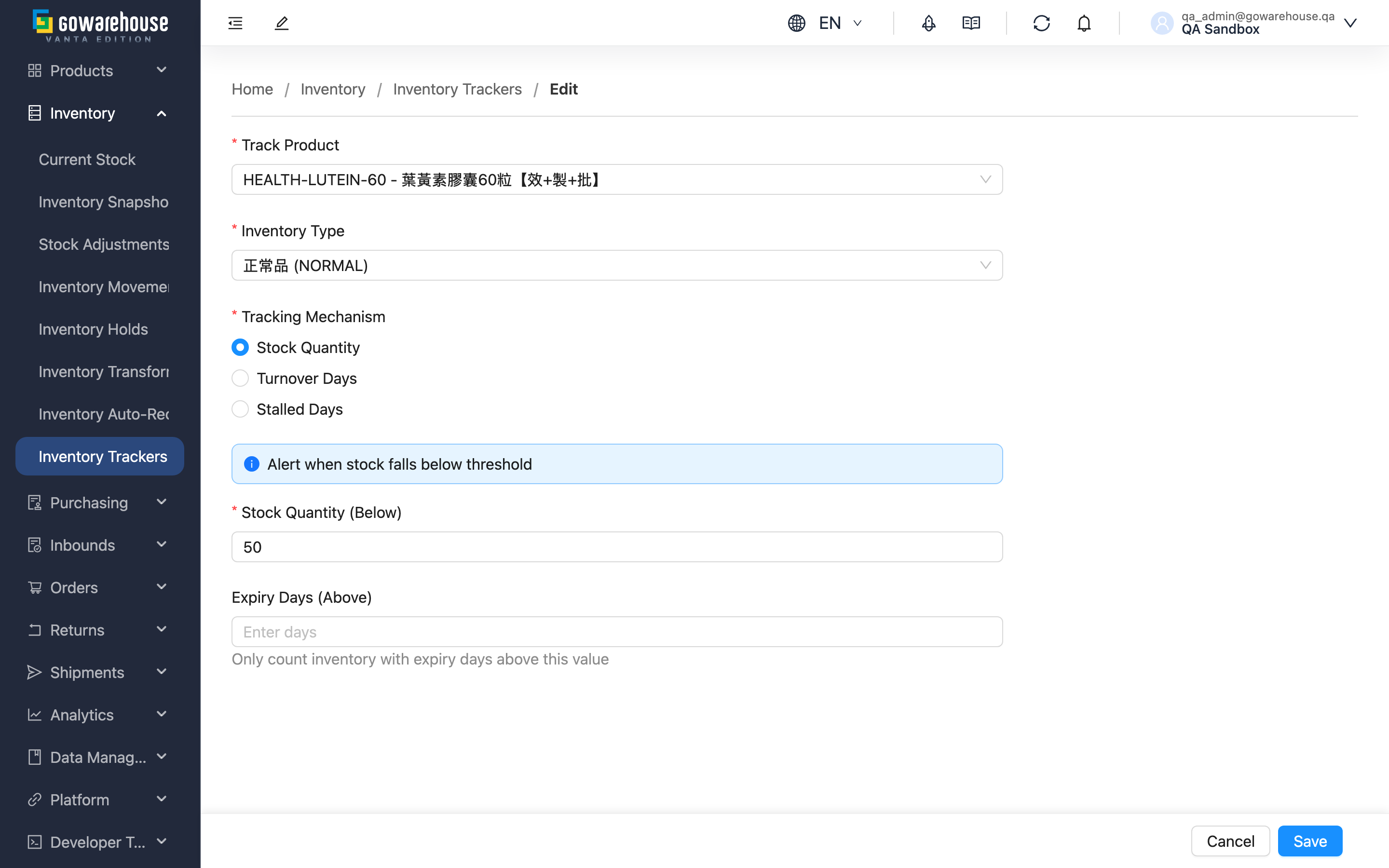
Here you set stock alert rules for a product so the system watches its stock level for you. Pick a product, inventory type, and tracking mechanism, and the system continuously monitors stock, flagging it with color on the Inventory Trackers list once it drops below the threshold. This way you catch hot-seller stockouts and surface slow-moving stock early, without checking each product daily. Add and Edit share the same form; the fields are filled in exactly the same way.
快速跳轉:Form Fields | How to Fill Each Mechanism | Save & Validation
1.1 Form Fields
Fields marked * are required
After you pick a mechanism, the form shows only the fields that mechanism needs; whether a field below appears depends on the mechanism you chose.
| Field | How to fill | Notes |
|---|---|---|
| *Track Product | Search by SKU or name and select the product to track | Can be re-selected when editing |
| *Inventory Type | Choose the inventory type to track (e.g. good stock, defective) | If the option is missing, add it in Inventory Types first |
| *Tracking Mechanism | Pick one: "Stock Quantity", "Turnover Days", "Stalled Days" | Switching the mechanism changes the fields below |
| *Stock Quantity (Below) | Enter the stock level below which an alert fires | Required for "Stock Quantity" |
| *Lookback Days | Enter how many days to look back | Required for "Turnover Days" and "Stalled Days", at least 1 day |
| *Target Coverage Days | Enter how many days the stock should cover | Required for "Turnover Days", at least 1 day |
| *units | Shipment volume in the window below this counts as stalled | Required for "Stalled Days" |
| Expiry Days (Above) | Only count stock with expiry beyond this many days | Optional; applies only to "Stock Quantity" and "Turnover Days" |
1.2 How to Fill Each Mechanism
▸ Stock Quantity
Set a fixed alert quantity; an alert fires when stock falls below it. The most direct option, best for products with steady sales and a clear safety-stock need.
To fill: "Stock Quantity (Below)" (required), "Expiry Days (Above)" (optional).
▸ Turnover Days
The system computes the threshold as "average daily sales over the lookback window × target coverage days". For example, look back 30 days, cover 7 days, selling 10/day on average → threshold = 70. Best for products with fluctuating sales where you want the threshold to self-adjust.
To fill: "Lookback Days" (required), "Target Coverage Days" (required), "Expiry Days (Above)" (optional).
▸ Stalled Days
Watches accumulated shipment volume over the lookback window; below the quantity threshold counts as stalled. Best for surfacing dead stock that hogs locations but won't sell.
To fill: "Lookback Days" (required), the quantity threshold (required). Expiry days does not apply to this mechanism.
1.3 Save & Validation
▸ Save Buttons
| Button | Description |
|---|---|
| Save | Save the settings; you are taken to the tracker details page afterward |
| Save and Add Another | Shown only when adding; saves and clears the form to create trackers for several products in a row |
| Cancel | Discard changes and return to the previous page |
▸ Field Validation
- Product, inventory type, and mechanism are all required
- The quantity/days fields for the chosen mechanism are required (see the table above)
- Quantity and days fields cannot be negative; days fields must be at least 1
二、常見問題
2.1 FAQ
▪ Not sure which mechanism to pick?
Quick guide: for products with roughly steady monthly sales, use "Stock Quantity" to set a safety floor; for sales that swing with season or campaigns, use "Turnover Days" and let the system compute it; to catch dead stock, use "Stalled Days". If unsure where to start, begin with "Stock Quantity" and switch later once you know the sales rhythm.
▪ What should the two days fields for "Turnover Days" be?
"Target Coverage Days" depends on your restock cycle — if it takes 7 days from order to arrival, set at least 7, plus a few days of buffer. "Lookback Days" should cover a full sales cycle (e.g. 14–30 days) so the average daily sales reflect reality.
▪ Can new products without sales data use "Turnover Days"?
You can create it, but with no sales history the computed average daily sales may be 0 and the threshold inaccurate. For new products, start with "Stock Quantity" for a fixed alert level, then switch to "Turnover Days" once sales data accumulates.
▪ When should I fill in expiry days?
Fill it for products with a shelf life (e.g. food, cosmetics). For example, set 30 days and the system counts only stock with expiry beyond 30 days, so you spot early when the "truly sellable stock" is running low. Leave it blank for products that don't need expiry tracking.
▪ What happens if I create a duplicate for the same product?
A setting with the same product + same inventory type + same mechanism overwrites the existing one (the Add form shows a note about this). Different inventory types or mechanisms each become a separate tracker.
2.2 Notes
⚠️ Important
- After changing the mechanism, the threshold and health are recalculated for the new mechanism
- "Turnover Days" needs enough sales history to be accurate
- Setting expiry days narrows the eligible stock counted, affecting health
💡 Tip: To create trackers for several products in a row, "Save and Add Another" saves you the trip back to the list each time.
三、相關功能
| Feature | Description | Link |
|---|---|---|
| Inventory Trackers | View all trackers' status and health | Go |
| Inventory Tracker Details | View a single tracker's settings and health | Go |
| Current Stock | View current real-time stock | Go |
| Product List | View product information | Go |