
Create EC Account
Table of Contents
Section 1: Features
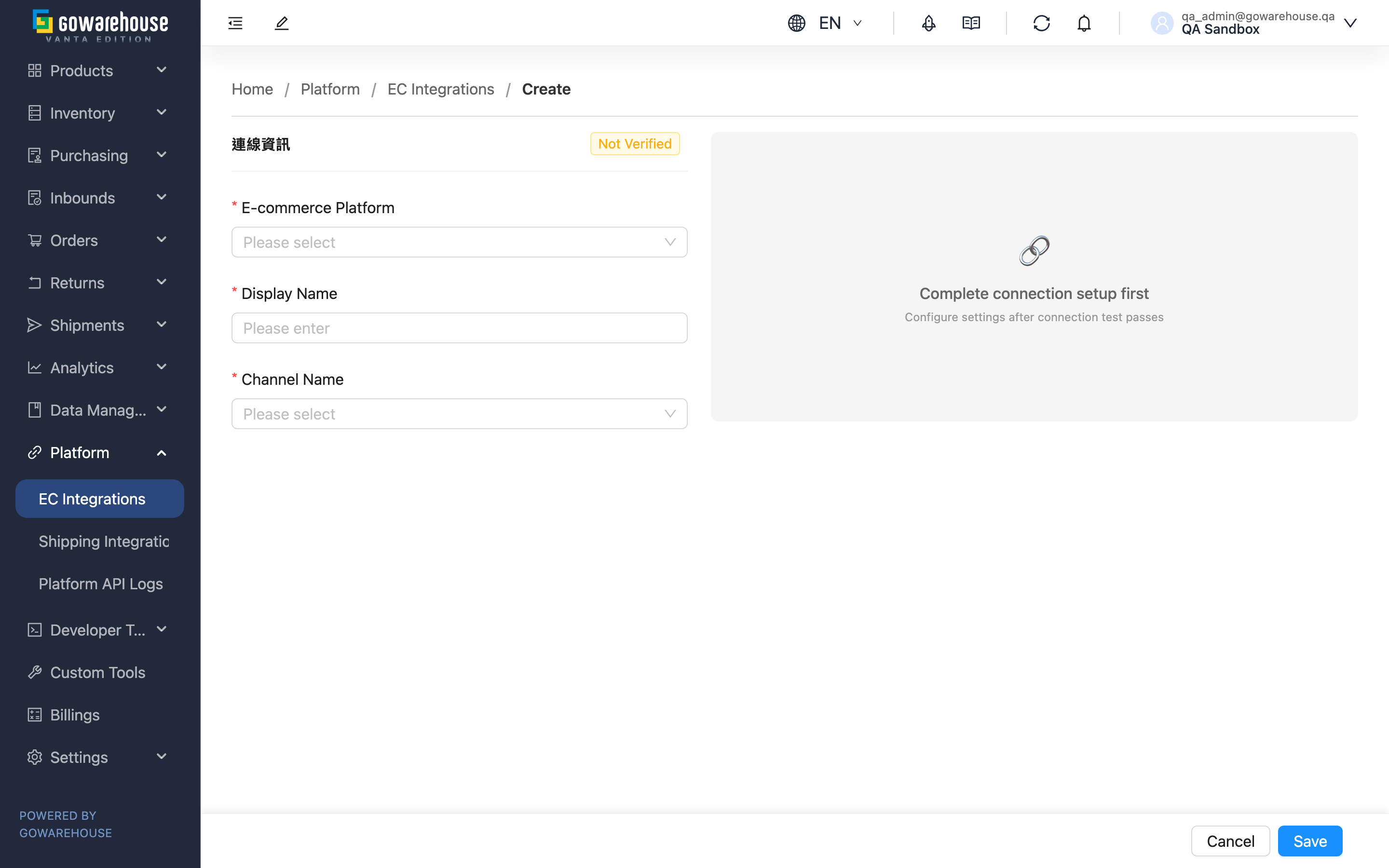
Creating an EC account is the setup page that connects one e-commerce platform (Shopee, Momo, Shopify, Shopline, etc.) to the warehouse system. The screen splits into two halves: on the left, "Connection" is where you fill in the platform and integration credentials and establish the connection; once connected, the right half, "Settings", unlocks so you can configure auto fetching, inbound push, and more. The order is fixed — connect first, then configure functions.
Quick Jump: Connection Info | Test & Authorize | Function Settings
1.1 Connection Info (left half)
Fields marked with * are required
| Field | How to Fill | Notes |
|---|---|---|
| *E-commerce Platform | Select the platform to connect from the list | Cannot be changed after creation — confirm you pick the right platform |
| *Display Name | Give the account an easily recognizable name | Used to tell multiple accounts on one platform apart |
| *Channel Name | Select the sales channel to bind this account to | If no channel is available, create one under "Merchant Channels" first; the channel determines the shipping inventory type and rules |
| Authorization Settings | Fill in the integration credentials (keys, secrets) for the chosen platform | Fields vary by platform; key-based platforms require this before testing the connection |
After selecting a platform, the platform-specific credential fields appear below. Credentials come from the platform's seller backend or developer settings, and each platform requires different fields.
1.2 Test & Authorize
E-commerce platforms come in two integration types, and the button at the bottom appears automatically by platform:
| Platform Type | Action | Description |
|---|---|---|
| Key-based (e.g. Momo, WooCommerce) | Fill credentials, then click "Test Connection" | The system verifies credentials immediately; on success the status turns to "Connected" |
| Authorization-based (e.g. Shopee, Shopify) | Click "Authorize & Connect" | You are redirected to the platform's authorization page; after you log in and consent, you return and the status turns to connected |
When the connection fails, the system shows the reason below the button (e.g. wrong credentials, platform reports unauthorized). Check that credentials are correct per the message, then try again.
1.3 Function Settings (right half)
The right half is locked until the connection succeeds. Only after a successful connection does it unlock, where you can configure:
▸ Order Fetching
| Setting | Description |
|---|---|
| Fetch Orders | When on, new platform orders import into the warehouse automatically |
| Fetch Schedule | Pick the daily fetch time slots, up to 3; at least one slot is required when order fetching is on. While order fetching is off, this field is greyed out and cannot be edited |
| Realtime New Order Fetch | Shown for Shopee accounts only, on by default. When on, a new-order notification from the platform schedules an extra fetch and the order reaches the system in about 5 minutes; when off, new orders only arrive during the slots above, and status sync (cancellation / shipment) for existing orders is unaffected. While order fetching is off, this switch is greyed out and cannot be toggled |
| Waybill Layout | Shown for Momo, Mo+ and Shopline accounts only, A4 by default. With thermal, the system splits the platform's A4 waybill into a left and a right section, each on its own page; it affects home-delivery waybills only (Momo: T-Cat / Pelican / HCT / Kerry TJ; Mo+: T-Cat / HCT; Shopline: T-Cat only, including cash on delivery) — convenience-store pickup labels stay A4 and are not split, and so do Shopline's HCT and cross-border labels. Carriers may reject and return a split waybill, so confirm with the platform and the carrier first |
▸ Inbound Push
| Setting | Description |
|---|---|
| Inbound Push | When on, each restock automatically pushes the added quantity to this platform. Off by default on a new account |
| Push Percentage | Enter 0–100 to control the share of the inbound quantity pushed to this platform; used to allocate across platforms when the same product sells on several, preventing overselling. While inbound push is off, this field is greyed out and cannot be edited, so on a new account it starts out greyed |
▸ Shipping Code Mapping
Some platforms (e.g. Shopee) support mapping the platform's shipping options to warehouse-side shipping types, matched automatically on shipment. Just map each platform shipping code to a warehouse-side shipping type under "Shipping Type Mappings".
For a Cyberbiz account, the warehouse-side dropdown lists Cyberbiz's integrated shipping types (for example Cyberbiz T-Cat and Cyberbiz HCT) on top of the shipping types the warehouse has enabled for you; accounts on other platforms are unchanged and list only the shipping types the warehouse has enabled. If you change a shipping method code in the Cyberbiz back office, incoming orders raise an "Unmapped Shipping Type" notification; map that code to the correct Cyberbiz integrated shipping type and the orders resume automatic conversion, tracking-number requests, and label printing — you do not have to restore the old code in the back office.
Once everything is set, click the save button at the bottom to finish, and the page returns to the EC account list.
Ragic does not offer "Inbound Push" or "Push Percentage" settings. Inbound imports use "Fetch inbounds" and a separate "Inbound fetch times". While "Fetch inbounds" is off, "Inbound fetch times" is greyed out and cannot be edited, and since "Fetch inbounds" is off by default on a new account, it starts out greyed as soon as the page opens; turn the switch on to edit it. For the first connection, enter either an order sheet path or an inbound sheet path. An inbound-only account does not require an order sheet. Once connected, configure the import template, line-item subtable, import condition, and receipt write-back. After saving, check the Ragic inbound integration on the detail page.
For inbound-only use, turn off order fetching. The order sheet path, fetch schedule, import template, import conditions, shipment writeback, and shipping code mappings are hidden. Turning order fetching back on restores these fields; saving while disabled preserves the existing order settings. Retesting an existing account saves the current inbound switch and settings together. If inbound fetching is turned off, it stays off even when you also change the API key or source sheet. After switching inbound sheets, matching record IDs on the new sheet can still be imported (document numbers must remain unique). Existing inbounds write back to their original sheet using the writeback fields saved at import. Closing receipt again in the same receiving cycle preserves the first completion time; reopening and completing creates a new writeback cycle. If a populated item lacks its SKU or an explicit date is invalid, the entire inbound is rejected. Correct the source data using the sync log.
Custom attribute defaults apply even without a mapped source column; an existing source value takes priority. Yes/no attributes accept Y/N or 1/0, and numbers and dates are converted according to the attribute type. Invalid values reject the entire inbound; correct them using the sync log, then fetch again. If Ragic rejects a receipt writeback or its service fails temporarily, the system retains the retry instead of marking the writeback as successful.
Section 2: FAQ
2.1 FAQ
▪ Why are the function settings on the right grayed out and unclickable?
Function settings unlock only after a successful connection. Fill in the platform and credentials on the left, complete "Test Connection" or "Authorize & Connect", and once the status turns to "Connected" the right half opens up.
▪ What if I can't select a sales channel?
It means this brand has no channel yet. Go to "Data Management" → "Merchant Channels" to create one (it determines the platform's shipping inventory type, expiry, and shipping rules), then come back to create the EC account.
▪ I picked the wrong "E-commerce Platform" — can I change it?
The platform cannot be changed after creation. If you picked wrong, you can only delete this account and create a new one. All other fields (display name, channel, credentials, function settings) can be adjusted later on the Edit page.
▪ Why does the connection test keep failing?
The most common cause is mistyped credentials or extra copied whitespace, followed by insufficient key permissions on the platform side, or authorization not yet in effect. The system shows the platform's specific reason below the button — check each credential against the message. For authorization-based platforms, confirm you actually logged in and consented on the authorization page.
▪ What should I set the push percentage to?
If this product sells only on this one platform, set 100. If the same product sells on several platforms, allocate a percentage to each, totaling no more than 100, to avoid overselling. When unsure on a fresh integration, leave inbound push off and enable it later on the Edit page.
▪ Do I have to configure fetching and pushing right when creating?
No. You can save as soon as the connection succeeds and add settings anytime on the Edit page. It's best to enable only "Order Fetching" at first, then turn on advanced features like inbound push once you're comfortable.
2.2 Notes
⚠️ Important
- "E-commerce Platform" cannot be changed after creation; a wrong pick means delete and recreate
- When "Fetch Orders" is on, at least one fetch time slot is required, or you cannot save
- Push percentages totaling over 100% across platforms cause overselling
💡 Tip: After creating and connecting successfully, run a few orders through the complete flow before enabling full-volume fetching — it's the easiest way to catch setup gaps.
Section 3: Related Features
| Feature | Description | Link |
|---|---|---|
| EC Integrations (List) | View and manage all EC accounts | Go |
| Sales Channel | The channel setup you must create before adding an EC account | Go |
| EC Integrations (Edit) | Adjust the credentials and function settings of an existing account | Go |