
Inventory Trackers
目錄
一、使用情境
快速連結:Scenario 1: Prevent hot-seller stockouts | Scenario 2: Safe stock for volatile sellers | Scenario 3: Surface slow-moving dead stock
情境 1:Prevent hot-sellers from quietly running out
狀況:You sell across several platforms, and orders consume stock for hundreds of products every day. You can't open each product daily to check "how many are left" — usually you only realize a hot-seller is out when an order gets stuck, you can't ship, and the platform docks your rating.
用這個功能:Once you set up trackers for key products, this page uses health-status colors to watch each product's stock level for you. See Tracking Mechanisms and Health Status for how they work, and Add Inventory Tracker to create one.
結果:Products that drop below their alert threshold light up orange or red, so instead of manual stock-walking you can see at a glance which items need restocking.
情境 2:Let the system compute safe stock from sales velocity
狀況:Some products sell at wildly different rates (driven by season, campaigns, promotions), making it hard to pick one fixed number as safe stock — set it too high and you tie up cash, too low and you risk stockouts.
用這個功能:Track these products with the "Turnover Days" mechanism. The system multiplies recent average daily sales by your desired coverage days to derive the alert threshold automatically. See Tracking Mechanisms.
結果:The threshold rises automatically in peak season and drops in the off-season, always tracking real sales rhythm — no repeated manual adjustment needed.
情境 3:Surface dead stock that's hogging shelf space
狀況:Your warehouse holds long-tail items or clearance candidates that occupy locations but barely move, steadily racking up storage fees. You want to catch this dead stock early for promotion or delisting — not discover it at month-end stocktake.
用這個功能:Create a "Stalled Days" tracker for these products. The system watches whether shipment volume over a window stays below your threshold. Items below threshold raise an alert here, and you can use the health-status filter to view them together.
結果:Slow-moving products surface on their own, so you can decide on promotion, transfer, or delisting before storage costs pile up — keeping locations for products that actually sell.
二、功能介紹
Inventory Trackers let you set a "stock alert threshold" for key products. The system continuously watches each product's stock health and flags it with color when stock falls below the threshold, sparing you daily manual stock-walking. Three mechanisms — fixed quantity, sales-velocity estimate, and shipment-volume watch — let you pick the right approach per product's sales characteristics, catching hot-seller stockouts and surfacing dead stock early.
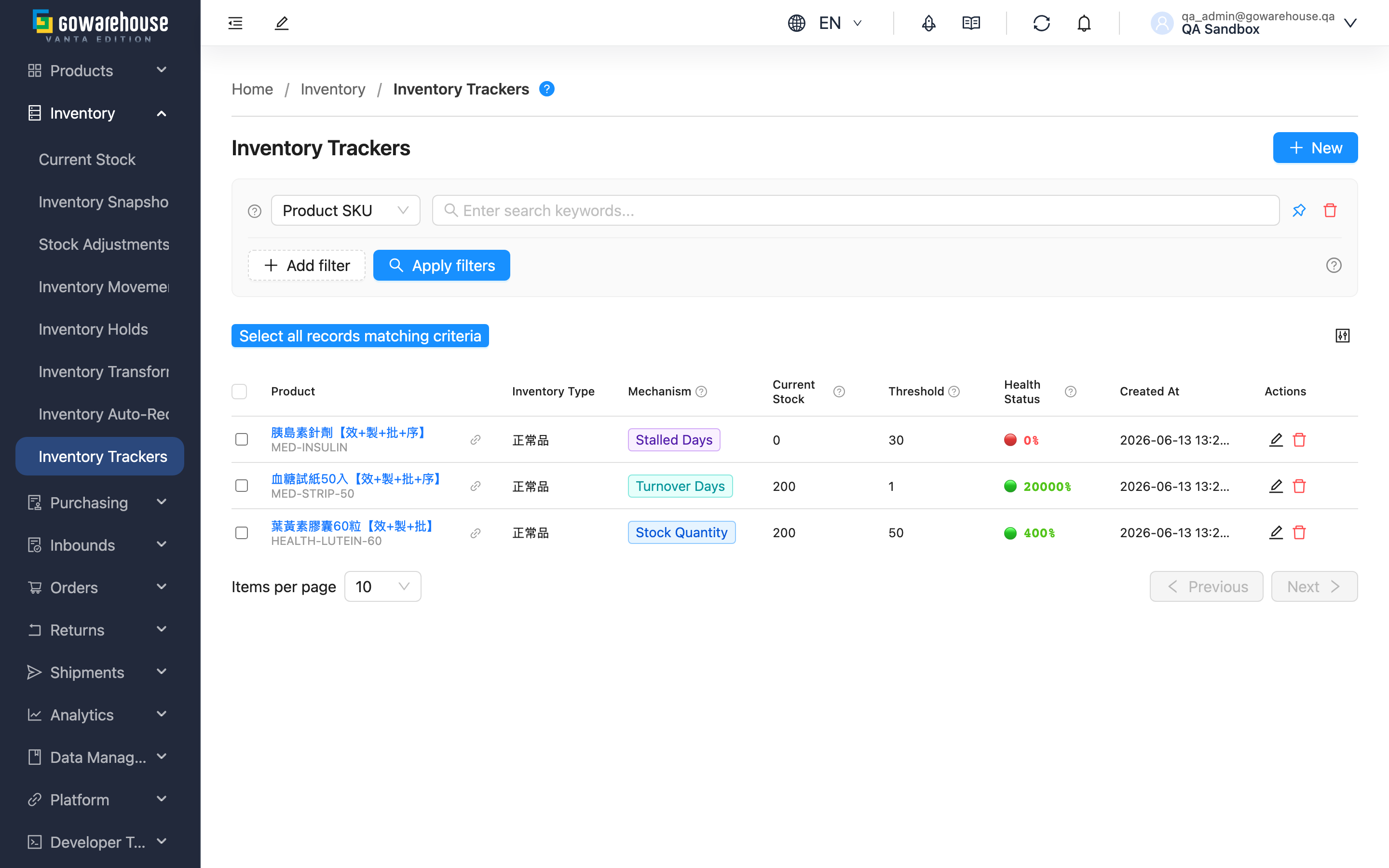
快速跳轉:Search & Filter | Columns | Health Status | Tracking Mechanisms
2.1 Search & Filter
| Filter | Description |
|---|---|
| Product SKU | Search trackers by product SKU or name |
| Inventory Type | Filter by inventory type (e.g. good stock, defective) |
| Mechanism | Filter by mechanism: "Stock Quantity", "Turnover Days", "Stalled Days" |
| Health Status | Filter by health status: "Healthy", "Warning", "Critical" — most useful for focusing on items needing urgent restock |
2.2 Columns
| Column | Description |
|---|---|
| Product | Tracked product name and SKU; click to open the product details |
| Inventory Type | The tracked inventory type |
| Mechanism | The mechanism this tracker uses |
| Current Stock | Current tracked quantity; for "Stalled Days" this shows accumulated shipment volume within the window |
| Threshold | The alert line computed by the system; an alert triggers when stock falls below it |
| Health Status | Stock health percentage, shown with color (see Health Status) |
| Actions | "Edit", "Delete" buttons |
Other columns (created time, etc.) are self-explanatory. Click any row to open that tracker's details page.
2.3 Health Status
Health = current tracked stock ÷ threshold × 100%, shown in three colors so you can gauge urgency at a glance:
| Health | Status | What it means for you |
|---|---|---|
| 100% and above | Healthy (green) | Stock sufficient, no restock needed yet |
| 50% – 99% | Warning (orange) | Stock running low, time to plan restock |
| Below 50% | Critical (red) | Stock critically low, restock immediately to avoid stockout |
Health is recalculated automatically once a day, and also updates as soon as products are received and shelved — no manual refresh needed.
2.4 Tracking Mechanisms
The three mechanisms compute the "threshold" differently; pick one when creating a tracker. See Add Inventory Tracker for the fields and suited products of each.
▸ Stock Quantity
The threshold is the fixed number you set; an alert fires when stock falls below it. Best for products with steady sales and predictable demand.
▸ Turnover Days
The system computes the threshold as "average daily sales over the lookback window × target coverage days", so it shifts with sales velocity. Best for products with fluctuating sales where you want the threshold to self-adjust.
▸ Stalled Days
Watches accumulated shipment volume over the observation window; below your quantity threshold counts as stalled. Best for surfacing long-tail items or clearance candidates.
三、常見問題
3.1 FAQ
▪ Will the system notify me actively (email, push)?
No. The current alert mechanism is the health-status color on this list page. Check this page regularly, or use the health-status filter and select "Critical" to focus on items needing urgent restock.
▪ Health shows 0% or unusually low — why?
Usually the product's current available stock is 0 (so health is naturally 0%). With the "Turnover Days" mechanism, it may also mean insufficient recent sales data, or that expiry-days narrowed the eligible stock. Check the product's actual stock and the tracker settings.
▪ Can one product have multiple trackers?
Yes. The same product can have separate trackers for different inventory types or mechanisms — e.g. good stock on "Turnover Days" for restock rhythm, near-expiry stock on "Stock Quantity" for a safety floor. But a duplicate with the same product + same inventory type + same mechanism overwrites the existing one.
▪ Why is the threshold on the list different from the number I set?
Only "Stock Quantity" and "Stalled Days" use your set number directly. The "Turnover Days" threshold is computed by the system from average daily sales and shifts with sales velocity, so it usually differs from any fixed number.
▪ How do I batch-delete trackers?
Select the items to delete, click "Batch Delete", and confirm. Deleting a tracker only stops monitoring; it does not affect the product's actual stock.
3.2 Notes
⚠️ Important
- Deleting a tracker cannot be undone, but it only stops monitoring and does not affect actual stock
- "Turnover Days" needs enough sales history to be accurate; for new products, start with "Stock Quantity"
💡 Tip: Health updates once a day and on shelving, so a stock change you just made may take a little time to reflect in the numbers.
四、相關功能
| Feature | Description | Link |
|---|---|---|
| Add Inventory Tracker | Set stock alert rules for a product | Go |
| Current Stock | View current real-time stock | Go |
| Inventory Snapshot | View daily historical stock | Go |
| Inventory Movements | View the reason and source of each stock change | Go |