
Inventory Tracker Details
目錄
一、功能介紹
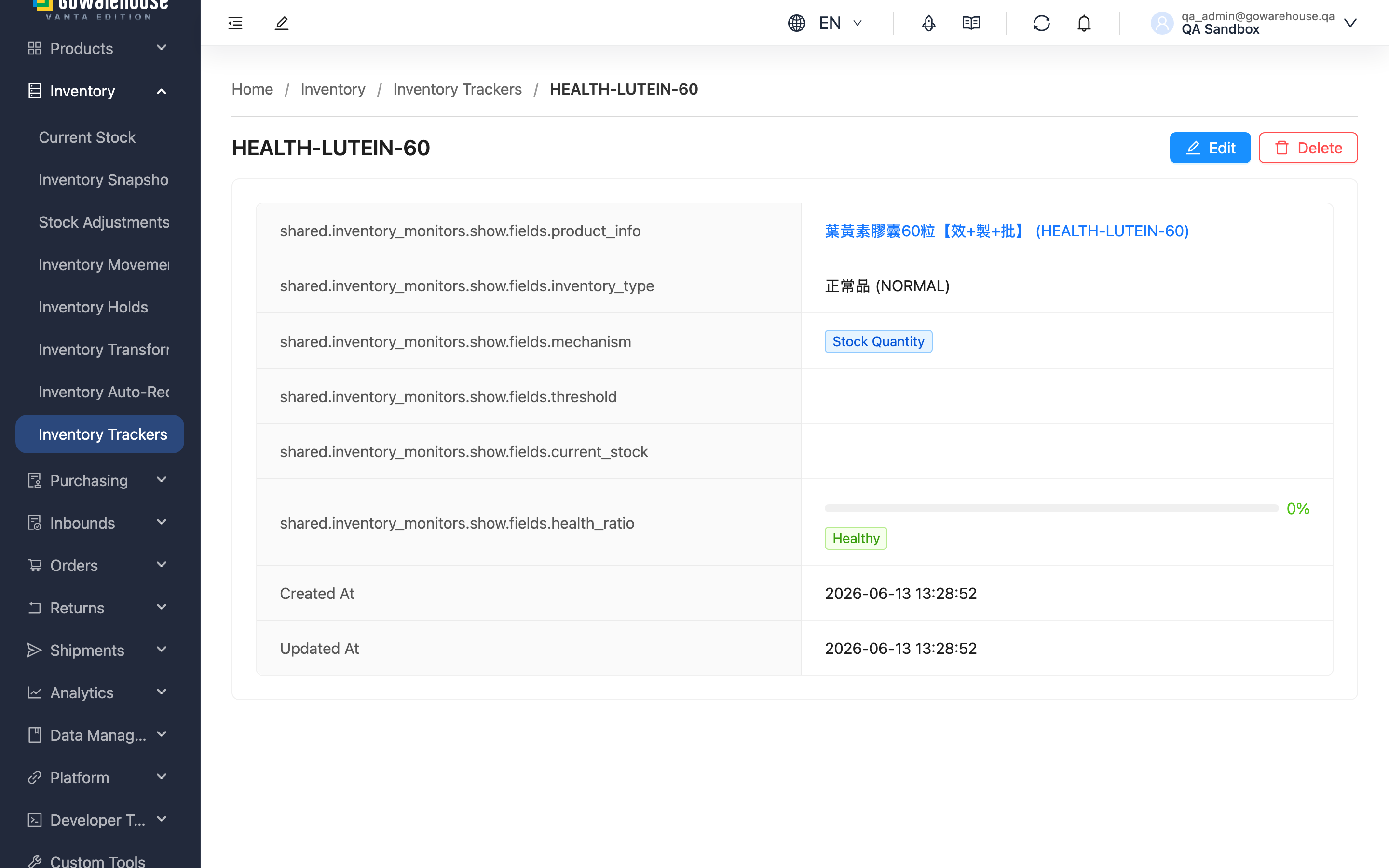
The tracker details page shows a single tracker's full settings and current status: which product it tracks, which mechanism, where the alert line sits, and the current stock health — helping you judge whether and how urgently to restock. You can also edit or delete the tracker from here. You reach this page by clicking any row on the Inventory Trackers list, or after saving a new or edited tracker.
快速跳轉:Page Fields | Health Status | Action Buttons
1.1 Page Fields
Some fields appear only for certain mechanisms (days fields show only for the matching mechanism).
| Field | Description |
|---|---|
| Product Info | Tracked product name and SKU; click to open the product details |
| Inventory Type | The tracked inventory type's name and code |
| Tracking Mechanism | The tracking mechanism in use |
| Lookback Days | Days looked back; shown for "Turnover Days" and "Stalled Days" |
| Target Coverage Days | Days the stock should cover; shown for "Turnover Days" |
| Expiry Days | Only counts stock with expiry beyond this many days; shown when set |
| Alert Quantity | The alert line computed by the system; an alert triggers when stock falls below it |
| Current Stock | Current tracked quantity |
| Health Ratio | Stock health, shown as a progress bar and color tag |
Other fields (created time, updated time) are self-explanatory.
1.2 Health Status
Health = current stock ÷ threshold × 100%, shown as a progress bar and color tag:
| Health | Color | What it means for you |
|---|---|---|
| 100% and above | Green | Healthy — stock sufficient, no restock needed yet |
| 50% – 99% | Orange | Warning — stock running low, plan restock |
| Below 50% | Red | Critical — stock critically low, restock immediately to avoid stockout |
1.3 Action Buttons
The top-right corner provides:
| Button | Description |
|---|---|
| Edit | Open the edit page to change the tracker settings |
| Delete | Delete this tracker; requires confirmation, cannot be undone, but does not affect actual stock |
二、常見問題
2.1 FAQ
▪ How often does health update?
The system recalculates it once a day, and also updates after products are received and shelved. A stock change you just made may take a little time to reflect in the numbers.
▪ Does deleting a tracker affect my stock?
No. Deleting only stops monitoring that product; it does not affect actual stock quantities. But it cannot be undone — you'd have to recreate it if needed.
▪ Why is the threshold different from the number I set?
If you use the "Turnover Days" mechanism, the threshold is computed by the system from past sales data and shifts with sales velocity (rising automatically in peak season). "Stock Quantity" and "Stalled Days" use your set number directly.
▪ How do I change the tracked product or mechanism?
Click "Edit" at the top right to re-select the product, inventory type, or mechanism; it takes effect immediately on save and returns you here.
2.2 Notes
⚠️ Important
- Deletion requires confirmation and cannot be undone
- After editing the mechanism, the threshold and health are recalculated for the new mechanism
💡 Tip: To compare the health of many trackers at once, the health-status filter on the list page is faster than opening each one.
三、相關功能
| Feature | Description | Link |
|---|---|---|
| Inventory Trackers | View all trackers' status and health | Go |
| Add/Edit Inventory Tracker | Set or change stock alert rules | Go |
| Current Stock | View current real-time stock | Go |
| Product List | View full product information | Go |