
Replace SKU
Table of Contents
I. Use Cases
Quick Links: Standardize product codes | Fix incorrect codes | Supplier changed their codes
Scenario 1: Standardize product codes
Situation: Your company decides to switch all SKUs from 6-digit numbers (e.g., 123456) to a prefixed format (e.g., PROD-123456), and 500 products need updating — editing them one by one is not realistic.
Use this feature: Prepare an old-to-new SKU mapping table and upload it as a CSV file following the steps to replace them all at once.
Result: All 500 product SKUs are updated in one run; search the new SKUs in the "Product List" to confirm.
Scenario 2: Fix incorrect codes
Situation: While auditing product data, you find 80 products whose SKUs do not follow your company's naming convention and need to be corrected in bulk.
Use this feature: Compile the old and new SKUs into a CSV and upload it; the system checks every row against the validation rules before anything is executed.
Result: The 80 product SKUs are corrected; stock stays attached to the same products and quantities are unaffected.
Scenario 3: Supplier changed their codes
Situation: A supplier switched to a new coding system and provided an old-to-new mapping table; your 150 product SKUs need to follow, or future reconciliation and replenishment will not match up.
Use this feature: Convert the supplier's mapping table into a CSV (see file format) and upload it for replacement.
Result: Your SKUs are in sync with the supplier, and subsequent reconciliation and inbound documents match correctly.
II. Features
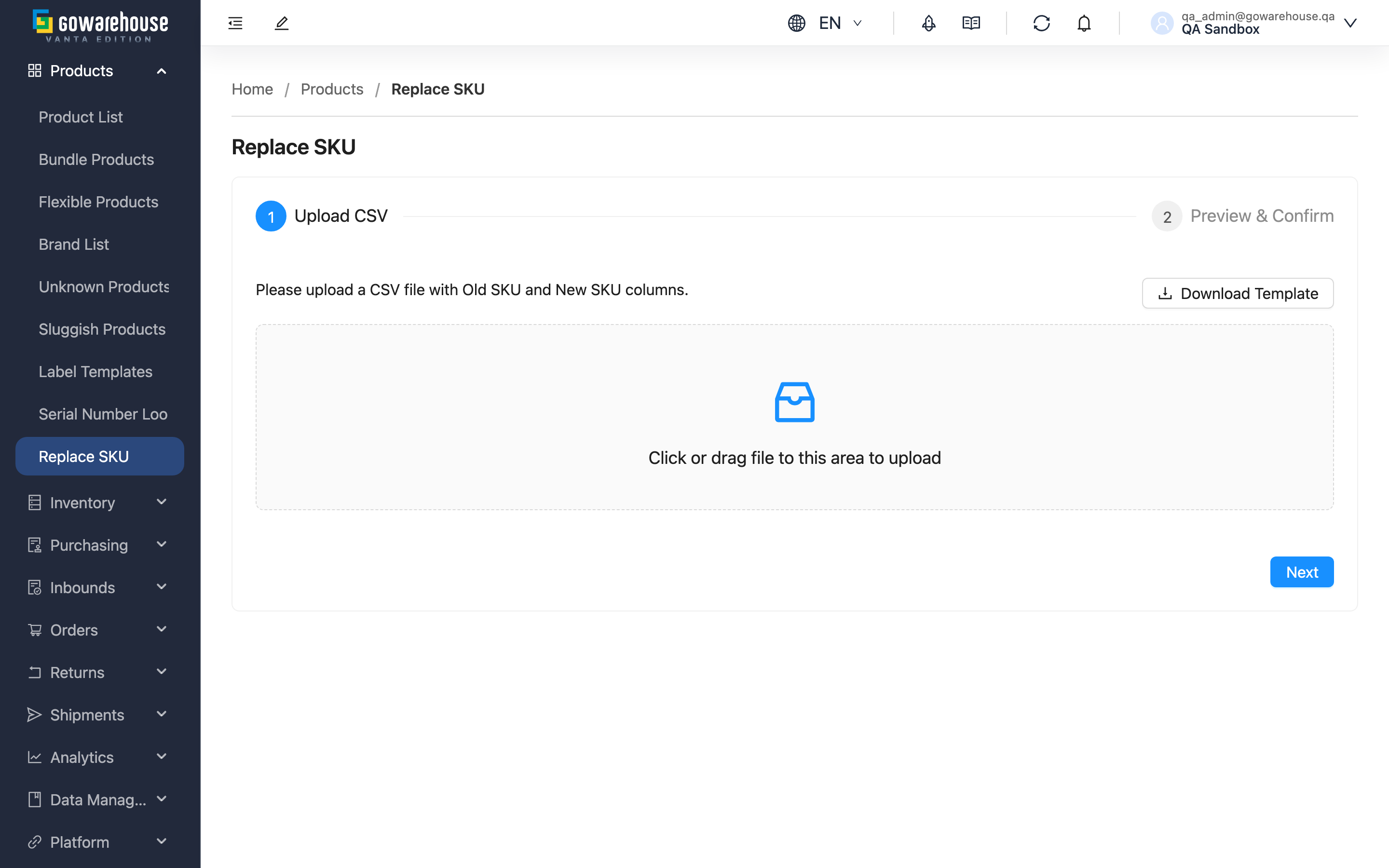
When your company changes its product coding rules, or a large number of SKUs were entered incorrectly, editing them one by one takes far too long. Replace SKU lets you upload an old-to-new SKU mapping table (CSV file) and replace multiple product SKUs in one batch. The system validates all rows first and only executes the ones that pass; stock is automatically linked to the new SKUs, and existing orders are unaffected.
Quick Jump: CSV File Format | Validation Rules | Steps
2.1 CSV File Format
Fields marked with * are required
| Field | Description |
|---|---|
| *Old SKU | The SKU currently used in the system |
| *New SKU | The SKU to replace it with |
When saving in Excel, choose the "CSV UTF-8 (Comma delimited)" format so non-English characters display correctly.
2.2 Validation Rules
The system checks every row against the following rules; only rows marked "Valid" are executed:
| Check | Description |
|---|---|
| Blank values | Both "Old SKU" and "New SKU" must be filled in |
| Identical values | The old and new SKU must differ |
| Old SKU exists | The "Old SKU" must belong to an existing product |
| New SKU uniqueness | The "New SKU" must not duplicate any existing product's SKU |
| In-file duplicates | No two rows in the same file may use the same "New SKU" |
2.3 Steps
▸ Step 1: Prepare the CSV file
- Click "Download Template" to get the standard format
- Fill in "Old SKU" and "New SKU" in Excel; see CSV File Format for how to save the file
▸ Step 2: Upload and validate
- Upload the CSV file
- Click "Next"; the system validates every row automatically
▸ Step 3: Review and execute
- Review the validation results (each row is marked "Valid" or "Invalid")
- If there are "Invalid" rows, fix the CSV and upload again
- Once everything checks out, click "Confirm" to execute the replacement
▸ Step 4: Confirm the results
- Review the execution results (the number of successes and failures)
- Search the new SKUs in the "Product List" to confirm the replacement
III. FAQ
3.1 FAQ
▪ What happens if some rows fail validation?
The system only executes rows marked "Valid"; "Invalid" rows are skipped. If a replacement fails during execution, only that row is affected and the rest complete normally. The results show the number of successes and failures.
▪ What data is affected after replacing a SKU?
- Product data: the SKU is updated to the new value, and an edit history entry is recorded for later auditing
- Stock data: stays attached to the same product; quantities are unaffected
- Existing orders: still point to the same product and do not need to be rebuilt; the SKU shown on order pages updates to the new value
▪ The new SKU says "already exists" — what should I do?
That SKU is already used by another product:
- Search the SKU in the "Product List"
- Identify which product is using it
- Choose a different new SKU
▪ How many rows can I replace at once?
There is no row limit.
▪ Can a replacement be undone?
There is no automatic undo. To revert:
- Prepare a "reverse mapping table" (swap the old and new SKU columns)
- Run this feature again with that file
▪ Can I still search by the old SKU afterwards?
No. After replacement, the product can only be found by its new SKU.
▪ How do I quickly add a prefix to SKUs in Excel?
Use a formula in column B (e.g., prepend the prefix to the value in column A), apply it to all rows, then use "Copy" → "Paste Special" → "Values" and save as CSV.
3.2 Notices
⚠️ Important
- SKU replacement cannot be undone automatically — export a backup of your product list before executing
- Existing orders still point to the same product, but the SKU shown on screen updates to the new value
- If your system is integrated with external platforms (e.g., Shopee, momo), update the SKUs on those platforms after replacing, or platform orders will fail to match your products
💡 Tip: When using this feature for the first time, test with a small file (5-10 rows) and confirm the flow works as expected before running the full batch.
IV. Related Features
| Feature | Description | Link |
|---|---|---|
| Product List | Browse and search all products; batch edit brand, category and activation status | Go |
| Edit Product | Edit a single product's data, including its SKU | Go |