
New Inventory Transformation
Table of Contents
1. Feature Overview
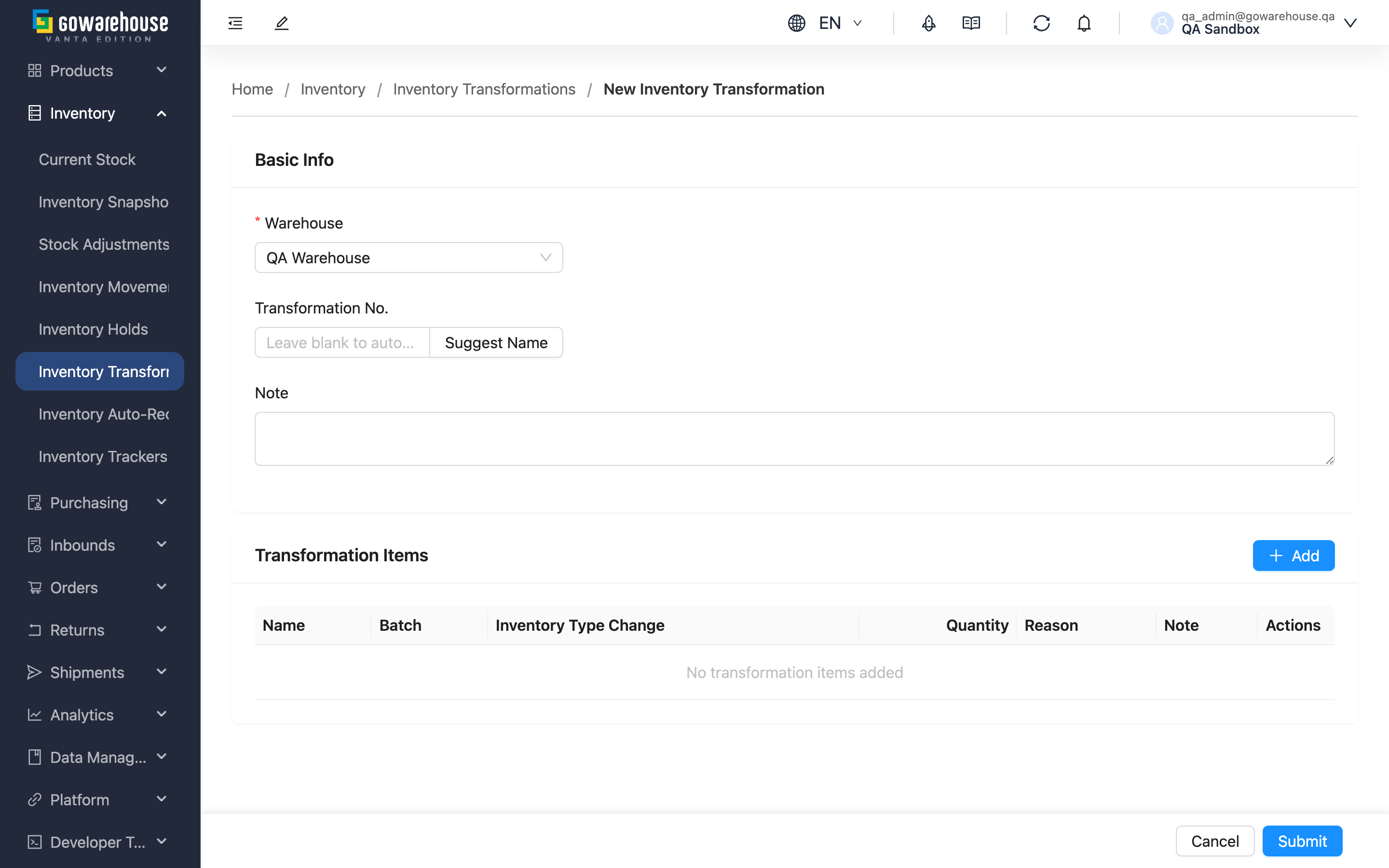
On this page you can "reallocate" existing stock from one inventory type to another — for example, set aside part of your normal stock as promotional stock. Transformations created here only change the inventory type; they don't change quantity, batch, expiry, or shelf, and they don't need warehouse approval — they take effect immediately on submit.
Jump to: Basic info | Add lines | Submit & apply
1.1 Basic Info
Fields marked with * are required.
| Field | How to fill it in | Notes |
|---|---|---|
| *Warehouse | Select the warehouse where this stock is located | Switching warehouse clears the lines already added, because stock from different warehouses can't be mixed in one document |
| Transformation No. | Leave blank to auto-generate a number on submit (format: TRF plus date and sequence), or click "Suggest Name" to generate one, or enter your own | The number can't duplicate an existing one |
| Note | A description of this document to help you find it later | Optional |
1.2 Add Lines
After choosing a warehouse, click "Add" to pick the stock line you want to convert from that warehouse's inventory. Once picked, fill in the conversion details in the popup:
Fields marked with * are required.
| Field | How to fill it in | Notes |
|---|---|---|
| *Quantity | Enter the quantity to convert from this stock line | Can't exceed the available amount of that line; if the same stock line has already been added, its remaining available amount automatically subtracts what's already added |
| *Target Inventory Type | Select which inventory type to convert the goods to | The source type itself doesn't appear in the options (converting to the same type is meaningless); if the merchant only has one inventory type, a notice says conversion isn't possible |
| *Reason | Select the conversion reason: Damaged, Expired, Count Error, Data Entry Error, Quality Check Failed, Other, etc. | Required. Confirming without a reason shows a message below the field and does not add the line |
| Note | A note for this line | Optional |
Once confirmed, the line is added to the list below. You can add multiple lines; one document processes several lines at once, and each line in the list can be removed individually.
1.3 Submit & Apply
After filling in the basic info and adding at least one line, click "Submit" at the bottom. On submit, the system converts each line's goods from the source type to the target type and applies it immediately, then takes you to the document's detail page.
The system executes line by line independently, so if one line fails (e.g. insufficient available quantity) it doesn't affect the other successful lines; the document is marked Applied, Partially Applied, or Failed based on the outcome. The detail page shows each line's result and failure reason.
2. FAQ
2.1 FAQ
▪ Can I change the batch or expiry here?
No. Transformations created yourself in the admin can only change the inventory type; they won't touch batch, expiry, or manufacturing date. To correct attributes like batch and expiry, ask warehouse staff to create an attribute-change transformation.
▪ Why can't I find the target inventory type I want?
The source type itself doesn't appear in the options (converting to the same type is meaningless). If the dropdown has very few or no options left, the merchant has too few inventory types configured; if you can't find the type you need, add it under inventory type settings first.
▪ Why can't I enter the quantity, or why is it blocked?
The quantity can't exceed the line's current available amount. Some goods are reserved by unshipped orders and don't count as available; if you've already added the same stock line, the system subtracts the amount already added, and the remaining available amount is the cap for this entry.
▪ Where did my added lines go after switching warehouse?
Switching warehouse clears the lines already added, because stock from different warehouses can't be in one document. Make sure the warehouse is correct before you start adding lines.
▪ Can I undo after submitting?
Transformations created yourself in the admin take effect on submit and cannot be reversed within the system. If you converted in the wrong direction, open a new transformation that swaps the target and source to convert the goods back. Confirm each line's quantity and target type before submitting.
2.2 Notes
⚠️ Important
- Submission takes effect immediately and cannot be undone; confirm each line's quantity and target inventory type before submitting.
- Every line must have a conversion reason selected before it can be added and submitted.
- Switching warehouse clears all added lines.
💡 Tip: If the same reallocation happens regularly (e.g. routinely converting near-expiry goods to near-expiry stock), ask the warehouse side to set up an auto-reclassify rule so the system handles it automatically every day, saving you from creating documents by hand repeatedly.
3. Related Features
| Feature | Description | Link |
|---|---|---|
| Inventory Transformations | Back to the transformation list to view all documents' progress and results | Go |
| Inventory Transformations Detail | View each line and success/failure result of the document you just submitted | Go |
| Current Stock | Confirm the quantity under each inventory type after conversion | Go |