
Stock Adjustments
Table of Contents
1. Use Cases
Quick links: Stock count mismatch | Damaged or expired write-off | Tracing stock loss
Scenario 1: Actual quantity does not match the system records
Situation: While counting a shelf, the warehouse finds the actual quantity on hand differs from the "book quantity" recorded in the system — perhaps an earlier shipment under-deducted, a receipt over-counted, or a number was simply keyed in wrong. The system figure needs to be corrected to match reality.
Use this feature: A stock adjustment is the document the warehouse uses to correct this gap. Warehouse staff create an adjustment for the specific items, fill in the actual quantity and reason, and submit it for approval. You can track these adjustments on this page and open the detail page to verify which products were adjusted and by how much.
Result: Once approved, the system adds or subtracts the difference from the book quantity, your sellable quantity returns to the correct value, and every change leaves a record of "who requested it, who approved it, and why" for future reconciliation.
Scenario 2: Damaged or expired goods need a write-off
Situation: A batch of goods is damaged, expired, or failed quality inspection in the warehouse. These goods can no longer be sold and must be deducted from stock, otherwise the online store still shows them as available and oversells.
Use this feature: Such write-offs are handled as stock adjustments, each carrying a reason code (damaged, expired, quality check failed, etc.). You can filter by "Reason" on this page to focus on adjustments created for write-offs.
Result: After approval, the corresponding quantity is deducted from stock, preventing written-off goods from being mistaken as sellable.
Scenario 3: Analyze stock loss and pinpoint the problem step
Situation: During month-end reconciliation, you want to understand why stock decreased over the period and which type of reason caused it, to judge whether a packaging or handling process needs improvement.
Use this feature: Every adjustment records its reason and quantity. On this page you can use "Created At" to pin the period and "Reason" to classify, then review each adjustment.
Result: You can see which reasons the losses concentrate on (for example, a product repeatedly adjusted down for "Damaged"), giving you a basis to improve warehouse operations or supplier communication.
2. Features
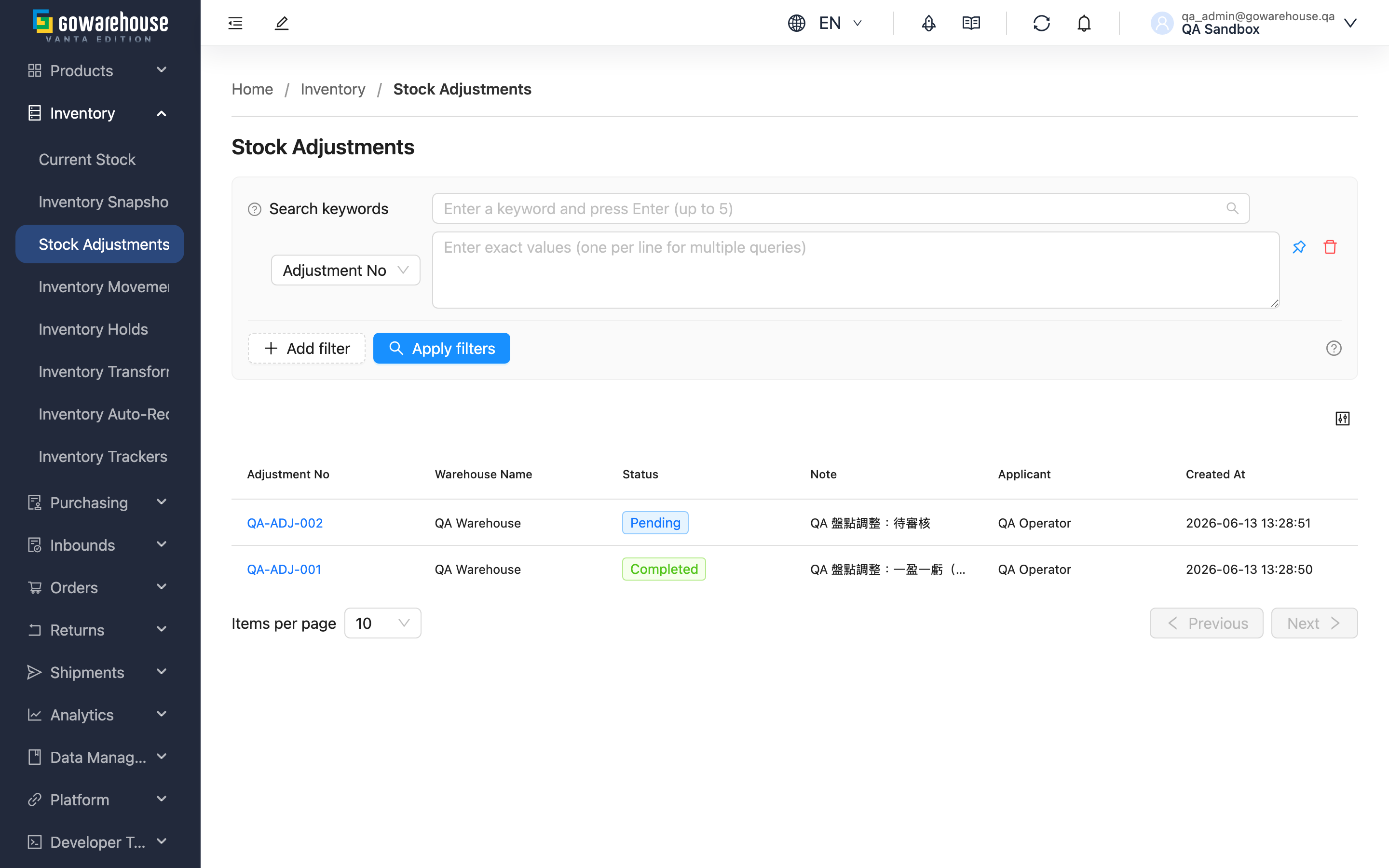
A stock adjustment is the document the warehouse uses to correct the gap between the "system book quantity" and the "actual quantity on hand." When goods are damaged, expired, miscounted, or previously keyed in wrong, the warehouse creates an adjustment for the specific items, fills in the actual quantity and reason, and submits it for approval; stock only changes after approval. This page lets you, as the brand owner, track the status and contents of these adjustments — your entry point for reconciling stock changes and analyzing loss.
Quick jump: Search & Filter | List Columns | Document Status
2.1 Search & Filter
Enter a keyword in the search box to search "Adjustment No" and "Note".
Open the filter area to use the following conditions:
| Filter | Description |
|---|---|
| Adjustment No | Enter or select an adjustment number (pinned by default) |
| Status | Filter by document status; see Document Status |
| Reason | Filter by adjustment reason (damaged, expired, count error, etc.); a document is listed if any item matches the reason |
| Created At | Set a creation time range |
2.2 List Columns
| Column | Description |
|---|---|
| Adjustment No | Adjustment number; click to open the detail and verify contents |
| Warehouse Name | The warehouse this adjustment belongs to |
| Status | The document's current approval status; see Document Status |
| Note | The note for the whole document |
| Applicant | The warehouse staff who created this adjustment |
| Created At | When the document was created |
2.3 Document Status
| Status | Description | Stock already changed |
|---|---|---|
| Draft | Being created by warehouse staff, not yet submitted | No |
| Pending | Submitted, awaiting approval | No |
| Completed | Approved; the system has adjusted stock item by item | Yes |
| Rejected | Rejected on review; stock is not adjusted | No |
💡 Tip: Only adjustments with status "Completed" have actually changed stock; all other statuses have not yet affected your sellable quantity.
3. FAQ
3.1 FAQ
▪ How is a stock adjustment different from a stock count?
A stock count recounts an entire set of shelves from scratch and then settles; an adjustment directly fixes specific items you already know are wrong, one entry at a time. For quick handling of "3 broken in this box," opening an adjustment is the most convenient. For stock counts, see the count workflow under "Current Stock".
▪ Why must an adjustment be approved before it takes effect?
Adjusting stock is the same as directly changing the books — it affects sellable quantity and cost. An extra approval step prevents slips and mis-entries, and gives every adjustment a record of "who requested, who approved, and why" for future reconciliation. See Document Status.
▪ Can I (the brand owner) create or modify adjustments?
No. Stock adjustments are created and approved by warehouse staff. You view and verify them here as the brand owner; you cannot add, edit, or delete adjustments on this page. To adjust stock, please contact the warehouse.
▪ What options does "Reason" have?
Each adjustment item selects a reason code explaining why it is adjusted, including: "Damaged", "Expired", "Count Error", "Data Entry Error", "Quality Check Failed", and "Other". The reason makes later analysis of stock loss traceable.
▪ After approval, is the increased stock synced to e-commerce platforms automatically?
Yes. If this is a gain (stock increases), the system automatically pushes the extra sellable quantity to connected e-commerce platforms (e.g. Shopee, Momo), so it can be sold online immediately. A loss (stock decreases) is not pushed back automatically and must be handled by you as appropriate.
▪ Where does "Adjustment No" come from?
The adjustment number is generated by the system in the format "ADJ-date-sequence". If warehouse staff do not name it themselves when creating, the system fills in this number automatically.
3.2 Notes
⚠️ Important
- Only adjustments with status "Completed" have actually changed stock, and once approved they can no longer be modified.
- Gains automatically sync the sellable quantity to e-commerce platforms; losses do not — after a loss, confirm whether platform stock needs adjusting to avoid overselling.
- This page is read-only; you cannot create or modify adjustments here.
💡 Tip: Before reconciliation, pin the period with "Created At" then classify with "Reason" to quickly see which reasons the losses concentrate on.
4. Related Features
| Feature | Description | Link |
|---|---|---|
| Current Stock | View the current real-time stock quantity | Go |
| Inventory Movements | Trace the reason and source of each stock increase or decrease | Go |
| Inventory Snapshot | View daily stock quantities in the past and review historical stock | Go |