
Inventory Custom Attributes
Table of Contents
I. Use Cases
Quick Links: Manage one product as separate batches by source | Fulfill by customer-specified batch | Avoid creating a new product per variant
Scenario 1: Manage one product as separate batches by source, with no batch mixing at fulfillment
Situation: You sell one shampoo, but this lot's origin is Taiwan and the next is Japan; or you're in textiles, where the same fabric from different dye lots has color variation. The built-in expiry date and batch number can't capture these differences, yet you must keep stock from different sources counted separately and never mixed at fulfillment.
Use this feature: Define a custom attribute here (e.g. "Origin" or "Dye Lot") and fill in its value for each lot during inbound. Inventory with different attribute values is treated as a distinct batch and stored separately — see Inventory Segmentation.
Result: The same product is automatically split into multiple batches by origin or dye lot. Quantities are counted separately at inbound, outbound, and stocktaking, so you always know the exact status of each batch.
Scenario 2: Customer specifies a source, and the right batch must be picked automatically at fulfillment
Situation: A customer's order explicitly requires "Taiwan origin only" or "all units from the same dye lot." You don't want warehouse staff picking by hand, because a wrong pick means re-doing it.
Use this feature: Define the matching attribute here first, then enter its required value when creating the order. During allocation the system only pulls batches that match — no manual selection. If an order specifies no requirement, all batches are available.
Result: The customer's source requirement becomes a fulfillment condition the system enforces automatically, cutting the cost of mis-picks and returns.
Scenario 3: Avoid creating a new product for every variant
Situation: Your products differ along dimensions like color, origin, or firmware version, but these differences aren't worth a separate product each (otherwise your product count explodes and management gets harder). You want to subdivide these dimensions under the same product.
Use this feature: Define these dimensions as custom attributes (up to 5) so they attach to the inventory of one product instead of splitting into multiple products. See Add Attribute for how to set them up.
Result: Your product list stays lean, while the differentiating dimensions are recorded at the inventory level — distinguishable without maintaining a separate product record for each variant.
II. Feature Guide
Inventory Custom Attributes let you record dimensions beyond the system's built-in expiry date and batch number — such as dye lot, color code, origin, or firmware version. Each merchant can define up to 5. Once defined, these fields appear on inbound and stock-adjustment forms; and inventory with different attribute values is managed as a separate batch. So this is not merely "one extra field to record" — it directly affects how inventory is split and allocated.
Quick Jump: List Columns | Add Attribute | Edit & Reorder
2.1 List Columns
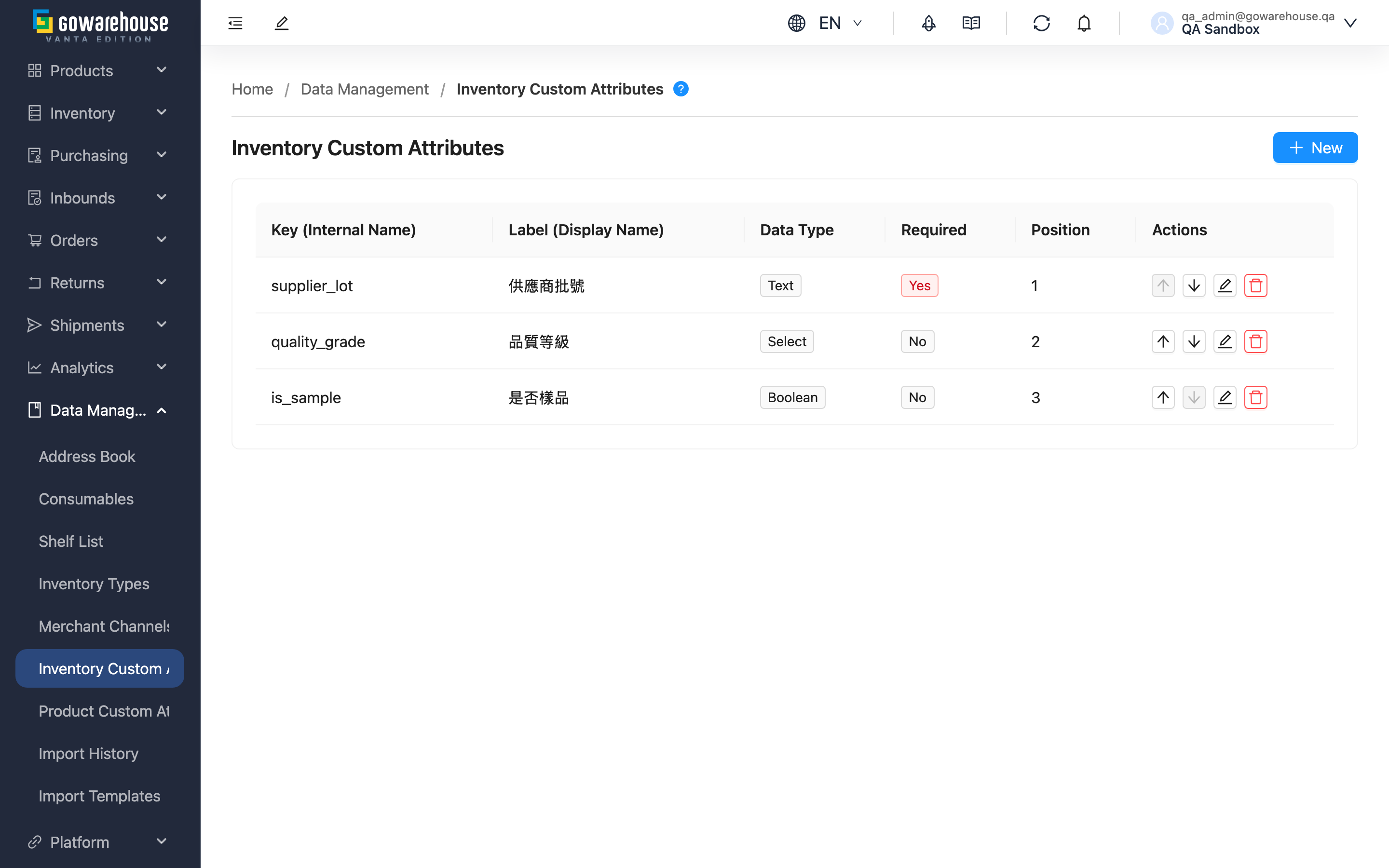
The page lists your defined attributes in the display order you set:
| Column | Description |
|---|---|
| Key (Internal Name) | Internal identifier code; only lowercase letters, numbers, and underscores; fixed once created |
| Data Type | The form of value this attribute accepts (text / number / date / select / boolean); determines how the field is filled at inbound and how input is validated |
| Options (for Select) | Used only by the Select type; lists the fixed selectable options |
The remaining columns (display name, required, position) are self-explanatory by name. The rightmost actions column offers Move Up, Move Down, Edit, and Delete.
2.2 Add Attribute
Click New to open the add dialog. Once 5 attributes are defined you cannot add more; delete an unused one first.
Fields marked with * are required
| Field Name | How to Fill | Notes |
|---|---|---|
| *Key (Internal Name) | Enter an English identifier code, e.g. dye_lot | Only lowercase letters, numbers, underscores (no Chinese, spaces, or uppercase); cannot be changed after creation |
| *Label (Display Name) | Enter the name shown on forms, e.g. "Dye Lot" | This is the label that actually appears on the inbound form |
| *Data Type | Choose per "Data Type Descriptions" below | Choosing "Boolean" cannot be set as required; the system auto-unchecks it |
| Required | When checked, this attribute must have a value at inbound | Not applicable to the "Boolean" type |
| Options (for Select) | Enter one option and press Enter to add; multiple allowed | Only required for the "Select" type |
Data Type Descriptions
| Type | Description | Use Cases |
|---|---|---|
| Text | Free text input | Dye lot, batch code, notes |
| Number | Numbers only; non-numeric input is rejected | Weight, dimensions, quantities |
| Date | Date picker; an invalid date is rejected | Production date, inspection date |
| Select | Choose from your preset options; a value not in the list is rejected | Origin, grade, color (fixed options) |
| Boolean | Yes or no only; cannot be set as required | Flags like fragile, refrigerated, no-fly that default to false and only mark exceptions |
💡 Tip: If a dimension has "both values possible and orders may need to pick either or leave it unspecified" (e.g. "labeled / unlabeled"), use "Select" instead of "Boolean" — only a dropdown can serve as a batch-picking condition during allocation.
2.3 Edit & Reorder
Click Edit to modify the display name, data type, required flag, and dropdown options. The Key (Internal Name) cannot be changed after creation; to rename it, delete and recreate.
The order in which attributes appear on the inbound form is controlled by the Move Up / Move Down buttons in the list; the new order saves automatically. Move your most-used attributes to the top so warehouse staff see them first at inbound.
III. FAQ
Quick Jump: FAQ | Important Notes
3.1 FAQ
▪ What is "Inventory Segmentation"?
Inventory with different custom attribute values is treated by the system as distinct batches, stored and managed separately. For example, the same shampoo with "Origin" of Taiwan, Japan, and Korea is automatically split into three batches. Quantities are counted separately by attribute value at inbound, outbound, and stocktaking, and never merged — so there's no batch mixing at fulfillment.
▪ How do custom attributes affect allocation?
When creating an order you can enter an attribute's required value (e.g. "Origin = Taiwan"). During allocation the system only pulls matching batches, with no manual picking. If the order specifies no requirement, all batches are available.
▪ What are the naming rules for the Key, and can it be changed?
The Key may use only lowercase letters, numbers, and underscores, e.g. dye_lot, color_code, batch_no; no Chinese, spaces, or uppercase. The Key cannot be changed after creation; to rename it, delete and recreate.
▪ Can I change the data type after creation?
Yes, you can re-select the data type when editing. But settle on it before you start recording inventory data, or the same attribute will mix values of different forms in old vs. new records (e.g. stored as text, later changed to number).
▪ Will deleting an attribute affect already recorded inventory?
No. Existing inventory keeps its original attribute values — they don't disappear; only future inbound orders no longer show the field. If the attribute had driven inventory segmentation, batches already split stay as they are and won't merge back automatically.
▪ Why can't the "Boolean" type be set as required?
"Boolean" is designed to flag occasional exceptions (fragile, refrigerated, no-fly), defaulting to "no", so the system doesn't allow forcing every inventory record to mark it. If you need every record to explicitly choose a value, use "Select" instead.
▪ Why can't I add another attribute?
Each merchant can define a maximum of 5 inventory custom attributes. Once at the limit, delete an unused one before adding more.
3.2 Important Notes
⚠️ Important Reminders
- Each merchant can define up to 5 inventory custom attributes; at the limit, delete one before adding more.
- The Key (Internal Name) cannot be changed after creation — think it through before naming.
- The "Boolean" type cannot be set as required.
- Inventory with different attribute values is split into different batches, so avoid using an attribute to record frequently changing or meaninglessly splitting information (otherwise your inventory becomes fragmented and hard to fulfill in one batch).
💡 Tips:
- Use the "Select" type with fixed options to avoid typos splitting the same source into multiple batches.
- For any dimension you want customers to specify for fulfillment (e.g. origin, dye lot), use Select rather than Boolean so it can serve as a batch-picking condition during allocation.
IV. Related Features
| Feature | Description | Link |
|---|---|---|
| Inbound List | Fill in each lot's custom attribute values during inbound | Go to |
| Current Stock | View each batch of inventory after segmentation by custom attribute | Go to |
| Product Custom Attributes | Define custom fields for products (rather than inventory) | Go to |