
Shipping Integrations
Table of Contents
Section 1: Use Cases
Quick Links: Connect your own carrier contract account | Auto-route across accounts by weight
Scenario 1: You signed a logistics contract and want shipping labels generated automatically
Situation: You signed contracts with carriers like T-Cat and HCT and received a customer code and authorization code. Logging into each carrier's website to fill in forms and print labels for every shipment is slow and prone to wrong addresses once volume grows.
How to Do It: Under "Platform" → "Shipping Integrations", add a shipping account, select the carrier, fill in the contract credentials, and check the shipping types to enable (see Create & Edit).
Result: The enabled shipping types become selectable when creating orders, and on shipment the system automatically requests tracking numbers, generates labels, and tracks delivery status with your contract account — no more filling forms on the carrier website.
Scenario 2: One carrier with multiple contract accounts, routed automatically by weight
Situation: You signed more than one contract with the same carrier (e.g. separate rate accounts for large and small parcels), and want light parcels to use account A and heavy ones account B — without specifying it on every order.
How to Do It: Create multiple accounts for the same carrier and set a "Weight Threshold" on each. On shipment the system automatically picks the account matching the parcel's weight.
Result: Parcels automatically apply the right contract account by weight, saving per-order judgment and ensuring every parcel uses the correct rate contract.
Section 2: Features
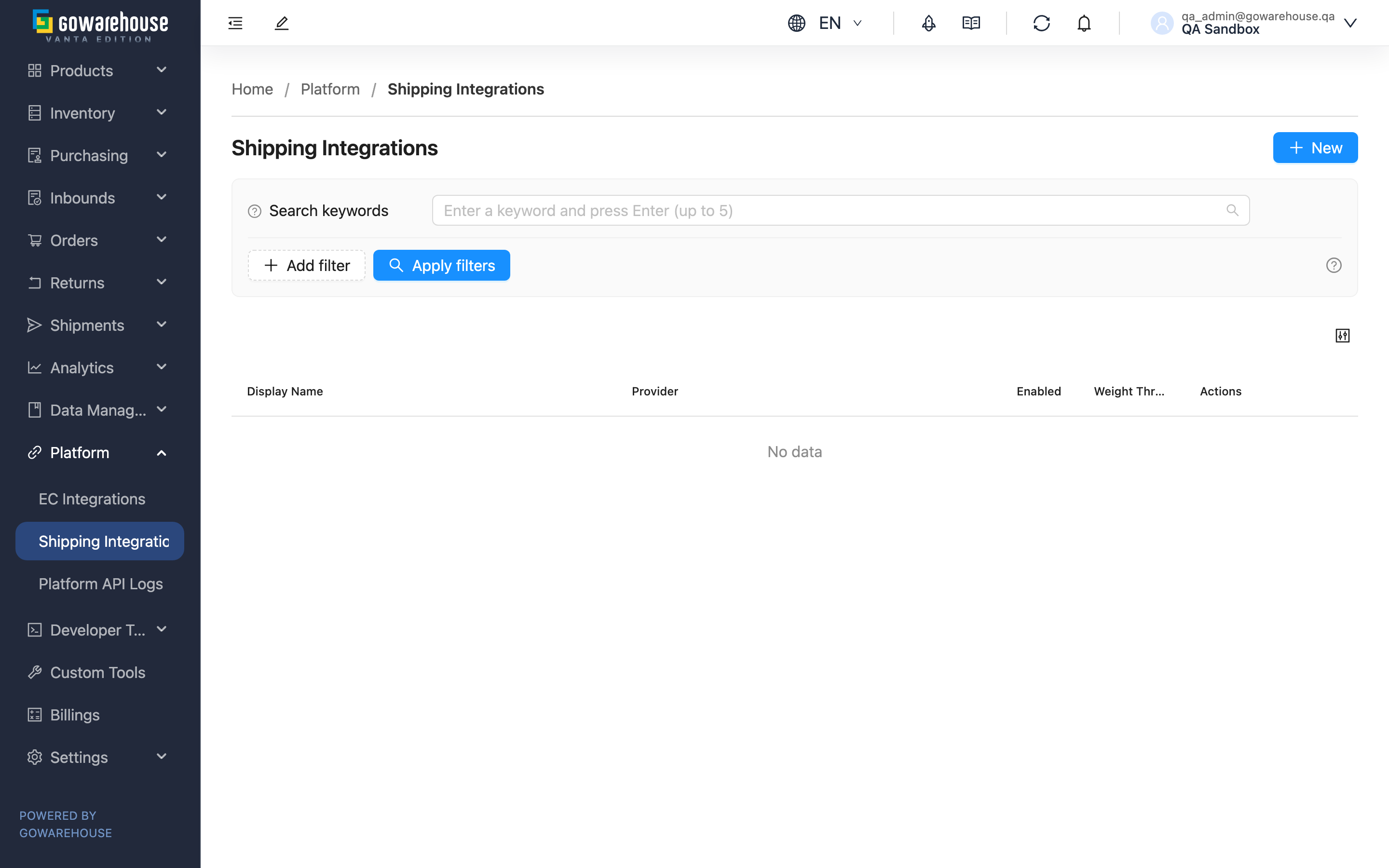
Shipping Integrations lets you connect your own carrier contract accounts (T-Cat, HCT, Pelican, SF Express, ECPay, etc.) to the warehouse system. Once connected, the system automatically generates labels and reports delivery status using your contract account on shipment, with no manual operation on the carrier website. This list page is the management hub for all shipping accounts, with creation and editing done in an on-page dialog.
Quick Jump: Search & Filter | List Columns | Create & Edit | Enable, Disable & Delete
2.1 Search & Filter
The search box at the top finds accounts by "Display Name". Expand filters to add a "Provider" condition to show only a specific carrier's accounts (handy when one carrier has several accounts).
2.2 List Columns
| Column | Description |
|---|---|
| Display Name | The name you gave the account, used to tell multiple accounts of one carrier apart |
| Provider | The carrier this account connects to |
| Enabled | Whether enabled; disabled accounts are not used for shipping |
| Weight Threshold | The minimum parcel weight this account applies to; used to route across multiple accounts of one carrier |
2.3 Create & Edit
Click "New" in the top right or "Edit" on a row to open a dialog with two columns:
Fields marked with * are required
| Field | How to Fill | Notes |
|---|---|---|
| *Provider | Select the carrier | Cannot be changed after creation |
| *Display Name | Give the account an easily recognizable name | Up to 100 characters |
| Enable Shipping Types | Check the shipping types this account provides | Only checked types become selectable when creating orders |
| Weight Threshold | Set the minimum parcel weight this account applies to | Leave empty for no threshold; used to route by weight across multiple accounts of one carrier |
| Carrier Integration Settings | Fill in the contract credentials the carrier provided | Fields vary by carrier; fill per your contract details |
After selecting a carrier, the right column shows that carrier's credential fields (e.g. T-Cat's customer code and authorization code, ECPay's merchant ID and keys). Some carriers also have extra settings like "Default Product Name" and "Accept Credit Card". Click save to finish.
2.4 Enable, Disable & Delete
Each account's actions column offers enable/disable and delete:
| Action | Conditions & Effect |
|---|---|
| Disable | Turns "Enabled" off; the account is no longer used for shipping; can be re-enabled anytime |
| Enable | Reopens a disabled account, restoring it for shipping |
| Delete | Only accounts never used by any shipment can be deleted; the delete button is disabled for used accounts to protect historical records |
Section 3: FAQ
3.1 FAQ
▪ What do I need to apply for a shipping account?
You must first sign a contract with the carrier to obtain the corresponding credentials (e.g. T-Cat's customer code and authorization code, HCT's customer number and password). Each carrier requires different fields; after selecting a carrier, the dialog lists the fields it needs.
▪ Why can't I select a shipping type when creating an order?
Confirm three things: (1) you've added an account for the matching carrier; (2) you checked that shipping type under the account's "Enable Shipping Types"; (3) the account is "Enabled".
▪ How do I set the "Weight Threshold"?
With a single account you can leave it empty (no threshold). With multiple accounts for one carrier, set a different weight threshold on each, and the system picks the matching account by parcel weight on shipment.
▪ What's the difference between disabling and deleting an account?
Disabling just temporarily stops the account from being used for shipping; it can be re-enabled anytime, and historical records are unaffected. Deleting is permanent, and only accounts never used by any shipment can be deleted. Accounts that have shipped can only be disabled, not deleted.
▪ I picked the wrong "Provider" — can I change it?
The carrier cannot be changed after creation. If wrong, delete it (if the account is unused) or disable it and create a new account with the correct carrier.
▪ Is there more detailed guidance for T-Cat Express?
Yes. For T-Cat's contract credentials, cash on delivery, declared value, and delivery tracking details, see the T-Cat Express page.
3.2 Notes
⚠️ Important
- Before disabling an account, confirm no pending orders still need it
- The carrier (Provider) cannot be changed after creation
- Wrong contract credentials cause label generation to fail on shipment
💡 Tip: When one carrier has multiple rate contracts, use "Weight Threshold" to let the system route by weight automatically, avoiding per-order account selection.
Section 4: Related Features
| Feature | Description | Link |
|---|---|---|
| 黑貓宅急便(T-Cat) | T-Cat Express contract setup, cash on delivery, and delivery tracking details | Go |
| Shipment List | View tracking numbers, label statuses, and real-time delivery status | Go |
| Platform API Logs | View success/failure records of integration calls like label generation and tracking | Go |