
Edit Purchase Order
Feature Not Yet Available
Purchase order management (purchase orders and suppliers) is not currently available on any plan — the corresponding menu items and this page are hidden. Existing data is unaffected and remains intact in the system. This feature will be offered later as an add-on module, at which point the workflow described on this page will apply as-is.
Table of Contents
1. Features
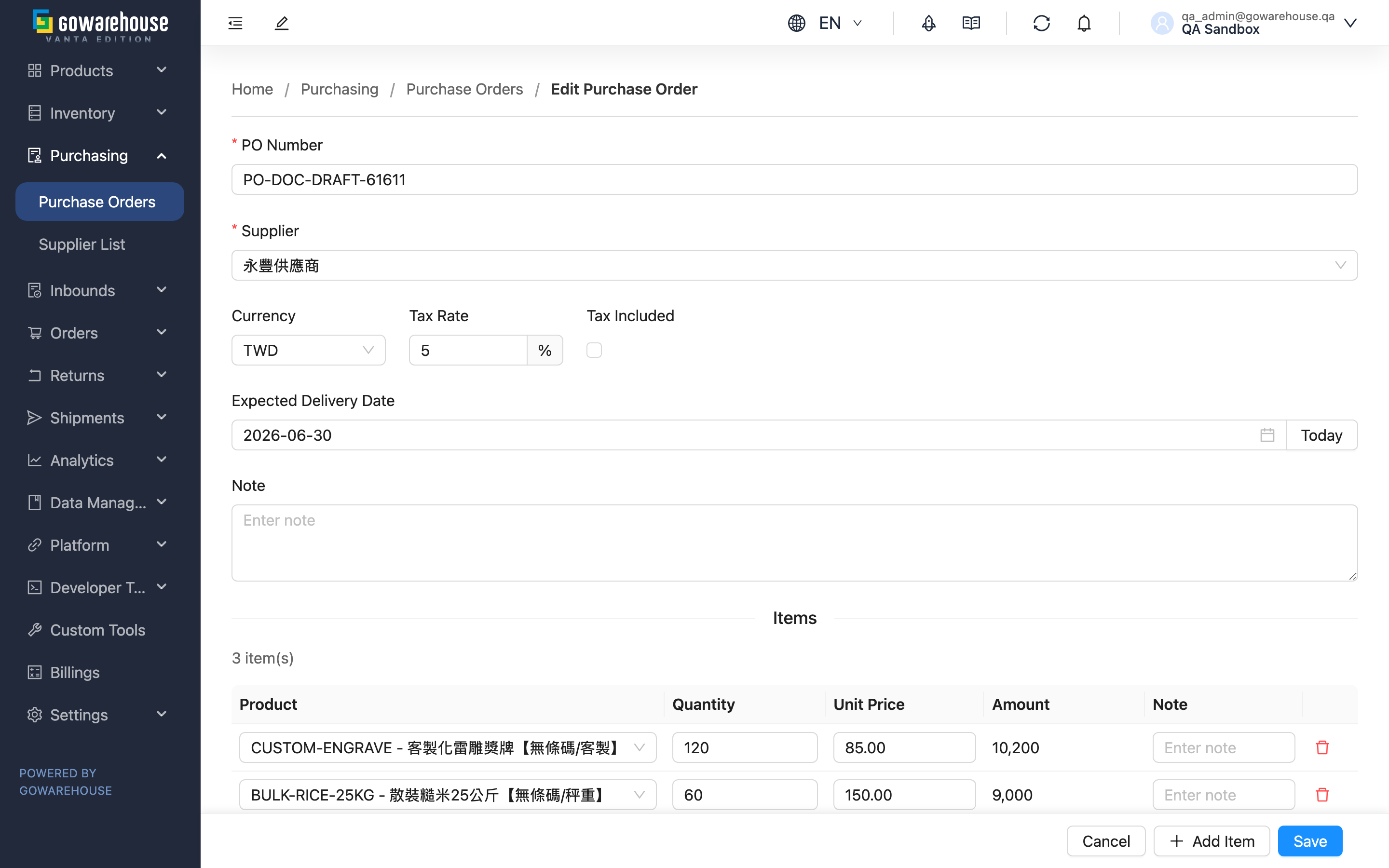
Edit Purchase Order is for modifying a PO that's still in draft. The form fields are identical to New Purchase Order; the difference is that here you're modifying an existing draft rather than creating a new one.
Quick links: What's Editable | Form Fields | Save
1.1 What's Editable
Only "Draft" purchase orders can be edited. If the PO has been submitted or moved to a later status, the system shows a not-editable message and takes you back to the Purchase Order Detail. To change a submitted PO, first reject it back to draft on the detail page, or cancel and recreate it.
1.2 Form Fields
The editable fields are the same as when creating:
- Basic info: PO number, supplier, currency, tax rate, tax-included, expected delivery date, note
- Items: add/remove items, adjust quantity and unit price (keep at least one item)
- Adjustments: add/remove discounts / surcharges
- Amount summary: recalculated in real time as you edit
For how to fill in each field and its limits, see the corresponding section on New Purchase Order.
1.3 Save
After editing, click "Save". The PO stays in "Draft" status, and saving returns you to the Purchase Order Detail. To enter the approval flow, click "Submit" on the detail page.
2. FAQ
Quick links: FAQ | Important Notes
2.1 FAQ
▪ Why did opening the edit page send me back to the detail page?
Because this PO is no longer in "Draft" status. Only drafts are editable; any later status is blocked and redirected to the detail page.
▪ How do I change a submitted PO?
On the Purchase Order Detail, reject it back to draft (requires approval permission), or cancel and recreate it. Once back in draft, you can edit it again.
▪ Can I add or remove items while editing?
Yes — add/remove items and change quantities and unit prices, but you must keep at least one item to save.
▪ Will editing affect an inbound that's already created?
This can't happen — a draft PO has no linked inbounds yet. Once an inbound has been created, the PO is no longer a draft and can't be edited.
▪ Does saving automatically submit for approval?
No. Saving just stores the changes and the PO stays a draft. To send it for review, click "Submit" on the detail page.
2.2 Important Notes
⚠️ Important reminders
- Only "Draft" is editable; any other status can't open the edit page
- Keep at least one item to save
- Saving is not submitting; the PO stays a draft and must be submitted manually to enter approval
3. Related Features
| Feature | Description | Link |
|---|---|---|
| Purchase Order Detail | Submit, approve, create inbounds, and close | Go |
| New Purchase Order | Create a new PO (same field reference as this page) | Go |
| Purchase Order List | View and track all purchase orders | Go |