
Custom Template Details
Table of Contents
1. Features
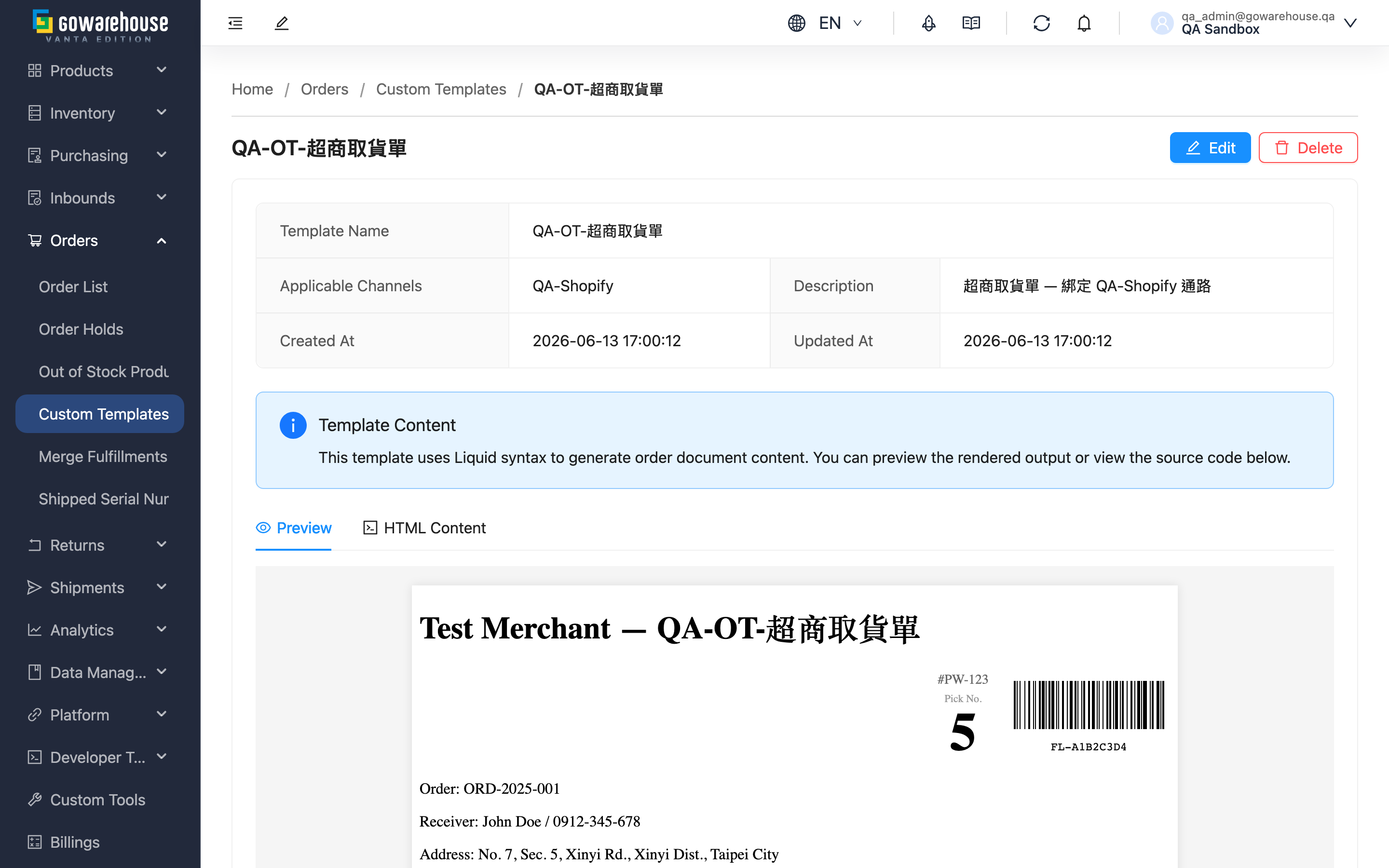
The detail page lets you confirm what a template actually prints, and which sales channels it is bound to. The upper half lists the template's basic information; the lower half renders the real layout live using sample order data, so you can verify the design before it is applied to actual shipments. To make changes, enter edit mode from the top right.
Quick Jump: Basic Info | Preview & Content | Action Buttons
1.1 Basic Info
| Field | Description |
|---|---|
| Template Name | The template's identifying name |
| Applicable Channels | The sales channels this template is bound to; shows "-" when none |
| Created At | When the template was created |
| Updated At | When it was last modified |
The Description field shows the note you entered.
1.2 Preview & Content
The page offers two tabs: "Preview" and "HTML Content". The preview tab renders with the system's sample order data, showing the actual layout, font sizes, field arrangement, and barcode area; the content tab shows the template's raw layout source for you to inspect.
The preview uses sample data; at ship time it is replaced with the real order content, but the layout stays the same. To change the layout, click "Edit" to enter the edit page (see Edit Custom Template).
1.3 Action Buttons
| Button | Description |
|---|---|
| Edit | Enter the edit page to modify settings and layout content |
| Delete | Delete this template; bound channels switch to the system default layout, and this cannot be undone |
2. FAQ
2.1 FAQ
▪ Will the preview match the actual printout?
The layout matches. The preview uses sample order data; at ship time it is replaced with that order's real content (recipient, item details, etc.), so the data differs but the layout is the same.
▪ Why do the preview and the actual PDF differ slightly in detail?
Browser rendering and the final PDF output can differ slightly in font rendering. To confirm the final result, use "Download Shipping Details" on an order from that channel under "Order List", and rely on the actual generated file.
▪ How do I modify this template?
Click "Edit" in the top right to enter the edit page (see Edit Custom Template).
▪ Which channels is this template bound to?
Check the "Applicable Channels" field, which lists all channels bound to this template.
▪ What happens after I delete this template?
The bound channels switch to the system's built-in default layout, and future shipping documents return to the default format. Deletion cannot be undone, but already-generated documents are not affected.
2.2 Notices
⚠️ Important Notes
- After a template is deleted, bound channels switch to the system default layout, and the template cannot be recovered
- The preview renders with sample data; rely on the actual generated shipping-document PDF as the final reference
💡 Tip: To verify the effect against a real order, use "Download Shipping Details" under "Order List" to actually generate a shipping document and review it.
3. Related Features
| Feature | Description | Link |
|---|---|---|
| Custom Templates | View all shipping-document templates | Go |
| Edit Custom Template | Modify template settings and layout content | Go |
| New Custom Template | Create a new shipping-document template | Go |