
Label Templates
Contents
1. Use Cases
Quick links: New products need scannable labels | Different product types need different labels | Keep label appearance consistent
Case 1: New stock arriving needs scannable product labels
Situation: You've shipped a new batch of products to the warehouse, but the products don't carry a barcode the warehouse can scan. Putaway, picking and shipping all rely on scanning to identify items — if a product can't be recognized, mistakes happen and work slows down.
Use this feature: Create a label template here that defines what the label prints (product name, SKU, barcode, etc.), and set it as the default (see the "Is Default" column under list columns). For how to create one, see Add Label Template.
Result: Your products now have standardized, scannable labels. When labels are printed from the product detail page, the system automatically applies this default template, so the warehouse won't grab or ship the wrong item.
Case 2: Different product types need different label sizes and content
Situation: You sell both apparel and jewelry — jewelry is small and only fits a tiny label and you also want a QR code; apparel labels need size and color; export items need country of origin. One label can't serve every product.
Use this feature: Create a separate template for each product type, each with the right paper size and the fields that type needs. When printing, pick the matching template for the product.
Result: Every product prints with the right information and correct size — no oversized label on tiny jewelry, and no apparel label missing its size and color.
Case 3: Keep every product label's appearance and required markings consistent
Situation: You want every shipped product's label to carry fixed information such as your brand name, material and country of origin (for brand consistency or labeling compliance), without re-laying-out the design every time you print.
Use this feature: Design the layout and fixed information once inside the template; afterwards every label printed with that template looks identical.
Result: Labels look consistent and never miss required information. Daily printing is just picking a template and a quantity — no more manual layout adjustments each time.
2. Features
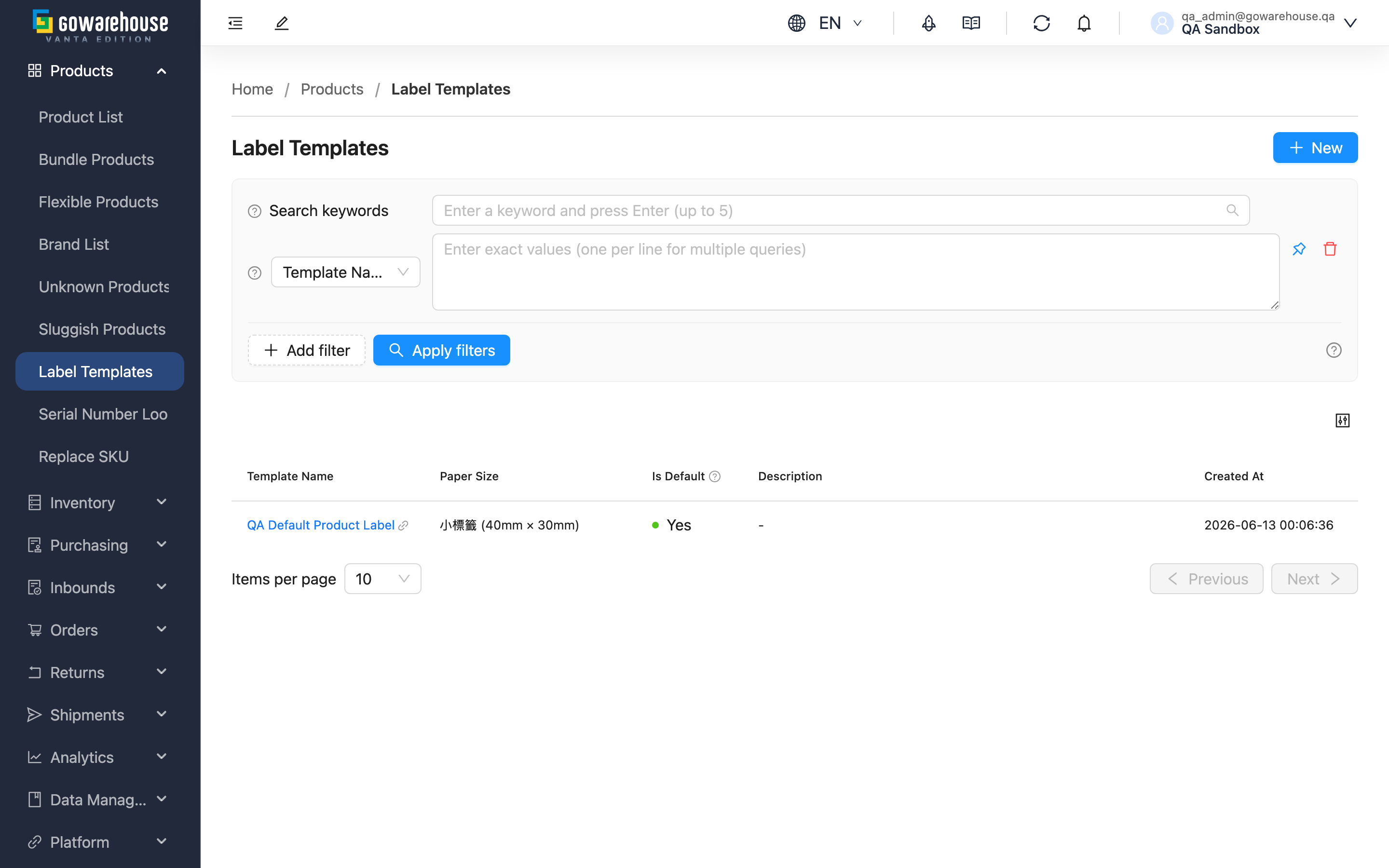
A product label is the identification tag stuck on a product so the warehouse can scan and recognize it. A label template decides what information each printed label shows (product name, SKU, barcode, specs, etc.) and the paper size. You can create multiple templates for different purposes and designate one as the default; afterwards, when labels are printed from the product detail page, the system automatically applies the default template. This page lists all the label templates you've created, where you can search, filter, and open each one to view or edit it.
Quick links: Search & filter | List columns
2.1 Search & Filter
Type a keyword in the search box and press Enter — it matches both the "Template Name" and the "Description", so a word from the description (such as "apparel") finds it too.
You can also filter by "Is Default" to quickly locate the current default template.
2.2 List Columns
| Column | Description |
|---|---|
| Template Name | Click to open the detail page to view the full layout, or to edit it |
| Paper Size | The actual label size this template prints, e.g. 70mm × 50mm |
| Default | A green mark indicates the default template, applied automatically when printing product labels |
| Description | A note on the template's purpose, to help you tell multiple templates apart |
| Created At | Click the column header to sort newest-to-oldest or oldest-to-newest |
3. FAQ
3.1 FAQ
▪ What is the "default template" and how do I set it?
The default template is the one the system applies automatically when printing product labels. Each merchant can have only one default template. Tick "Is Default" when adding or editing a template. Setting a new template as default automatically clears the previous default — you'll never end up with two.
▪ Where are these templates used for printing?
Go to "Product List", open any product's detail page, use the print-label action, choose the template and the number of copies, and the system generates the label file. If you've set a default template, the print dialog pre-selects it.
▪ What happens if I delete a template (or the default one)?
The template is removed from the list and cannot be recovered. If you delete the default template, printing will no longer pre-select a default and will fall back to one of the remaining templates; we recommend designating another template as default so printing applies the layout you want. If you delete every template, you won't be able to print product labels until you create at least one again.
▪ There are no templates in the list — how do I start?
Click "New" in the top right to create your first template. When adding one, the system provides a default sample layout as a starting point that you can use as-is or modify.
▪ Can I edit a template after creating it?
Yes. Click the "Template Name" to open the detail page, then go to edit to adjust the name, paper size, layout content, or default status.
▪ Why can't I see the "New" button or edit templates?
Creating and editing label templates requires product management permission. If you can't see the "New" button, contact your administrator to confirm your permissions.
3.2 Notes
⚠️ Important
- Deleting a template cannot be undone; deleting the default template or all templates affects product-label printing (see the FAQ above).
- Each merchant can have only one default template.
💡 Tip: Include the size and purpose in the template name (e.g. "Medium-Apparel", "Small-Jewelry") so you can recognize it at a glance when choosing a template in the print dialog.
4. Related Features
| Feature | Description | Link |
|---|---|---|
| Add Label Template | Create a new label-print template, design the layout and paper size | Go |
| Products | Manage product data; also the entry point for printing product labels | Go |