
Purchase Order List
Feature Not Yet Available
Purchase order management (purchase orders and suppliers) is not currently available on any plan — the corresponding menu items and this page are hidden. Existing data is unaffected and remains intact in the system. This feature will be offered later as an add-on module, at which point the workflow described on this page will apply as-is.
Table of Contents
1. Use Cases
Quick links: Scenario 1: Reorder from a supplier and track delivery | Scenario 2: Send purchases for manager approval | Scenario 3: Watch overdue purchases and chase suppliers
Scenario 1: Reorder from a supplier and track delivery
Situation: A best-selling product is running low and you need to reorder a batch from your supplier — and follow it all the way from placing the order to the goods actually arriving in the warehouse, so you never run out of stock.
Use this feature: Create a purchase order for this reorder (see New Purchase Order) recording the supplier, items, quantities and amounts; then come back to this list and track each PO through the "Status" column.
Result: Every order placed with suppliers is in one place — you always know which are awaiting approval, which are approved and awaiting delivery, and which are partially or fully received. Your replenishment progress is clear at a glance.
Scenario 2: Send purchases for manager approval
Situation: Purchasing involves payment amounts, and you want a manager to confirm the amounts before an order becomes official, avoiding wrong quantities or prices.
Use this feature: A buyer creates the purchase order and submits it for approval; the manager filters this list by "Status" for "Submitted" and reviews each one in detail to approve or reject.
Result: A purchase order stays pending until approved, and both approvals and rejections are recorded, giving the purchasing process a clear audit trail.
Scenario 3: Watch overdue purchases and chase suppliers
Situation: A few purchase orders were approved long ago and their expected delivery dates are near or already past, but the goods still haven't arrived. You want to chase the supplier before it affects sales.
Use this feature: Use the "Expected Delivery" filter to narrow down POs due in that period, combined with "Status" to focus on those not yet fully received (approved, partially received).
Result: All POs that should have arrived but haven't are listed, so you can proactively chase the supplier on overdue ones.
2. Features
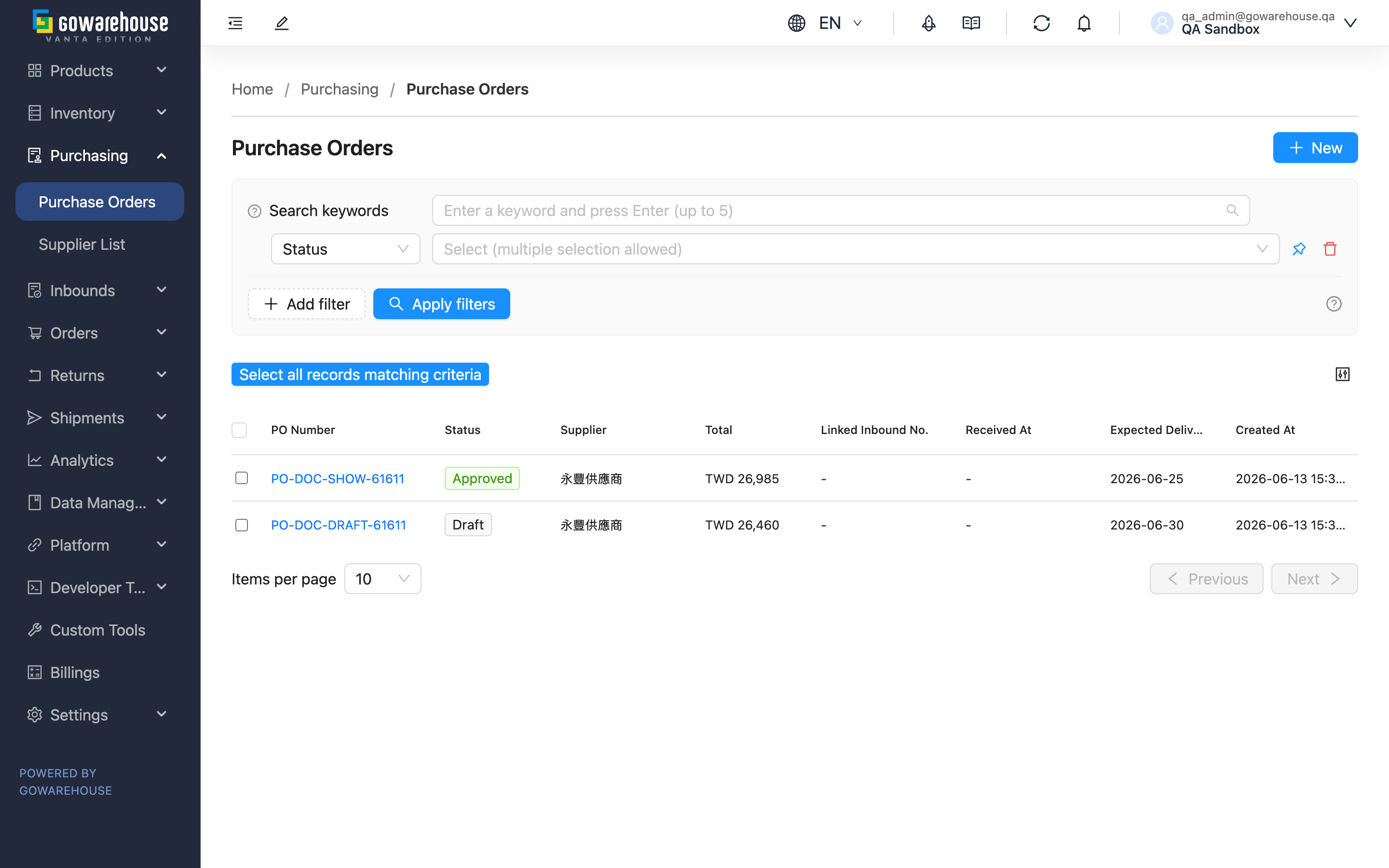
A purchase order records one procurement you place with a supplier: which supplier, which products, the quantity and unit price of each, and the total amount. The full flow is "create PO → submit for approval → manager approves → create a linked inbound to receive goods on arrival → close"; the PO status advances automatically along this flow, while delivery progress comes from its linked inbounds. This page is the overview of all purchase orders — here you can track each one's status and delivery, create new POs, and batch-export for reconciliation.
Quick links: Search & Filter | List Columns | Batch Export
2.1 Search & Filter
The search box matches the start of "PO Number" or "Supplier". Available filters:
| Filter | Description |
|---|---|
| Status | Filter by PO status, multi-select (seven statuses, see List Columns) |
| Supplier | Choose suppliers from the dropdown, multi-select |
| Created At | Filter by PO creation date range |
| Expected Delivery | Filter by expected delivery date range |
| Received At | Filter by the received time of the linked inbound |
| Linked Inbound No. | Filter by linked inbound number |
2.2 List Columns
| Column | Description |
|---|---|
| PO Number | PO number; click to open the Purchase Order Detail |
| Status | Current status, shown as a colored tag |
| Supplier | The supplier of this PO |
| Total | Total amount after tax, prefixed with the currency |
| Linked Inbound No. | The number of the most recent linked inbound; click to open it; shows "-" if none yet |
| Received At | Received time of the most recent linked inbound |
| Expected Delivery | The delivery date agreed with the supplier |
| Created At | PO creation time |
Status colors:
- Gray: "Draft" — just created, not yet submitted; only this status is editable
- Orange: "Submitted" — submitted, awaiting manager approval
- Green: "Approved" — approved, ready to create inbounds and receive goods
- Blue: "Partial Received" — some items have arrived and been received
- Cyan: "Received" — all items have arrived and been received
- Gray: "Closed" — closed, no longer processed
- Red: "Canceled" — canceled
💡 Tip: Pin frequently used filters with "Pin this filter" so they stay at the top of the list next time.
2.3 Batch Export
Select one or more purchase orders and the "Export" button appears above the list. Clicking it generates an Excel file you can download once ready — handy for month-end reconciliation with suppliers. Export is read-only and changes no purchase orders.
The file contains two worksheets: the first, "Purchase Order", has one row per item and matches the list; the second, "Invoice Details", has one row per invoice and adds the due date and outstanding amount, so you can sort by due date to see which invoice falls due next (voided invoices leave the outstanding amount blank, so they are excluded from an outstanding-column total; their invoiced and paid amounts are still shown in full, so totals for those two columns will exceed the cumulative figures on the purchase order detail page by the voided portion. Purchase orders without invoices do not appear on this sheet).
3. FAQ
Quick links: FAQ | Important Notes
3.1 FAQ
▪ How does the purchase order status flow work?
A "Draft" becomes "Submitted" once submitted, and "Approved" once a manager approves it. Then, as goods arrive and you create linked inbounds to receive them, it advances automatically to "Partial Received" or "Received", and finally "Closed" manually. It can still be canceled while in draft, submitted, or approved (provided no inbound has been created yet).
▪ Why can't some purchase orders be edited?
Only "Draft" purchase orders can be edited. Once submitted, a PO is locked to prevent its contents from changing after review or after the order is placed with the supplier. To change a submitted PO, reject it back to draft (see Purchase Order Detail) or cancel and recreate it.
▪ How does a PO become "Partial Received" or "Received"?
Not manually. When you create a linked inbound against an approved PO and the warehouse actually receives the goods, the system advances the status based on each item's received quantity: still incomplete is "Partial Received", fully received is "Received". The entry point for creating inbounds is on the Purchase Order Detail.
▪ What are "Linked Inbound No." and "Received At"?
A single PO can be delivered in several batches and therefore link to multiple inbounds. These two columns show the number and received time of the most recent linked inbound, so you can quickly see the latest batch's progress. For the full list of linked inbounds, open the Purchase Order Detail.
▪ Why don't I see the approve / reject buttons?
Approving a purchase order requires a separate approval permission (different from the general create/edit permission). If you don't see the approve and reject buttons on a submitted PO's detail page, you don't have approval permission — please contact your administrator.
▪ How is the PO total amount calculated?
Total = item subtotal (sum of each item's quantity × unit price) + adjustments (discounts negative, surcharges positive), then tax is applied according to the "Tax Included" setting. See the amount summary on New Purchase Order for details.
▪ How do I export purchase orders for reconciliation?
Use "Supplier" and "Created At" to narrow the range, select the rows, and click "Export". See Batch Export.
▪ Can PO numbers be duplicated?
No. PO numbers must be unique within a merchant. When creating, click "Suggest Name" to have the system generate a unique number.
3.2 Important Notes
⚠️ Important reminders
- Only "Draft" is editable; to change a submitted PO you must reject or cancel and recreate it
- Cancel and close are irreversible — once canceled or closed, a PO cannot return to a previous status
- A PO that already has a linked inbound cannot be canceled — use short close to handle remaining undelivered items
💡 Tip: Regularly filter by "Expected Delivery" for POs due soon or overdue to spot late deliveries early and chase suppliers proactively.
4. Related Features
| Feature | Description | Link |
|---|---|---|
| New Purchase Order | Create a new procurement PO with a supplier | Go |
| Purchase Order Detail | View a PO, approve / receive / close, and create inbounds | Go |
| Edit Purchase Order | Modify a PO still in draft status | Go |
| Inbounds | The inbounds that receive goods after a PO is delivered | Go |