
Edit EC Account
Table of Contents
Section 1: Features
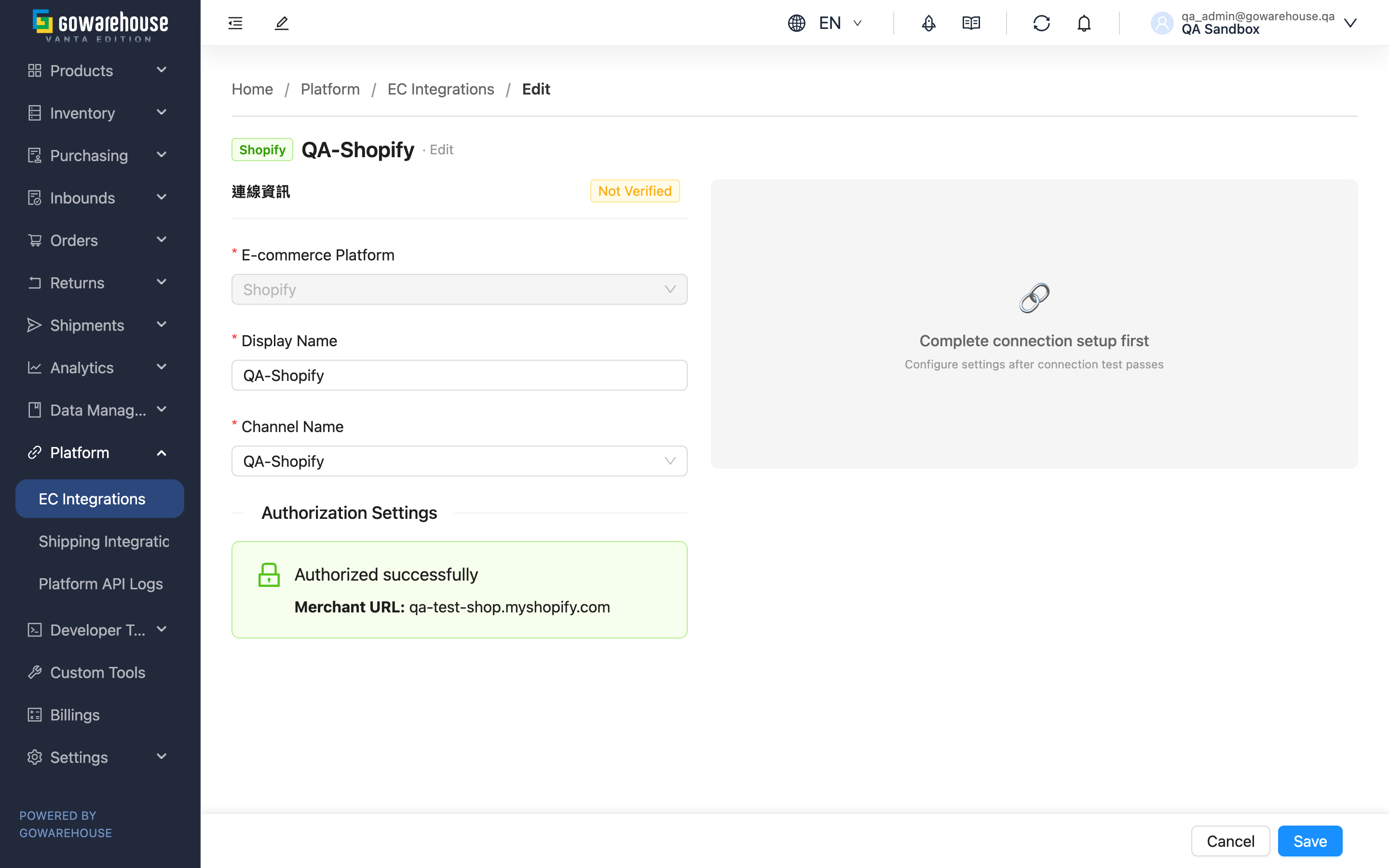
Editing an EC account is for adjusting the settings of an existing account. The screen is the same as the create page, split into the left "Connection" and the right "Settings". The biggest difference from the create page: the connected e-commerce platform cannot be changed; everything else can be updated.
Quick Jump: Adjustable Items | Updating Credentials | Waybill Layout | Revoking Authorization
1.1 Adjustable Items
| Item | Changeable | Description |
|---|---|---|
| E-commerce Platform | No | The platform is locked after creation and cannot be changed |
| Display Name | Yes | Rename anytime |
| Channel Name | Yes | Can be re-bound to a different sales channel |
| Authorization Settings | Yes | See Updating Credentials |
| Order Fetching / Inbound Push / Shipping Code Mapping | Yes | Right-half function settings, all adjustable while the connection is healthy |
| Waybill Layout | Yes | Shown for Momo, Mo+ and Shopline accounts only; see Waybill Layout |
The fetch time slots, push percentage, and shipping code mapping are filled the same way as on the create page; see Create EC Account.
The right-side settings also have a dependency layer: while "Fetch Orders" is off, "Realtime New Order Fetch" and "Fetch Schedule" turn grey and cannot be edited; the same applies to "Push Percentage" while "Inbound Push" is off. A note under the field says which switch to turn on first. Saved values are not cleared — turn the master switch back on and the field becomes editable again with its original content.
1.2 Updating Credentials
Update credentials here when a platform key expires or you re-issue credentials. To protect secrets, existing credentials are shown masked. Once you enter a new credential value, the connection status automatically returns to "Not Verified" to remind you to re-test. After updating, click "Test Connection" again to confirm the connection is healthy, then save.
1.3 Waybill Layout (Momo, Mo+ and Shopline)
Momo, Mo+ and Shopline accounts get an extra "Waybill Layout" dropdown on the right half, offering "A4 (the platform's original layout)" or "Thermal Label (split into two sections)", A4 by default.
- Keep A4: printing is exactly as before — one waybill, one page.
- Switch to thermal: the system splits the A4 waybill the platform returns into a left and a right section, each printed as its own page, so a label printer can print it directly.
- Only home-delivery waybills are affected — Momo: T-Cat, Pelican, HCT, Kerry TJ; Mo+: T-Cat, HCT; Shopline: T-Cat only (including cash on delivery). Convenience-store pickup labels stay A4 and are not split (for Mo+ that covers 7-ELEVEN and FamilyMart, both warehouse-to-store and store-to-store); Shopline's HCT, cross-border and convenience-store labels stay A4 as well.
- Waybills produced by "batch tracking numbers" in a picking wave already come out as two split sections, so there is no need to reprint them just to apply the layout. Shopline labels are not produced during batch tracking numbers but the first time the waybill is printed, and they come out split as well.
- Only labels generated after the switch are affected. Reprinting a waybill that already has a label reuses the existing file and keeps its original layout, and there is no way to switch it over; the new layout only applies to waybills whose label is generated for the first time afterwards.
⚠️ Thermal cuts the platform's A4 waybill into two sections, and carriers may reject and return such shipments — confirm with the platform and the carrier before switching.
1.4 Revoking Authorization
For authorization-based platforms (e.g. Shopee, Shopify) in a connected state, a "Revoke Authorization" button appears on the left half. Clicking it redirects to the platform's authorization-revocation page. After revoking, the account disconnects and stops fetching, and must be re-authorized to recover. If you only want to pause certain functions, turn off "Fetch Orders" on the right half instead of revoking authorization.
Ragic does not offer "Inbound Push" or "Push Percentage" settings. Inbound imports use "Fetch inbounds" and a separate "Inbound fetch times". While "Fetch inbounds" is off, "Inbound fetch times" is greyed out and cannot be edited; turn the switch on to edit it. For the first connection, enter either an order sheet path or an inbound sheet path. An inbound-only account does not require an order sheet. Once connected, configure the import template, line-item subtable, import condition, and receipt write-back. After saving, check the Ragic inbound integration on the detail page.
For inbound-only use, turn off order fetching. The order sheet path, fetch schedule, import template, import conditions, shipment writeback, and shipping code mappings are hidden. Turning order fetching back on restores these fields; saving while disabled preserves the existing order settings. Retesting an existing account saves the current inbound switch and settings together. If inbound fetching is turned off, it stays off even when you also change the API key or source sheet. After switching inbound sheets, matching record IDs on the new sheet can still be imported (document numbers must remain unique). Existing inbounds write back to their original sheet using the writeback fields saved at import. Closing receipt again in the same receiving cycle preserves the first completion time; reopening and completing creates a new writeback cycle. If a populated item lacks its SKU or an explicit date is invalid, the entire inbound is rejected. Correct the source data using the sync log.
Custom attribute defaults apply even without a mapped source column; an existing source value takes priority. Yes/no attributes accept Y/N or 1/0, and numbers and dates are converted according to the attribute type. Invalid values reject the entire inbound; correct them using the sync log, then fetch again. If Ragic rejects a receipt writeback or its service fails temporarily, the system retains the retry instead of marking the writeback as successful.
Section 2: FAQ
2.1 FAQ
▪ Why is "E-commerce Platform" locked?
The platform is fixed when the account is created and cannot be changed. If you picked the wrong platform, you can only delete this account and create a new one with the correct platform.
▪ Is it normal for the status to become "Not Verified" after updating credentials?
Yes. As soon as you enter a new credential value, the system resets the status to never-tested to remind you to re-test. Click "Test Connection" to confirm a successful connection before saving, or orders may fail to import because the credentials are unverified.
▪ I want to pause fetching for this platform without breaking the integration — how?
Turn off "Fetch Orders" on the right half; the connection is kept. Don't use "Revoke Authorization" — revoking disconnects the account and requires re-authorization to recover.
▪ Shopee orders are not arriving during the fetch slots I set?
Shopee accounts have "Realtime New Order Fetch" on by default, so a new-order notification from the platform schedules an extra fetch and the order reaches the system in about 5 minutes instead of waiting for the slots. Those 5 minutes are deliberate: Shopee has not assigned the shipping details the moment an order is placed, and fetching any earlier would leave the recipient phone as Shopee's redacted placeholder instead of the delivery contact number Shopee issues along with the shipping details. To make new orders arrive only during the slots you set, turn this switch off on the right half. Status sync for existing orders (cancellation, shipment) still runs as usual.
▪ After switching the waybill layout to thermal, do labels printed earlier change too?
No. The layout only affects labels generated after the switch. Reprinting a waybill that already has a label reuses the existing file and keeps its original layout, and there is no way to switch it over; the new layout only applies to waybills whose label is generated for the first time afterwards. Convenience-store pickup labels are unaffected either way — they stay A4 and are never split.
▪ Does changing the push percentage take effect immediately?
It takes effect on save, and the next inbound push applies the new percentage. If the adjusted total across platforms reaches 100%, the system warns you about the overselling risk on save.
▪ Can I run "Sync Mapped Products" or "Manual Stock Sync" on the Edit page?
No. These two batch sync actions are on the Detail page. The Edit page only adjusts settings.
2.2 Notes
⚠️ Important
- After updating credentials the status resets to "Not Verified" — be sure to re-test and save, or orders stop importing
- "Revoke Authorization" disconnects the account and stops fetching; it requires re-authorization to recover
- The platform (E-commerce Platform) cannot be changed; a wrong pick means delete and recreate
- "Thermal Label (split into two sections)" splits the A4 waybill into two sections, and carriers may reject and return such shipments — confirm with the platform (Momo / Mo+ / Shopline) and the carrier before switching
💡 Tip: To pause some functions, use the function-setting toggles (Order Fetching, Inbound Push) — no need to revoke authorization or delete the account.
Section 3: Related Features
| Feature | Description | Link |
|---|---|---|
| EC Integrations (Detail) | View the full account setup; run Sync Mapped Products and Manual Stock Sync | Go |
| EC Integrations (List) | View and manage all EC accounts | Go |
| Platform API Logs | View this account's order-fetch and stock-push call records and failure reasons | Go |