
Create Return Order
Table of Contents
1. Features
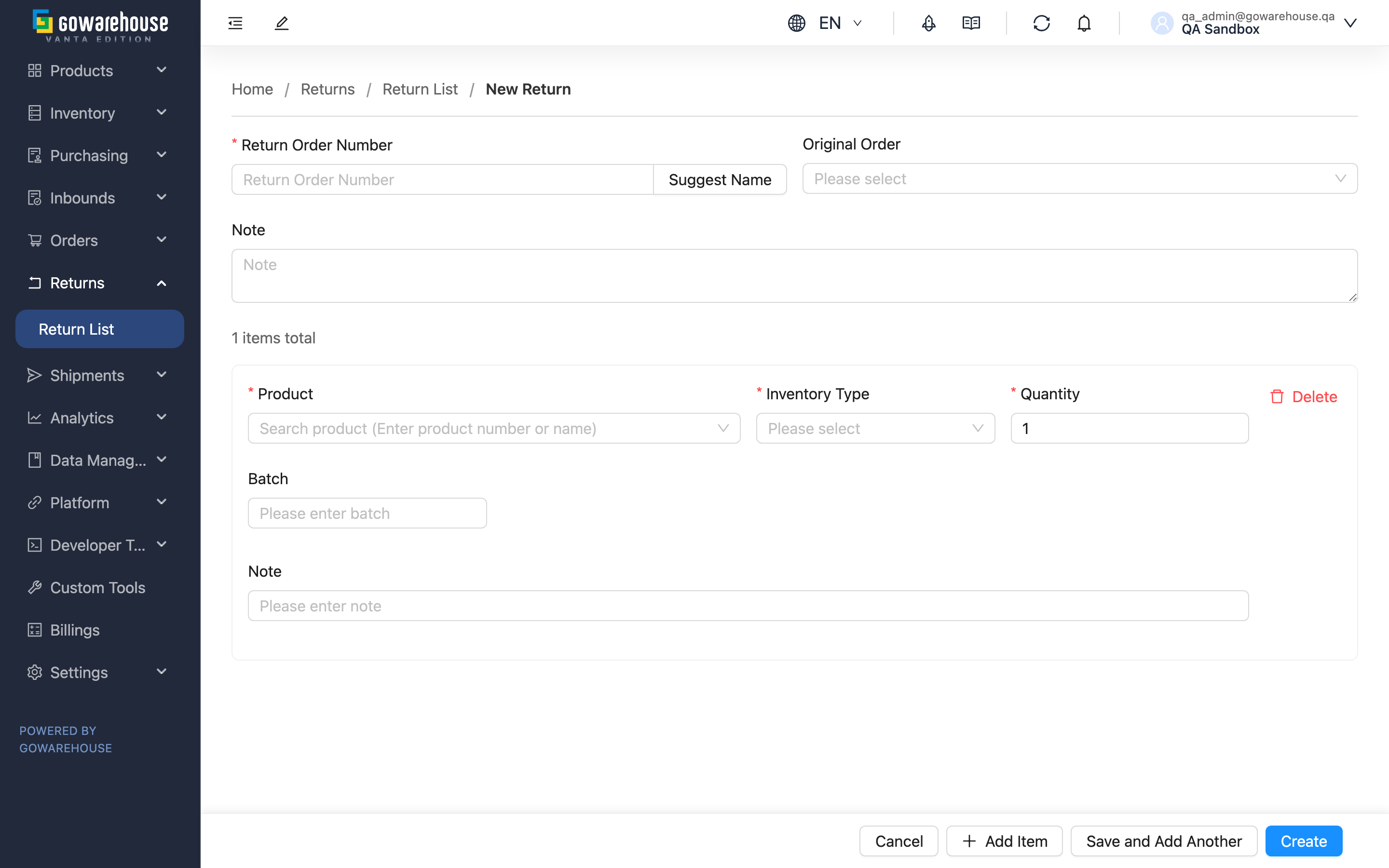
When a customer returns goods, or when stock needs to be sent back to the warehouse, create a return order first so the warehouse knows a return is coming and has something to check the package against when it arrives. You can link the original order to load its items into the list automatically, or pick the products yourself when there is no matching order. After submitting, the return order is in "Pending" status and can still be edited until the warehouse starts verification.
Quick Jump: Return Order Header | Return Items | Submitting and Status
1.1 Return Order Header
Fields marked with * are required
| Field | How to Fill | Notes |
|---|---|---|
| *Return Order Number | Enter one yourself, or click "Suggest Name" to have the system generate one in the "RTN-date-sequence" format | Cannot duplicate another return order within your account; a duplicate is flagged on submit |
| Other Number | Enter an external system reference for reconciliation | At most 255 characters; shorten longer references before saving |
| Original Order | Type the order number in the dropdown to search and select | Optional. Selecting an order loads its items into the list automatically (see Return Items); only your own orders are selectable |
| Note | Record the return reason or special instructions for the warehouse | Optional |
1.2 Return Items
A return order needs at least one return item before it can be submitted. Each item row has the following fields:
Fields marked with * are required
| Field | How to Fill | Notes |
|---|---|---|
| *Product | Search by SKU or name and select | Only your own products are searchable |
| *Inventory Type | Select from the dropdown | The inventory category the returned items will be stored under. If the option is missing, add it under "Inventory Types" first |
| *Quantity | Enter the expected return quantity | Minimum is 1 |
| Manufacturing Date | Pick from the date picker | Optional; shown only when the product has manufacturing-date or expiration management enabled |
| Expiration Date | Pick from the date picker | Optional; shown only when the product has expiration management enabled |
| Batch | Enter the batch number | Optional; shown only when the product has batch management enabled |
| Note | Enter a note for this item row | Optional |
Manufacturing date, expiration date, and batch can all be left empty when creating the return order; the warehouse records the actual values against the physical goods during verification — a return order only forecasts what the warehouse will receive, so you do not need to guess the real batch and dates here. If you have defined custom inventory attributes, the matching fields also appear on each item row, and they are all optional too.
Action Buttons
| Button | What It Does |
|---|---|
| Add Item | Add another return item row at the bottom of the list |
| Delete | Remove that item row |
1.3 Submitting and Status
Once the header and at least one item are filled in, submit using the action bar at the bottom:
| Button | What Happens After Submit |
|---|---|
| Create | Creates the return order and goes to its detail page |
| Save and Add Another | Creates the return order, then clears the form and stays on this page — handy for creating several return orders in a row |
| Cancel | Discards and goes back |
After creation, the return order is in "Pending" status. Until the warehouse starts verification, you can go back to Edit Return Order to change its contents; once the warehouse verifies the first item, the return order enters the verification flow and is locked, and can no longer be edited from here.
2. FAQ
2.1 FAQ
▪ Do I have to come up with the return order number myself?
No. You can enter one yourself, or click "Suggest Name" to have the system generate a unique number in the "RTN-date-sequence" format. Numbers must be unique within your account.
▪ Are items loaded automatically after selecting an original order?
Yes. After selecting the "Original Order", the system loads that order's items into the list; you then adjust the return quantities and delete the items you are not returning. Picking a different order replaces the whole list with the new order's items; clearing the order field resets the list to a single blank item row.
▪ Do I have to link an original order? How do I create a return without one?
No. The "Original Order" field is optional. If the return has no matching sales order (e.g. leftover event stock or returned samples), just search for the products, choose an inventory type, and enter quantities in the item list.
▪ Why do the manufacturing date, expiration date, and batch fields sometimes appear and sometimes not?
Whether these three fields appear depends on whether the product itself has manufacturing-date / expiration / batch management enabled — the system decides automatically, so you do not have to. Even when shown, they can be left empty when creating the return order; the warehouse records them against the actual goods during verification.
▪ Why does submitting show "Please add at least one item"?
A return order needs at least one return item to be created. Make sure the list has at least one row and that every row has a product, an inventory type, and a quantity (the fields marked with *).
▪ I made a mistake after creating — can I still edit or cancel it?
Yes. A newly created return order is in "Pending" status and can be edited until the warehouse starts verification; if you want to void the whole order, you can also cancel it at this stage. Once the warehouse begins verifying, it is locked — see Return List for the detailed cancellation conditions.
2.2 Important Notes
⚠️ Important Reminders
- After creation, the warehouse counts the returned goods against this order, so double-check the products and quantities
- The "Original Order" field only lets you select your own orders; orders belonging to other accounts cannot be linked
- Picking a different original order replaces the whole item list, overwriting any items you previously adjusted or added manually
💡 Tip: After loading items from an original order, you can still click "Add Item" to add extra products you want to return alongside the order.
3. Related Features
| Feature | Description | Link |
|---|---|---|
| Return List | Track the progress and verification status of all return orders | Go |
| Edit Return Order | Change a return order's contents before the warehouse starts verification | Go |
| Order List | Look up the original order to link to the return | Go |