
New Rule
Contents
1. Features
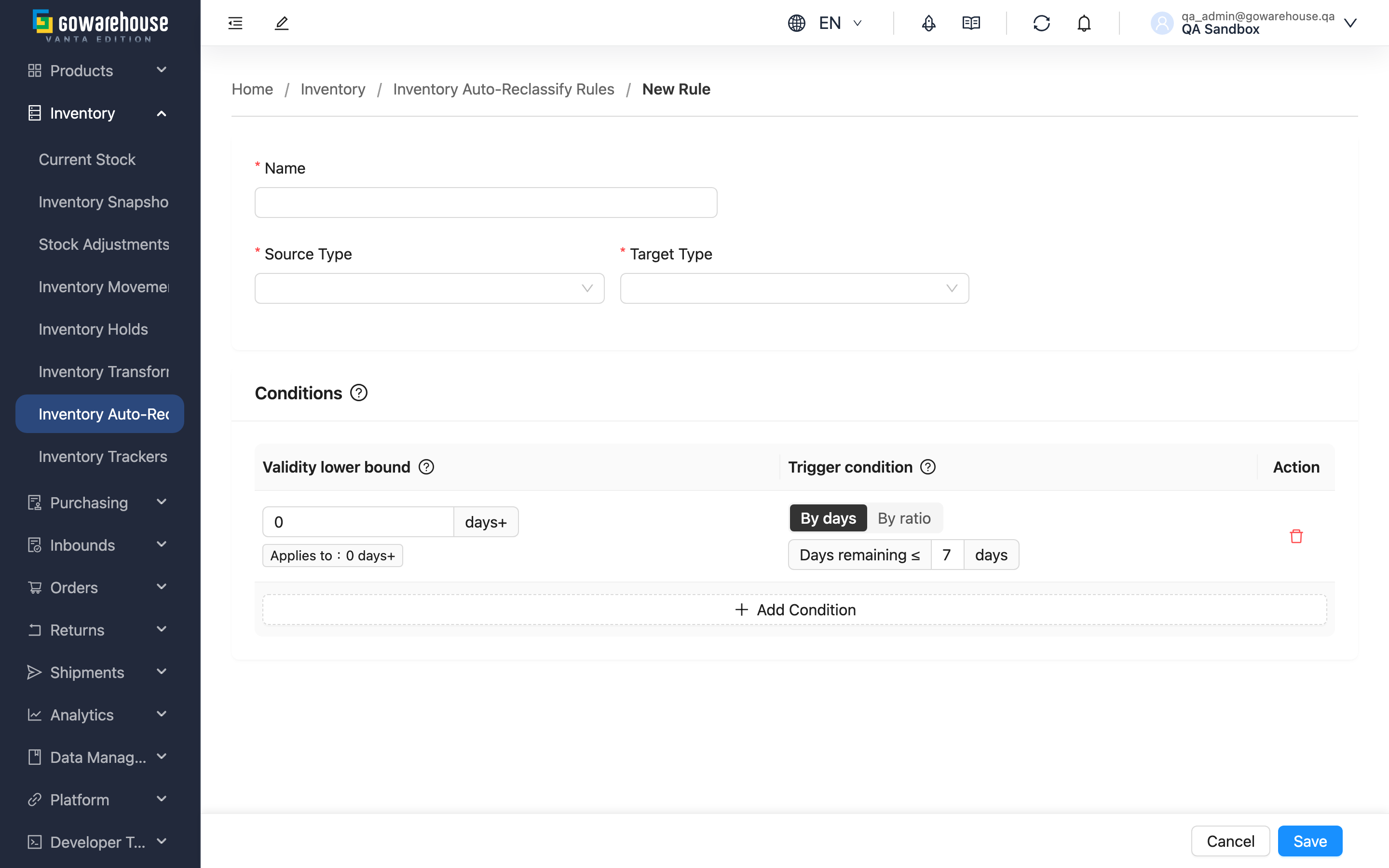
Here you create an inventory auto-reclassify rule specifying "which inventory type, how much shelf life remains, and which type to move to." Once the rule is saved and enabled, the system scans the warehouse every early morning and converts matching stock automatically, sparing you from checking expiry lot by lot and creating transformation documents one at a time.
Quick jump: Basic info | Condition setup | Two trigger methods | Saving and validation
1.1 Basic info
Fields marked with * are required.
| Field | How to fill | Notes |
|---|---|---|
| *Name | Enter a recognizable rule name, e.g. "Supplements near-expiry downgrade" | Required |
| *Source Type | Choose which inventory type to move from (e.g. "Normal Stock") | Required; a type already chosen as target cannot also be the source |
| *Target Type | Choose which inventory type to move to (e.g. "Near-Expiry Stock") | Required, must differ from the source type; if the option is missing, add it under "Inventory Types" first |
1.2 Condition setup
Conditions decide "what stock, and how much remains" before it is converted. The system first places each lot into a shelf-life band by the product's original shelf-life days, then uses that band's trigger condition to decide when to convert. One rule can have several bands, applied from smallest to largest.
Each band (one row) sets:
| Field | How to fill | Notes |
|---|---|---|
| *Validity lower bound | Enter the lower bound (inclusive) of the product's original shelf-life days this band applies to | Lower bounds must not repeat within the same rule |
| *Trigger condition | Choose "By days" or "By ratio" and enter the trigger value | See Two trigger methods for the calculation |
How bands are split: the lower bound (inclusive) is the start; the upper end is one day before the next band's lower bound, and the highest band has no upper limit. For example, lower bounds of 0 and 60 split into "0–59 days" and "60 days and above." The lowest band (usually 0) catches products with very short shelf lives too.
Click "Add Condition" to add another band; each row can be removed on its right.
1.3 Two trigger methods
▸ By days
Judged by the number of days from today to the lot's expiry date. Enter N days; when a lot's remaining shelf life is ≤ N days, it is automatically converted to the target type. Suited to short-life products (e.g. fresh food, perishables).
▸ By ratio
Judged by the share of remaining shelf life against the product's original total shelf life. Enter X%; it triggers when remaining shelf life ≤ original shelf life × X%. Suited to long-life products (e.g. vitamins, shelf-stable food). Example: a 100-day product with 20% entered triggers when 20 days remain (80% used).
1.4 Saving and validation
Click "Save" to save. A new rule is automatically placed last in the execution order; return to the list to adjust the execution order with the ↑/↓ buttons.
Before saving, the system checks:
| Check | Rule |
|---|---|
| Source / target type | Both required, and must not be the same |
| Condition bands | At least one band; shelf-life lower bounds must not repeat |
| Trigger value | "By days" remaining days must be greater than 0; "By ratio" ratio must be between 0 and 100 |
| Duplicate combination | The same "source→target" type combination cannot have two rules |
| Cycle detection | If the new rule forms a cycle with an existing rule (e.g. A→B already exists and you create B→A), saving is blocked and the cycle is pointed out |
2. FAQ
2.1 FAQ
▪ Why split into bands instead of just "convert at 30 days left"?
Because shelf lives differ widely. For 30-day milk, 7 days left means nearly expired; but for 365-day vitamins, 7 days is far too late. A single threshold fits neither. With bands, you can judge short-life products by remaining days and long-life products by remaining ratio, each with a sensible trigger point.
▪ What is the difference between "remaining days" and "remaining ratio," and which should I pick?
"Remaining days" is an absolute count—convert when ≤ N days remain—suited to short-life products. "Remaining ratio" is relative—convert when remaining shelf life is ≤ X% of the original—and translates into different day counts depending on the product's shelf life, suited to long-life products. Days for short-life, ratio for long-life is a common pairing.
▪ How many bands can one rule have?
There is no upper limit; it depends on your product shelf-life distribution. Set the lowest band to 0 to also cover very short-life products; add other bands for each shelf-life range you want to handle separately.
▪ Will this rule process products with no shelf life set?
No. Only stock whose product has a shelf-life value and whose lot has an expiry date is considered. Stock missing expiry data is skipped.
▪ Saving shows "Source and target inventory type cannot be the same"?
It means you chose the same inventory type for both source and target. Choose different types—moving stock "to itself" is meaningless and not allowed.
▪ What if saving warns about a cycle?
It means the new rule forms a loop with an existing rule (e.g. "Normal→Near-Expiry" already exists and you try to create "Near-Expiry→Normal"), which could move stock back and forth between types. Change the direction, or disable the conflicting rule first, then save.
2.2 Notes
⚠️ Important
- The source and target inventory types must differ, and only one rule can exist per "source→target" combination.
- At least one condition band is required to save; shelf-life lower bounds must not repeat.
- A saved rule does not run immediately—it waits for the next daily scan, and its list "Enabled" must be on to work.
💡 Tip: For a newly created rule, check "Inventory Transformations" the next day to confirm the converted stock and quantities match your expectations before leaving it to run automatically.
3. Related Features
| Feature | Description | Link |
|---|---|---|
| Inventory Auto-Reclassify Rules | Back to the rule list, to reorder or manage other rules | Go |
| Inventory Types | Manage the source and target inventory types used by rules | Go |
| Current Stock | View the current real-time quantity of each inventory type | Go |