
Import List
Table of Contents
1. Use Cases
Quick links: Onboarding: moving large amounts of data into the warehouse at once | Bulk-updating products and stock with a spreadsheet | An import only half succeeded — finding out why
Scenario 1: Onboarding — moving large amounts of data into the warehouse at once
Situation: You have just handed your products over to this warehouse for fulfillment, and you have a product list and stock count built up over years — thousands of rows in total. Creating them one by one is too slow, so you want to bring your existing spreadsheet into the system in one go.
Use this feature: Every import — whether products, inventory, orders, or contact addresses — leaves a record here. After importing, come back to this page and filter by import type and status to confirm each batch made it into the system and how many rows were created.
Result: Instead of going through your product list to count manually, this record shows the rows inserted and the success of each batch, confirming the migration is complete with nothing missing.
Scenario 2: Bulk-updating products and stock with a spreadsheet
Situation: At the end of the quarter you need to adjust the prices and stock quantities of a whole batch of products, or update specifications in bulk before a promotion. The change is too large, so you download a template, edit it in a spreadsheet, and import the whole batch instead of editing each product individually.
Use this feature: Every bulk update leaves a record here. After importing, confirm here whether that batch's status is "Completed" and whether the actual rows updated matches the number you expected.
Result: You immediately know whether the update was fully applied, avoiding the gap of "I thought it was updated, but a few rows actually didn't go through."
Scenario 3: An import only half succeeded — finding out why
Situation: After importing a batch of orders, the system shows "Partially Completed" — meaning some rows succeeded and some were rejected. You need to know which rows and why they failed, so you can fix and re-import them.
Use this feature: Open that record's detail page, which lists every failed row number and its error reason. The original file is also kept inside for direct download and comparison.
Result: You can pinpoint the problem rows, fix them, and re-import only those rows — no need to redo the whole batch, and no risk of re-importing rows that already succeeded.
2. Features
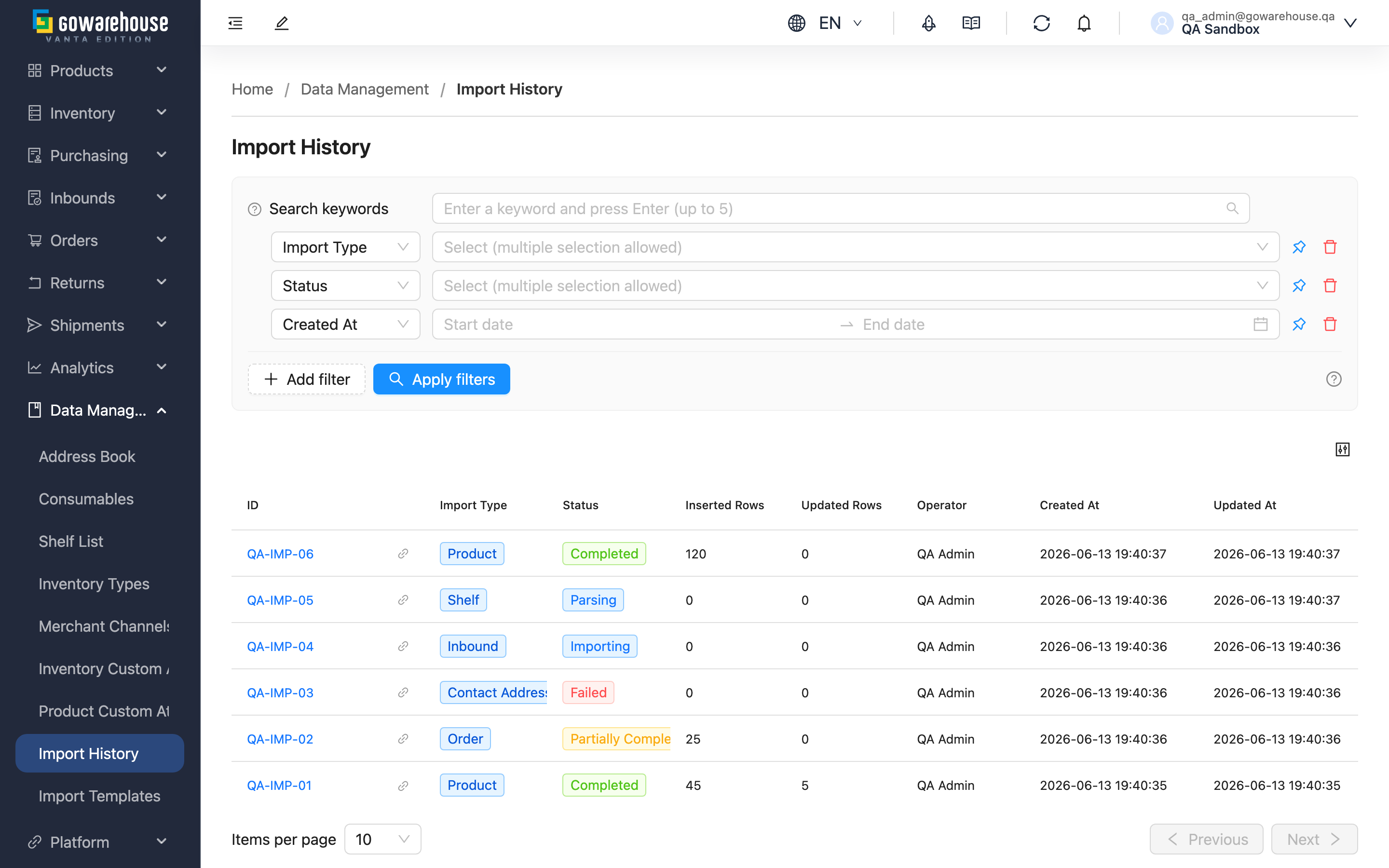
The import list is the complete record of all your bulk import actions. Whenever you use the import function on pages like products, inventory, or orders, the system creates a record here noting what kind of data was imported, who did it, whether it succeeded or failed, and how many rows were inserted and updated. It is your single entry point for checking import results, tracing failures, and retrieving original files afterward.
Quick jump: Search & Filter | List Columns
2.1 Search & Filter
The search box at the top lets you look up a specific record by import number. Common filters are:
| Filter | How to use |
|---|---|
| Import Type | Filter by data type, e.g. show only "Product" or "Order" imports. Multiple selections allowed |
| Status | Filter by result. To find records that need attention, select "Failed" and "Partially Completed" |
| Created At | Limit to imports within a period, e.g. only last week or this month |
Enter the remaining fields by their names.
2.2 List Columns
| Column | Description |
|---|---|
| ID | The number of this import; click to open the detail page for full content |
| Import Type | The data type of this import (product, inventory, order, etc.) |
| Status | The import result, in six states: "Pending", "Parsing", "Importing" mean still in progress; "Completed" means all succeeded; "Partially Completed" means some rows failed; "Failed" means the whole batch was not imported |
| Inserted Rows | How many records were newly created in this import |
| Updated Rows | How many existing records were updated in this import |
| Operator | The person who ran this import |
Each record notes who ran the import and when, making it easy to trace afterward who imported which batch and at what time. For detailed content (the error reasons for failed rows, the original file, attachments), open the detail page.
3. FAQ
3.1 FAQ
▪ Where do I start an import?
Imports are not started on this page, but on each feature's own list page. For example, to import products go to "Product List", to import orders go to "Order List", click that page's import button, choose a template, upload the file, and submit. Only after importing does the system create the corresponding record here for you to track the result.
▪ Which file formats are supported for import?
Only Excel files (.xls and .xlsx) are supported. Other formats are rejected on upload. When importing orders, if you need to attach images or documents with the batch, you may additionally attach JPG, PNG, or PDF files.
▪ What's the difference between "Partially Completed" and "Failed"?
"Partially Completed" means some rows in the file imported successfully while others were rejected due to data problems; "Failed" means none of the batch imported successfully. Both list the failed row numbers and reasons on the detail page.
▪ Can I fix and re-run a failed import?
Yes. The record on this page is a history log and does not offer "retry in place". Open the detail page to see which rows failed and why, fix them in the original file, then re-import once from that feature's list page. Re-importing creates a new import record; the old one is preserved unchanged.
▪ What is the name shown in "Template used"?
That is the name of the import template you selected at the time of import. This name is recorded at the moment of import, so even if the template is later renamed or deleted, this record still faithfully shows which template was originally used. For the template settings themselves, see Import Templates.
▪ I can't find the "Import History" menu?
If you cannot see this feature, please contact your administrator to confirm whether you have permission to view imports.
3.2 Notices
⚠️ Important Reminders
- An import creates or updates data in the system based on the content of the file you upload. An update-type import overwrites existing data directly, so always verify the file content is correct before importing.
- A "Completed" status only means the system wrote the data successfully — it does not mean the content is correct. For bulk imports involving prices, quantities, or stock, it is advisable to spot-check the actual data after importing.
💡 Tip: To quickly surface records that need attention, set the status filter to "Failed" and "Partially Completed" to list all batches that did not import completely at once.
4. Related Features
| Feature | Description | Link |
|---|---|---|
| Import History (Detail) | View the failed-row reasons and original file of a single import | Go |
| Import Templates | Configure the field format each import type maps to | Go |