
Edit Address
Table of Contents
1. Features
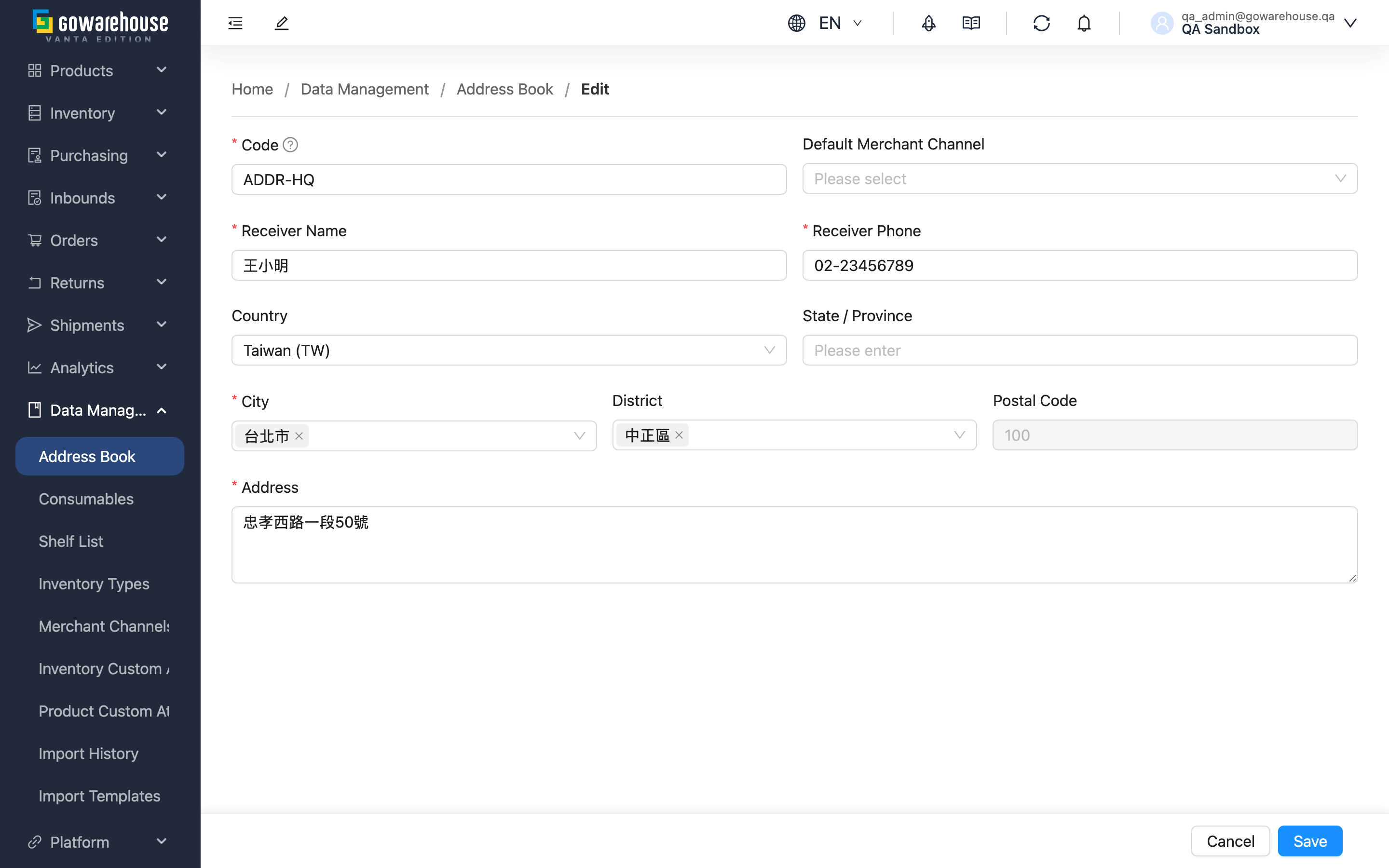
When a recipient moves, a phone number changes, a building number was mistyped, or you want to adjust the channel an address is marked for, correct the address book content here. The form is the same as the Add Address page and is pre-filled with the existing data; changes affect only orders created or imported afterward, not existing ones.
Quick links: Form Fields | How to Use
1.1 Form Fields
Fields marked with * are required.
| Field | How to fill | Notes |
|---|---|---|
| *Code | Modify this address's unique code | Max 50 chars; if order import matches addresses by this code, confirm before changing |
| Default Merchant Channel | Select from the dropdown | Optional; must be a channel under the same merchant |
| *Receiver Name | Enter the recipient's name | Max 100 chars, cannot be blank |
| *Receiver Phone | Enter the recipient's phone | Max 20 chars, cannot be blank |
| Country | Select from the dropdown | Optional; needed only for overseas addresses |
| State / Province | Enter state or province | Optional, max 50 chars, for overseas addresses |
| *City | Select from the dropdown for domestic addresses | Max 50 chars, cannot be blank; switches to manual entry for overseas addresses |
| District | Select from the dropdown for domestic addresses | Optional; select City first |
| Postal Code | Auto-filled after selecting City and District for domestic addresses | Cannot be edited while auto-filled; enter it yourself for overseas addresses |
| *Address | Modify the street, building number, and other details | Max 500 chars, cannot be blank |
1.2 How to Use
Open this page by clicking "Edit" on the details page; the form loads the existing data. After editing the fields you want, click "Save" — the system updates and returns to the details page.
To not make changes, click "Cancel"; nothing is saved.
2. FAQ
2.1 FAQ
▪ Does editing an address affect existing orders?
No. When an order is created or imported, the recipient data at that moment is already copied onto the order itself; editing the address only affects orders created or imported afterward.
▪ Can I change the Code?
Yes, but carefully. If your order import files still match this address by the old code, changing it breaks the matching. We suggest changing it only to fix typos or unify naming, and updating your import files accordingly.
▪ Does changing the Default Merchant Channel take effect immediately?
Yes. After saving, newly created orders apply the new Default Merchant Channel marker; existing orders are unaffected. Note that only channels under the same merchant can be selected.
▪ Can required fields be cleared?
No. Code, Receiver Name, Receiver Phone, City, and Address are required and cannot be saved once cleared.
▪ I made a wrong change but haven't saved — can I undo it?
Yes. Before saving, click "Cancel" to discard all changes and return to the details page. After saving, you must re-enter the edit page and change it back, so note the original content before important edits.
▪ After switching to an overseas address, why does City become manual entry?
When an overseas country is selected, City and District switch to manual entry and you fill Postal Code yourself; switching back to domestic (clearing Country) restores the dropdowns and postal-code auto-fill.
2.2 Notices
⚠️ Important
- Before changing a Code, confirm whether your order import files still match this address by the old code, or the matching will break.
- The required fields marked with * cannot be cleared; the system blocks saving if they are.
3. Related Features
| Feature | Description | Link |
|---|---|---|
| Address Book | View the full address list | Go |
| Address Book Details | View the full details of a single address | Go |
| Add Address | Create a new recipient address | Go |