
Shelf Details
Table of Contents
1. Features
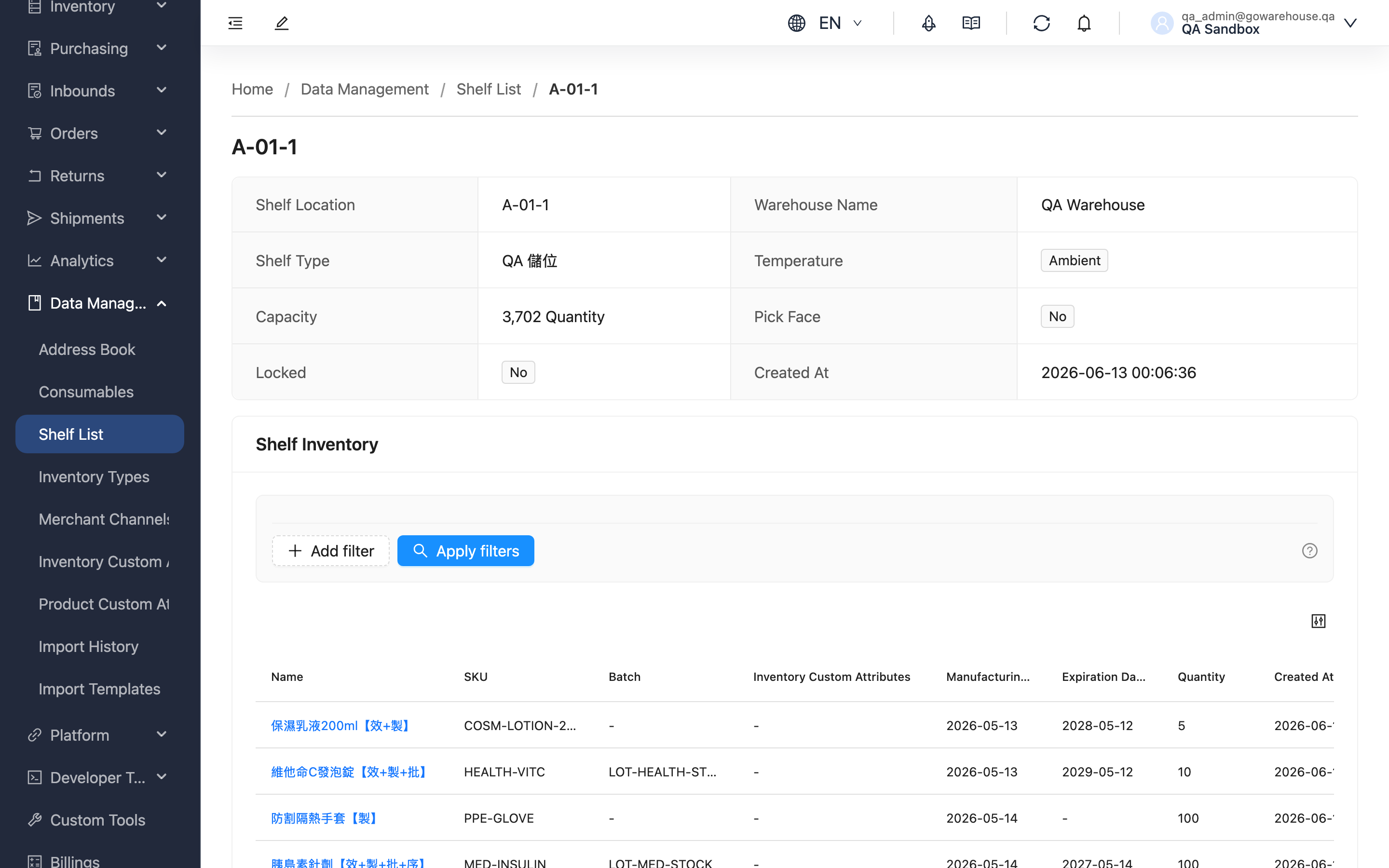
Reach this page by clicking any shelf location from the Shelf List. Here you can view the location's basic information and the inventory currently stored at that spot. When you want to know "what products are actually at this location and how much of each," this is the most direct place to look. The page is read-only; the setup and adjustment of locations are maintained by the warehouse.
Quick jump: Shelf Info | Shelf Inventory
1.1 Shelf Info
The upper half of the page shows the location's basic data:
| Field | Description |
|---|---|
| Shelf Location | The location's identifier |
| Warehouse Name | The warehouse this location belongs to |
| Shelf Type | The type category the warehouse assigned to the location |
| Temperature | The temperature condition of the location |
| Current Stock | How much stock the location currently holds (sum of all inventory quantities) |
| Created At | When the location was created |
1.2 Shelf Inventory
The "Shelf Inventory" section in the lower half lists each piece of inventory currently stored at this location, including product name, "SKU", "Batch", custom attributes, manufacturing date, "Expiration Date", and "Quantity".
When you want to see only a specific product or batch within the same location, use the filters above to narrow the range:
Example: Select "Product SKU" and enter SKU-001, then select "Batch" and enter the batch number to find matching inventory in this shelf.
Click any inventory item's product name to open that product's detail page and view its full data.
2. FAQ
2.1 FAQ
▪ Why is this location's inventory list empty?
It means the location currently holds no goods. The shelf may have just been created without anything put away yet, or its stock may have all shipped out. Empty locations still appear in the list, so you can keep track of which locations are available.
▪ The "Current Stock" and the quantities in the list below don't add up?
"Current Stock" is the sum of all inventory quantities at this location; the list below shows each item separately. If the list is paginated or a filter is applied, the rows shown on screen may not match the total — clear the filter to see the full detail.
▪ Why does the same product appear in multiple rows at this location?
Because inventory is distinguished by "product + batch + expiration date + manufacturing date + custom attributes." If the same product has different batches or different expiration dates, each becomes its own row, listed and counted separately.
▪ Can I edit this shelf or move the goods inside it here?
No. This page is for viewing only; adjusting shelves and moving inventory are performed by the warehouse.
2.2 Notes
⚠️ Important
- The inventory list reflects the real-time state and changes at any time as the warehouse receives, ships, and puts away goods — it is not a snapshot of a single point in time.
💡 Tip: To find which locations a product is scattered across, go back to the Shelf List and use the "SKU" filter, rather than searching page by page within a single shelf.
3. Related Features
| Feature | Description | Link |
|---|---|---|
| Shelf List | View all shelves and filter by product, warehouse, or temperature | Go |
| Current Stock | View total and available quantity for each product | Go |
| Product List | View and manage your product data | Go |