
New Import Template
Table of Contents
1. Features
Creating an import template saves a set of "file-header-to-system-field" settings for reuse on future files in the same format. You first choose which import type the template is for, then map the file's headers to system fields one by one, and you can set default values for fixed fields. Once saved, you can apply it directly at import instead of re-mapping fields each time.
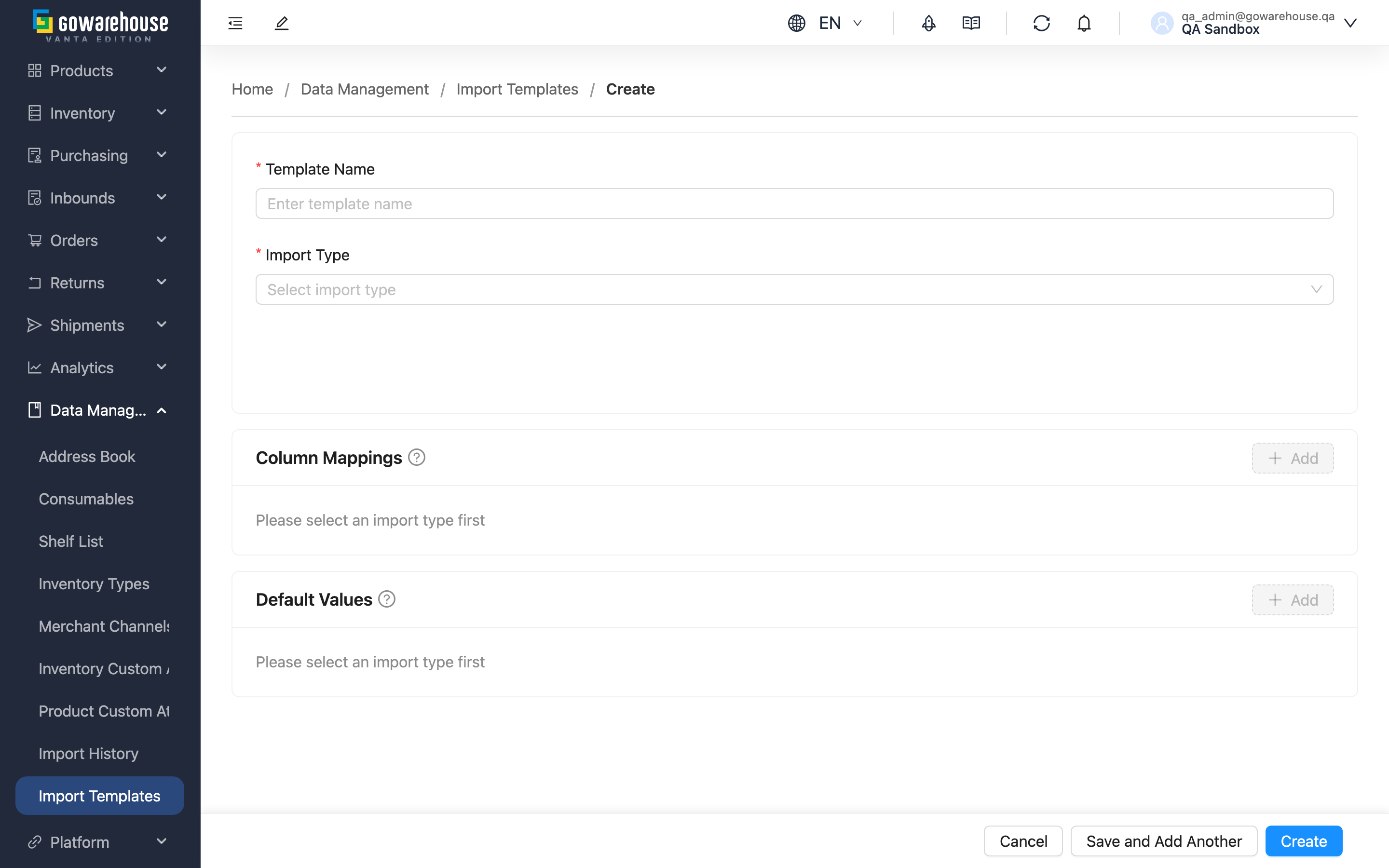
Quick jump: Basic Info | Column Mappings | Default Values | Saving
1.1 Basic Info
Fields marked with * are required.
| Field | How to fill in | Notes |
|---|---|---|
| *Template Name | Enter a recognizable name; naming it after the source or purpose (e.g. "Shopee Order Format") is recommended | Required |
| *Import Type | From the dropdown, select which import this template is for: Order, Product, Inbound, Return Order, Contact Address, Bundle | Required; fixed after creation and cannot be changed |
After choosing the import type, the system pre-fills the required field mappings for that type; adjust the headers to match your file.
1.2 Column Mappings
Map each header in your file to the field the system actually stores.
▸ Set up each mapping
- In the left column, enter the actual header text in the file (e.g. "Customer Order No.").
- In the right column, select the matching system field (e.g. Order Number); the list shows every mappable field for that import type.
- Click "Add" to add another row; the delete button removes a row you don't need.
▸ Required-field rules
- Each system field can only be mapped once; duplicate mappings are not allowed.
- Every required field must have either a header mapping or a default value — one of the two — otherwise it cannot be saved.
1.3 Default Values
If a field always holds the same value, set a default value for it so it is filled in automatically at import and the column no longer needs to be in the file.
- Select the field to set a default for, then enter the fixed value.
- A field with a default value is automatically removed from the column mappings — the default value takes precedence and is filled in automatically at import, so no header mapping is needed or possible.
- After you delete a default value, if that field is required, the system automatically puts it back into the column mappings to remind you to add a mapping.
1.4 Saving
- Save: After saving successfully, the page shows a success message and opens the template's detail page.
- Save and Add Another: After saving, the form is cleared so you can create multiple templates in a row.
2. FAQ
2.1 FAQ
▪ Do I have to map every column in the file?
The system checks required fields: every required field must have a header mapping or a default value. Optional fields can be mapped as needed; unmapped fields are simply not filled in at import.
▪ Can the same system field map to two headers?
No. Each system field can only be mapped once.
▪ Can I change the import type after setting it?
You can re-select it while creating; but once saved it is fixed and cannot be changed when editing. To switch types, create a separate template.
▪ What do I do about a "missing required fields" message?
It means a required field has neither a header mapping nor a default value. Add a mapping or default value for the fields listed in the message, then save.
▪ Why can't some fields be selected for mapping?
Because they have been set as default values. The default value takes precedence and is filled in automatically at import, so no header mapping is needed or possible; delete its default value and it reappears in the mappable list.
2.2 Notes
⚠️ Important
- The import type cannot be changed after saving; confirm it before creating.
- At least one column mapping is required to save, even if all required fields use default values.
💡 Tip: Prepare an actual file to be imported first and map column by column against its headers — that's the least likely to miss anything.
3. Related Features
| Feature | Description | Link |
|---|---|---|
| Import Templates | Return to the list of all import templates | Go |
| Import History | Upload a file to run an import and apply a template | Go |