
Edit Merchant Channel
Table of Contents
1. Feature Guide
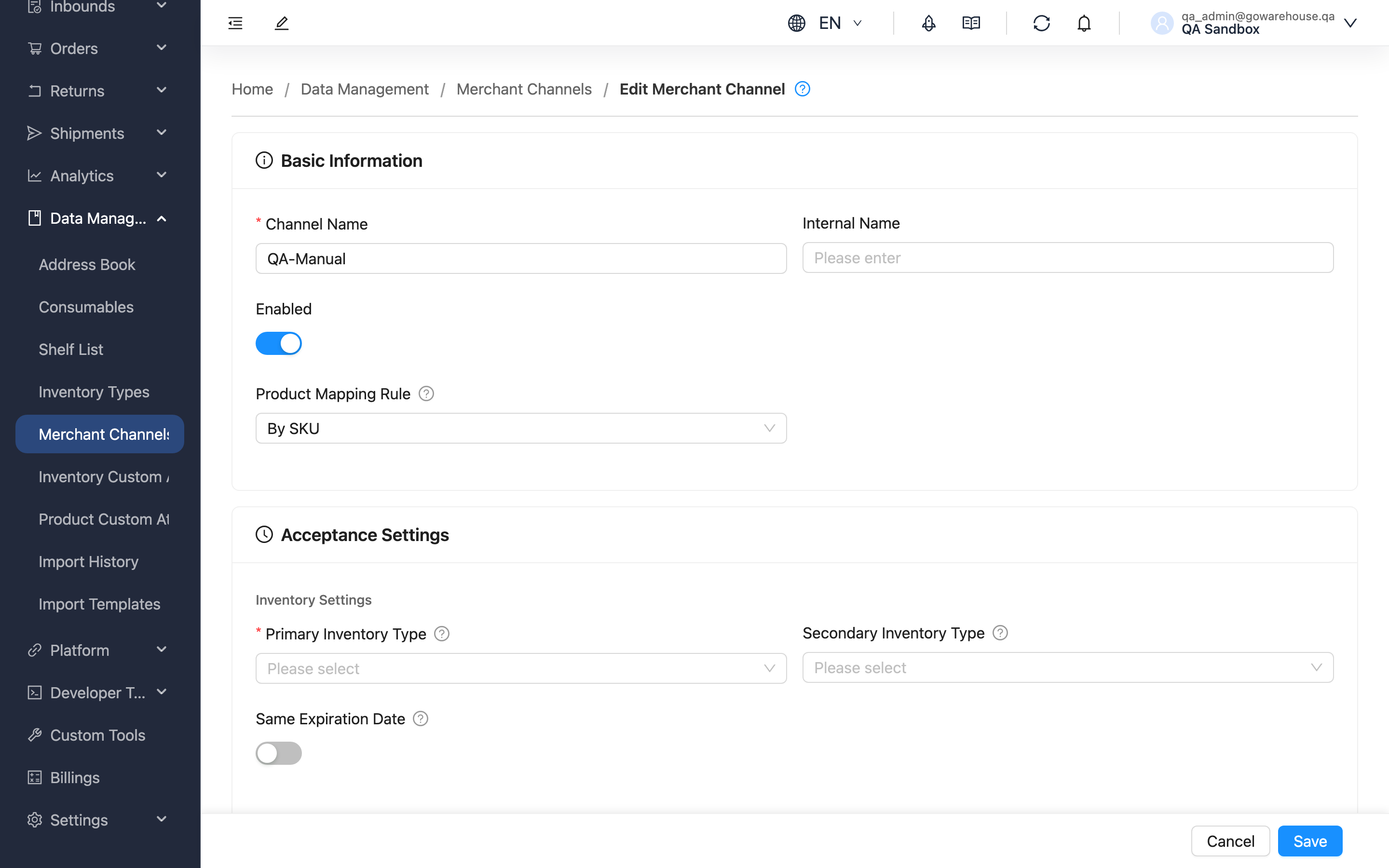
Each platform's shipping requirements change as your business evolves — a channel raises its expiration standard, needs a different shipping type, or pauses seasonally. This page lets you modify a channel's shipping rules in real time so the system settings stay in sync with actual needs. The fields are the same as Create Sales Channel, divided into Basic Info, Acceptance Settings, Order Processing Settings, and Shipping Rule Settings; changes take effect only after you click "Save" and apply only to subsequent orders.
Quick Jump: Basic Info | Acceptance Settings | Order Processing Settings | Shipping Rule Settings
1.1 Basic Info
Fields marked with * are required
| Field | How to fill in | Notes |
|---|---|---|
| *Channel Name | Modify the channel name | Must be unique within an account; after changing, confirm whether order import settings need to be updated too |
| Channel Code | Modify the channel code | After it changes, exports carry the new code; older import files still work using the channel name |
| Enabled Status | Toggle switch | When disabled, this channel no longer appears in the channel menu for new orders and stops receiving imported orders |
| Product Mapping Rule | Switch between By SKU and By Barcode | Affects product mapping for new orders after the change |
| Order Template | Select from the list, leave blank for the system default | Specify only when this channel's shipping documents need a particular format |
1.2 Acceptance Settings
Inventory Settings
Fields marked with * are required
| Field | How to fill in | Notes |
|---|---|---|
| *Primary Inventory Type | Select from the list | The inventory type used first when shipping |
| Secondary Inventory Type | Select from the list, can be cleared | Used automatically when the primary is insufficient; once cleared, insufficient primary inventory means out of stock |
| Same Expiration Date | Toggle switch | When on, identical products in the same order must come from the same expiration batch |
Expiration Management
| Field | How to fill in | Notes |
|---|---|---|
| Expiration Mechanism | Choose No Expiration Control / By Days / By Ratio | Switching mechanisms changes the value fields below |
| Days Before Expiration | Enter days | Used when mechanism is "By Days"; also has Overseas Days Before Expiration |
| Expiration Ratio | Enter a percentage | Used when mechanism is "By Ratio"; also has Overseas Expiration Ratio |
| Tiered expiration rules | Modify or delete existing rules, or click "Add" to add a rule | Threshold values cannot be duplicated; duplicates prevent saving |
| Enable Last Shipped Expiration Check | Toggle switch | When on, the same product shipped to this channel can only have equal or longer shelf life |
1.3 Order Processing Settings
| Field | How to fill in | Notes |
|---|---|---|
| Inventory allocation policy | Pick one of three options from the dropdown: "Full allocation (all-or-nothing)" releases the stock and marks the whole fulfillment short as soon as any line is short; "Partial allocation (hold out-of-stock lines)" locks the full quantity of lines with stock and holds short lines as whole lines waiting for replenishment; "Partial allocation (auto-split backorder)" lets a line lock part of its quantity and splits the short portion into a backorder fulfillment | Leave blank to use your account's default value; COD fulfillments cannot be split and behave like "Partial allocation (hold out-of-stock lines)" |
| Fulfillment Lot Policy | Select from the list | If unset, inherits the merchant setting |
| Auto Complete Fulfillment | Toggle switch | Auto-completes the fulfillment order after picking |
| Auto Recheck Inventory | Toggle switch | Automatically rechecks out-of-stock orders when inventory changes; once on, you can enter a priority, where a smaller number is higher priority |
1.4 Shipping Rule Settings
You can add, modify, or delete shipping conversion rules. Conditions can be Volume, Weight (kg), or Postal Code, switching the original shipping type to the target when the condition is met. The system checks the rules in order the moment the order is created, and stops at the first match. When the condition is Volume, a Volume unit dropdown next to the threshold lets you pick CBM, Sai, or ft³; new rules default to the organization's current unit. Each rule keeps its own unit, so thresholds don't need re-entering if the warehouse later changes the organization unit — see Shipping Switch Rules.
The shipping type menu only lists the entries the warehouse has enabled for your account and that are still active; a rule that already points at one disabled later still shows it on that row.
2. FAQ
Quick Jump: FAQ | Important Notes
2.1 FAQ
▪ Will changing settings affect existing orders?
No. Changes apply only to newly created orders afterward; existing orders keep their original allocation results.
▪ What happens to existing orders after disabling a channel?
They are unaffected and ship normally. Disabling only keeps the channel out of the channel menu for new orders and stops it from receiving imported orders. Switch it back to enabled when operations resume.
▪ Can I delete this channel?
No. The system doesn't support deleting sales channels, which preserves the channel attribution of historical orders. When no longer used, disable it instead.
▪ What does "Unsaved changes" mean when leaving the page?
It means you changed settings but haven't saved. Choosing "Leave" discards the changes; choosing "Stay" lets you keep editing.
▪ Why can't I save?
Check whether: the channel name is empty, it duplicates another channel, a tiered expiration rule threshold is duplicated, or the primary inventory type is unselected.
2.2 Important Notes
⚠️ Important Reminders
- Expiration and inventory type changes immediately affect allocation for subsequent new orders; assess the impact on shipping before adjusting.
- Tiered expiration rule thresholds cannot be duplicated; duplicates prevent saving.
- Save before leaving the page, or unsaved changes will be lost.
3. Related Features
| Feature | Description | Link |
|---|---|---|
| Sales Channels List | View all channels | Go |
| Sales Channel Detail | Review a channel's full settings | Go |
| Create Sales Channel | Create a new channel | Go |