
Import Detail
Table of Contents
1. Features
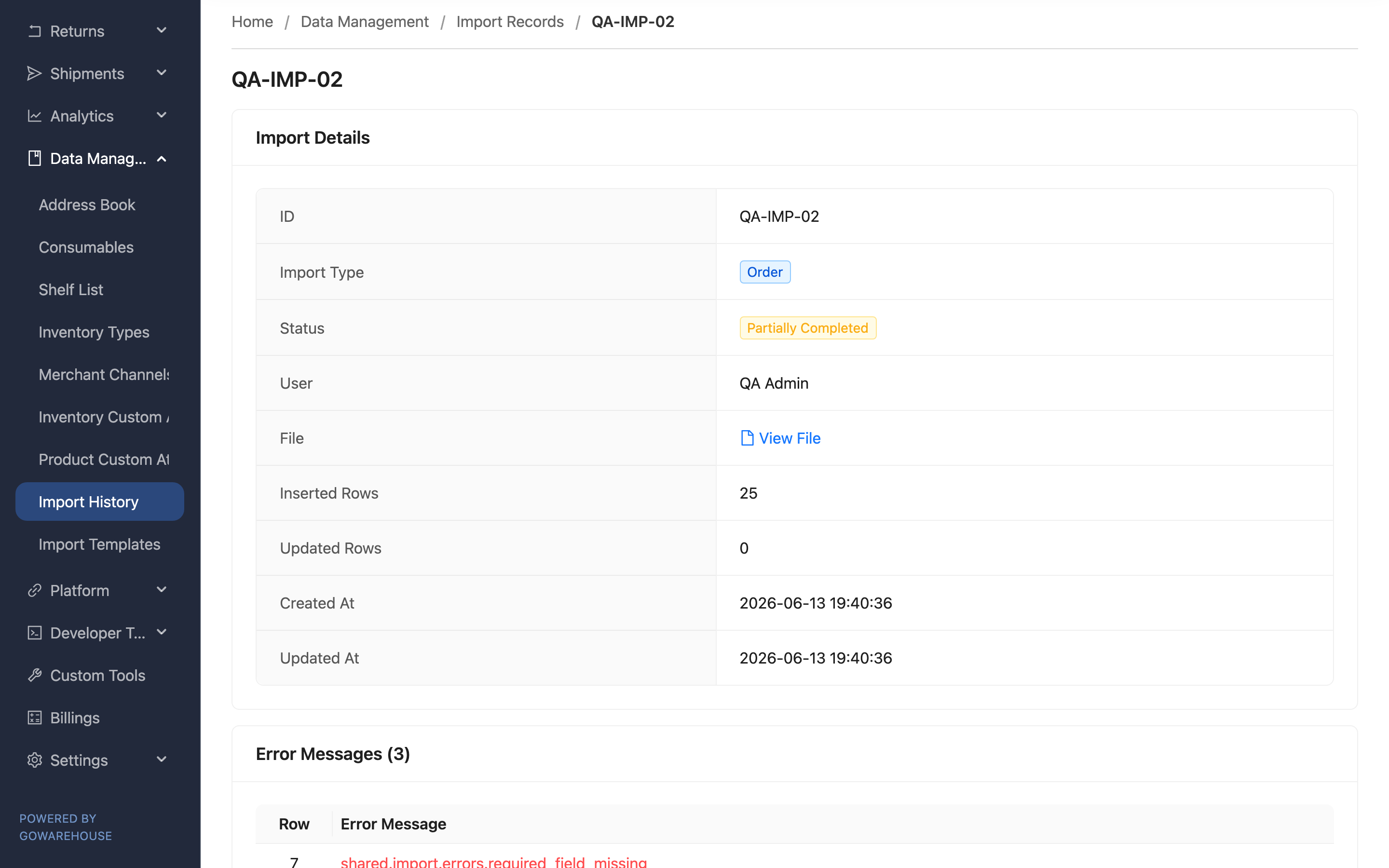
The import detail page shows the complete content of a single import. When you see a batch marked "Partially Completed" or "Failed" in the Import List, this is where you find out which rows failed, why, and download the original file to fix and re-import. Successful imports can also be verified here against their actual rows inserted and updated.
Quick jump: Import Info | Error Messages | Attachments
1.1 Import Info
The card at the top of the page lists the basic data of this import:
| Field | Description |
|---|---|
| ID | The number of this import |
| Import Type | The type of this batch of data (product, inventory, order, etc.) |
| Template used | The name of the import template selected at the time of import; shown only when a template was used |
| Status | The import result; for the full definition of each status, see the list columns in Import List |
| Merchant Channel | Shown only if this batch is bound to a specific channel |
| User | The person who ran this import |
| File | The original import file you uploaded; click "View File" to download |
| Inserted Rows | How many records were newly created in this import |
| Updated Rows | How many existing records were updated in this import |
1.2 Error Messages
When any rows in this batch failed to import, an error message table appears on the page, listing each failed row number and its corresponding error reason. Errors generally fall into a few categories: a required field was left blank, the data format was incorrect (e.g. text entered where a quantity was expected), a referenced record does not exist (e.g. a product code the system cannot find), or a data conflict (e.g. a duplicate number).
A fully "Completed" import will not show this table. Fix the rows the table points to in the original file, then re-import from that feature's list page.
1.3 Attachments
If extra images or documents were uploaded with this import (supported for order imports), they are listed here and can be downloaded one by one. Ordinary product and inventory imports usually have no attachments.
Both these attachments and the "File" above open in a new tab; if your browser blocks pop-ups, a message asks you to allow them and click again.
2. FAQ
2.1 FAQ
▪ Can I re-import failed rows directly on this page?
No. This page is the history record of the import, for viewing and downloading only, with no retry in place. Fix the rows the error messages point to in the original file, then re-import once from that feature's list page (products, orders, etc.).
▪ Why are some fields (sales channel, attachments) not shown?
The page only shows the data this import actually has. When there is no bound channel, no extra attachments, or a field simply has no value, the corresponding section does not appear — this is normal.
▪ "Inserted Rows" plus "Updated Rows" doesn't match the file's total rows?
The difference is the number of rows that failed and were not imported. For example, if a file has 100 rows, 80 inserted and 10 updated, then 10 rows failed, and those 10 rows are listed in the error messages table.
▪ How long can I download the original file?
As long as this import record exists, you can download the originally uploaded file from the "File" field, making it easy to verify or fix and re-import.
2.2 Notices
⚠️ Important Reminders
- When re-importing after fixing failed rows, import only those failed rows, to avoid re-importing already-successful rows and causing duplicates.
- An update-type import overwrites existing data in the system directly; confirm the file content is correct before re-importing.
💡 Tip: After downloading the original file, fixing each row against the row numbers in the error messages table is the fastest way to locate problems.
3. Related Features
| Feature | Description | Link |
|---|---|---|
| Import History | Return to the list of all import records | Go |
| Import Templates | Configure the field format each import type maps to | Go |