
Edit Rule
Contents
1. Features
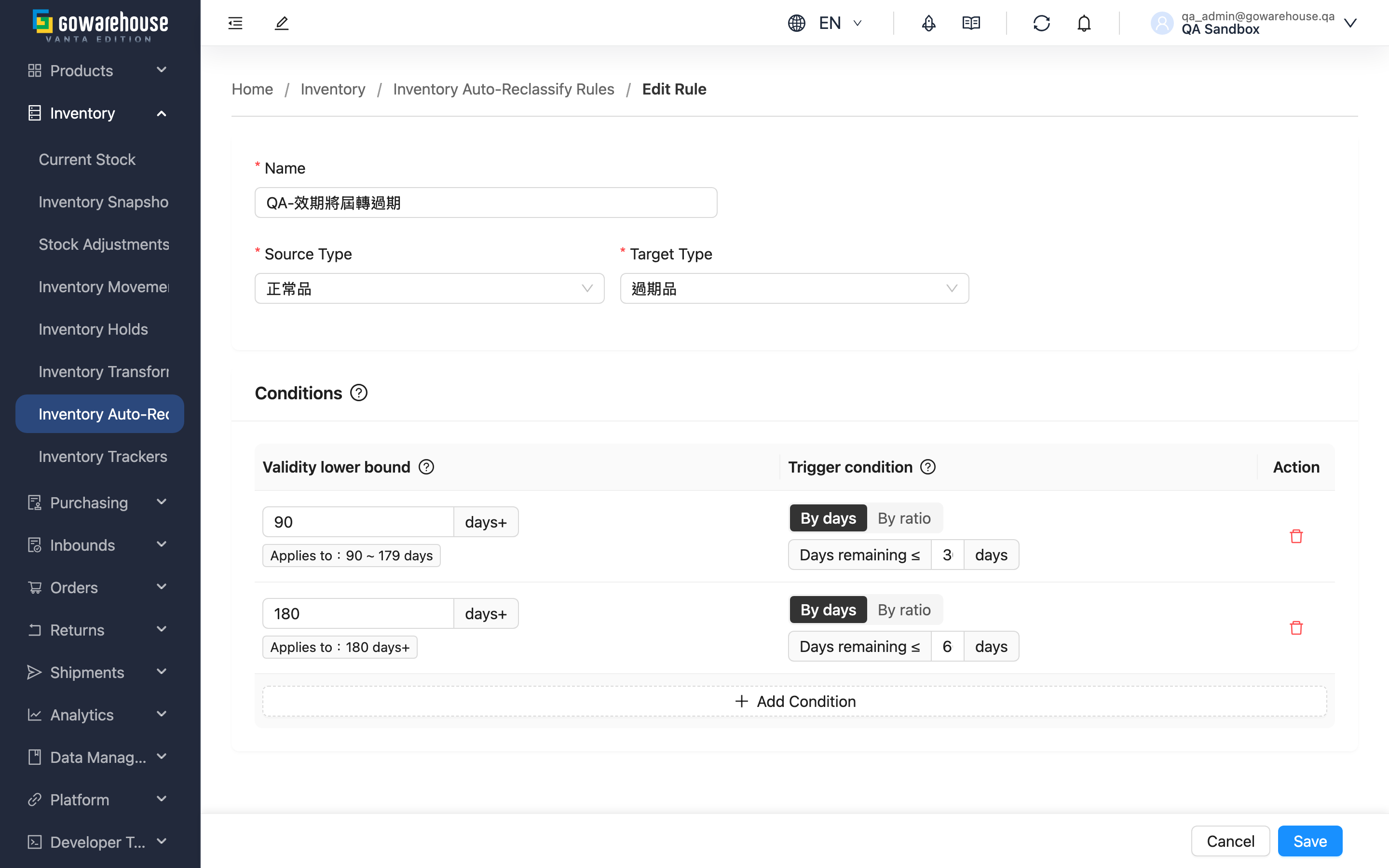
Here you modify an existing inventory auto-reclassify rule: adjust the name, source/target inventory types, and condition bands. Saved changes take effect at the next daily scan. Field entry is the same as for New Rule; this page focuses on what is different when editing.
Quick jump: What you can change | Editing condition bands | Saving and validation
1.1 What you can change
| Field | How to fill | Notes |
|---|---|---|
| *Name | Edit the rule name | Required |
| *Source Type | Re-select the source inventory type | Required; setting it equal to the target is blocked |
| *Target Type | Re-select the target inventory type | Required, must differ from the source |
Execution order (Order) and enabled status (Enabled) are not changed here, but on the rule list using the ↑/↓ buttons and the status toggle.
1.2 Editing condition bands
The page loads all of this rule's current condition bands. You can add or remove bands, or change any band's shelf-life lower bound and trigger method; entry is the same as in New Rule's condition setup.
On save, the system replaces the bands entirely with whatever bands are currently on screen—whichever bands remain on screen are the only bands the rule keeps after saving; removed old bands are not retained. So before saving, make sure the bands on screen are the complete set you want.
1.3 Saving and validation
Click "Save" to save changes. After a successful save you return to the rule list, and the "Last Edited By" column updates to you. The checks are the same as for New Rule: source/target must differ, at least one band, shelf-life lower bounds must not repeat, trigger value ranges, plus duplicate-combination and cycle detection.
2. FAQ
2.1 FAQ
▪ If I change a rule, will stock that was already converted revert?
No. Editing only affects this rule's future runs: the next daily scan judges by the new settings. Stock already converted stays in the type it was moved to at the time and is not reverted by editing the rule.
▪ When do changes take effect?
At the next daily scan (around 04:00 in your time zone); the whole warehouse is not re-scanned immediately. A rule edited today processes matching stock with the new settings at the next run time.
▪ I removed a condition band and saved—what happens?
After saving, the rule no longer has that band. The system replaces the old settings entirely with the bands left on your screen, and the removed band no longer triggers conversions.
▪ I want to pause this rule without deleting its settings?
Do not do it here—go back to the rule list and switch "Enabled" to off. Disabling keeps all settings but stops the rule from running while disabled; re-enable later to resume.
▪ Changing the source or target type warns about a cycle?
It means the changed direction forms a loop with another existing rule (e.g. another rule is "Near-Expiry→Normal" and you change this one to "Normal→Near-Expiry," forming a cycle). Choose different types, or disable the conflicting rule first, then save.
2.2 Notes
⚠️ Important
- On save, the condition bands currently on screen replace the existing bands entirely; removed old bands are not retained.
- Editing affects only future runs; already-converted stock is not reverted.
- Source and target must differ; if the change forms a duplicate combination or a cycle with another rule, saving is blocked.
💡 Tip: If you only want to pause temporarily rather than change settings, toggling the enabled status on the list is safer than editing—it leaves the condition bands untouched.
3. Related Features
| Feature | Description | Link |
|---|---|---|
| Inventory Auto-Reclassify Rules | Back to the rule list, to reorder, toggle enabled status, or delete rules | Go |
| New Rule | Full explanation of field entry and validation | Go |
| Current Stock | View the current real-time quantity of each inventory type | Go |