
Add Address
Table of Contents
1. Features
When you add a customer, open a new store, partner with a new dealer, or want to record fixed returns and forwarding warehouses, create the corresponding recipient address here. Each address gets its own Code, which you can select directly when creating an order, or use to auto-fill complete recipient data when importing orders, saving repeated typing and reducing errors.
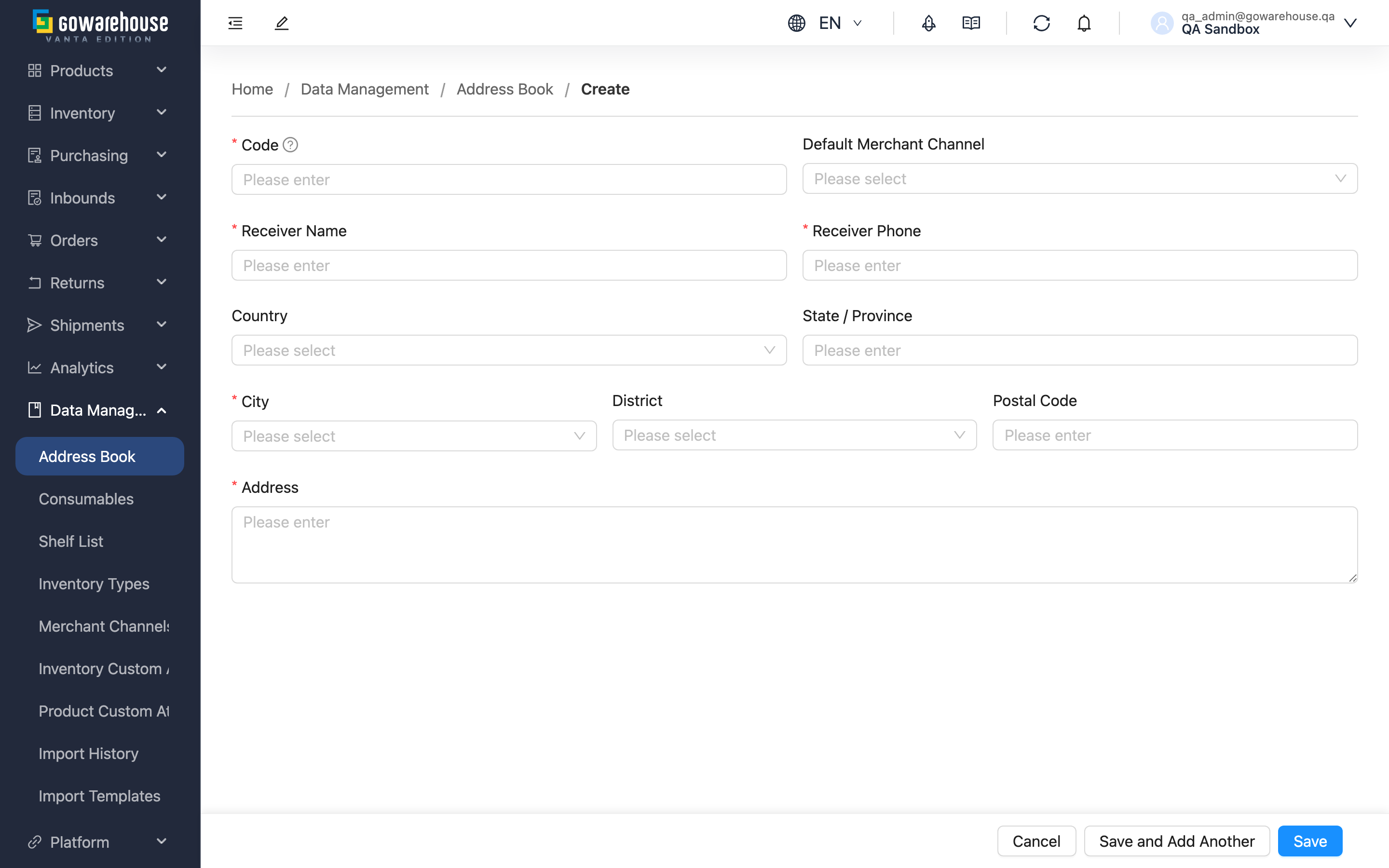
Quick links: Form Fields | How to Use
1.1 Form Fields
Fields marked with * are required.
| Field | How to fill | Notes |
|---|---|---|
| *Code | Enter this address's unique code | Max 50 chars; use letters, digits, and hyphens (e.g. STORE-TP-01); order import matches by this code |
| Default Merchant Channel | Select from the dropdown | Optional; marks the channel this address mainly serves; if missing, add it under sales channel settings first |
| *Receiver Name | Enter the recipient's name | Max 100 chars |
| *Receiver Phone | Enter the recipient's phone | Max 20 chars |
| Country | Select from the dropdown | Optional; needed only for overseas addresses; left empty means domestic |
| State / Province | Enter state or province | Optional, max 50 chars, for overseas addresses |
| *City | Select from the dropdown for domestic addresses | Max 50 chars; switches to manual entry when an overseas country is selected |
| District | Select from the dropdown for domestic addresses | Optional; select City first |
| Postal Code | Auto-filled after selecting City and District for domestic addresses | Cannot be edited while auto-filled; enter it yourself for overseas addresses |
| *Address | Enter the street, building number, and other details | Max 500 chars |
1.2 How to Use
After filling in the required fields, click "Save" to finish; the system takes you to that address's details page.
To create several in a row, click "Save and Add Another" instead: after saving, the form clears and stays on this page so you can fill in the next one.
To not create one, click "Cancel" to go back; nothing is saved.
2. FAQ
2.1 FAQ
▪ Do I need to look up the Postal Code myself?
Not for domestic addresses. When no Country is selected (treated as domestic), choosing City and District auto-fills the Postal Code, and it can't be edited then. When an overseas country is selected, City becomes manual entry and you fill the Postal Code yourself.
▪ How do I enter an overseas address?
First select the country in Country; City and District switch to manual entry, and you fill in State / Province and Postal Code yourself. Only system-supported countries can be selected.
▪ Does the Receiver Name have to be a real name?
Not necessarily — enter whatever reaches the recipient, e.g. "John Wang", "Warehouse Dept.", or "Store Manager".
▪ I can't find a channel in the Default Merchant Channel list?
The dropdown options come from the sales channels you have created. If the one you want is missing, add it under sales channel settings first, then return here.
▪ Why does the Default Merchant Channel fail to save after I pick a channel?
The Default Merchant Channel must be a channel under the same merchant. If you pick one that doesn't belong to the current merchant, the system blocks it with a prompt; just choose a valid channel.
▪ Can I use it immediately after creating?
Yes. Once saved, it takes effect right away and can be selected by Code when creating or importing orders.
2.2 Notices
⚠️ Important
- The Code is how order import matches an address; before naming, search the Address Book to confirm it's unused.
- Country only accepts system-supported countries; an unsupported country cannot be saved.
💡 Tip: Batch-create fixed delivery points (stores, returns warehouses, dealers) in one go with "Save and Add Another" and a consistent code naming rule; later order imports and order creation become much smoother.
3. Related Features
| Feature | Description | Link |
|---|---|---|
| Address Book | View the full address list | Go |
| Address Book Details | View the full details of a single address | Go |
| Edit Address | Modify an existing address | Go |