
Shipment List
Table of Contents
1. Use Cases
Quick Links: Answering a customer's "where is my package" | Tracking down delivery problems early
Scenario 1: When a customer asks "where is my package", check delivery progress in one place
Situation: A customer messages or calls you on Shopee, momo, or your own store: "I ordered days ago — has it actually shipped? Where is it now?" Once the warehouse ships an order, the package is handed to a carrier, and the carrier reports delivery status along the way (shipped, in transit, awaiting pickup, delivered). You need to know exactly where this shipment stands without phoning the warehouse or logging into each carrier's website.
Use this feature: A shipment is the delivery document handed to the carrier, recording one package's tracking number and live delivery status. In the list columns, use search and filter to locate the package by order number or tracking number and see its current delivery status; with the tracking number you can also look up the detailed trace on the carrier's website.
Result: You can tell the customer directly "it has shipped and is in transit, expected to arrive in a day or two", or step in early when it turns out to be a delivery exception — no more leaving customers waiting or repeatedly chasing the warehouse.
Scenario 2: When a batch of packages seems stuck, gather all the abnormal shipments to stop the bleeding
Situation: Several customers recently reported not receiving their goods. You worry it's more than just those few and want to know how many packages are stuck in delivery trouble, being returned, or sent back to you — and act before complaints escalate by contacting the carrier or customer. When a carrier reports a problem during delivery, that shipment's status is marked as a delivery exception, return in progress, or returned to sender.
Use this feature: In search and filter, use "Status" to round up "Delivery Exception", "Return in Progress", and "Returned to Sender" in one go, collapsing every package that needs attention into a single list.
Result: You get an at-a-glance view of which packages are in trouble, can check each tracking number and contact the carrier or customer, and resolve issues before complaints or refund disputes escalate — reducing operational loss.
2. Feature Guide
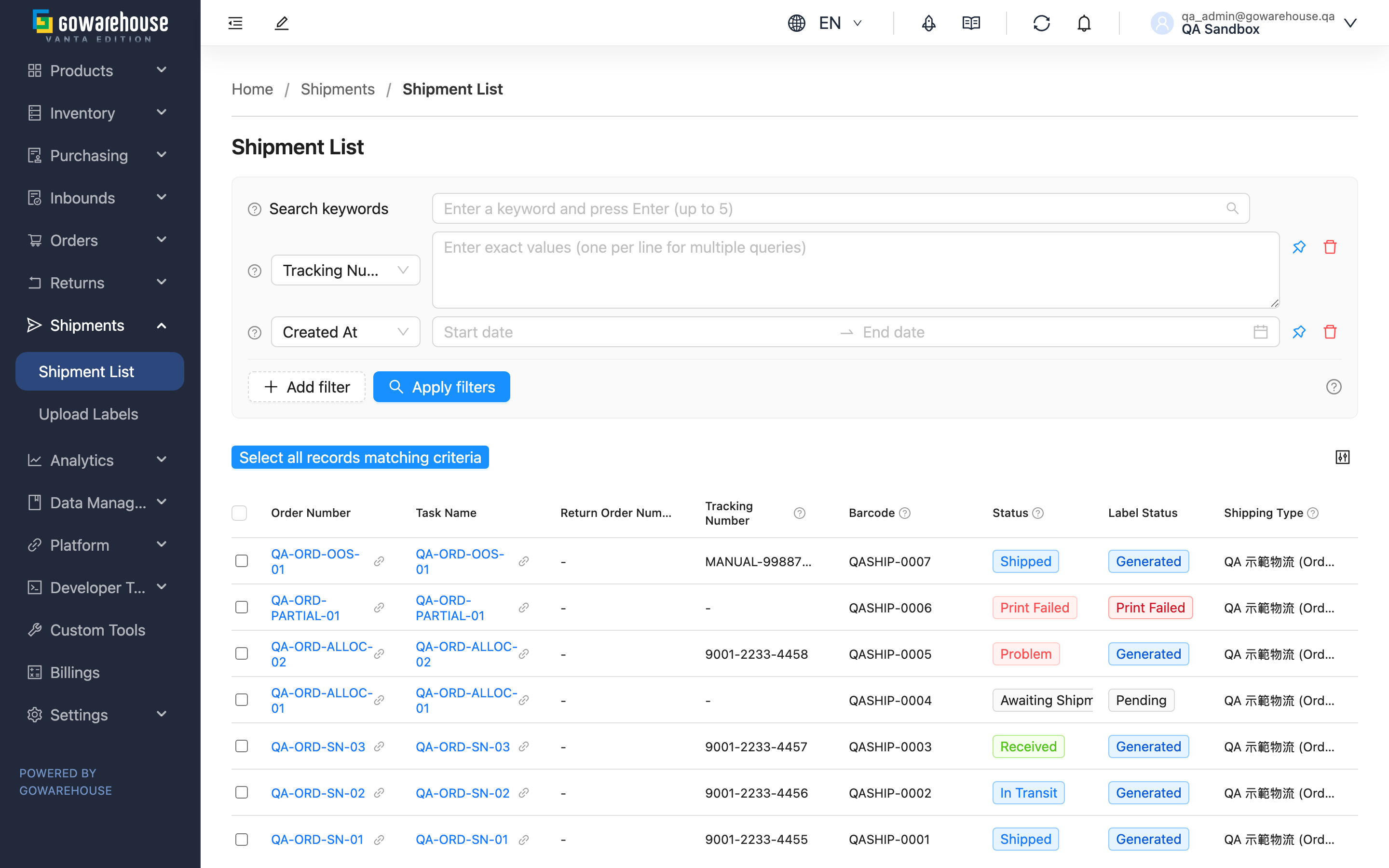
A shipment is the delivery document the warehouse hands to a carrier after fulfilling your order; one shipment corresponds to one package and records its tracking number and live delivery status. The Shipment List gathers every shipment generated from orders and returns in one place, so you can look up tracking numbers, check delivery progress, find delivery problems, and export the records you need for analysis — all without going order by order.
Quick Navigation: Search & Filter | List Columns | Batch Operations
2.1 Search & Filter
Type a keyword in the search box to match tracking number, barcode, order number, fulfillment name, and return order number (prefix match). For more precise conditions, expand the filter section and use the items below; most fields accept several values at once (one per line) for batch lookups, and self-explanatory fields can simply be entered by name.
| Filter Item | How to Use |
|---|---|
| Status | Select one or more delivery statuses from the list; see the status descriptions under List Columns for what each means |
| Shipping Type | Choose a shipping type from the list to see only shipments sent via that carrier |
| Created At / Updated At | Set a date range, commonly used to isolate shipments created within a period |
2.2 List Columns
| Column | Description | Sortable |
|---|---|---|
| Order Number | The order this package belongs to; click to view order details | ✗ |
| Fulfillment Name | The fulfillment task the warehouse created from your order; click to view its details | ✗ |
| Return Order Number | If this shipment is reverse logistics, the related return order is shown; click to view details | ✗ |
| Tracking Number | Tracking number provided by the carrier; use it on the carrier's website for the detailed trace | ✓ |
| Barcode | Package barcode | ✓ |
| Status | Current delivery status (see below); updates automatically as the carrier reports | ✗ |
| Label Status | Whether the shipping label has been obtained and printed (see below); this is separate from delivery status | ✗ |
| Shipping Type | The shipping type used for this package | ✗ |
| Created At | Shipment creation time | ✓ |
| Updated At | Shipment last update time | ✓ |
For columns marked "sortable", click the column header to sort ascending or descending.
Shipment Status Descriptions
| Status | Meaning |
|---|---|
| Awaiting Shipment | Shipment created, not yet handed to the carrier |
| Print Failed | Shipping label failed to print; this package has not actually shipped |
| Shipped | Package handed over to the carrier |
| In Transit | Being delivered by the carrier |
| Arrived at Hub | Package reached the carrier's transit hub |
| Awaiting Pickup | Package reached the store or delivery address, awaiting recipient pickup |
| Delivered | The package has been delivered |
| Delivery Exception | Carrier reported an issue during delivery |
| Return in Progress | Carrier is returning the package |
| Returned to Sender | Recipient never picked up; package has been returned to the sender |
Label Status Descriptions
"Label Status" describes whether the shipping label itself was successfully generated — separate from where the package is in delivery (the "Status" above). A package whose label has not been obtained cannot actually ship.
| Label Status | Meaning |
|---|---|
| Pending | Shipping label not yet requested from the carrier |
| Processing | Requesting the label from the carrier; please wait |
| Generated | Label successfully obtained, ready to print and ship |
| Print Failed | Label generation or printing failed; the package has not actually shipped and needs reprocessing |
2.3 Batch Operations
After selecting one or more shipments, you can run a batch export.
| Operation | Prerequisite | Result |
|---|---|---|
| Export | At least one shipment selected; export is unavailable when none are selected | The system starts preparing the file; go to "Data Management" → "Import History" to view and download the result |
Export only saves the data to a file; it does not change any shipment.
3. FAQ
Quick Navigation: FAQ | Important Notes
3.1 FAQ
▪ What is the relationship between shipments, orders, and fulfillments?
- An order records what the customer wants; a fulfillment is the shipping task the warehouse creates from the order, representing "the contents of one shipment"; a shipment is created on a fulfillment and is the delivery document handed to the carrier, recording that package's tracking number and status.
- One order may be split into multiple fulfillments shipped in batches, so one order may correspond to one or more shipments.
- Returns also use logistics, so a return order may also generate a shipment (reverse logistics).
▪ Does the status update by itself, or do I update it manually?
A shipment's "Status" updates automatically as the carrier reports delivery progress (in transit, awaiting pickup, delivered). You don't need to — and can't — change it manually. Just check the latest status in the list.
▪ Why do some shipments show "Print Failed"?
It means the shipping label was not generated successfully, so the package has not actually shipped. Check whether the shipping label has been re-printed successfully; only after a successful print does the status advance to "Shipped".
▪ What's the difference between "Return in Progress" and "Returned to Sender"?
"Return in Progress" means the carrier is in the middle of returning the package; "Returned to Sender" means the recipient never picked it up and the package is physically back with the sender. Seeing the latter usually means this one needs follow-up from you (re-ship or refund).
▪ What are the different "Source" values for a shipment?
Every shipment has a "Source", visible in the shipments section of the order detail page: "System" (created automatically by the system along the fulfillment flow), "Platform" (tracking number supplied directly by platforms such as Shopee or momo), and "Manual Upload" (matched to a fulfillment manually via "Upload Labels" using your own or a platform's label).
▪ Can I delete a shipment?
Shipments are important logistics delivery records and can only be deleted in certain statuses; shipments that have already shipped or entered delivery generally cannot be deleted. If you need to remove an incorrectly created shipment, contact the warehouse first to avoid affecting status reporting and accounting.
3.2 Important Notes
⚠️ Important Reminders
- Shipment status is updated automatically from carrier reports and cannot be changed manually; rely on the status shown in the list.
- Shipments with "Delivery Exception" or "Returned to Sender" status usually mean delivery went wrong and need follow-up from you.
💡 Tip: To answer a customer follow-up, locating the shipment by order number or tracking number in Search & Filter is fastest; to tally shipping volume for a period, isolate the range with "Created At" and then export for analysis.
4. Related Features
| Feature | Description | Link |
|---|---|---|
| Upload Labels | Upload shipping labels generated by platforms such as Shopee or momo, or your own system, and match them with fulfillments manually | Go |
| Order List | Check order processing progress and the overall shipping status of an order | Go |
| Return Order List | Track return order progress and reverse logistics | Go |