
Inbound Order Details
Table of Contents
1. Features
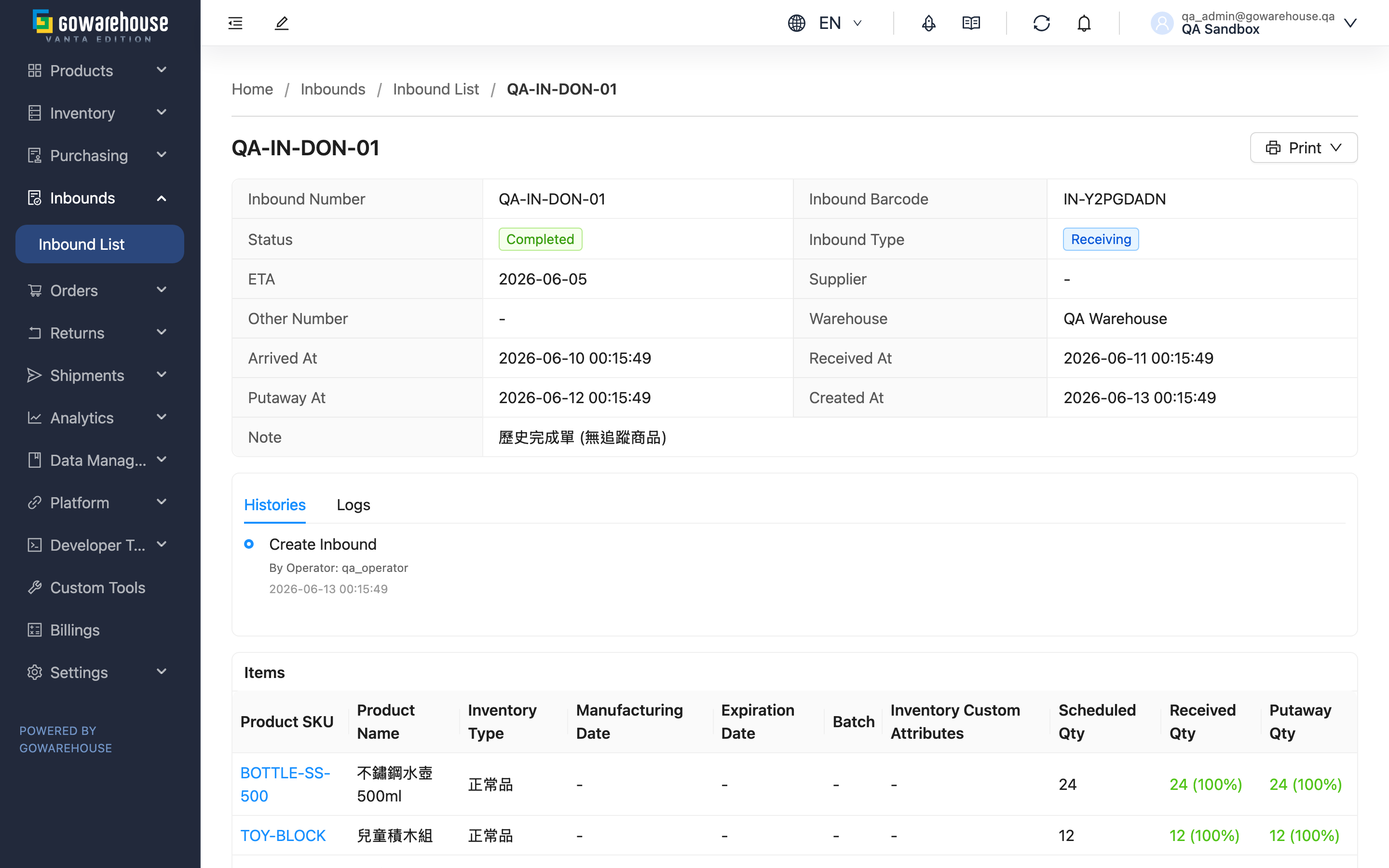
The inbound details page shows a shipment's full lifecycle — from plan to counting to putaway: what you told the warehouse would arrive (the plan), what the warehouse actually received and in how many batches (the receipts), whether the two differ, and which stage it is currently at. This is where you track a single shipment and confirm whether the records match reality.
Quick Navigation: Basic Info & Actions | Plan & Receipts | Other Info | Reassign Purchase Order
1.1 Basic Info & Actions
The top of the page lists this order's basic info; a few fields are worth explaining:
| Field | Description |
|---|---|
| Inbound Barcode | A system-generated barcode for the inbound order, for the warehouse to scan |
| Arrived At | When the warehouse started putting away |
| Received At | When the warehouse finished counting |
| Putaway At | When everything was put away |
| Related Return Order | Shown only for the "Sales Return" type; click through to the return order |
The action buttons at the top right appear based on the current status:
- Edit: Appears only in "Pending" status; opens Edit Inbound.
- Print: Download this order's PDF or product labels (see Other Info).
- Resume: Appears only in "Canceled" status; restores the order back to "Pending".
- Cancel: Appears only in "Pending" status; voids the order (preconditions and effects in FAQ).
- Change purchase order: Appears for a "Receiving" type order that isn't canceled and whose source purchase order isn't closed; moves this order (with its receipts) to another purchase order (see 1.4 Reassign Purchase Order); this feature is not currently available, so the button will not appear.
1.2 Plan & Receipts
This is the core of the details page, designed to be read side by side:
Expected Plan: Each product you entered when creating the order. Every item shows three quantities — planned (Scheduled Qty), received (Received Qty) and put away (Putaway Qty) — the latter two with a number, percentage and color indicating completion (their relationship and color legend are in Inbound List). In addition:
- An exclamation icon next to a number means the batch, expiration date, manufacturing date, inventory type or custom attributes the warehouse actually received differ from your plan.
- A multi-batch marker means this product was received and completed across several counts.
Receipts: Each time the warehouse receives a batch, it creates a receipt record; this section lists each batch with the actual contents received, the completion time of each batch, and the verifier. If a record's batch, expiration date or manufacturing date differs from the plan, that field is highlighted in red so you can spot the difference at a glance. Items marked "Unplanned" are products the warehouse received that were not in your original plan.
1.3 Other Info
- History: A complete record of every change to this order (created, edited, receiving started, counting completed, canceled, resumed, etc.); edits also show the before-and-after differences.
- Integration Logs: If this order came from a connected external system, you can view the integration requests and responses here.
- Value-Added Services: Extra services and billing items the warehouse provided for this shipment (if any).
- Serial Numbers: A searchable list of the product serial numbers recorded during this order's receiving.
- Print: From "Print", choose to download the inbound PDF or product labels; after the system generates the file, a download link appears in your notifications.
1.4 Reassign Purchase Order
Feature Not Yet Available
Purchase order management (purchase orders and suppliers) is not currently available on any plan — the button described in this section will not appear on screen for now. Existing data is unaffected and remains intact in the system. This feature will be offered later as an add-on module, at which point the workflow described in this section will apply as-is.
For a "Receiving" type order that isn't canceled, as long as its source purchase order isn't closed, you can click "Change purchase order" to move it to another purchase order; an order without a linked purchase order (received without a PO) can use the same button to attach one afterwards. This action requires inbound management permission.
The target purchase order must meet all of the following:
- The same supplier as the inbound order (not required for no-PO inbounds; after attaching, the inbound takes on the target's supplier)
- Status "Approved" or "Partial Received"
- Every product on the inbound order has a matching item on the target with enough remaining quantity to hold this order's quantities; if any single item doesn't fit, the whole reassignment is not performed
On confirmation, this order's receipt records and received quantities move to the target purchase order as a whole, and the received quantities and statuses of both purchase orders are recalculated automatically; the order's own received contents and inventory are untouched, and the history records a "Change purchase order" entry. If you picked the wrong target, you can reassign again as long as both sides still qualify.
1.5 Platform receipt writeback
Inbounds with a staged platform writeback display "Platform writeback status", "Failed writeback attempts", "Next writeback attempt", and "Writeback finished at". These fields are hidden for inbounds without a writeback.
Before each writeback, the system reads each target field in the original Ragic sheet and fills only blank status or receipt-date fields. Existing values, including 0 and false, are preserved, even after reopening and completing receiving again. If every target field already has a value, no update is sent and the writeback status becomes "Succeeded". If the target fields cannot be read, no update is sent and the retry rules below apply.
After the first failed Ragic receipt writeback, the system retries up to 2 times, waiting 1 minute and 5 minutes respectively. Scheduling may delay the actual attempt. A disconnected account or an interrupted writeback also consumes an attempt.
When the attempt limit is reached, the status becomes "Failed (stopped)" and the next attempt time is cleared. Automatic retries stop, with one notification each for the merchant and warehouse. API logs are retained during retries, without a failure notification for every attempt.
A failed writeback does not undo completed receiving in GoWarehouse. Check the API logs, then verify and update the receipt result in Ragic. This page has no manual retry button; you do not need to reopen receiving just to update Ragic.
2. FAQ
Quick Navigation: FAQ | Important Notes
2.1 FAQ
▪ What's the difference between planned, received and put away?
Planned is the quantity you expected to send, received is the quantity the warehouse actually counted, and put away is the quantity placed on shelves ready to sell. Their relationship and the completion colors are fully explained in Inbound List.
▪ What does the exclamation icon next to an item mean?
It means what the warehouse received differs from your plan — possibly the batch, expiration date, manufacturing date, inventory type or custom attributes. Expand the receipts and the mismatching field is highlighted in red for line-by-line comparison.
▪ Where do "Unplanned" items come from?
When receiving, the warehouse received a product that was not listed in your plan, so the system records it as an unplanned item. This usually means the supplier sent extra or wrong goods — confirm with the supplier or warehouse.
▪ Why does an item have a multi-batch marker?
It means the product was not received all at once, but counted across several batches. The quantity and time of each batch are shown in the receipts.
▪ How do I cancel an inbound order, and what happens to inventory?
Only orders in "Pending" status with no receipt records yet can be canceled ("Production" and transfer-related types cannot be canceled). Since nothing has been received, canceling does not affect any inventory; if the order came from a purchase order, canceling also reverts the purchase order's receiving status. To undo a cancellation, use "Resume".
▪ Can a canceled inbound order be recovered?
Yes. An order in "Canceled" status shows "Resume"; resuming returns it to "Pending" for reuse. "Production" and transfer-related types are the exception and cannot be resumed; an order whose linked purchase order has been canceled (e.g. it was canceled along with the purchase order) cannot be resumed either.
▪ Can an inbound received without a purchase order be attached to one afterwards?
Yes. Click "Change purchase order" and pick the purchase order to attach; after attaching, the inbound takes on that purchase order's supplier and its received quantities count toward that purchase order. Target conditions are in 1.4 Reassign Purchase Order; this feature is not currently available, so the button will not appear.
▪ Where do I get the printed PDF or labels?
From "Print", choose what to download; the system starts generating the file, and a download link appears in your notifications when it's ready.
▪ How do I see who changed this order and when?
Check the History — every change records the time and the operator, and edit-type changes also list the before-and-after differences.
2.2 Important Notes
⚠️ Important Reminders
- Canceling is limited to orders in "Pending" status with nothing received yet; once the warehouse starts counting, it cannot be canceled.
- If the order came from a purchase order, canceling also reverts the purchase order's receiving status.
- "Production" and transfer-related types cannot be canceled or resumed.
- When the linked purchase order is canceled, unreceived inbound orders are canceled along with it and cannot be resumed; received ones are reassigned to the target purchase order chosen at cancellation.
3. Related Features
| Feature | Description | Link |
|---|---|---|
| Inbound List | View and track the progress of all incoming stock | Go |
| Edit Inbound | Modify an inbound order before the goods are received | Go |
| New Inbound | Notify the warehouse of an incoming shipment | Go |
| Inbound Process | Complete inbound process guide | Go |