
Custom Templates
Table of Contents
1. Use Cases
Quick Links: Different layout per channel | Brand logo and custom fields | Move an existing paper format into the system
When an order ships, the warehouse produces a "Download Shipping Details" based on your order (the shipping document is the picking/packing sheet the warehouse builds from your order; it may be printed or enclosed in the parcel). Custom templates let you decide what that document looks like — layout, fields, paper size, whether to show a logo — and bind each template to specific sales channels. Orders from a channel will then use its bound template; channels without a bound template fall back to the system's built-in default layout.
Scenario 1: Different channels need different shipping-document layouts
Situation: You sell on Shopee, momo, and your own website at the same time. Shopee requires certain fields on the shipping document, your website prefers a clean layout with only the item list, and each channel's format differs.
Use this feature: Create one template per channel and bind it to the matching sales channel (see Create & Manage). Each channel's orders then automatically use their own bound layout when shipped.
Result: Every channel's shipping document meets that channel's requirements, with no manual adjustment at ship time.
Scenario 2: The shipping document needs your brand logo and specific fields
Situation: You want the document that reaches customers to carry your brand identity and show specific fields such as order notes and recipient details, rather than the plain default layout.
Use this feature: Create a template, add your logo and the dynamic fields you need to its content (see New Custom Template), and bind it to the channels you want.
Result: Every order from that channel ships with the branded layout and fields you designed.
Scenario 3: Move an existing paper shipping-document format into the system
Situation: You used to lay out shipping documents in Excel or an external tool and now want the system to print them, while keeping the layout you are familiar with.
Use this feature: Create a new template, adjust the layout and fields to match your original format and bind it to the channels (see New Custom Template), then use the live preview on the right to compare against your original.
Result: The documents the system prints match your original format, and the whole shipping flow moves into the system.
2. Features
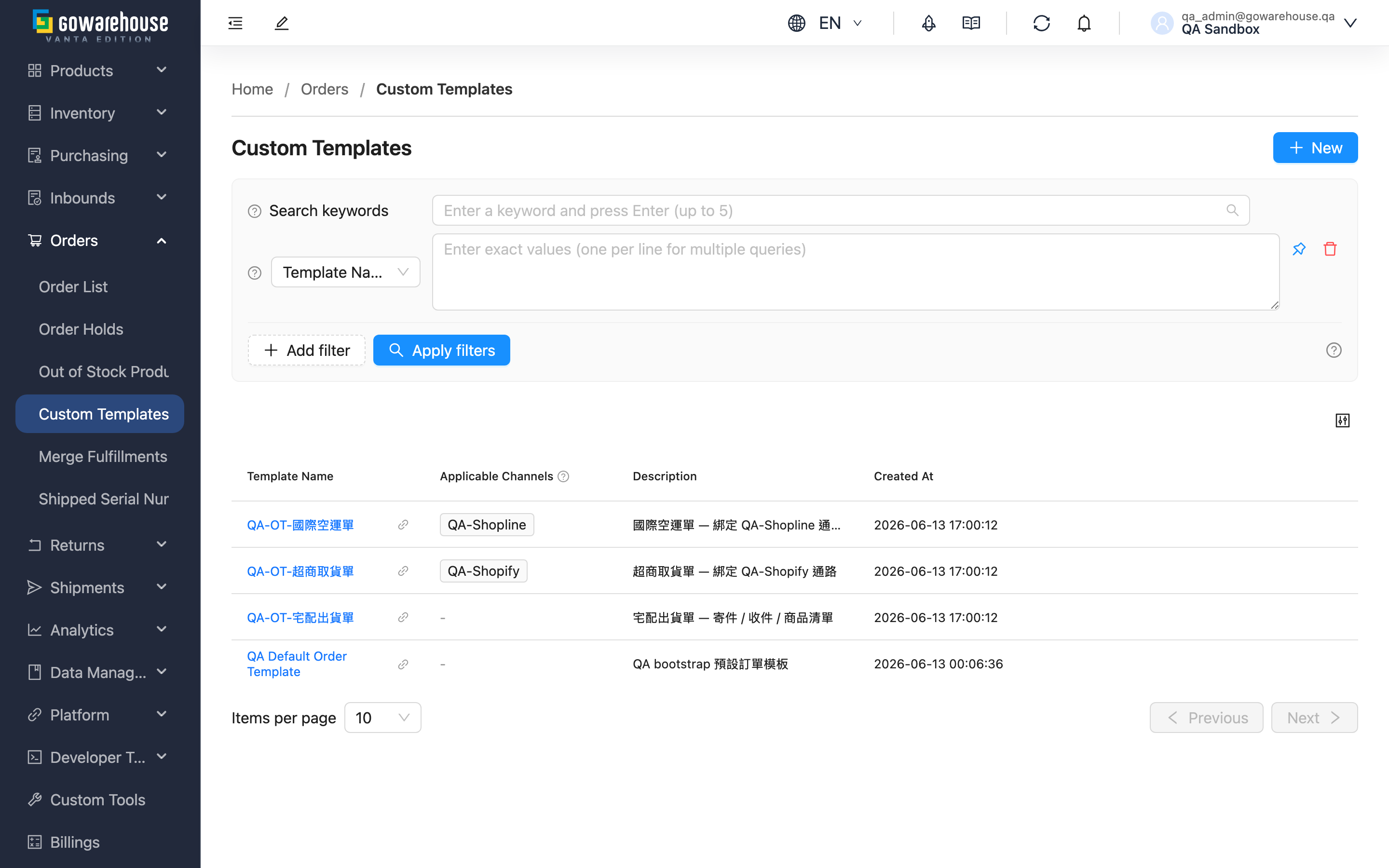
Custom Templates is your entry point for managing shipping-document layouts. Every template must be bound to at least one sales channel; once bound, that channel's orders use the template when shipped. This page lists all templates you have created along with their bound channels, where you can add new ones, open a template's details, or edit it.
Quick Jump: List Columns | Search & Filter | Create & Manage
2.1 List Columns
| Column | How to use |
|---|---|
| Template Name | Click to open the template's detail page |
| Applicable Channels | The sales channels this template is bound to; shows "-" when none |
| Created At | When the template was created; click the column header to sort |
The Description field is a note you write to identify the template's purpose. Other columns are self-explanatory by name.
2.2 Search & Filter
| Filter | How to use |
|---|---|
| Template Name | Supports multiple entries; enter one full name per line |
| Merchant Channel | Pick a channel to find templates bound to it; supports multiple selection |
The top search box performs a fuzzy keyword search across both Template Name and Description.
2.3 Create & Manage
Click "New" in the top right to open the New page (see New Custom Template). Click a Template Name to open its detail page and preview the actual layout; the "Edit" and "Delete" buttons sit in the top right of the detail page (see Custom Template Details).
3. FAQ
3.1 FAQ
▪ Does a template have to be bound to a channel?
Yes. Every template must be bound to at least one sales channel, otherwise it cannot be saved. Once bound, that channel's orders use this template when shipped.
▪ What does the shipping document look like for a channel with no bound template?
It uses the system's built-in default layout. You do not need a template for every channel — create one only for channels that need a custom format.
▪ Can one channel be bound to multiple templates?
No. A channel uses only one template at any given time. If you bind a channel that is already bound to another template to a new template, the previous binding is automatically removed (see Notices).
▪ Can one template be applied to multiple channels?
Yes. You can select multiple channels when binding, and the template will apply to all selected channels at once.
▪ What happens to bound channels after I delete a template?
Those channels switch back to the system's built-in default layout, and future shipping documents return to the default format. Already-generated documents are not affected.
▪ Can I copy an existing template?
There is no one-click copy. Open the detail page of the template you want to reference, copy its content, then create a new one.
3.2 Notices
⚠️ Important Notes
- Every template must be bound to at least one sales channel to be saved
- A channel uses only one template at a time; rebinding a channel to a new template automatically removes it from the original template
- After a template is deleted, bound channels switch to the system's default layout, and the deleted template cannot be recovered
💡 Tip: Name your template clearly by its purpose (e.g. "Shopee Shipping Doc", "Website A4 Details") so it is easier to identify in the list later.
4. Related Features
| Feature | Description | Link |
|---|---|---|
| New Custom Template | Create a new shipping-document template and bind channels | Go |
| Custom Template Details | Preview the layout and view bound channels | Go |
| Merchant Channels | Manage sales channels | Go |