
New Brand
Table of Contents
1. Feature Overview
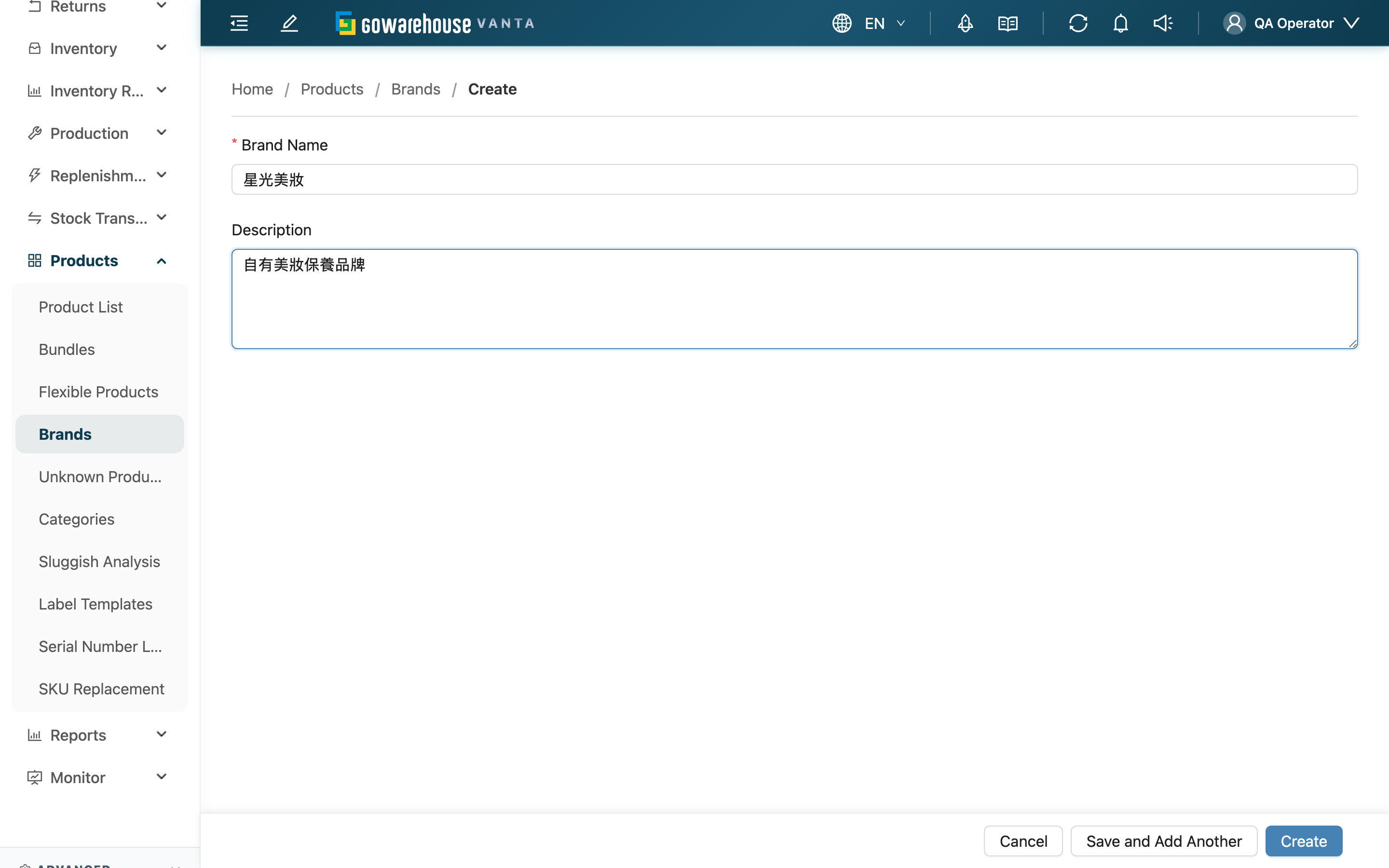
The create brand page is used to create a new brand record. Once a brand is created, it can be attached to products so they can be grouped and filtered by brand. A brand has very few fields — just a name and a description, plus the owning merchant that must be specified in a multi-merchant situation. When you need to create several brands at once, use "Save and Add Another" to create them in a row without re-entering the page each time.
Quick jump: Fill in Fields | Ways to Save
1.1 Fill in Fields
Fields marked with * are required
| Field | How to Fill | Notes |
|---|---|---|
| Merchant | Select the merchant this brand belongs to | Appears only when you serve multiple merchants and a single merchant is not yet locked in; when serving a single merchant it is filled in automatically and need not be selected |
| *Brand Name | Enter the brand name | Required; cannot duplicate an existing brand under the same merchant |
| Description | Enter additional notes for the brand | Can be left blank |
1.2 Ways to Save
After filling in the fields, there are two ways to save:
- Create: Creates the brand and goes to its detail page, where you can immediately confirm what was just created.
- Save and Add Another: Creates the brand, stays on this page, and clears the form so you can create the next one. In a multi-merchant situation, the selected owning merchant is kept, so creating multiple brands for the same merchant in a row requires no re-selection.
2. FAQ
2.1 Questions
▪ What happens if the brand name is duplicated?
If the merchant you selected already has a brand with the same name, the system blocks it on save with a prompt, and the name is not created. Different merchants can have brands with the same name without affecting each other.
▪ Can I change the name or owning merchant after creating?
The name and description can both be edited later on the brand detail page. However, the owning merchant is fixed after creation and cannot be changed to another merchant; if you picked the wrong merchant, delete the brand and create it again.
▪ After I click "Save and Add Another" the form cleared — was that record saved?
Yes. The system creates that record successfully first, then clears the form so you can create the next one. You can confirm the created brands on the brand list.
▪ Why don't I see the merchant selection field?
When you serve only one merchant, a brand must belong to that merchant, so the system fills it in automatically and you don't need to select it — which is why the field is not shown.
2.2 Notices
⚠️ Important Notes
- The owning merchant cannot be changed after creation. In a multi-merchant situation, confirm you picked the right merchant before saving.
- Brand names cannot be duplicated under the same merchant.
💡 Tip: To create several brands in a row, "Save and Add Another" is faster than repeatedly entering and leaving the create page.
3. Related Features
| Feature | Description | Link |
|---|---|---|
| Brands | Go back to the brand list to browse and search created brands | Go |
| Brand Detail | View, edit, or delete a single brand | Go |
| Product List | Attach brands to products | Go |