
Holds
Table of Contents
1. Use Cases
Quick Links: Hit pause before a problem ships | A platform customer cancels mid-process | Let orders move again once resolved
Scenario 1: Spot a problem before shipping and hit the pause button
Situation: An order is about to enter the fulfillment flow, but customer service flags that the shipping address is incomplete, or the convenience-store pickup number can't be found. Shipping it as-is would likely get the parcel returned.
Use this feature: Once an order is held, it won't move forward (no picking, packing, or shipping) until the issue is confirmed resolved. Holds are placed from the order side (see the order list / order detail under Related Features), and every held order is collected in this list — the "Hold Reason" column tells you at a glance which problem each order is stuck on.
Result: Problem orders stop where they are instead of shipping with a wrong address, so you avoid returns and re-shipments later.
Scenario 2: A platform customer changes their mind mid-process
Situation: The order is already being processed in the warehouse, but the customer on the e-commerce platform suddenly wants to cancel. For platform-notified cancellations, the system holds the order automatically with the reason "Platform Cancel".
Use this feature: Whether detected automatically by the system or placed manually by staff, all holds appear in this list. Use the "Hold Reason" filter to tell platform cancellations apart from address or store-number issues, then decide for each one whether to release it back to shipping or move it to cancellation.
Result: An in-progress order is stopped in time, so you don't ship a parcel the customer has already cancelled.
Scenario 3: Let orders return to the shipping flow once resolved
Situation: A batch of held orders has been sorted out — the address is fixed, the store number is confirmed, or the merchant has approved shipping — and now they need to continue through fulfillment.
Use this feature: Select these hold records in the list and use "Release Holds" to release them all at once (see 2.3 Batch Actions). When releasing, you can add a resolution note to record what you did; these records are kept for future reference.
Result: The orders resume their normal flow and continue to ship, and the released records disappear from this list.
2. Features
When something is off with an order — wrong shipping address, invalid store number, a last-minute merchant request to pause, or a platform cancellation notice — you can place the order on "hold", like hitting a pause button. A held order stops where it is and won't be picked, packed, or shipped until the issue is confirmed resolved and the hold is released. This list shows every order currently on hold so you can work through them one by one or release holds in batch.
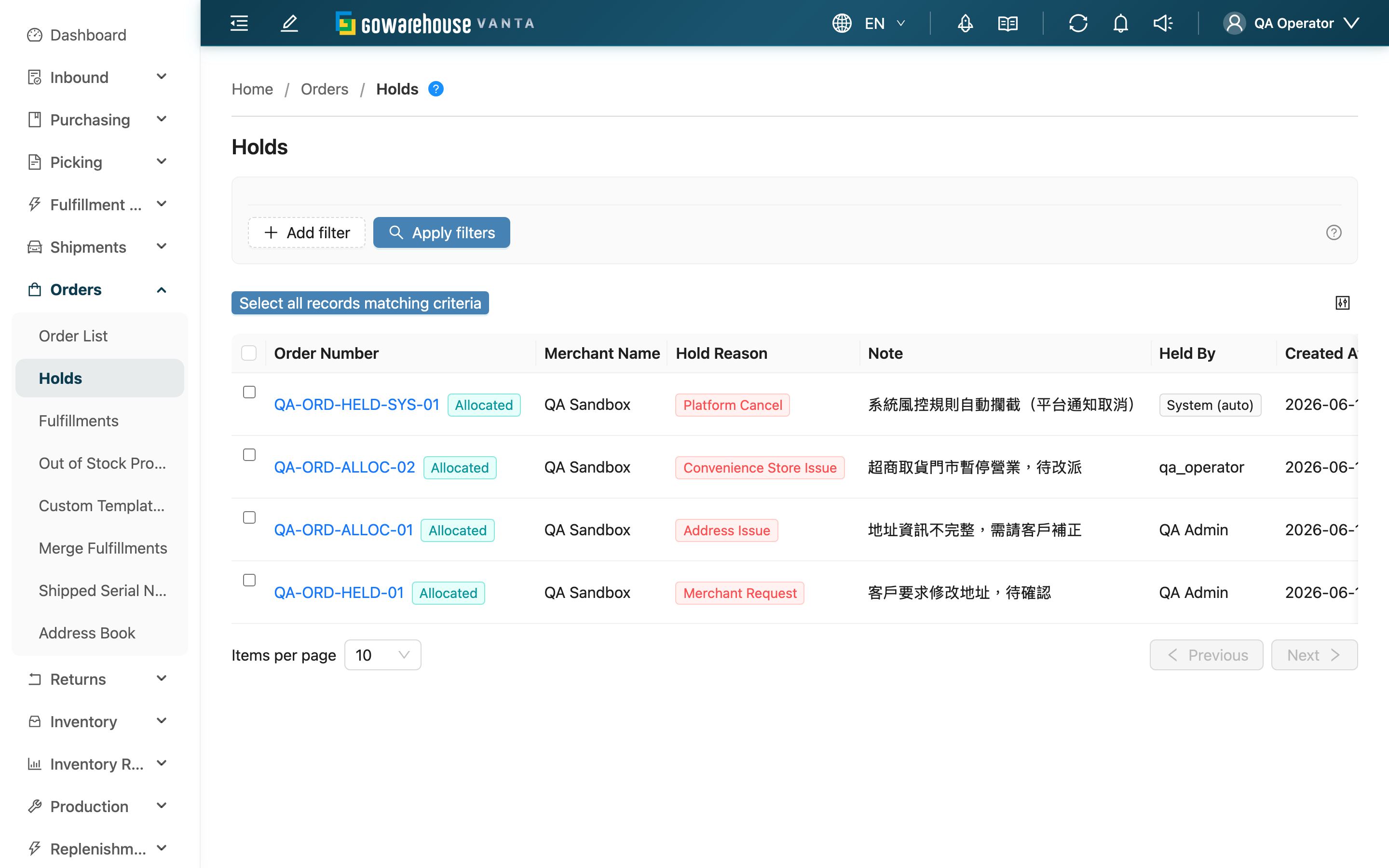
Quick Jump: Filters | List Columns | Batch Actions
💡 Tip: Click the question-mark icon next to the page title to open the "What are order holds?" concept guide.
2.1 Filters
| Filter | Description |
|---|---|
| Merchant | Show only a specific merchant's held orders |
| Hold Reason | Filter by reason category — e.g. show only "Address Issue" to handle them together, or only "Platform Cancel" to decide what to cancel. Full reason list in 3.1 FAQ |
| Created At | Filter by the date range the hold was placed |
2.2 List Columns
This list only shows orders that are currently on hold; once a hold is released, its record disappears from the list.
| Column | Description |
|---|---|
| Order Number | The held order; click to open order details, with the Status shown beside it |
| Merchant Name | Merchant the order belongs to |
| Hold Reason | The reason category for this hold |
| Note | Details entered when the hold was placed |
| Held By | Who placed the hold; automatic holds show "System (auto)" |
| Created At | When this hold was placed |
2.3 Batch Actions
Select one or more hold records and the "Release Holds" action appears.
- What can be released: Everything shown in this list is currently on hold and can be released. Releasing acts on the "hold" pause flag and does not change the Status.
- Effect of releasing: The order resumes from where it stopped and can be picked and shipped again. You can add a resolution note (optional) when releasing; the note is recorded in the order's operation history.
- Can it be undone: Once released, the record disappears from this list. If the order later needs to be paused again, you can place a new hold from the order side (an order can have at most one active hold at a time).
3. FAQ
3.1 FAQ
▪ Where does a held order get stopped?
A held order won't move forward — no picking, no packing, and it's blocked from completing shipping. Held orders are clearly marked throughout the system: a red "HELD" badge appears in the order list, and when you open the order detail a warning at the top lists every hold reason and who placed it, so they're hard to miss.
▪ Which hold reasons are there?
| Reason | Description |
|---|---|
| Merchant Request | The merchant asks to temporarily pause a specific order |
| Platform Cancel | The order is already being processed but the platform customer cancels (usually held automatically by the system) |
| Fraud Suspect | A suspicious order needs confirmation first |
| Address Issue | The address is incomplete, malformed, or undeliverable |
| Convenience Store Issue | The pickup store number is invalid or the store is closed |
| Inventory Discrepancy | Physical stock doesn't match the system |
| Other Reason | Anything else; add a note to explain |
▪ Where are holds placed? Can't I hold an order from this list?
Holds are placed from the order side: on the Order List by selecting orders, or on the Order Detail page, both offer "Hold Order", and you choose a hold reason when placing it. This holds list is for reviewing and releasing holds in one place — you don't create holds here.
▪ Where does the order go after a hold is released?
A hold is just a pause flag — releasing it does not change the Status. The order resumes from where it stopped and can be picked and shipped again. See 2.3 Batch Actions for details.
▪ What if stock changed while the order was on hold?
When an order is held, its product contents and existing inventory allocation are kept. If stock changed during the hold, use "Recheck Stock" on the order detail to re-confirm before deciding whether to release it for shipping.
▪ I just want to fix the address, phone, or store number — do I need to hold the order first?
No. On the order detail, use "Correct Info" to fix the recipient, address, phone, scheduled delivery, and so on (product items are not changed). The system automatically holds the order during the correction to protect it from shipping mid-edit; this auto-hold shows "System (auto)" as the holder.
▪ Will held orders be canceled automatically?
No. A held order stays on hold until someone releases it or moves it to cancellation. A hold only pauses — it never decides to cancel for you. Review this list regularly so orders don't pile up.
▪ Can I still find a hold record after it's released?
This list only shows orders that are currently on hold; once released, the record disappears from the list. To trace it, open the order detail and expand "Operation History" — the resolution note you entered when releasing is kept there too.
▪ Are order holds the same as "Inventory Holds"?
No. An order hold blocks at the order level — it pauses a single order so it won't ship. "Inventory Holds" block at the inventory level — they reserve certain stock so it won't be allocated. The two are independent: releasing an order hold doesn't touch any inventory hold, and vice versa.
3.2 Notices
⚠️ Important
- Confirm the issue is genuinely resolved before releasing a hold — once released, the order resumes the shipping flow immediately and may be picked and shipped soon after.
- An order can have at most one active hold at a time; to place a new hold, you must release the existing one first.
💡 Tip: Write a clear note both when placing and when releasing a hold, so that later — when tracing it from the "Operation History" — you can tell what happened and how it was handled.
4. Related Features
| Feature | Description | Link |
|---|---|---|
| Order List | View all orders; holds are placed from here | Go |
| Order Detail | View order details, the hold warning, and operation history | Go |
| Fulfillments | View fulfillment statuses (held orders can't complete shipping) | Go |
| Picking Lists | View orders awaiting picking (held orders won't enter picking) | Go |