
Unknown Products
Table of Contents
1. Use Cases
Quick links: Stuck orders that won't clear | One mapping unlocks a whole batch of orders
Scenario 1: Stuck orders that won't clear
Situation: After the merchant pulls orders from an e-commerce platform or imports them manually, you notice a batch of orders that just won't move into picking and shipping. It turns out one product in those orders has no matching item in the system — maybe the merchant forgot to create it before listing, or the platform SKU doesn't match the system. Those unmatched products get recorded as Unknown Products.
How to use it: Go to the Unknown Products list and find these unmatched products. Each row shows how many orders it affects (Pending Orders), so you can spot the culprits behind the stuck orders at a glance.
Result: Instead of digging through orders one by one to find the problem product, this list gives you a full picture of every product the system doesn't recognize, and how many stuck orders are waiting to be cleared.
Scenario 2: One mapping unlocks a whole batch of orders
Situation: A promotional period brings in a wave of orders, and one best-seller hasn't been created in the system yet — so the same product has jammed dozens of orders, all frozen and unable to ship.
How to use it: Find this product in the Unknown Products list, open it to review the affected orders, then map it to the correct system product.
Result: Handling this single record restores every order using it at once — they automatically return to the normal picking and shipping flow, with no need to fix each order individually.
2. Feature Overview
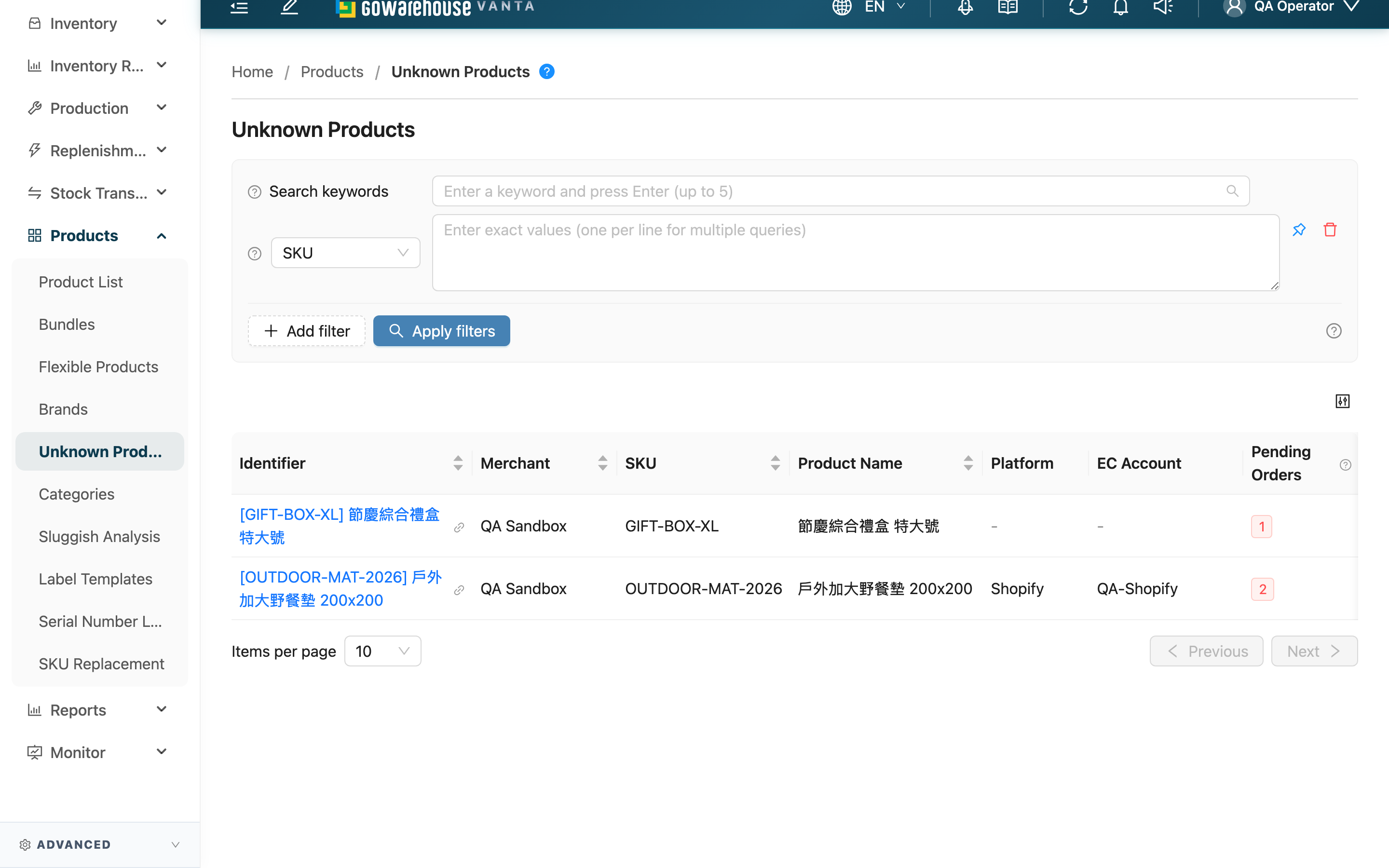
When an order contains a product the system can't match to an item, the system doesn't discard the order — it records the product as a Unknown Products and temporarily freezes the related orders so they can't be picked or shipped. This list is where you review and handle those products in one place: you can see how many orders each unmatched product affects, the total quantity needed, and open it to map it to the correct system product — unlocking all the stuck orders at once.
Quick jump: Search & Filter | List Columns
2.1 Search & Filter
Above the list you can filter by SKU and Product Name; both accept multiple values at once. The search box uses prefix matching and searches SKU, Product Name, and Merchant name at the same time.
2.2 List Columns
| Column | Description |
|---|---|
| Identifier | The product's display name, shown as "[SKU] Name" when a SKU exists. Click it to open the detail page and handle the mapping |
| Merchant | Which merchant this product belongs to. Hidden in single-merchant environments |
| Platform | Which e-commerce platform the product came from; manually imported or created orders have no platform source and show "-" |
| EC Account | The e-commerce account used to pull the order; shows "-" when there is no platform source |
| Pending Orders | How many unfinished orders are currently stuck on this product. The higher the number, the more orders you unlock by handling it |
| Total Quantity | The combined quantity these orders need, useful as a reference for restocking after mapping |
The remaining columns (SKU, Product Name, Created At) are self-explanatory by name.
3. FAQ
3.1 FAQ
▪ How is a Unknown Products created?
When the merchant pulls orders from an e-commerce platform, imports orders, or creates them manually, if a product in the order has no matching item in the system, the system records it as a Unknown Products — so the whole order isn't discarded over one unmatched product.
▪ Why does the same product name appear multiple times?
Different e-commerce accounts, or different variants on a platform (even with the same SKU and name), are each recorded as a separate row. The Platform and EC Account columns are there to tell them apart — handle each according to its actual source.
▪ How is Pending Orders calculated?
It counts the orders still unfinished and stuck on this product. Orders that have already shipped are no longer included in this number.
▪ Why do some products have no Platform or EC Account?
Manually imported or created orders have no e-commerce platform source, so these two columns show "-". They can still be mapped to a system product normally.
▪ How do I map a Unknown Products to the correct product?
Click the Identifier in the list to open the detail page, review the affected orders, then select the correct system product and confirm the mapping.
▪ Why does the number of products in the list keep changing?
Each completed mapping removes that product from the list; when an order is edited or overwritten by an import and a Unknown Products is no longer used by any order, it is also removed from the list automatically (it stays as long as another order still uses it). Meanwhile, as the merchant keeps pulling and importing orders, new Unknown Products records may appear. So the list count fluctuates as work progresses.
3.2 Notes
⚠️ Important
- Orders containing a Unknown Products are frozen and cannot enter the picking or shipping flow; the mapping must be completed before work can continue.
- Mapping is irreversible — always confirm you've selected the correct system product before mapping (see the detail page).
💡 Tip: If you find many stuck orders, look at the records with the highest Pending Orders first — handling those usually unlocks the most orders at once.
4. Related Features
| Feature | Description | Link |
|---|---|---|
| Unknown Products Detail | Review affected orders and map the product to the correct item | Go |
| Product List | Check whether a product is already created, to avoid producing more unknown products | Go |
| New Product | Create a system item for an unmatched product | Go |