
Address Book
Contents
1. Use Cases
Quick Links: Skip retyping addresses on manual orders | Ship returns/exchanges back to one fixed address
Scenario 1: Stop retyping recipient addresses on every manual order
Situation: A merchant places orders by phone or through your service desk and asks you to create them manually in the system. The same merchant's orders often ship to the same few places (a store, a main warehouse, a branch). Retyping the recipient, phone, and address on every order is slow and easy to mistype.
Use this feature: Save those frequently used destinations in the address book, each with an easy-to-recognize Code. Create them on New Address, or build a whole batch at once with Import from the list. When creating an order, pick one entry in the recipient section and the system fills the recipient, phone, city, district, Postal Code, and Address into the order as a set.
Result: Manual order creation goes from "type every field" to "pick one address" — less typing, fewer mistakes, and the same destination is never written two different ways.
Scenario 2: Ship returns and exchanges back to one fixed address
Situation: The merchant wants all returns and exchanges sent back to one return warehouse. That address differs from the shipping address, but every time you handle a return you have to re-confirm exactly where it goes.
Use this feature: Save the return warehouse as one entry in the address book, with a code that makes its return purpose obvious (for example, a return-desk recipient and a return-warehouse location). When needed, just search that code to pull up the full address for a colleague or carrier — no more digging through messages or asking around.
Result: The return address has a single source of truth that the whole warehouse shares, avoiding shipping to the wrong warehouse or writing the address inconsistently.
2. Feature Guide
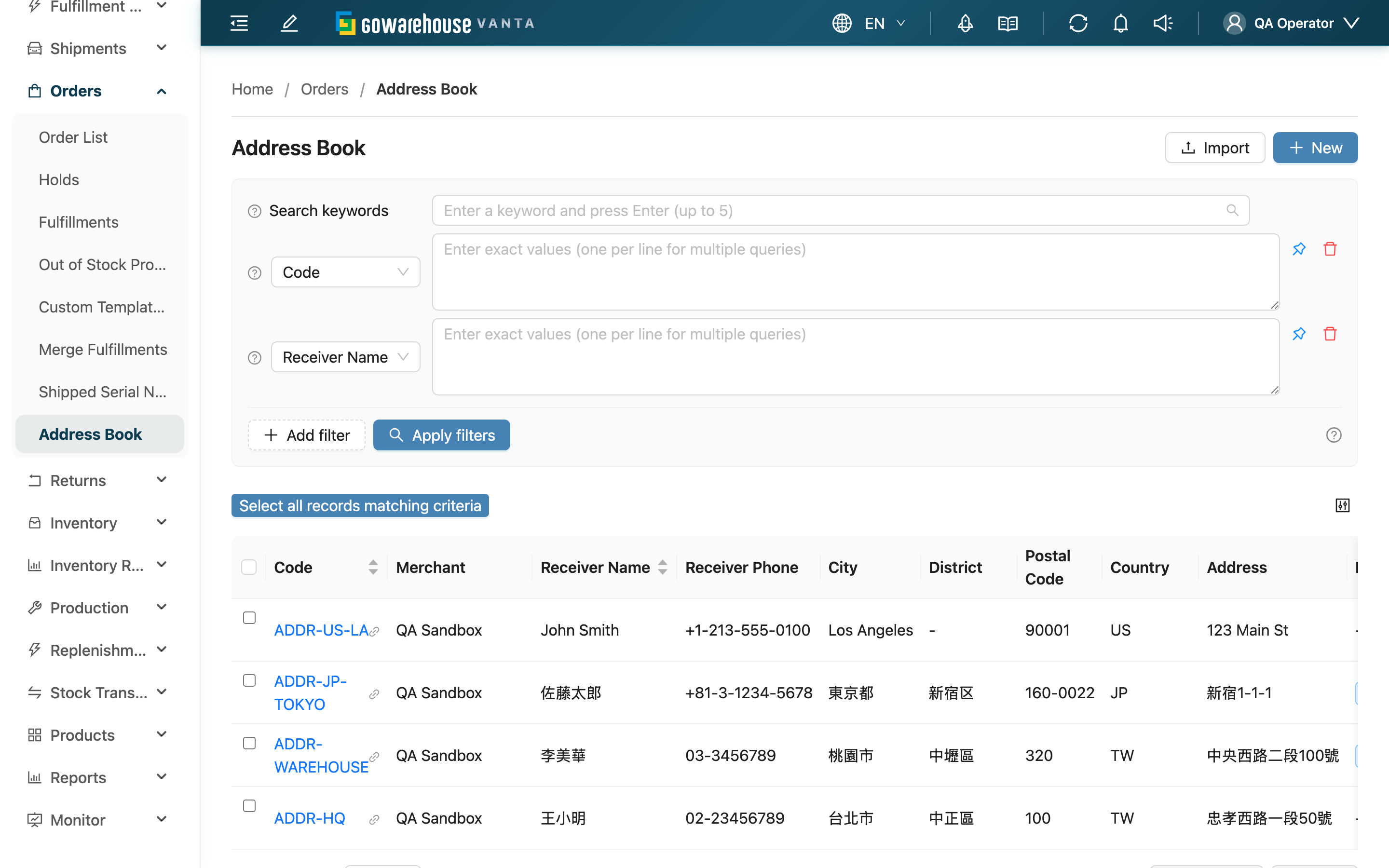
The address book is your warehouse's "frequently used recipient addresses." Save the places a merchant ships to here, and when creating an order manually you can pick one in the recipient section instead of retyping. You can also assign a Default Merchant Channel to an entry so it is applied automatically when you create an order for that channel. This page is where you view and manage every address across the merchants you can access.
Quick Jump: Search & Filter | List Columns | Import | Export
2.1 Search & Filter
Search box: Type the beginning of a Code, Receiver Name, Receiver Phone, or Address to match — remembering part of it is enough to find it.
Filters: The fields below support precise matching; for any other field just type by its name. Each condition accepts multiple values at once.
| Filter | How to use |
|---|---|
| Merchant | Pick a merchant from the dropdown to see only that merchant's addresses. Use this to switch quickly when you serve multiple merchants; a single-merchant warehouse won't see this filter |
| Default Merchant Channel | Pick a channel from the dropdown to find addresses tied to a specific channel |
| Code | Match a full code; you can enter multiple codes at once |
2.2 List Columns
Click a Code to open that address's detail page. The open-in-new-tab icon to the right of each code opens the detail in a new tab without leaving the list. The Default Merchant Channel, when set, shows as a blue tag. The Merchant column only appears when you serve multiple merchants.
💡 Tip: Click the column settings at the top right of the list to customize which columns show and how they sort.
2.3 Import
The "Import" button at the top right creates many addresses at once from Excel — ideal when a new merchant hands you a whole batch of locations.
- Download the template in the import dialog, fill it in by column, then upload. Required fields are Code, Receiver Name, Receiver Phone, and Address; the rest (State / Province, City, District, Postal Code, Country, Default Merchant Channel) are optional.
- When "Override existing data" is checked, rows whose Code matches an existing one update that entry; when unchecked, a duplicate code is treated as a conflict. Which columns get updated depends on the file's header row — see Should I check "Override existing data".
- Country accepts forms like "Japan", "日本", or "JPN" and the system maps them automatically; a spelling it cannot match is cleared to blank without failing the row, but with "Override existing data" checked that wipes the country the existing address had.
- After uploading, check the result and any failure reasons under "Import Logs".
2.4 Export
First select the addresses you want to export in the list (you can select all), then click "Export" — the system generates an Excel file of the selected addresses. When it finishes, view and download it from "Background Jobs" at the top right.
3. FAQ
3.1 FAQ
▪ If I change an address in the book, do already-created orders change too?
No. Picking an address when creating an order "copies" its current contents into that order; if you later edit the entry in the address book, only orders created afterward are affected, and existing orders stay as they were. So you don't need to worry about touching old orders when you edit.
▪ Can addresses be deleted? Does deleting affect orders?
The warehouse-side list and detail pages have no delete button, so addresses stay available for future use. Even if one were deleted later, because each order stores the contents copied in at creation time, existing orders are unaffected.
▪ Why do some addresses have a "Merchant" column while some warehouses don't see it?
Every address belongs to one merchant. Warehouses serving multiple merchants show the merchant column and filter so you can tell them apart; warehouses serving a single merchant don't need to distinguish, so the system hides this column and filter automatically.
▪ What is the Default Merchant Channel for?
It ties an address to a specific sales channel. When you create an order manually and pick this address in the recipient section, if the address has a Default Merchant Channel set, the system also fills that channel into the order; if the address has no channel set, it keeps the one you already chose. Useful when "a certain channel always ships to a certain address."
▪ What's the difference between the search box and the filters?
The search box does "beginning-of-text matching" across several fields at once — good when you only remember part of the content. Filters do "precise matching" on specific fields (such as merchant, channel, or code) — good when your conditions are clear or you want to combine several. You can use both together, and the list shows results matching all of them.
▪ Where do I see import results and failure reasons?
Under "Import Logs". Each import lists how many rows succeeded and failed, and failed rows note the reason (for example, a missing required field or a duplicate Code). Fix the file as indicated and re-import.
▪ Should I check "Override existing data" when importing?
Only if you want to update existing data. Unchecked: rows whose Code matches an existing one are treated as conflicts and those rows fail — good when you only want to add brand-new addresses. Checked: rows with a matching code update that entry — good when you want to update a whole batch of existing addresses at once.
Checking it does not overwrite the whole record. Each column is decided by whether the file's header row contains it (the four required columns must always stay in the file — dropping any of them rejects the whole file):
| Situation in the file | The existing address's column |
|---|---|
| An optional column's header is not in the file | Keeps its original value |
| The header is present but the cell is blank | Cleared to blank |
| A required column's header is present but the cell is blank | The row fails with a reason; existing data is untouched |
So to update phone numbers only, keep just the four required columns and delete the optional ones — they stay untouched. Conversely, to clear an old Postal Code, keep that column's header and leave the cell blank.
The table above applies to a plain import with no Import Template applied. If you pick an Import Template in the import dialog and that template sets a default value for a column, that column is written with the default value even when it is absent from the file: a required column no longer blocks the file, and an optional column no longer keeps its original value — the default value replaces what was there. To keep a column's old value, first make sure the template sets no default value for it.
▪ Where do I download the exported file?
The export generates the file in the background; when it finishes, view its progress and download it from "Background Jobs" at the top right.
3.2 Notices
⚠️ Important Reminders
- A Code must be unique within a merchant: When importing without "Override existing data" checked, rows with a duplicate code fail to import.
- Download the template before importing: Fill in the file by the template columns to avoid missing a required field and failing the whole row.
💡 Tip: Use an obvious naming rule for address codes (for example, a merchant abbreviation plus the location), kept consistent across the warehouse, so they are easier to recognize and find when creating orders.
4. Related Features
| Feature | Description | Link |
|---|---|---|
| New Address | Create a new frequently used recipient address | Go |
| Address Details | View the full contents of one address | Go |
| Edit Address | Modify the contents of an existing address | Go |