
Consumable Detail
Table of Contents
1. Features
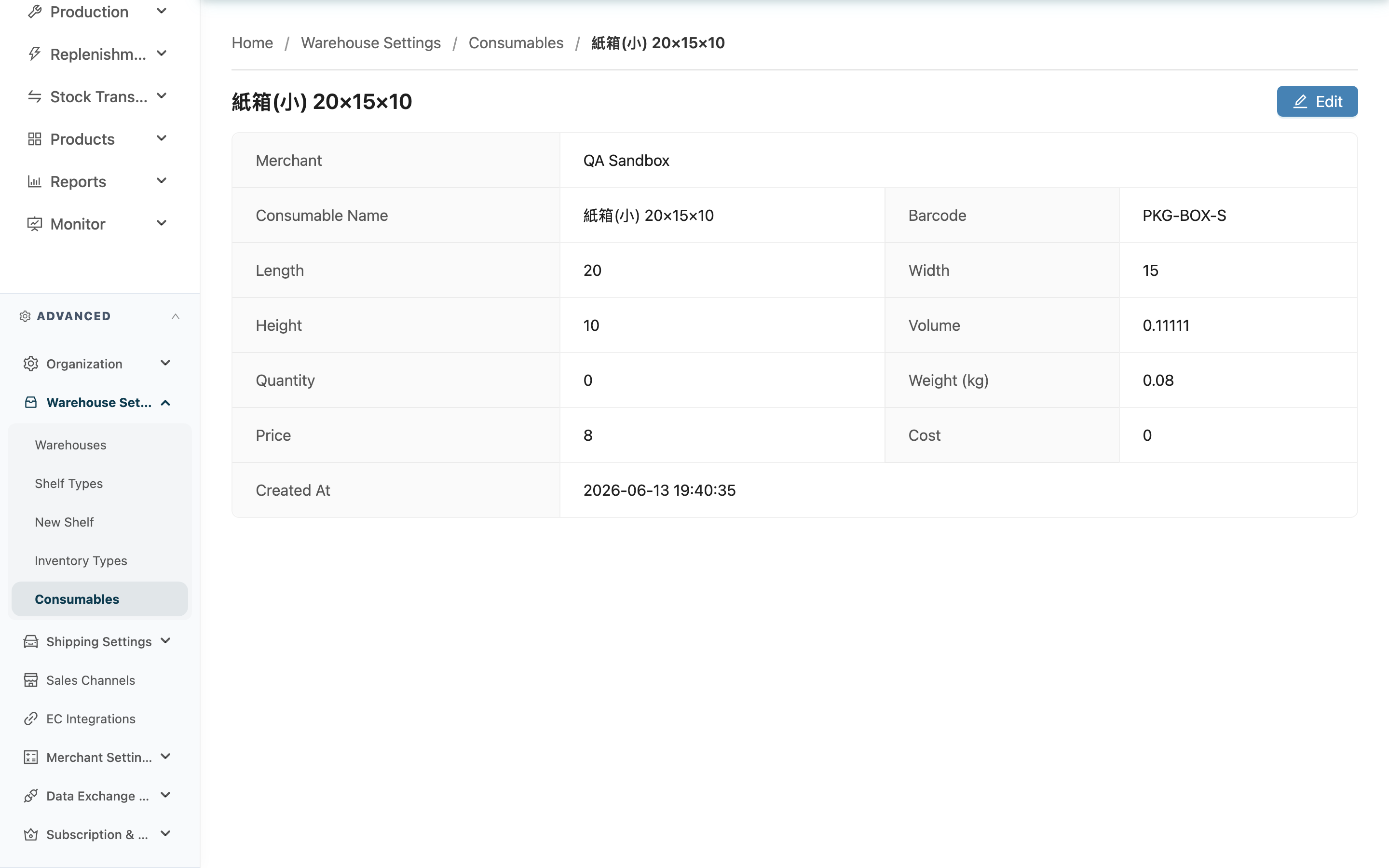
View the full record of a single packaging, including assigned merchant, barcode, dimensions, volume, current stock, and cost and price. Open it by clicking the packaging name on the Consumables list. When you need to restock and update stock, adjust dimensions, or reassign the merchant, go to the edit page from Edit here.
Quick jump: Page Fields | Editing
1.1 Page Fields
| Field | Description |
|---|---|
| Merchant | The merchant this packaging belongs to; generic packaging shows "Warehouse-owned" and can be used for any merchant's shipments |
| Quantity | The actual remaining stock, automatically deducted as packaging is scanned during shipping |
| Volume | Automatically calculated from length, width, and height; the unit follows the warehouse's volume-unit setting |
| Use as Shipping Volume Basis | Whether this packaging is the outer carton used for shipping. When checked (Yes), shipping uses its length, width, and height directly as the parcel's volume instead of summing product dimensions |
The remaining fields (Consumable Name, Barcode, Length, Width, Height, Weight (kg), Price, Cost, Created At) are self-explanatory.
1.2 Editing
The Edit button at the top right opens the edit page, where you can modify dimensions, restock and update stock, or reassign the merchant. If you don't see the Edit button, contact your administrator to confirm your permissions.
2. FAQ
2.1 Questions
▪ Is the stock quantity here real-time?
Yes. Quantity reflects the actual remaining stock, updated in real time each time this packaging is scanned and deducted during shipping.
▪ Why is the volume empty?
When the length, width, and height of this packaging are not all filled in, the volume cannot be calculated. Fill in all three side lengths on the edit page and the volume will be calculated automatically.
▪ How do I restock and update the stock?
Click Edit at the top right to open the edit page, and change Quantity to the new total after restocking.
▪ How do I delete this packaging?
Delete it on this page. Once deleted, the record is removed from the list and cannot be recovered; the usage records already deducted from past shipments are not affected.
▪ Why can't I see the Edit button?
It means your current account does not have permission to edit consumables. If you need to make changes, contact your administrator to confirm your permissions.
2.2 Notices
⚠️ Important
- A deleted consumable cannot be recovered. Confirm the packaging is truly no longer in use before deleting.
💡 Tip: To quickly judge how much of a packaging is left and whether to restock, just look at the Quantity on this page — no separate stock count needed.
3. Related Features
| Feature | Description | Link |
|---|---|---|
| Edit Consumable | Modify dimensions, restock and update stock, or reassign the merchant | Go |
| Consumables | Return to the packaging list to view all consumables | Go |