
Return List
Table of Contents
1. Scenarios
Quick links: Returns arrive at the warehouse — see which orders need handling | Bulk-import many return orders at once
Scenario 1: Returns arrive at the warehouse — see which orders need handling
Situation: Goods the customer sold come back to the warehouse — the buyer changed their mind, the item was defective, or the address was undeliverable. At the start of your shift, several boxes of returns are piling up, and you need to know which return orders are due for verification today, which are already done, and which haven't arrived yet.
Use this feature: On this page, use the status filter to pick out return orders in Pending and Partial Received — those are the ones not yet received and waiting for you. Once the boxes arrive, the scan-and-verify step happens on the Return Check page.
Result: You see today's return workload and priorities at a glance, know which orders to handle first, and avoid both missed and duplicate receiving.
Scenario 2: Bulk-import many return orders at once
Situation: After a promotion or end-of-season clearance, returns spike, and the merchant sends over a list of dozens of returns in one go. Creating return orders one by one is too slow — you need to create them all at once.
Use this feature: Use the Import action on the page to create return orders in bulk from the whole Excel list. The created return orders appear in this list, and you can then move on to the verification flow.
Result: Dozens of return orders are created in one pass instead of entered one at a time; verification and conversion to inbound proceed as usual, saving the repetitive typing.
2. Features
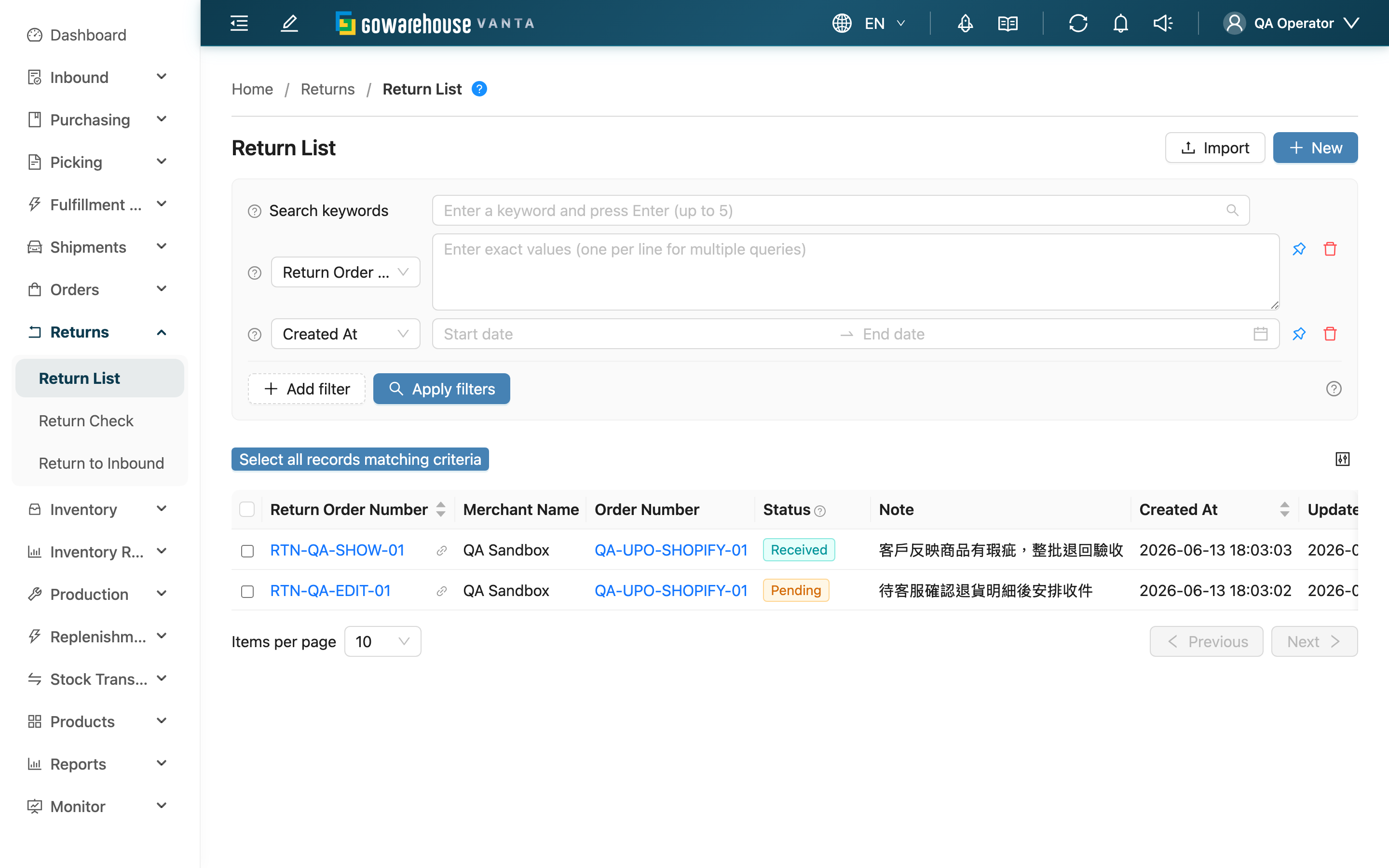
The return list is your entry point for handling returns. Before goods a customer returned can go back into stock, a "return order" is created to record the expected returned items and quantities; this page lists every return order in one place so you can check each order's status, its linked original order and merchant, and see which are still pending and which are done. The full return flow is: create the return order → verify the return (scan and check the actual items received) → convert to inbound (the verified return becomes an inbound order back into stock). This list is the starting point and the bird's-eye view of that flow.
Quick jump: Search & Filter | List Columns | Return Orders Created Automatically from a Store | Batch Actions
2.1 Search & Filter
The search box at the top supports keyword search, matching against Return Order Number, Order Number, and Merchant Name (prefix match, from the start). When you need more precise conditions, use the filter row below:
| Filter | How to use |
|---|---|
| Return Order Number | Enter a return order number to filter; supports multiple entries, one per line |
| Order Number | Enter an original order number to find the return orders linked to it; supports multiple entries |
| Status | Filter by return order status; multi-select. The meaning of each status is in List Columns |
| Merchant Name | Filter by merchant; multi-select (this filter is hidden for single-merchant accounts) |
| Created At | Filter by creation date range |
2.2 List Columns
Each row is one return order. Click Return Order Number to open the order's detail and see the received items and verification records; click Order Number to jump to the linked original order.
| Column | Description |
|---|---|
| Return Order Number | Return order number; click to open the detail |
| Merchant Name | Which merchant this return order belongs to (hidden for single-merchant accounts) |
| Order Number | The linked original order; shows "-" when there is no linked order |
| Status | The current progress of the return order; see the status table below |
The remaining columns (Note, Created At, Updated At) are self-explanatory by their names.
A return order's status advances along the return flow:
| Status | Meaning |
|---|---|
| Pending | The return order is created and waiting for the package to come back; verification has not started |
| Partial Received | Verification has started but is not yet finalized; one order may be received over several rounds |
| Received | The operator has finalized verification, the goods are fully received, awaiting conversion to inbound |
| Done | The return has been converted to inbound, goods are back in stock, and the flow is complete |
| Canceled | The return order has been canceled |
2.3 Return Orders Created Automatically from a Store
Not every return order is created by a person. When a merchant's Shopline account is connected and has order fetching turned on, Shopline notifies the system the moment a return is raised, completed or canceled there; the system reads that return order back from the platform and, unless it has already been canceled there, turns it into a return order here, with the returned items and requested quantities filled in — they normally appear in this list almost immediately, with no need to wait for a scheduled run. The system also checks the platform every 30 minutes, which picks up anything a notification missed. These return orders reuse the platform's own return order number, which usually matches what is printed on the package.
For you they are no different from the ones created by hand: you scan and verify them in Return Check and convert them in Return to Inbound just the same. Two differences are worth remembering:
- When the merchant cancels the return on the platform, the return order here becomes Canceled automatically, and any receipt under it that has not been converted to inbound is voided too — an order you were half-way through verifying disappearing from your to-do list is usually this. Once any receipt has been converted to inbound, the platform can no longer cancel the order and it stays as it is.
- Verification results are not written back to the platform. After you finish receiving and converting, nothing changes on the platform side; the refund is the merchant's job in their own store admin.
2.4 Batch Actions
After selecting multiple return orders, use the Export button at the bottom to export the selected return orders in one go. Exporting changes no return order's status and does not affect stock — it simply downloads the data as a file.
After submitting the export, go to "Import History" to view the result and download the file.
3. FAQ
3.1 FAQ
▪ The return package arrived but the return order hasn't been created yet — what do I do?
You don't need to come back to this page to create it first. Go straight to the Return Check page and scan the original fulfillment barcode; the system creates the return order automatically from the fulfillment's contents, and you can start scanning items to verify right away. The newly created return order will show up in this list afterward.
▪ Once a return order is created, are the goods back in stock?
Not yet. Creating a return order only records "which items are expected to be returned." For goods to go back into stock, you must first finish verification on Return Check, then convert the verified return to inbound on Return to Inbound. Only after conversion does the status become Done and the goods are truly added back to stock.
▪ How do I find the return orders that aren't fully received today?
Use the status filter to select Pending and Partial Received. The orders listed are those still waiting to come back, or received halfway but not yet finalized.
▪ Can a return order be canceled? Can it be restored after cancellation?
It can be canceled, but with a condition: it can only be canceled when no verification record under this return order has already been converted to inbound (this may apply in the Pending, Partial Received, and Received states). A return order already converted to inbound (Done) cannot be canceled. After cancellation the status becomes Canceled, and you can restore it when needed — the status returns to Pending to run through the flow again. Cancel and restore are done on the order's detail page.
▪ What happens if I receive unplanned items during verification (over-returned or wrong items)?
Just scan and record them as they are. The system marks the unplanned items as extra returns and does not block the planned items from reaching their target. The detailed comparison of received vs. planned is on the order's detail page.
▪ A return order turned Canceled on its own — who canceled it?
If the return order was created automatically from a store, the merchant most likely canceled the return on the platform, and the platform's notification canceled it here as well (or the 30-minute sync did, if that notification was missed), voiding any receipt not yet converted to inbound. The history at the bottom of the order's detail page shows who and when: an EC account name instead of a person means the cancellation came from the platform. Return orders that already have a receipt converted to inbound are never canceled this way.
▪ Is verification different for return orders created automatically?
No. Scanning, receiving, finalizing and converting to inbound work exactly the same — see Return Orders Created Automatically from a Store.
▪ I can't find a return order in the list — was it deleted?
Usually not. A missing order is most often hidden by a search or filter condition, or it belongs to a merchant you currently have no view permission for. Clear the filters, search directly by the return order number, and check again.
3.2 Notices
⚠️ Important
- Creating a return order does not mean the goods are back in stock. Goods are only truly added back once verification is finished and the return is converted to inbound (status reaches Done).
- A return order already converted to inbound (Done) cannot be canceled; if any verification under the order has been converted to inbound, the whole order cannot be canceled either.
- Return orders created automatically from a store are voided when the merchant cancels the return on the platform, which also affects an order you are verifying; if one goes missing, check the history on its detail page instead of creating a new one.
💡 Tip: When a package comes back directly and no return order exists yet, you don't need to create one here manually first — go straight to Return Check and scan the fulfillment to create the order automatically, saving a step.
4. Related Features
| Feature | Description | Link |
|---|---|---|
| New Return Order | Manually create a return order and record the expected returned items | Go |
| Return Check | Scan and check the actual returned items to finish verification | Go |
| Return to Inbound | Convert verified returns to inbound so the goods go back into stock | Go |
| Import Return Orders | Bulk-create many return orders from Excel | Go |
| EC Integrations | Check an EC account's return order sync results and failure reasons | Go |