
Edit Order
Table of Contents
1. Features
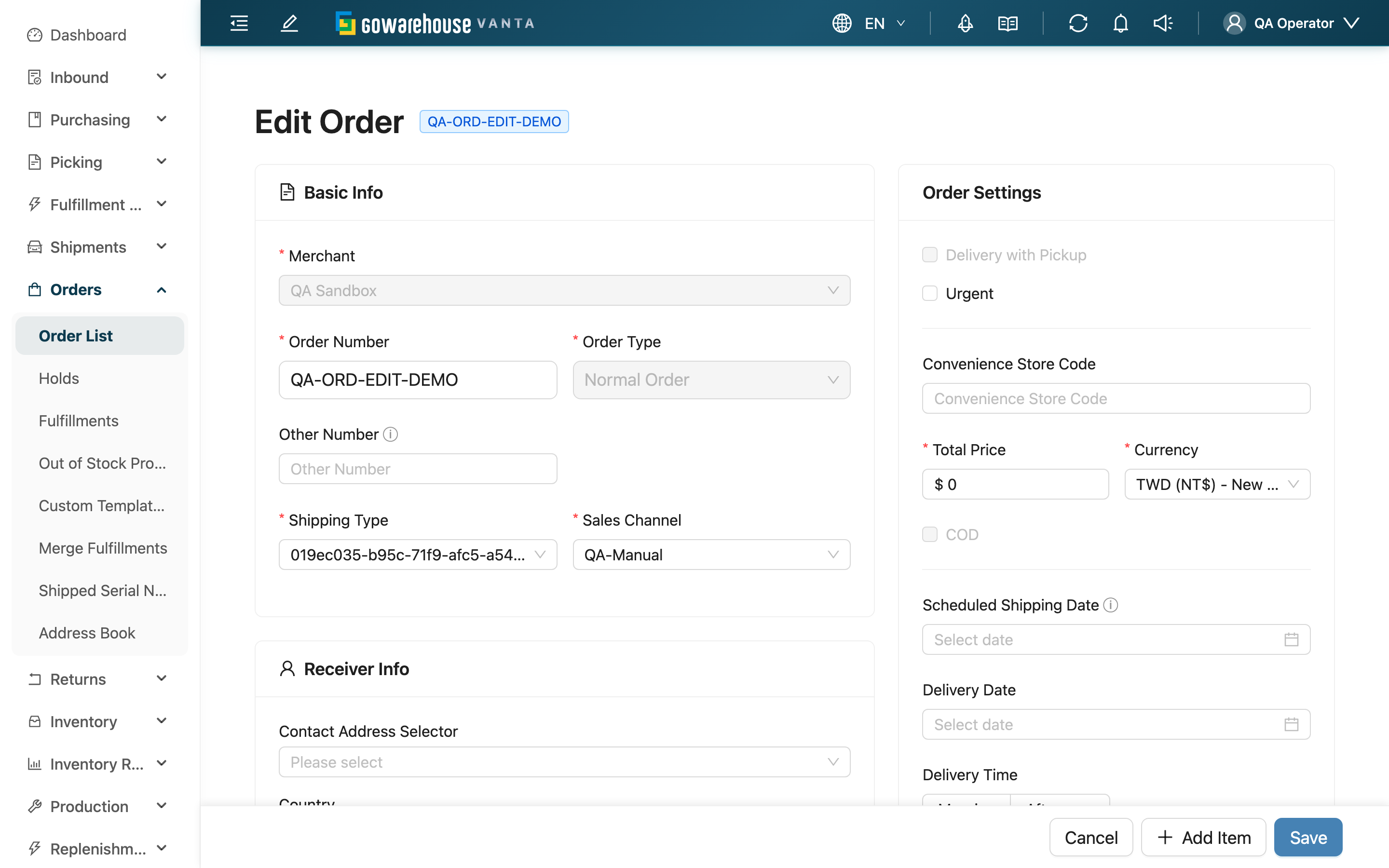
Edit Order lets you modify an existing order's recipient, product contents, shipping type, and order options. Unlike "Correct Info," which only changes address-type fields, Edit can change products too — but at the cost of rebuilding the order's unshipped fulfillments. So editing has status restrictions and shows a confirmation prompt before saving. The form is the same as New Order, except some fields are locked.
Quick jump: Which statuses can be edited | Which fields can change | What saving does
1.1 Which Statuses Can Be Edited
Orders in merged fulfillments cannot be edited directly. Remove the order from all shared fulfillments before reopening the edit page. Opening or saving an edit will not automatically separate merged orders. Canceling an order remains a separate action and does not require manual removal first.
Not every order can be edited. The condition is: the order is one of "cancelable / canceled / partially shipped," and has no fulfillment a picker is actively working on (Processing). If the order is in progress or completed, the edit page shows a not-editable notice. In that case, if you only need to change address, phone, convenience-store code or other delivery info, use "Correct Info" in the order details instead.
1.2 Which Fields Can Change
The length limit for Other Number follows the creation form rules.
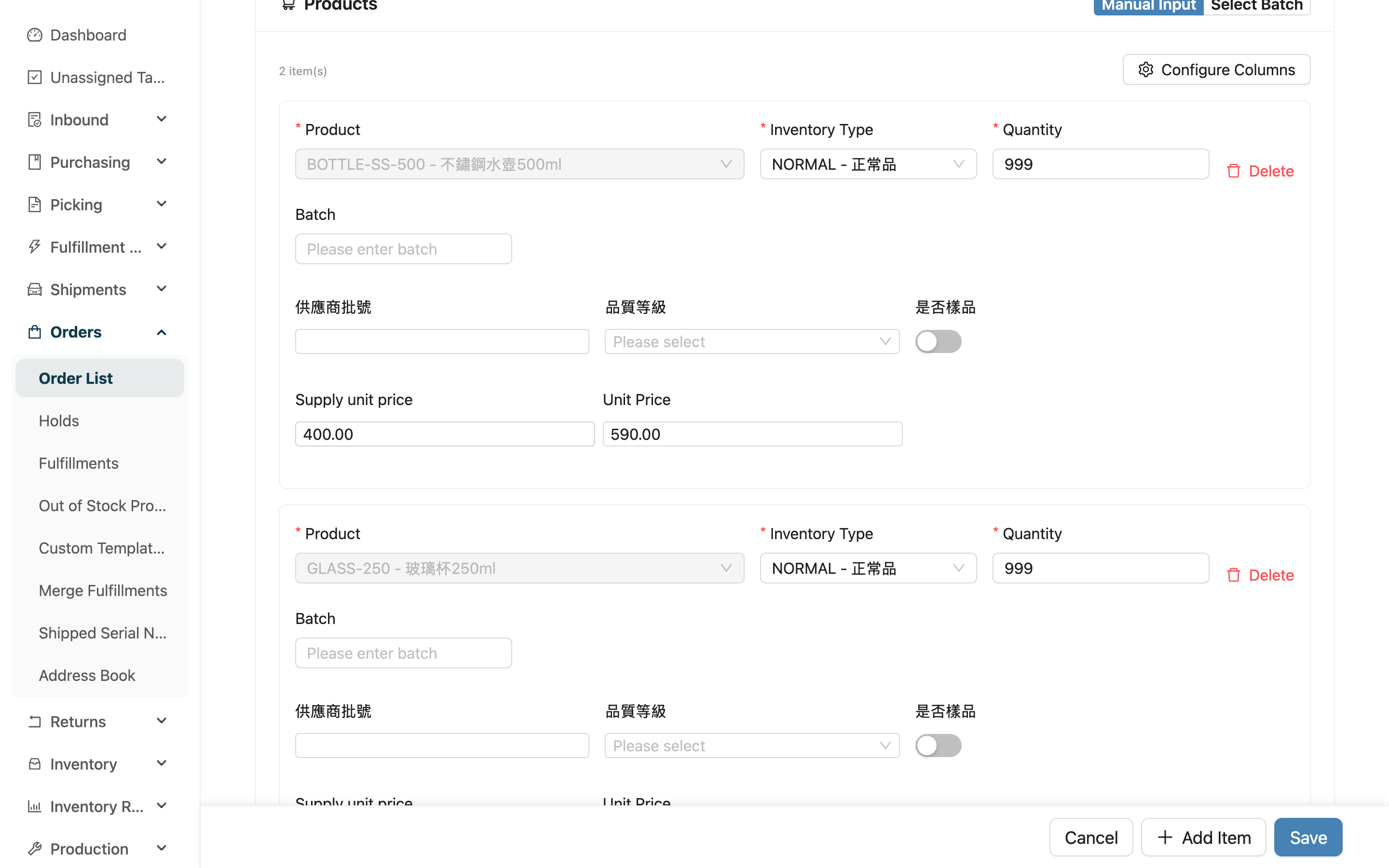
Enable "Supply unit price" in the item column settings. Clearing it and saving removes the stored supply price; entering zero records free supply. See Supply unit price for its meaning and input rules. If an item has shipped quantities, its supply price cannot be changed or cleared, including when its current value is zero.
When editing, most fields can change (recipient, shipping type, sales channel, order amount, product quantity, adding or removing products), but a few are locked:
| Field | Editable? | Notes |
|---|---|---|
| Merchant | Locked | The order's owning merchant cannot change, to avoid mismatched channels and stock links |
| Order Type | Locked | The document type cannot change |
| Order Number | Locked for platform orders | For orders that came from an e-commerce platform (including copies made from them), the number is what order syncing matches on, so the field is read-only; manually created orders can still change it |
| The product identity of existing items | Locked | An added product can't be swapped for another; to swap, remove the old one and add a new one |
| Shipped products | Partially locked | A shipped product can't be deleted, and its quantity can't go below the shipped quantity |
You can freely adjust the quantity of unshipped products, add products, and modify the recipient and order-option fields. The required-field rules match New Order; see New Order.
If you change the Shipping Type while editing, the required fields in the recipient section change with it: switch to a convenience-store pickup shipping type and Convenience Store Code becomes required while Address becomes optional; switch back to home delivery and it is the other way round. The address and store code you already had are kept as they are, so switching shipping types back and forth never loses data you entered.
SF Express shipping types (home delivery and store pickup alike) add one more rule: Postal Code is required and the order will not save without it — SF issues no tracking number when the postal code is missing.
Switching to a convenience-store pickup method adds one more check on Phone: it must be a 10-digit mobile number starting with 09. The carrier texts the receiver once the parcel reaches the store, and a landline cannot receive that notice. So if the order was home delivery and the receiver left a landline, saving after the switch reports an error on the phone field — enter a mobile number instead. Type the digits as one unbroken run; 0912-345-678 and +886912345678 are rejected. SF store pickup does not notify by text and is exempt.
Orders imported from an e-commerce platform are the exception: even when they use that platform's own convenience-store pickup method, the recipient section keeps Address required and Convenience Store Code optional. Each platform hands over store details in its own shape (some write the store name and address into the address field, others put the store name rather than the store code into the store field), so applying the switch above would stop existing orders from saving.
1.3 What Saving Does
Editing an order is a change action that affects fulfillments and stock, so note:
- Precondition: The order must be in an editable status with no fulfillment a picker is actively working on.
- Side effects: After saving, the system voids the order's unshipped fulfillments (and their shipments) and reallocates stock, so the fulfillments carry your latest changes. Shipped and in-progress fulfillments are unaffected. Before saving, a confirmation dialog "Editing the order will rebuild unshipped fulfillments" appears, and it only proceeds after you confirm. Changing only the Invoice details, with no other fields or products changed, is the exception: no confirmation and no rebuild.
- Reversibility: Voided shipments cannot be recovered (reprint if a label was already printed); the order content itself can be edited again.
If this order came from an e-commerce platform integration, there's an extra prompt before saving, because manual edits don't sync back to the original platform.
1.4 Invoice details
This optional advanced section is collapsed by default. Select Invoice details to expand it. Collapsing the section preserves entered values; validation errors automatically expand it for correction.
Enter the buyer and invoice delivery instructions for this order. The buyer may differ from the recipient, so recipient details are not copied automatically. Leave the fields blank when instructions have not been provided.
Carrier type, Carrier ID, and Donation code appear only when the merchant’s organization country is Taiwan, regardless of the recipient country, currency, or interface language. For other or unspecified countries, the tax field is labelled Buyer tax ID. Hiding fields does not clear saved values.
| Field | How to fill it in | Notes |
|---|---|---|
| Buyer type | Select “Individual” or “Business” | Business buyers must provide Buyer name / company name and Buyer tax ID |
| Buyer name / company name, Buyer tax ID | Enter the name and tax ID confirmed by the buyer | Leading zeros are preserved; the recipient name is not used as a substitute |
| Buyer address, Invoice email, Buyer phone | Enter the buyer’s invoice address and contact details | These can differ from the delivery address and recipient’s contact details |
| Carrier type, Carrier ID | Enter a pair supported by your invoicing service | Fill in or clear both fields together; do not also enter Donation code |
| Donation code | Enter the designated code to donate the invoice | Clear both carrier fields before switching to donation |
After saving, review the information on the order’s “Invoices” tab. These fields record instructions only; they do not issue an invoice. Changing the instructions does not alter issued invoices.
Cancellation alone does not prevent corrections to invoice instructions. The order remains canceled, and its products, fulfillments, and issued invoices are unchanged. If you change only the invoice instructions on this page and leave other fields and products untouched, saving skips the rebuild confirmation and does not rebuild fulfillments; changing other order fields or products at the same time follows the general editing rules. When the order is no longer editable (for example, shipped or canceled), correct the instructions directly with “Edit” on the “Invoices” tab of Order Details.
2. FAQ
2.1 FAQ
▪ The page says it can't be edited — what's going on?
It means the order isn't in an editable status, usually because it's in progress (Processing) or completed. If you only need to change address-type fields, use "Correct Info" in the order details instead.
▪ What's the difference between Edit and "Correct Info"?
Correct only changes delivery info, doesn't touch products and doesn't rebuild fulfillments, and works even when in progress or partially shipped; Edit can change products and all fields, but rebuilds unshipped fulfillments and has stricter status restrictions.
▪ Why does saving warn that shipments will be deleted?
Editing rebuilds the unshipped fulfillments, which voids the shipments on them. The system prompts you to confirm first, and only proceeds after you confirm; if a printed label is still needed, reprint it.
▪ How do I swap a product in the order for a different one?
The identity of an existing product can't be swapped directly. Remove the original product first, then add the one you want.
▪ Can an order that's already partially shipped still be edited?
Yes, but shipped products can't be deleted and their quantity can't go below the shipped quantity; the unshipped portion can be adjusted normally.
▪ I changed the merchant dropdown but it's locked — why?
Once created, an order's owning merchant cannot change, because channels, e-commerce accounts, and stock are all tied to the original merchant, and switching would break all those links. To assign it to a different merchant, create a separate order.
2.2 Notices
⚠️ Important Notice
- Saving an edit voids the order's unshipped fulfillments and shipments and reallocates stock; voided shipments cannot be recovered.
- Shipped products cannot be deleted, and their quantity cannot go below the shipped quantity.
- For orders synced in from a platform, manual edits do not sync back to the original platform.
💡 Tip: If you only want to change delivery info like address, phone, or convenience-store code without rebuilding fulfillments, "Correct Info" in the order details is a better fit than Edit.
3. Related Features
| Feature | Description | Link |
|---|---|---|
| Orders Details | Back to the order details | Go |
| Order List | Back to the order list | Go |
| New Order | Create a new order instead | Go |