
Merchant Details & Settings
Table of Contents
1. Features
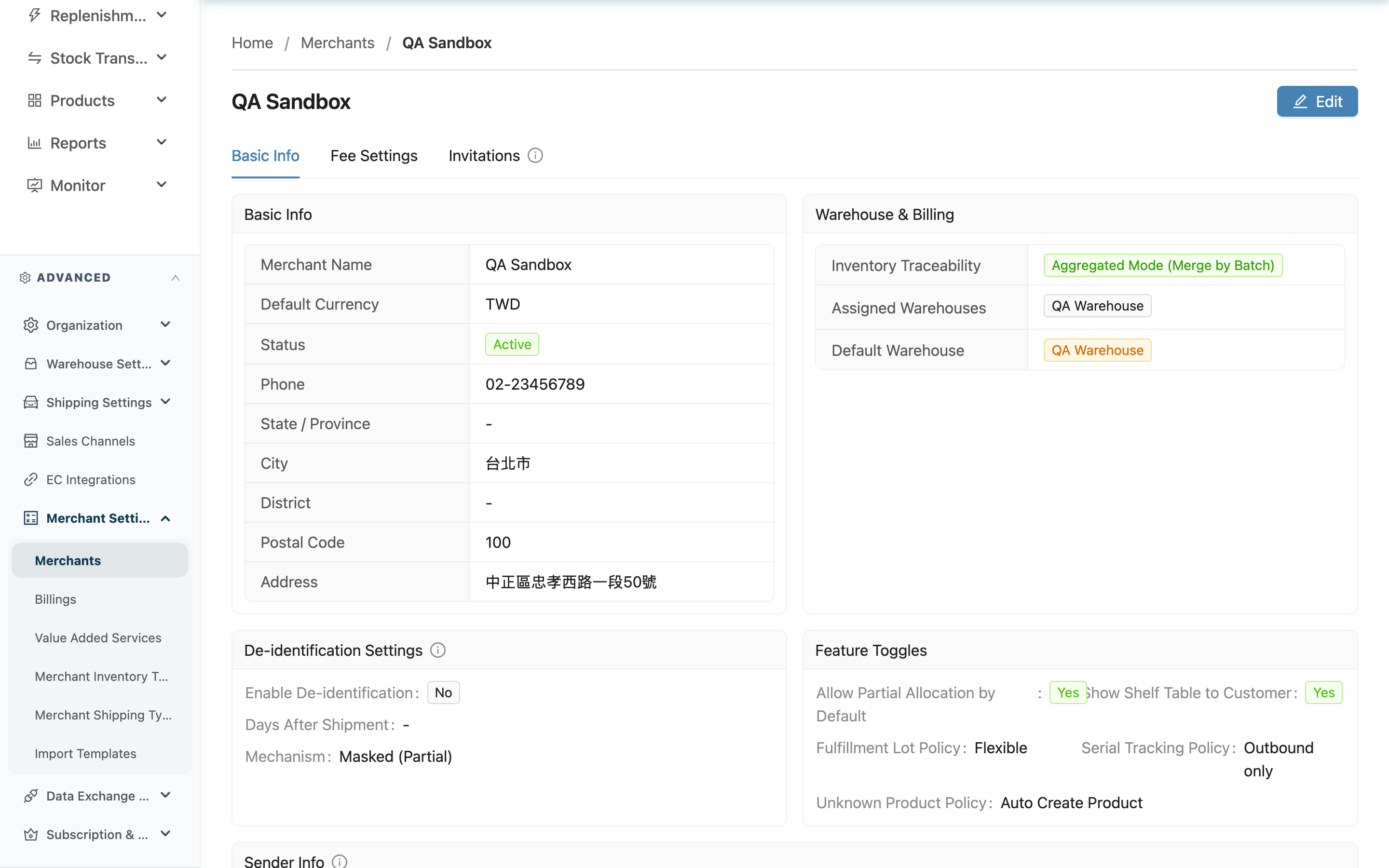
This is the settings hub for a single client. Everything under a Merchant — products, inventory, inbounds, orders, billing — runs according to the settings here. The page is organized into three tabs: Basic Info gathers all operational and billing policies, Fee Settings maintains storage and operation rates, and Invitations provisions logins for the client's people. Viewing and editing live on the same page: the current settings show by default, and clicking Edit at the top right switches to edit mode.
Quick Jump: Basic Info Tab | Fee Settings Tab | Invitations Tab | Edit & Save
1.1 Basic Info Tab
The Basic Info tab is this client's main settings area, divided into several sections:
▸ Basic Info
The client's name, contact, and address details.
Fields marked with * are required
| Field | How to Fill | Notes |
|---|---|---|
| *Merchant Name | Enter the client (brand) name | Required; must be unique among clients within the same organization |
| *Default Currency | Select the currency used for this client's settlement and quotes | Required |
| Tax ID | Enter the client's tax ID or local tax registration number | Optional, no format restriction (non-Taiwan clients can use their local tax number); it is carried into the overview sheet when the billing is exported to Excel, for invoicing |
| Status | On for Active, off for Inactive | Once inactive the client takes no new operations, but data stays intact |
| Phone / State / Province / City / District / Postal Code / Address | Enter the client's contact info by field name | Optional |
▸ Warehouse & Billing
Determines which warehouses this client can use and which one is the default.
Fields marked with * are required
| Field | How to Fill | Notes |
|---|---|---|
| Inventory Traceability | Choose Aggregated Mode (Merge by Batch) or Isolated Mode (Separate by Inbound) | In aggregated mode, products with the same batch and expiration merge into one inventory record; isolated mode keeps them separated by inbound document even with identical batch and expiration, suited to goods needing strict source traceability |
| *Assigned Warehouses | Select the warehouses where this client may store inventory (multiple allowed) | At least one warehouse is required when editing |
| *Default Warehouse | Pick one of the assigned warehouses as the default | New inbounds and orders without a specified warehouse land here; can only be chosen from the assigned warehouses |
▸ Storage Billing Mode
Determines how this client's storage is billed, and in turn which product fields become required during inbound check-in. The full rates are maintained on the Fee Settings Tab; the billing mode itself is switched here.
| Billing Mode | How It's Calculated | Required Field at Inbound Check-in |
|---|---|---|
| Pallet per SKU (Profit Max) | Each SKU with any stock counts as at least one pallet | Pallet quantity |
| Pallet by Total (Mixed Pallet) | Different SKUs may share pallets; fractions are summed then rounded up | Pallet quantity |
| By Volume ({{unit}}) | Calculated by actual product volume, in the rate card's Pricing unit | Dimensions |
| By Weight (Total {{unit}}) | Billed by total weight, in the rate card's Pricing unit | Weight |
| By Shelf (Occupied Slots) | Billed by the number of physical shelf slots occupied | None |
| By Pieces (Total Qty) | Simply counts total inventory pieces | None |
| No Billing / Manual | No automatic billing; suited to whole-warehouse or monthly-settled clients | None |
The chosen billing mode determines the required fields at inbound check-in. If you choose a mode needing pallet quantity, dimensions, or weight but the product lacks that data, the storage estimate will be inaccurate — fill in the product data first.
▸ Feature Toggles
Controls this client's default behavior in shipping and inventory operations.
Fields marked with * are required
| Field | How to Fill | Notes |
|---|---|---|
| *Default inventory allocation policy | Choose one of three modes: Full allocation (all-or-nothing) (if any line is short, all allocated stock on the fulfillment is released and the whole fulfillment is marked short), Partial allocation (hold out-of-stock lines) (lines with stock lock their full quantity while short lines are held as whole lines waiting for replenishment), Partial allocation (auto-split backorder) (a line may lock part of its quantity, and the short portion is automatically split into a new backorder fulfillment) | Required and cannot be left blank; a new client starts on Partial allocation (hold out-of-stock lines). This is a client-level default that each sales channel can override — only the channel level may be left blank to follow this setting. COD fulfillments can never be split and always behave like Partial allocation (hold out-of-stock lines) |
| Show Shelf Table to Customer | When on, the client can see the shelf list in their own backend | Some plans do not offer this option |
| *Fulfillment Lot Policy | Choose Flexible or Strict | Allocation strategy when an order doesn't specify lot attributes: flexible auto-allocates by FEFO/FIFO; strict only matches inventory that "also has none" of that attribute |
| *Serial Tracking Policy | Choose Outbound only or Full lifecycle | Outbound only: no scanning at inbound, recorded only at shipping, cannot count down to the single unit; full lifecycle: scan each unit from inbound, enabling recall, anti-counterfeiting, and exact counts. This is a single client-wide term — you can't scan some products and not others |
| Unknown Product Policy | Choose Auto Create Product or Reject Order | When an order brings in a product not in the system, either auto-create it or reject the order |
▸ De-identification Settings
A while after an order ships, automatically mask or delete the recipient's personal data (name, phone, address) to meet data-protection rules.
Fields marked with * are required
| Field | How to Fill | Notes |
|---|---|---|
| Enable De-identification | Turn on to enable automatic de-identification | De-identification is irreversible and cannot be undone once processed |
| *Days After Shipment | Enter how many days after shipping completes before processing | Required once enabled. Keep enough days for returns and complaint contact, e.g. 30 days |
| *Mechanism | Choose Masked (Partial) or Deleted (Complete) | Required once enabled. Masked keeps partial info (e.g. "J** Doe"); deleted removes it entirely and cannot be restored |
▸ Sender Info
Determines where the sender info printed on the shipping label comes from. Name, phone, and address can each be switched independently.
Fields marked with * are required
| Field | How to Fill | Notes |
|---|---|---|
| *Sender Name | Type the sender name to display on the shipping label | Required. Leaving it blank or matching the client name is equivalent to using the client's own data |
| *Sender Phone Source / *Sender Address Source | Each choose Use Merchant Info, Use Warehouse Info, or Custom | When Custom is chosen, the matching custom fields appear below and must be filled in |
▸ SLA Shipping Deadline
Sets this client's shipping time standard, from which the system computes each order's "expected ship date." This section is a feature available on certain plans only.
Fields marked with * are required
| Field | How to Fill | Notes |
|---|---|---|
| Enable SLA | Turn on to enable SLA shipping-deadline management | Once enabled the system derives the expected ship date from the cutoff time |
| *Daily Cutoff Time | Set the daily cutoff time | Required when SLA is enabled. Orders before the cutoff ship same day; after the cutoff, the next business day |
| *Grace Period (min) | Enter the grace period in minutes | Required once enabled. Absorbs sync delay between the e-commerce platform and the warehouse |
| *Target Compliance (%) | Enter the target compliance rate (0 to 100) | Required once enabled. Used to report the warehouse's on-time rate |
1.2 Fee Settings Tab
The Fee Settings tab maintains this client's storage unit prices and operation rates, and lets you run a Estimate against current actual inventory. The rates pair with the billing mode chosen on the Basic Info Tab: the billing mode decides "how it's calculated," and here you enter "how much per unit."
When the billing mode is By Volume ({{unit}}) or By Weight (Total {{unit}}), a "Pricing unit" field appears next to the price: Cubic Meters (CBM), Sai (材, 27,000 cm³), or Cubic Feet (ft³) for volume, and Kilograms (KG) or Pounds (LB) for weight; the "Per …" price label follows that choice. A new rate card defaults to the unit in Organization Settings; a new version created from the current rate card keeps that card's unit.
The pricing unit is stored on the rate card, and storage is always billed in the rate card's own unit. If the organization's volume or weight unit changes later, existing rate cards are unaffected; to switch units, create a new rate card version. Rate cards created before this field existed keep the organization's volume and weight units at that time, so their billing does not change.
1.3 Invitations Tab
The Invitations tab provisions backend logins for the client's people. Click to create an invitation and enter the person's email; the system sends an invitation email. After they click the link and set a password, they can log into the client backend and see data belonging to this brand.
If they don't receive the email, ask them to check the spam folder first; if it still doesn't arrive, you can use Copy Link in the list action column to send it manually, regenerate a new link, or cancel an incomplete invitation. Invitation links expire and must be regenerated afterward.
1.4 Edit & Save
The Basic Info tab is in view mode by default. Click Edit at the top right to switch to edit mode; after adjusting, click Save to submit or Cancel to discard. On successful Save, the page returns to view mode and shows a success message.
If you switch to another tab while editing, the system warns of unsaved changes; you can Leave to discard or Stay to keep editing.
2. FAQ
2.1 FAQ
▪ Why can't I find the Edit button?
Editing client settings requires merchant management permission. If you don't see the Edit button, ask your administrator to confirm your permissions.
▪ A warehouse isn't selectable in the Default Warehouse dropdown?
The default warehouse can only be chosen from those already selected in Assigned Warehouses. Select that warehouse there first, and it will appear in the default warehouse options.
▪ If I change the Storage Billing Mode, will old data be recalculated?
The billing mode affects the required fields at inbound check-in and the basis for future storage estimates. If you switch to a mode needing pallet quantity, dimensions, or weight while existing products lack those fields, the estimate will be inaccurate — fill in the product data before billing.
▪ After enabling SLA for the first time, will past orders get an expected ship date?
After enabling SLA and saving, the system asks whether to backfill the expected ship date for orders from the past month. Confirm to start the backfill, which helps SLA compliance reporting; you'll be notified when it's done.
▪ What if a client contact doesn't receive the invitation email?
Ask them to check the spam folder first. If it still hasn't arrived, you can Copy Link from the action column in the Invitations tab list and send it manually, or regenerate a new invitation link.
▪ Can Serial Tracking Policy be enabled for only some products?
No. Serial tracking scope is a single client-wide term — you can't scan serial numbers for some products and not others. If you switch to full lifecycle, every unit must be scanned at inbound.
2.2 Notices
⚠️ Important
- De-identification is irreversible. Once it runs (masking or deletion), the original personal data cannot be restored, so set the days-after-shipping carefully.
- Serial Tracking Policy is a client-wide term. Switching to full lifecycle means each unit must be scanned at the inbound floor, lengthening the operation.
- When editing, if you haven't selected warehouses in Assigned Warehouses and chosen a Default Warehouse, the Save button stays disabled.
💡 Tip: Both Default inventory allocation policy and Fulfillment Lot Policy are client-level defaults that individual sales channels can override, so you don't need to change the whole client's setting for one channel's special need.
3. Related Features
| Feature | Description | Link |
|---|---|---|
| Merchants | Back to the client list | Go |
| New Merchant | Create a new client account | Go |
| Billings | Generate client invoices from the billing mode and rates | Go |
| Value-Added Services | Configure a client's extra value-added service items | Go |
| Merchant Inventory Types | Configure which inventory types a client may use | Go |
| Merchant Shipping Settings | Configure which shipping types a client may use | Go |