
Upload Labels
Table of Contents
1. Feature Guide
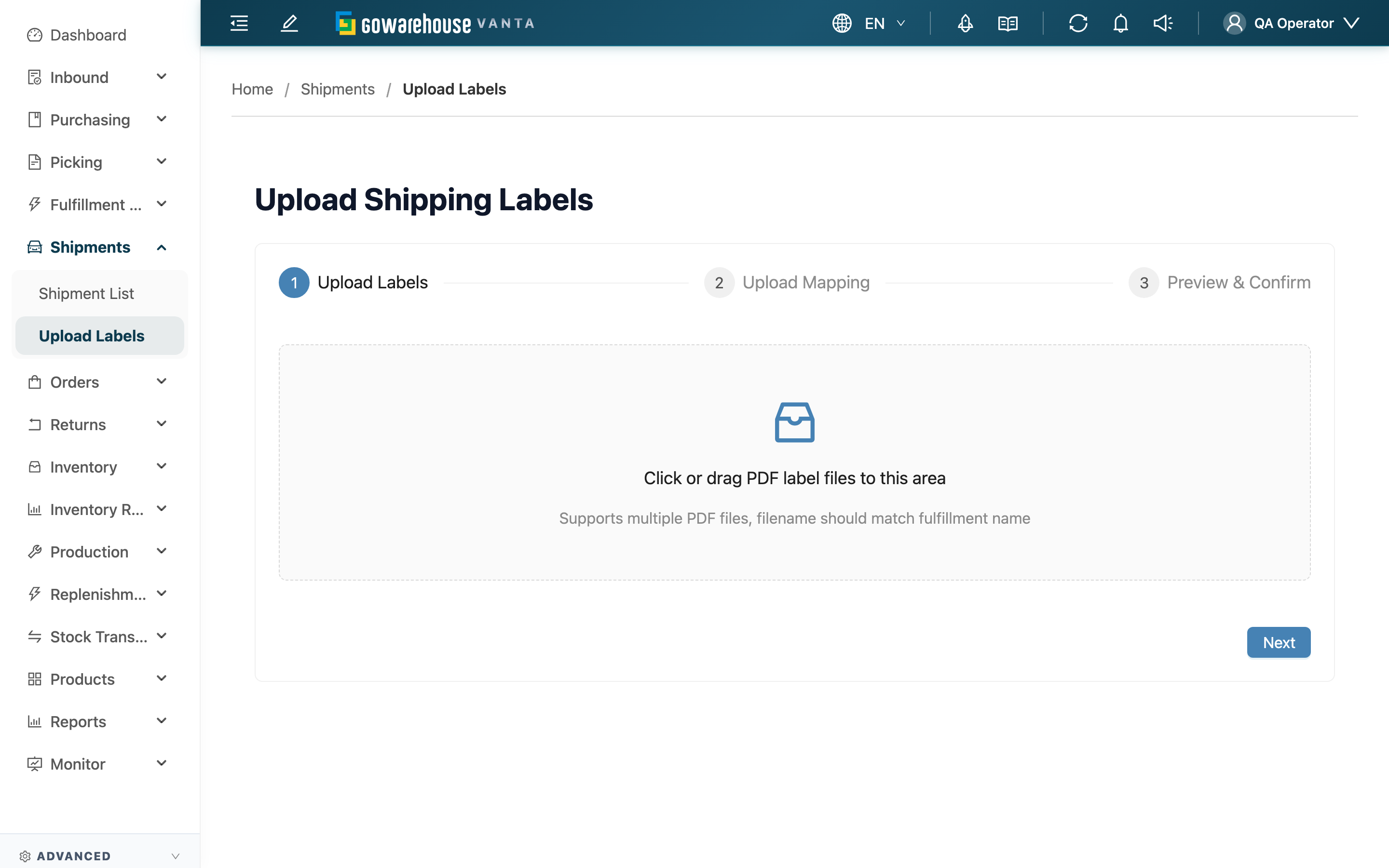
When you've downloaded a batch of label PDFs from a carrier's portal or a third-party system and want to attach them to the matching Fulfillments in the system, use this feature. After uploading, the system creates one shipment per label, attaches the label file, and links it to the corresponding Fulfillment — no manual matching one by one. Matching is by filename against Fulfillment Name; when the filename doesn't match, you can specify it with a mapping file or pick it by hand during preview. The whole flow only matches Fulfillments for your currently selected Merchant and within the current warehouse.
Quick Jump: Workflow | Step Details | Matching & Upload Results
1.1 Workflow
Before entering the page you first select a Merchant (auto-selected if you handle only one), followed by a three-step wizard:
| Step | Name | Required |
|---|---|---|
| Step 1 | Upload Labels — drag in label PDFs | Yes |
| Step 2 | Upload Mapping — upload a CSV to specify matches | No (skippable) |
| Step 3 | Preview & Confirm — confirm matches and upload | Yes |
1.2 Step Details
▸ Step 1: Upload Labels
Drag label PDFs into the upload area, or click to select files; you can select many at once.
- Only PDF files (.pdf) are accepted; non-PDF files are rejected.
- Files with duplicate names can't be added twice — the system warns that the filename already exists.
- If you do not upload a mapping file, the system treats the filename (minus .pdf) directly as the Fulfillment Name for matching — so the filename must exactly match the Fulfillment Name.
▸ Step 2: Upload Mapping (skippable)
You only need a CSV mapping file when the PDF filename isn't the Fulfillment Name (e.g. the carrier gives serial numbers like 001.pdf), or when you want to register the Tracking Number while creating the shipment. We recommend clicking "Download Template" first to get the correct format.
Fields marked with * are required
| Field | How to fill | Notes |
|---|---|---|
| *Fulfillment Name | Enter the Fulfillment Name from the system | Must match exactly, otherwise it's marked Fulfillment not found |
| Tracking Number | Enter the tracking code from the carrier | Optional; if filled, it's registered on the created shipment |
| Filename | Enter the matching PDF filename (with .pdf) | Optional; must exactly match an uploaded PDF filename; if blank or unmatched, that row only registers the Tracking Number with no label attached |
The CSV's first row is the header, matching the template, with fields separated by commas.
▸ Step 3: Preview & Confirm
The system checks each Fulfillment Name for existence and shows the match results. After confirming, click "Confirm Upload"; the system uploads one row at a time, showing overall progress, and reports the success and failure counts when done. Rows that don't match and aren't manually assigned are skipped and not uploaded.
1.3 Matching & Upload Results
The preview table columns: Fulfillment Name, Tracking Number, Filename, Match Status, Upload Result. Match Status has the following values:
| Match Status | Display | Meaning & what to do |
|---|---|---|
| Matched | Green check | Both the Fulfillment and the file matched; ready to upload |
| File missing | Red text | The filename specified in the mapping file isn't among the uploaded PDFs. This row still uploads, but only registers the Tracking Number with no label; to attach a label, go back to Step 1 and add the file |
| Fulfillment not found | Red text | This Fulfillment Name isn't found within your current warehouse / Merchant scope. Click the field to search and manually assign the correct Fulfillment; if not assigned, it won't upload |
After you click "Confirm Upload", the Upload Result column shows "Upload successful" or "Upload failed" (with the reason) per row. Successful rows aren't affected by failures — after fixing, you only need to re-upload the failed ones.
2. FAQ
Quick Jump: FAQ | Important Notes
2.1 FAQ
▪ What if the PDF filename isn't the Fulfillment Name?
Specify the match with a mapping file: click "Download Template", fill in the mapping between Fulfillment Name and Filename, and upload it in Step 2. If only a few don't match, you can also search and assign them by hand during Step 3 preview (see Match Status).
▪ How many PDFs can I upload at once?
There's no quantity limit. Labels upload one at a time, so more files take longer. For many files we recommend uploading in batches and keeping the page open during the process (see the next question).
▪ Can I close the page during upload?
No. Labels upload one at a time; closing the page interrupts items not yet uploaded. Successful ones aren't affected, but unuploaded ones need to be redone.
▪ What happens if I upload the same Fulfillment's label again?
Each upload creates a new shipment for that Fulfillment. That's exactly right for multi-box delivery; but if you accidentally re-upload the same label, you'll get duplicate shipments. Before uploading, we recommend checking the "Shipment List" to see whether that Fulfillment already has a label.
▪ What do I do about a failed upload?
Handle it by the reason shown in the Upload Result column: "Fulfillment not found" means confirm the Fulfillment Name is correct and belongs to the selected Merchant and current warehouse; a file-format error means confirm it's a PDF; a network issue means refresh and retry; anything else, contact technical support. Successful items aren't affected — just re-upload the failed ones.
▪ Where are labels stored after upload, and how do I download them?
Go to the "Shipment List" and find the matching shipment (Label Status shows "Generated"), or open the order detail from the "Order List" and click "Print Original Shipping Label" in the shipment section to get the label file.
▪ Which file formats are supported?
Labels support only PDF (.pdf), and mapping files only CSV (.csv). If a label is in PNG, JPG, or another format, convert it to PDF before uploading.
▪ My CSV won't load — what's wrong?
Check: the first-row header matches the template (Fulfillment Name, Tracking Number, Filename), fields are comma-separated, and the Filename includes the .pdf extension. Editing from "Download Template" is the least error-prone.
2.2 Important Notes
⚠️ Important Reminders
- Pick the right Merchant first: Labels only match Fulfillments for the selected Merchant and within the current warehouse; the wrong Merchant means nothing matches.
- Avoid duplicate records: Each upload creates a new shipment, so before uploading, confirm whether the Fulfillment already has a label to avoid duplicate shipments.
- Don't close the page mid-upload: Labels upload one at a time; closing midway interrupts the unuploaded items.
💡 Tip: Fulfillment not found and File missing are two different things — the former means the Fulfillment doesn't exist in the system (skipped), the latter means the PDF wasn't uploaded (still creates a shipment but with no label). Don't confuse them when checking.
3. Related Features
| Feature | Description | Link |
|---|---|---|
| Shipment List | View shipments and label status created after upload | Go |
| Order List | View and download uploaded labels in order detail | Go |