
Supplier Detail
Feature Not Yet Available
Purchase order management (purchase orders and suppliers) is not currently available on any plan — the corresponding menu items and this page are hidden. Existing data is unaffected and remains intact in the system. This feature will be offered later as an add-on module, at which point the workflow described on this page will apply as-is.
Table of Contents
1. Features
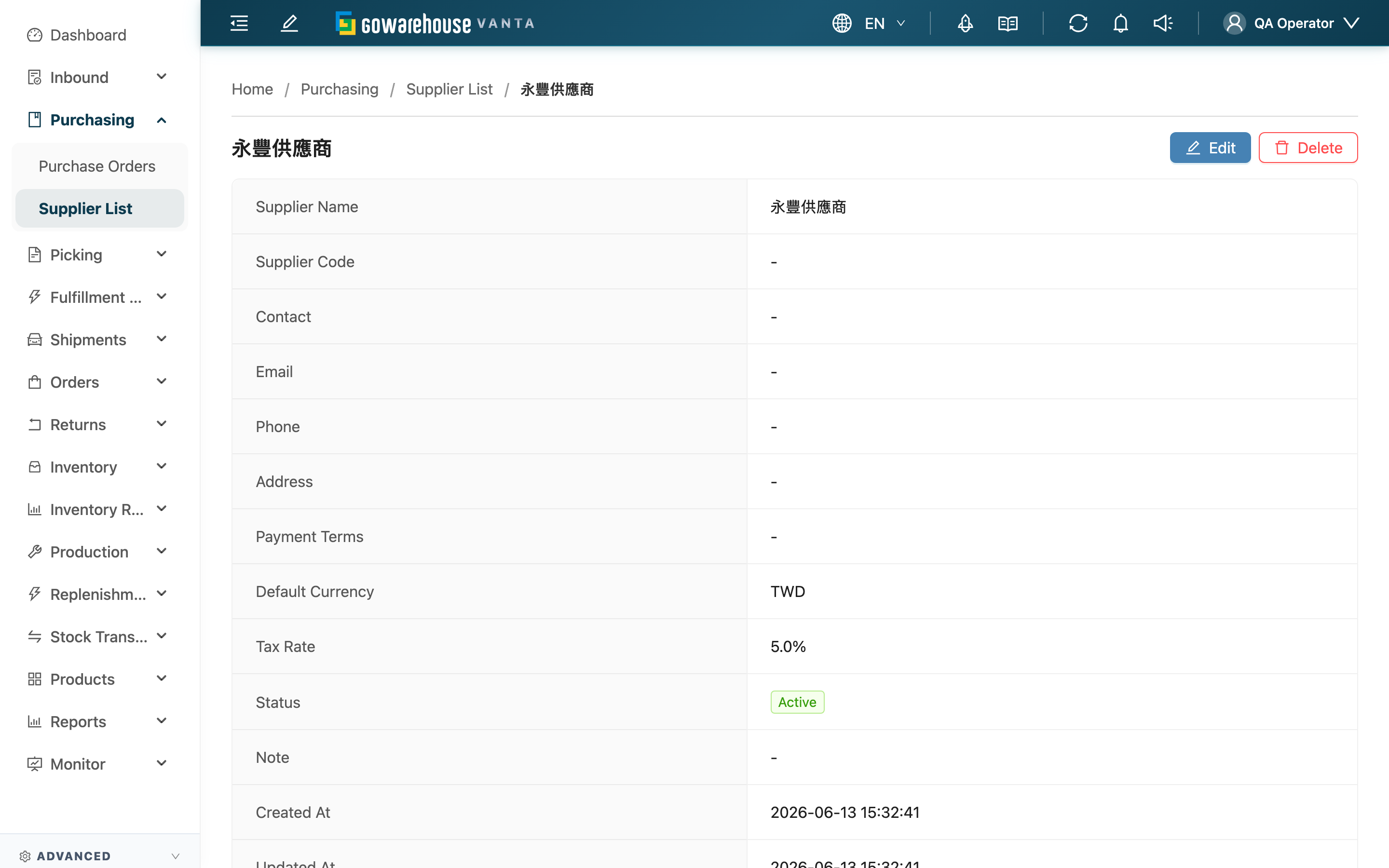
The supplier detail shows a single supplier's complete record, and lets you edit or delete this supplier from here.
Quick jump: Supplier info | Action buttons
1.1 Supplier Info
The page lists all of this supplier's fields in a table:
| Field | Description |
|---|---|
| Supplier Name | Supplier name |
| Supplier Code | Supplier code |
| Contact | Contact person |
| Phone | Contact phone |
| Address | Address |
| Payment Terms | Payment terms |
| Default Currency | Default currency, filled in automatically on purchase orders |
| Tax Rate | Default tax rate, filled in automatically on purchase orders |
| Status | A colored tag showing "Active" or "Inactive" |
| Note | Note |
Empty fields show "-".
1.2 Action Buttons
There are two actions at the top right:
- Edit: Opens Edit Supplier to modify the fields.
- Delete: After a confirmation, deactivates this supplier and removes it from the Supplier List. Purchase orders that already used this supplier are unaffected and keep their original supplier info; but after deactivation it cannot be brought back or reactivated from the screen.
2. FAQ
2.1 FAQ
▪ Is the data really gone after "Delete"?
Deleting actually deactivates the supplier: it disappears from the supplier list and the purchase order dropdown, but purchase orders that already reference it keep their original supplier info — nothing is cleared. There just isn't an on-screen entry point to reactivate it afterward.
▪ Does changing "Default Currency" or "Tax Rate" affect existing purchase orders?
No. The default currency and tax rate only fill in automatically when you pick this supplier on a new purchase order; existing purchase orders keep the values entered at the time and won't change because you later edited the supplier record.
▪ How does the "Status" field become "Inactive"?
A newly created supplier defaults to "Active". When you click "Delete" on this page (deactivate), it becomes "Inactive" and is removed from the list.
▪ Can't find a field to fill in?
A supplier's fields are fixed (name, code, contact info, address, payment terms, default currency and tax rate, note). To change their values, click "Edit".
▪ Why can I open this page but not find the supplier in the list?
The supplier list shows only "Active" suppliers. If this one was deleted (deactivated), its detail page URL still opens, but it won't appear in the list.
2.2 Notices
⚠️ Important
- After deletion (deactivation) you cannot bring the supplier back or reactivate it from the screen — make sure you no longer work with it before deleting
- Deletion does not clear the supplier info on existing purchase orders, but the supplier can no longer be selected on new purchase orders
💡 Tip: If you're only pausing orders with a supplier and might work with it again later, don't delete it — just keep the record.
3. Related Features
| Feature | Description | Link |
|---|---|---|
| Supplier List | Back to the overview of all suppliers | Go |
| Edit Supplier | Modify this supplier's record | Go |
| Purchase Order List | Purchase orders placed with suppliers | Go |