
Product Detail
Table of Contents
1. Features
The product detail lays out a product's full configuration: basic info, receiving and shipping rules, packaging units, export data, substitutes, and what has been changed on this product. When you need to confirm a product's batch / serial rules, look up its barcode, or trace who changed a setting, this is where to go. The top-right corner also gathers the entry points for inventory lookup, label printing, serial numbers, and editing.
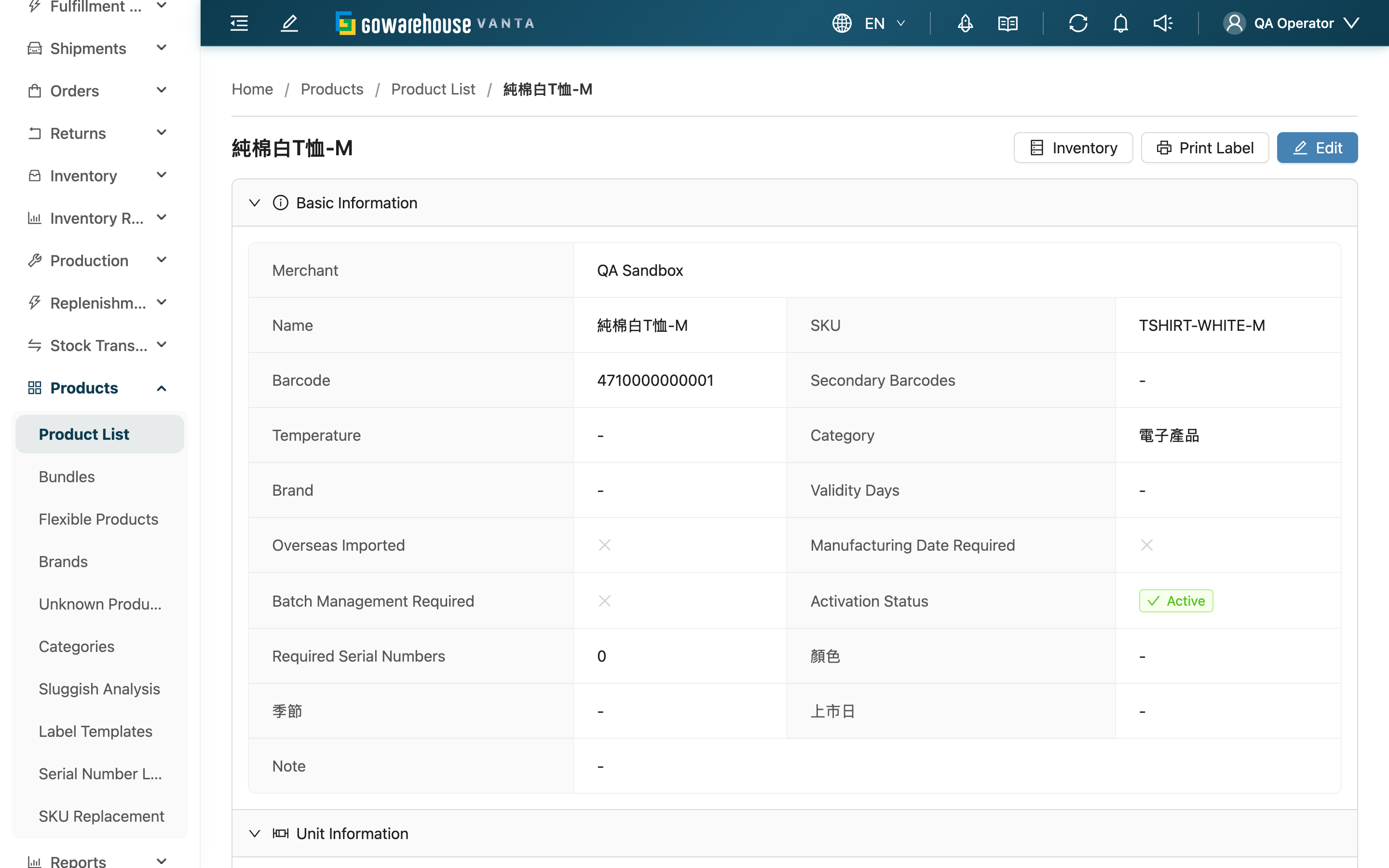
Quick jump: Page Actions | Information Sections | Edit History & Integration Logs
1.1 Page Actions
The top-right corner shows these buttons depending on the product's settings:
| Action | Effect | Appears when |
|---|---|---|
| Inventory | Enter this product's stock distribution and in-transit stock | You have inventory-view permission |
| Shipping Serial Number List | View / manage this product's shipping serial numbers | Only when the product is set to require serial numbers |
| Print Label | Choose a template and copies to generate a product label | When label printing is available |
| Edit | Enter Edit Product | You have product-edit permission |
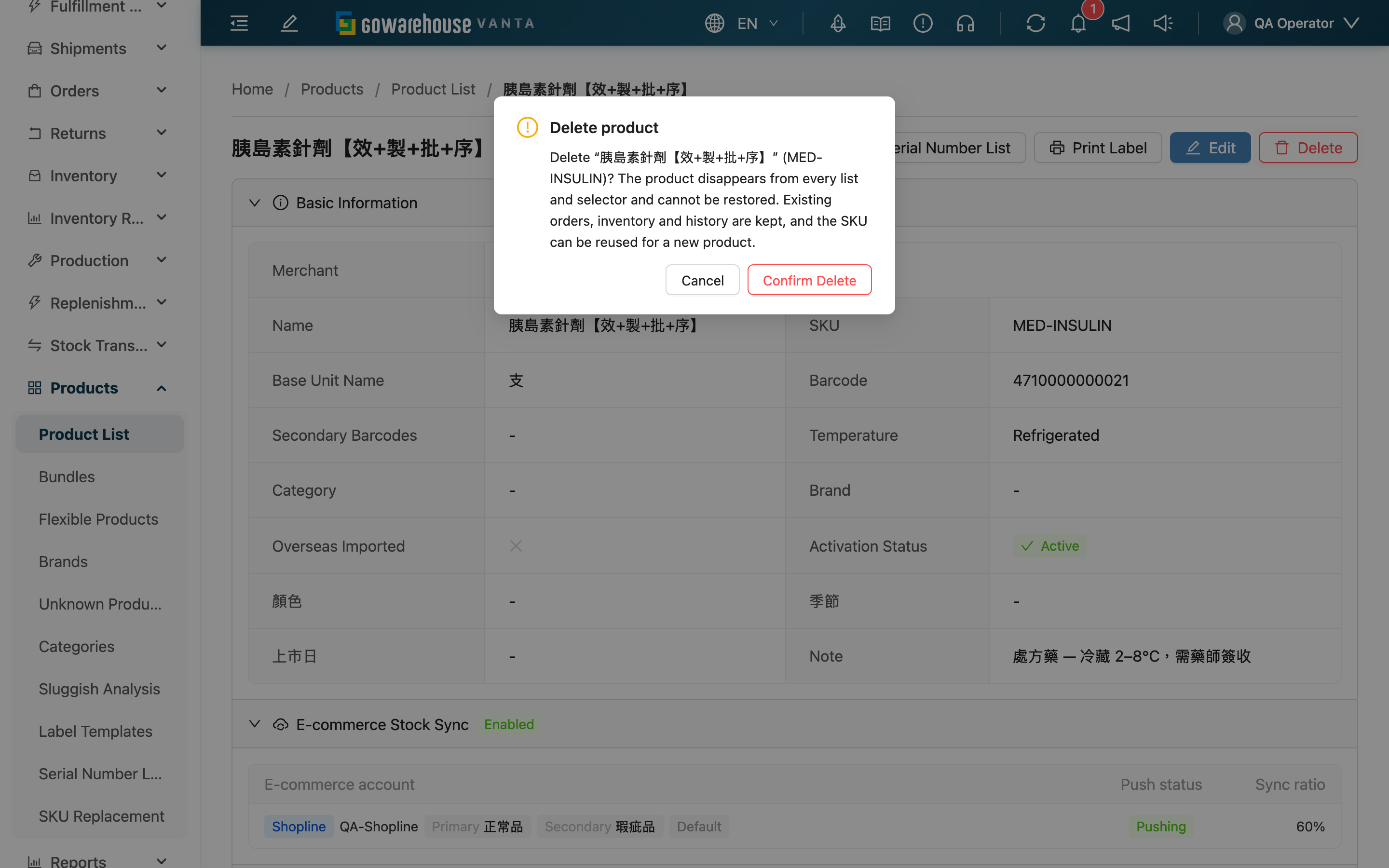
| Delete | Deletes this product: it disappears from every product list and selector and cannot be restored; existing orders, inbounds, inventory and history are kept and still show the original name and SKU, and the SKU can be reused for a new product. If the product is still a component of a bundle, the deletion is refused and the bundles are named — remove it from those bundles, or delete them, first | With product edit permission |
When printing a label, the first entry in the Template list is the template the system picks for this print, with a tag showing why it was picked (Product Binding / Merchant Default / Built-in Default). Print directly to use it, or pick a different template from the list — that choice applies to this print only and does not change the product settings. Without view permission on print templates the list does not appear at all, and you can only print with the template the system picks. After selecting, the left side shows a live preview; confirm it looks right, then set the copies and print. The generated label is provided for download in the background-task notifications.
1.2 Information Sections
The page follows the Compact / Full interface preference saved in Personal Settings; the product content area has no separate mode switch. Full mode expands basic information, tracking and shelf life, and unit information by default. Stock synchronization also opens when applicable accounts exist.
Compact mode starts with basic information. Active shelf-life, manufacturing-date, batch and serial requirements remain visible in section headings, as do unit conversions. Click a section to view its details. Unconfigured tracking, packaging, export and substitute sections are omitted. Brand, category, photo, notes and custom attributes remain visible; missing custom values display "-". Disabled synchronization and overselling warnings remain directly visible.
To see all unconfigured sections, switch to Full from the top-right "User menu". Sections already expanded on the current page stay open. Collapsing sections or changing modes does not change product settings.
The sections contain:
| Section | Content |
|---|---|
| Basic Information | Merchant, name, SKU, main barcode, other barcodes, base unit, temperature, category, brand, overseas import, active status, custom attributes, note, product image |
| Identification, tracking and shelf life | Shelf life, manufacturing-date and batch requirements, serial count and format; active requirements remain visible when collapsed |
| Unit Information | Mid / large unit names and counts, barcodes per tier, single-item and outer-case dimensions and weight, pallet stacking and ordering units; conversions remain visible when collapsed |
| Export Information | Customs declaration title, manufacturer country, HS code, material |
| Substitute Information | List of substitutes that can ship in place of this product; Compact mode shows this section only when substitutes exist |
| Shelf Information | The product's Default Shelf (shown separately only in a dynamic warehouse; in a dedicated warehouse the default shelf is included in basic info) |
How to fill these fields is detailed in Add Product and Edit Product; this page is view-only — click "Edit" to make changes.
1.3 Edit History & Integration Logs
The "Edit History" tab at the bottom lists, in reverse chronological order, every change made to this product: who made it (warehouse staff, merchant account, or via integration), which field changed, and from what value to what. Changes to other barcodes and custom attributes are itemized as additions and deletions. When a setting was changed in error and needs to be traced or rolled back, this is the reference.
The "Integration Logs" tab records the access logs generated by external-system integrations for this product, for reference when troubleshooting data-sync issues. Stock level changes for this product are pushed as "Inventory Updated" webhook deliveries and listed here; a product stocked across several warehouses or inventory types produces one row per warehouse × inventory type combination, and one such row per webhook subscribed to inventory changes; expanding a row shows which pair it covers in the delivery payload. Webhook deliveries showing "Failed" or "Awaiting Retry" get a "Retry" button on the row so you can resend on the spot; the row turns to "Awaiting Retry" and the system resends in the background, and that row's delivery status and "Retries" refresh automatically within about ten seconds. If they haven't updated by then (the target timed out, or this attempt failed again and was queued for the next automatic backoff), reload the page to see the latest result. Both a manual resend and the system's next scheduled retry go to the webhook's current URL, so after you correct a wrong address, rows still sitting at "Awaiting Retry" switch to it on their own. Expand the row to see the address each attempt was actually sent to, which tells a target that never answered apart from one you were still calling at a retired address. If a webhook fails 10 times in a row the system deactivates it and notifies you; while it is deactivated none of its rows show this button — reactivate it on the webhook settings page (reactivating resets the consecutive-failure count) and the button comes back.The action requires the "Logs - Write" permission.
2. FAQ
2.1 FAQ
▪ Why does the "Shipping Serial Number List" button sometimes not appear?
Only products set to require serial numbers (Required Serial Numbers greater than 0) show this button. If you need to manage a product's serials but don't see the button, first confirm a serial count is set in Edit Product.
▪ I want to see which shelves this product is on now, and how many on each?
Click "Inventory" in the top-right to enter Product Inventory, where you can see shelf distribution, each batch's expiry, and in-transit stock. The detail page itself does not show live stock detail.
▪ Can I change product settings directly on the detail page?
No, the detail page is view-only. Click "Edit" in the top-right to enter the edit page, make changes, and save.
▪ What does "via integration" in the edit history mean?
It means the change was not made by a person in the back office but written via an external-system integration. Use the "Integration Logs" tab to further trace which sync caused it.
▪ What if the printed label content is wrong?
The label content is determined by the chosen template. Switch to a different template, or adjust the template content under "Print Templates", then return to preview and print again (see Print Templates). If the same product keeps printing with the wrong layout, that product usually has an outdated template assigned on its own record — change or clear the Label template field in Edit Product.
2.2 Notices
⚠️ Important
- Deleting a product cannot be undone. It cannot be selected for new documents. Existing documents and inventory are kept, and verified returns and existing stock transfers and work orders can still complete their follow-up inbounds using the original product; for a wrong import, delete it and recreate or re-import with the same SKU.
- The detail page shows the product's "settings", not live stock. For actual in-stock and in-transit quantities, rely on Product Inventory.
💡 Tip: Before printing labels, confirm the layout and content in the left preview, then decide on the copies and print — this avoids misprinting an entire batch of labels.
3. Related Features
| Feature | Description | Link |
|---|---|---|
| Edit Product | Modify this product's settings | Go |
| Inventory | View this product's stock and in-transit | Go |
| Product List | Back to the product list | Go |
| Print Templates | Maintain product label and other print templates | Go |