
EC Account Details
Table of Contents
1. Features
The EC account detail page is where you check, for a single e-commerce integration, "is it connected right now, what is configured, and do I need to trigger something manually". When operating on behalf of a merchant, this is where you confirm a platform account's connection status and masked credentials, review its order-fetch and inbound-push settings, and — when needed — manually schedule one order fetch, sync product mappings, or overwrite platform stock. The left column shows connection information, the right column shows feature settings, and when the account is disconnected a red alert appears at the top so you can re-authorize or edit directly. The sync history at the bottom of the page is your first stop when someone asks why orders or return orders have not come in.
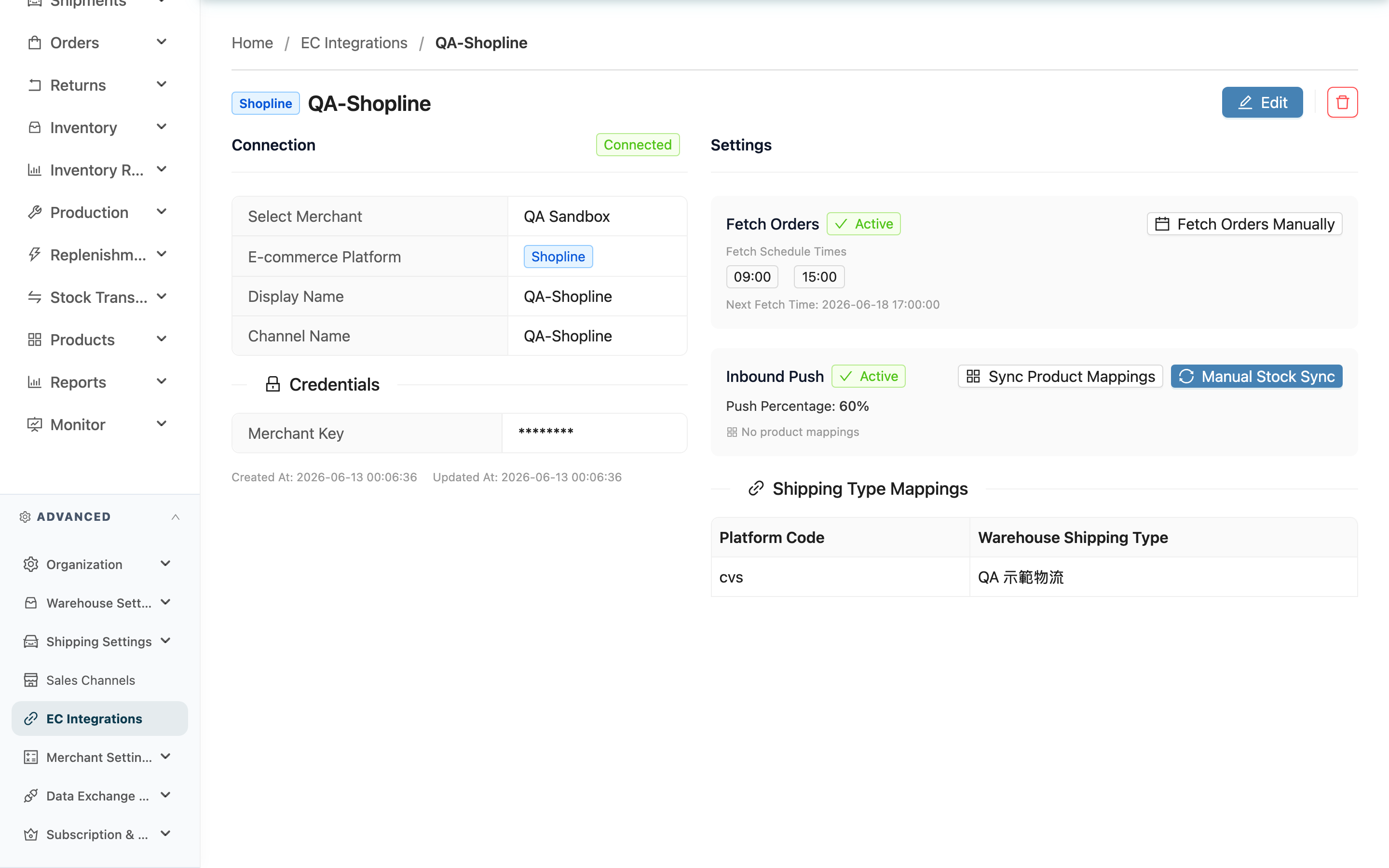
Quick jump: Connection Info (left) | Feature Settings (right) | Manual Actions | Automatic Real-Time Notification Check | Header Actions | Sync History
1.1 Connection Info (left column)
The left column is titled Connection, with the current connection status tag shown in the top-right corner.
There are three connection statuses, listed in full only here:
| Status | Meaning |
|---|---|
| Not Verified | The account was just created, or its credentials changed and the connection has not been tested yet |
| Connected | The last connection test succeeded; order fetch and push work normally |
| Disconnected | The last test failed, or the system marked it as disconnected |
The basic info table lists the merchant, E-commerce Platform (platform tag), Display Name, and Channel Name.
The credentials section (title with a lock icon) shows the credential fields for that platform; fields differ by platform (for example: keys, account, shop code). **Sensitive fields such as secrets, tokens, and passwords are always masked with ********** — their real values never appear on screen.
The very bottom shows Created At and Updated At in small text.
When the account status is "Disconnected", a red alert appears at the top of the page with a repair button that depends on the platform type:
- OAuth platforms (Shopify, Shopee, Liteshop): a Re-authorize button that takes you back to the platform to re-authorize.
- API-key platforms: an Edit button that takes you to the edit page to update the credentials and re-test the connection.
1.2 Feature Settings (right column)
The right column is titled Settings and shows the settings supported by the platform.
Order fetch settings: shows whether Fetch Orders is on or off, together with Fetch Schedule Times (the daily automatic-fetch time slots). Next Fetch Time is listed only while order fetch is on. Shopee accounts also show Realtime New Order Fetch: when on, a new-order notification from the platform schedules an extra fetch and the order reaches the system in about 5 minutes; when off, new orders only arrive during the slots above.
When order fetch is off, the system will not automatically import this platform's orders into the warehouse. The slots you saved earlier are still listed so you can check what is configured, but they are marked with "Takes effect only when Fetch Orders is enabled", and the Realtime New Order Fetch tag also keeps the "Active" or "Inactive" wording you saved — it only turns from a green check into a grey stop icon, with the same note beside it telling you to turn order fetching on first.
Inbound push settings: shows whether Inbound Push is on or off, and the Push Percentage (the share of stock pushed to the platform). While push is off, the percentage you saved earlier is still listed, marked with "Takes effect only when Inbound Push is enabled". While push is on and the platform persists its mappings, it also shows the mapped product count and Last Synced; before any sync it shows "No product mappings".
Waybill Layout: appears for Momo, Mo+ and Shopline accounts only, showing which layout waybills are currently printed with — A4 (the platform's original layout) (the default) or Thermal Label (split into two sections). Change it on the edit page.
Shipping Type Mappings: a table showing the "platform shipping code → warehouse shipping type" mapping. This table only appears when a mapping has been set up.
▸ Ragic Inbound Integration
Ragic shows "Fetch inbounds", "Inbound fetch times", and "Next inbound fetch time" so you can check when inbound documents will be imported. Inbound and order fetching have independent switches and schedules. The next inbound fetch time is not shown while fetching is disabled or the account is disconnected. While inbound fetching is off, the saved fetch times are still listed, marked with "Takes effect only when Fetch inbounds is enabled".
"Inbound field mapping and import condition" lists the inbound sheet path, import template, line-item subtable, and import condition. "Receipt completion write-back" lists the status field, completion value, and receipt-date field used for write-back. Unconfigured fields display "-". Change these settings on the Edit page.
Ragic currently does not support stock pushing, so "Inbound Push" and "Push Percentage" are hidden. Writing receipt results back to the original inbound sheet is separate from pushing stock quantities to a platform. If inbound fetching is later disabled, receipt results for documents already imported are still written back as configured while the account is connected.
For inbound-only use, turn off order fetching. The order sheet path, fetch schedule, import template, import conditions, shipment writeback, and shipping code mappings are hidden. Of these, the fetch schedule is hidden on the edit page only: this detail page still lists the slots you saved, marked with "Takes effect only when Fetch Orders is enabled" so you can tell they are not in effect right now, not lost. Turning order fetching back on restores these fields; saving while disabled preserves the existing order settings. Retesting an existing account saves the current inbound switch and settings together. If inbound fetching is turned off, it stays off even when you also change the API key or source sheet. After switching inbound sheets, matching record IDs on the new sheet can still be imported (document numbers must remain unique). Existing inbounds write back to their original sheet using the writeback fields saved at import. Closing receipt again in the same receiving cycle preserves the first completion time; reopening and completing creates a new writeback cycle. Each writeback fills only blank fields in the original sheet, preserving existing status and receipt-date values. If a populated item lacks its SKU or an explicit date is invalid, the entire inbound is rejected. Correct the source data using the sync log.
Inbound items can use only inventory types currently enabled for the merchant. This also applies when an item falls back to the sales channel’s default type. If that type is disabled, the entire inbound is rejected. Correct the channel settings or enable the type, then fetch again.
Custom attribute defaults apply even without a mapped source column; an existing source value takes priority. Yes/no attributes accept Y/N or 1/0, and numbers and dates are converted according to the attribute type. Invalid values reject the entire inbound; correct them using the sync log, then fetch again. Failed receipt writebacks receive up to 2 automatic retries, then stop with a notification. See Inbound Details for the result and follow-up steps.
When the account is connected and inbound fetching is enabled, users with permission to edit ecommerce accounts can select “Fetch Inbounds Now” without waiting for the next scheduled time. Check the integration log for results. Each account allows one manual inbound fetch every 10 minutes, independently of manual order fetching.
1.3 Manual Actions
The two setting sections in the right column each carry a manually triggered button. Whether these buttons appear depends on the account's current status and the platform — not every account shows them (reasons for them being hidden are in the FAQ).
▪ Fetch Orders Now
Immediately queues one order-fetch job without waiting for the next scheduled time slot.
- When it appears: the account is connected and order fetch is on.
- Side effect: it only triggers one extra fetch early; it does not change the automatic schedule. After triggering, "Next Fetch Time" still shows the next automatic schedule time.
- Limit: there is a 10-minute cooldown. If you click again during cooldown, the system shows "Operation too frequent, please try again in N minutes".
▪ Sync Product Mappings
Pulls the product list back from the e-commerce platform to build the mapping between WMS products and platform products.
- When it appears: the account is connected, inbound push is on, and the platform supports syncing product mappings.
- Result: once the mapping is built, the result appears in the notification at the top-right, and the mapped product count and last synced time at the top of this page update on their own — no refresh needed.
▪ Manual Stock Sync
Overwrites the stock numbers on the platform with the current WMS sellable quantity (absolute overwrite).
- When it appears: the account is connected, inbound push is on, and the platform supports manual stock sync.
- Side effect: it directly overwrites the stock quantity on the e-commerce platform and affects live sales (see Notes).
- Confirmation step: clicking opens a red confirmation dialog "Confirm manual stock sync"; it runs only after you confirm.
1.4 Automatic Real-Time Notification Check
Whenever someone opens this page, the system automatically checks with the e-commerce platform whether this account's real-time notification is set up, and fixes it on the spot if it is missing or no longer working. The check runs in the background, so it does not slow the page down, and there is no button to press.
Real-time notification is what makes the platform tell us the moment an order changes, so orders no longer have to wait for the next scheduled fetch. Accounts that were integrated before real-time order intake shipped — and accounts whose notification permission was granted later — used to need someone to go back and press the connection test again; now one visit to this page fixes them automatically.
| Result of this check | What you see |
|---|---|
| Not on the platform yet → created | A floating message saying it is now enabled, listing which notification events are covered |
| Expired or missing some events → rebuilt | A floating message saying the previous setup had stopped working and has been recreated, with the same event list |
| Already present and correct → nothing done | No message at all. Reloading the page still runs a real check, but with no new change there is no repeated message |
| The key lacks real-time notification permission | A message that does not close by itself, guiding you to grant the permission on the platform and regenerate the key |
| The platform refuses this system's connection source (our IP is not on its allowlist) | A message that does not close by itself, saying to contact support. Regenerating the key does not help here — this system's connection IP has to be added to the platform's allowlist |
| Platform timeout, error, or rate limit | No message at all. Scheduled order fetching is unaffected and the next visit retries automatically |
The check is not triggered at all when: the account is not "Connected" (never tested or disconnected accounts never call the platform), you only have read-only permission (no call and no message), or the platform has no real-time notification we can configure.
1.5 Header Actions
The top-right corner always offers two account-level actions:
- Edit: go to the Edit EC Account page to change the display name, credentials, order-fetch and push settings, shipping mappings, and so on.
- Delete: clicking opens a confirmation dialog; after you confirm, the account is deleted. Before removing the account, the system first attempts to clear the automatic notifications it previously set up on the platform. This cannot be undone (see Notes).
1.6 Sync History
"Sync History" at the bottom of the page lists this account's most recent automatic syncs, one row per run. When a merchant asks why orders or return orders have not come in, start here. Order fetching, return order syncing and stock pushing leave no record when there was nothing to process and nothing failed, so an empty list for those three does not mean something is broken; "Product mapping" leaves a row whether it succeeded or failed, and the only silent case is the daily incremental run finding no product changes on the platform at all, which is a normal result. Pressing "Sync Product Mappings", or the first full sync right after connecting, also leaves a row when no product list could be retrieved at all — and an account that has never yet retrieved a product list still has its sync progress at the starting point, so the daily run is treated as a full one and keeps leaving a row every night until it first retrieves products. For "Yahoo Shopping Center" the product file comes back asynchronously: a failure to trigger the export leaves a row immediately, while a successful trigger only writes its row once the platform sends the product file back, so it takes a few minutes to appear after the button is pressed; if that returned file cannot be downloaded or read, no row is written at all and the failure shows up as a notification instead.
| Column | What it tells you |
|---|---|
| Type | What was synced: "Order Fetch" fetches platform orders, "Return Order Sync" turns platform returns into return orders, "Stock Push" pushes stock to the platform, "Product mapping" rebuilds product mappings. They run independently — a failed return order sync does not drag order fetching down with it |
| Status | "Success" everything went through; "Partial Failure" some failed; "Failed" nothing succeeded in this run, usually a credential or connection problem. "Product mapping" has one more state, "Cleanup Skipped": the run did not get a complete product list, so the system left every existing mapping untouched (and when it did not get any product list at all, the sync progress is not advanced either); the next run tries again |
| Result | For Order Fetch, Return Order Sync and Stock Push, how many succeeded and how many failed in this run; Product mapping has no per-record outcome and instead shows how many products were scanned, how many mappings were updated, and how many were removed |
Click a row with failure details to expand it; each expanded row is one failure. "Target" points at the item (for return order syncing it is the platform's return order number), "Error" is the reason, and where a "View API Log" link is shown you can open the full record of that call. A row marked "Entire run" means the whole run failed, not a single item.
"Product mapping" has no per-item failures: when the platform blocks it, the row is "Failed" and expanding it shows a single "Entire run" line. The "Error" column reads one of three ways. Whenever the system itself stopped the run (the product data coming back unreadable, or the product list not being read all the way through), and for credential and connection problems, you get a readable explanation on its own. When the platform explicitly rejected the product list request, that explanation is followed by the platform's own wording (usually with some English technical text in it, and the only place the platform's actual reason shows up). Anything else the platform reported that the system could not classify (for example, the platform being busy) is shown exactly as it came. Where a "View API Log" link is shown you can open the full record of that call. This kind of failure almost always happens while reading the platform's list, before any existing mapping is touched, and it does not advance the sync progress — ask the merchant to press "Sync Product Mappings" again later.
Failures under "Return Order Sync" and what to do about them:
| Failure | What to do |
|---|---|
| A returned item could not be matched to a product | The whole return order is not created, but the goods still come back to the warehouse physically. Go to "Unknown Products" and map the unmatched item on the source order to a system product, or ask the merchant to press Sync Product Mappings to rebuild the mapping. Once that is done, any return order updated on the platform within the last 7 days is created on the next run — no manual creation needed |
| A returned item has no inventory type | The system does not know which inventory type these goods should come back into. Open the sales channel this account is bound to and make sure a primary inventory type is set; the return order is created on the next run |
| The whole run failed (Entire run) | Read the "Error" column — there are three cases. "Platform authorization expired" means the credentials or API key no longer work; the account is also marked "Disconnected" automatically, so ask the merchant to update the credentials and test the connection again. "The platform rejected this system's connection source" means our connecting IP is not on the platform's allowlist; reauthorizing does not help, so contact support to get the IP allowlisted. When the column shows the platform's own wording instead, these credentials most likely lack return-related permission, which the merchant needs to confirm in the store admin |
2. FAQ
2.1 FAQ
▪ Why don't I see the "Fetch Orders Now" button?
This button only appears when the account is "connected" and "order fetch is on". If the account is currently "Disconnected" or "Not Verified", or order fetch is off, the button is hidden. First bring the account back to connected (see disconnected handling below), then turn on order fetch on the edit page.
▪ Why don't I see the "Sync Product Mappings" or "Manual Stock Sync" buttons?
Both buttons share the conditions "connected + inbound push on + platform supports it". If any condition is not met, the button is hidden. Some platforms do not support syncing product mappings or manual stock sync, so the corresponding button won't appear even when connected with push on.
▪ What is the ******** in the credentials section?
That is a masked sensitive field. For security, credential parameters such as secrets, tokens, and passwords never show their real values on screen and are always displayed as ********. To update them, go to the Edit EC Account page and re-enter them.
▪ The account shows "Disconnected" — what should I do?
The red alert at the top of the page gives the matching repair button: for OAuth platforms (Shopify, Shopee, Liteshop), click Re-authorize to re-authorize on the platform; for API-key platforms, click Edit to update the credentials on the edit page, then test the connection once more after saving. Order fetch and push resume only after the connection is restored.
▪ Will the platform's orders still come in while the account is disconnected?
No. While the account is "Disconnected", the system will not automatically fetch and import this platform's orders, and the "Fetch Orders Now" button will not appear. Restore the connection first.
▪ What happens when I click "Manual Stock Sync"?
The system takes the current WMS sellable quantity as the source of truth and overwrites the stock of every mapped product under this account onto the e-commerce platform (absolute overwrite). In other words, it changes the platform's stock numbers directly to the WMS numbers. This affects live sales and cannot be reverted automatically. Always confirm that the WMS stock is correct before running it.
▪ I clicked "Fetch Orders Now" but nothing happened, and it said "operation too frequent"?
Manual order fetch has a 10-minute cooldown. If you trigger it again on the same account within 10 minutes, the system shows "Operation too frequent, please try again in N minutes". Wait for the cooldown to end and trigger it again, or let the next automatic schedule slot fetch it for you.
▪ The merchant says the fetch slot has passed but the orders are not in yet?
For channels under the same merchant, the automatic fetches that run at the configured slots go one at a time, never simultaneously — this stops two channels from importing orders that contain the same product at the same moment and both being judged out of stock. A configured slot is the earliest start time, not a guaranteed one: a channel waits for the one before it to finish. Different merchants run independently and never wait for each other.
Two exceptions to know: the merchant pressing "Fetch Orders Now", and the single-order refetches triggered by a platform's real-time push, are outside this ordering and may run alongside a scheduled fetch.
Do not judge "is a fetch running" by whether a new row appeared in Sync History — a fetch round with nothing to process and no failures leaves no record. Look at Next Fetch Time instead: for a scheduled round it only moves forward once that round finishes, so a time that has already passed usually means a fetch is in progress. Note that when the merchant presses "Fetch Orders Now" this time jumps forward immediately (see Manual actions), so it does not apply to manual fetches.
▪ What is "Return Order Sync" in the sync history?
It is the record of Shopline return orders being brought in automatically. For a Shopline account that is connected and has order fetching on, Shopline notifies the system the moment a return is raised, completed or canceled, and the system reads the return order back from the platform and turns the ones buyers requested or confirmed into return orders; it also checks the platform every 30 minutes to pick up any notification that went missing. These notifications are registered with Shopline automatically when a connection test succeeds, so the merchant has nothing to set up, and neither the warehouse nor the merchant has to create the return orders by hand. Verifying and converting them works exactly like any other return order; see the Return List.
▪ The merchant says a return exists on the platform but I can't find it — how do I check?
First confirm the account is Shopline, connected, and has order fetching on — if any of the three is missing, return orders will not come in. If all three are fine, open Sync History, expand the "Return Order Sync" rows and read the failure reason; most often a returned item could not be matched to a product, so the whole return order was not created.
▪ A message about real-time notification popped up as soon as I opened this page — did I click something?
No. Opening this page runs one automatic check of the account's real-time notification setup and fixes what is missing; the message appears only after something was actually fixed (see Automatic Real-Time Notification Check). The message lists which events the notification now covers. Nothing changed means no message at all, so seeing it tells you this visit really did complete the setup for this account.
▪ The message says the key has no real-time notification permission — what do I do?
Ask the merchant to go to the e-commerce platform's admin, tick the real-time notification (webhook) permission on the authorization page, and regenerate the key. Then update the key on the Edit EC Account page and test the connection. After that, the next visit to this page by anyone completes the setup automatically and shows the success message. Until the permission is granted, orders keep arriving on the configured schedule — nothing is lost.
▪ Can I recover an EC account after deleting it?
No. Deletion cannot be undone. Before removing the account, the system first attempts to clear the automatic notifications it previously set up on the platform. If you want to stop using an account but worry about deleting it by mistake, consider turning off order fetch and push on the edit page instead.
2.2 Notes
⚠️ Important
- Manual stock sync overwrites platform stock, affects live sales, and cannot be reverted automatically. Confirm that the WMS sellable quantity is correct before running it, to avoid pushing wrong numbers to the e-commerce platform.
- Deleting an EC account cannot be undone. Once deleted, the account's integration settings are gone and cannot be recovered.
- Do not manually fulfill orders or change order status on the e-commerce platform after integration. Shipping status between the warehouse and the platform is kept in sync by the system; operating on both sides separately causes status inconsistency.
- Turning off order fetching also stops return orders from being created automatically — both follow the same switch, so check with the merchant before changing it.
- Return verification results are not written back to the platform. After the warehouse receives and converts the goods, nothing changes on the platform side; refunds and store credit are the merchant's job in their own store admin.
💡 Tip: When the account shows disconnected, orders are not imported automatically. If you notice missing orders, come back to this page first to check the connection status, re-authorize or edit-and-retest per the red alert, then use "Fetch Orders Now" to fetch the missed batch once.
3. Related Features
| Feature | Description | Link |
|---|---|---|
| Edit EC Account | Modify credentials, order-fetch and push settings, shipping mappings | Go |
| EC Integration List | View the connection status and settings of all EC accounts | Go |
| Sales Channel Detail | View the sales channel settings this account maps to | Go |
| Order Management | View orders fetched from each e-commerce platform | Go |
| Return List | See the return orders created automatically from a platform and their verification progress | Go |