
New Return Order
Table of Contents
1. Features
When a Merchant tells you goods are coming back to the warehouse, create a return order here first to record which items and quantities are expected, so you have something to check against when the parcel arrives. You must select a Merchant before entering this page — the product list is limited to that Merchant. A return order can optionally be linked to its original order so you can trace where the return came from later; once created, you can receive against it when the parcel arrives.
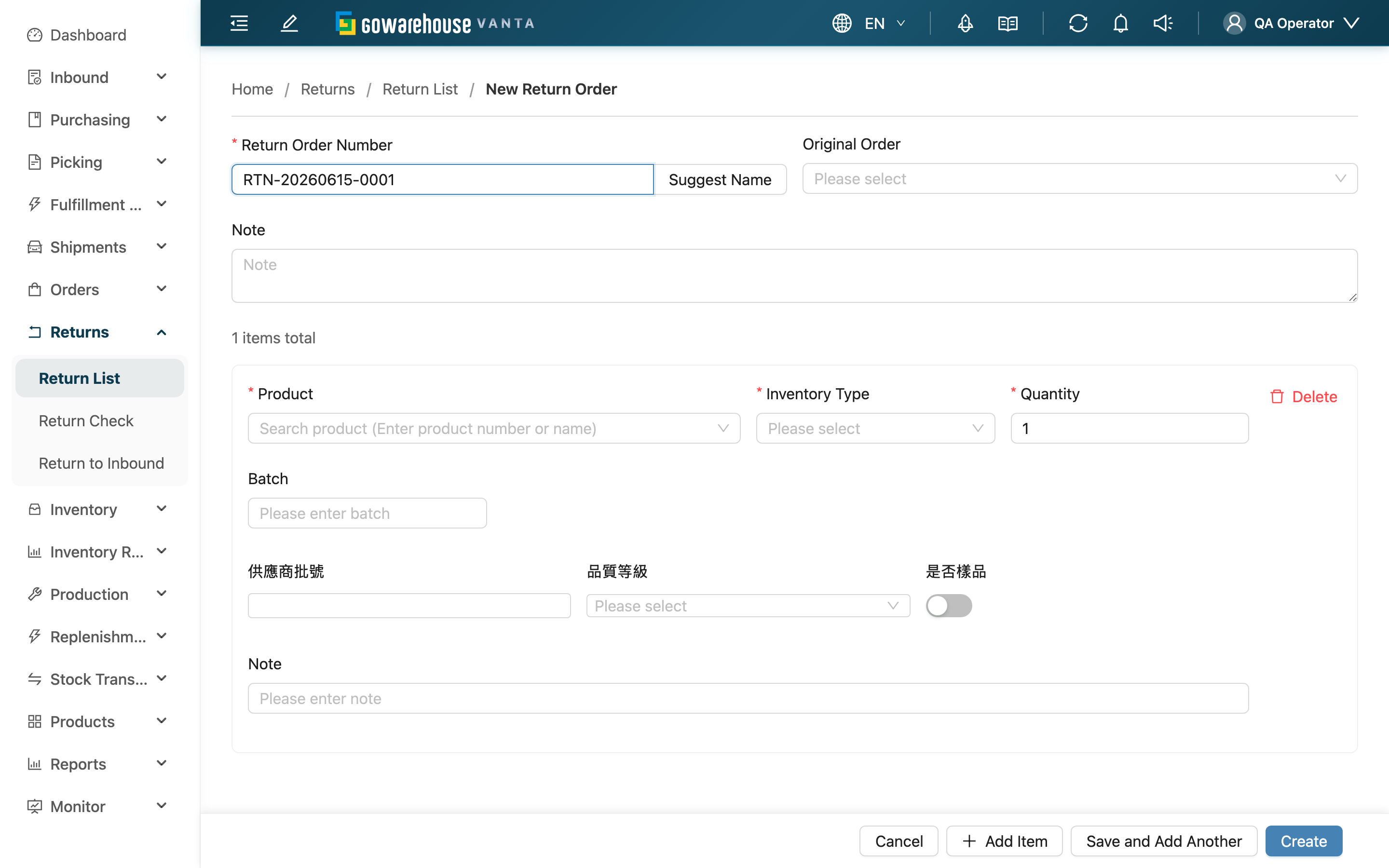
Quick jump: Basic Info | Returned Items | Steps
1.1 Basic Info
Fields marked with * are required.
| Field | How to fill | Notes |
|---|---|---|
| *Return Order Number | Type it yourself, or click the "Suggest Name" button to have the system generate one | Cannot duplicate another return order under the same Merchant |
| Other Number | Enter an external system reference for reconciliation | At most 255 characters; shorten longer references before saving |
| Original Order | Search and select the original order; once chosen, the system auto-fills that order's item lines | Optional. Only orders under the same Merchant can be selected |
| Note | Enter the return reason or any special handling notes | Optional |
1.2 Returned Items
A return order must contain at least one item. Each item has these fields:
Fields marked with * are required.
| Field | How to fill | Notes |
|---|---|---|
| *Product | Search by name, SKU, or barcode, then select | Only products under the currently selected Merchant that have been created will appear |
| *Inventory Type | Choose based on the condition of the returned goods (e.g. good stock, defective) | Affects how the goods are classified once stored. If an option is missing, add and enable it under "Inventory Type" settings first |
| *Quantity | Enter the expected return quantity, minimum 1 | This is an estimate; the actual stored quantity follows the receiving result |
| Manufacturing Date | Pick a date | Optional, shown only when the product records a manufacturing date or has expiration management |
| Expiration Date | Pick a date | Optional, shown only when the product has expiration management |
| Batch | Enter the batch number of the returned goods | Optional |
Each item also has a note field for recording special remarks about that product, filled in by its name. In addition, when the Merchant has inventory custom attributes configured, an Inventory Custom Attributes field appears, also filled in by its name.
📌 Note: A return order records "what is expected to come back", so manufacturing date, expiration date, and batch are all optional here, not enforced even when the product has expiration management. These attributes are confirmed at return receiving time.
1.3 Steps
▸ Create a return order
- Select a Merchant at the top of the page
- Enter the Return Order Number, or click "Suggest Name" to have the system generate one
- To link an original order, search and select it in the "Original Order" field; the system then auto-fills the order's item lines
- Search and select the Product, choose the Inventory Type, and enter the Quantity
- Click "Create" to finish; you are then taken to that return order's detail page
▸ Add or delete item lines
- Click "Add Item" to add another item line
- If the same product has different expiration dates or batches to record, split them into separate lines
- Click "Delete" on an item to remove it
▸ Create several return orders in a row
- After filling in one return order, click "Save and Add Another" instead
- The form clears and stays on this page so you can fill in the next one
- For the last one, click "Create" to leave
💡 Tip: When the return volume is large and you need to create many at once, use Import Return Orders to batch-create from Excel for speed.
2. FAQ
2.1 FAQ
▪ Do I have to link an order?
No. "Original Order" is optional and can be left blank when you cannot identify the original order. Linking lets you jump straight from the return order to the original order to trace where the return came from; choosing an order also auto-fills its item lines, saving you from entering each one.
▪ Why can't I find the order I want to select?
"Original Order" only lists orders under the currently selected Merchant. If submission says the original order is invalid, the order most likely doesn't belong to this Merchant — check that the Merchant selected above is correct.
▪ Why don't the manufacturing date and expiration date fields appear?
These two fields show based on the product's settings: the expiration date field appears only when the product has expiration management; the manufacturing date field appears only when the product has expiration management or is set to record a manufacturing date. If the product has neither setting, they won't show — that is normal. If you need them but they don't appear, check the product's settings.
▪ What if I can't find the product I want to return?
Make sure the product belongs to the currently selected Merchant and has been created; you can also search again by SKU or barcode.
▪ Submission says the number already exists?
It means the Return Order Number you entered is already used by another return order under the same Merchant. Use a different number, or click "Suggest Name" to have the system generate a unique one.
▪ Submission says at least one item is required?
A return order must have at least one item line to submit. Click "Add Item" to add a product, fill in the Product, Inventory Type, and Quantity, then submit.
▪ Can I edit it after creating?
Yes, but only before receiving starts. After creation the status is "Pending", which can be changed in Edit Feature; once return receiving begins, the content is locked and can no longer be changed.
2.2 Notices
⚠️ Important
- Select a Merchant before entering this page — both the product and order lists are limited to that Merchant
- Quantity is the expected amount; the actual quantity follows the receiving result after the parcel arrives
- Pick the right Inventory Type based on the condition of the returned goods — it affects how the goods are classified once stored
- After creation the status is "Pending", and only this status can still be edited
3. Related Features
| Feature | Description | Link |
|---|---|---|
| Return Order List | View and manage all return orders | Go |
| Return Order Detail | View a single return order's content and receiving progress | Go |
| Edit Return Order | Modify a return order that hasn't started receiving | Go |
| Import Return Orders | Batch-create from Excel when return volume is large | Go |
| Return Receiving | Scan and check returned goods after the parcel arrives | Go |