
Order Details
Table of Contents
1. Features
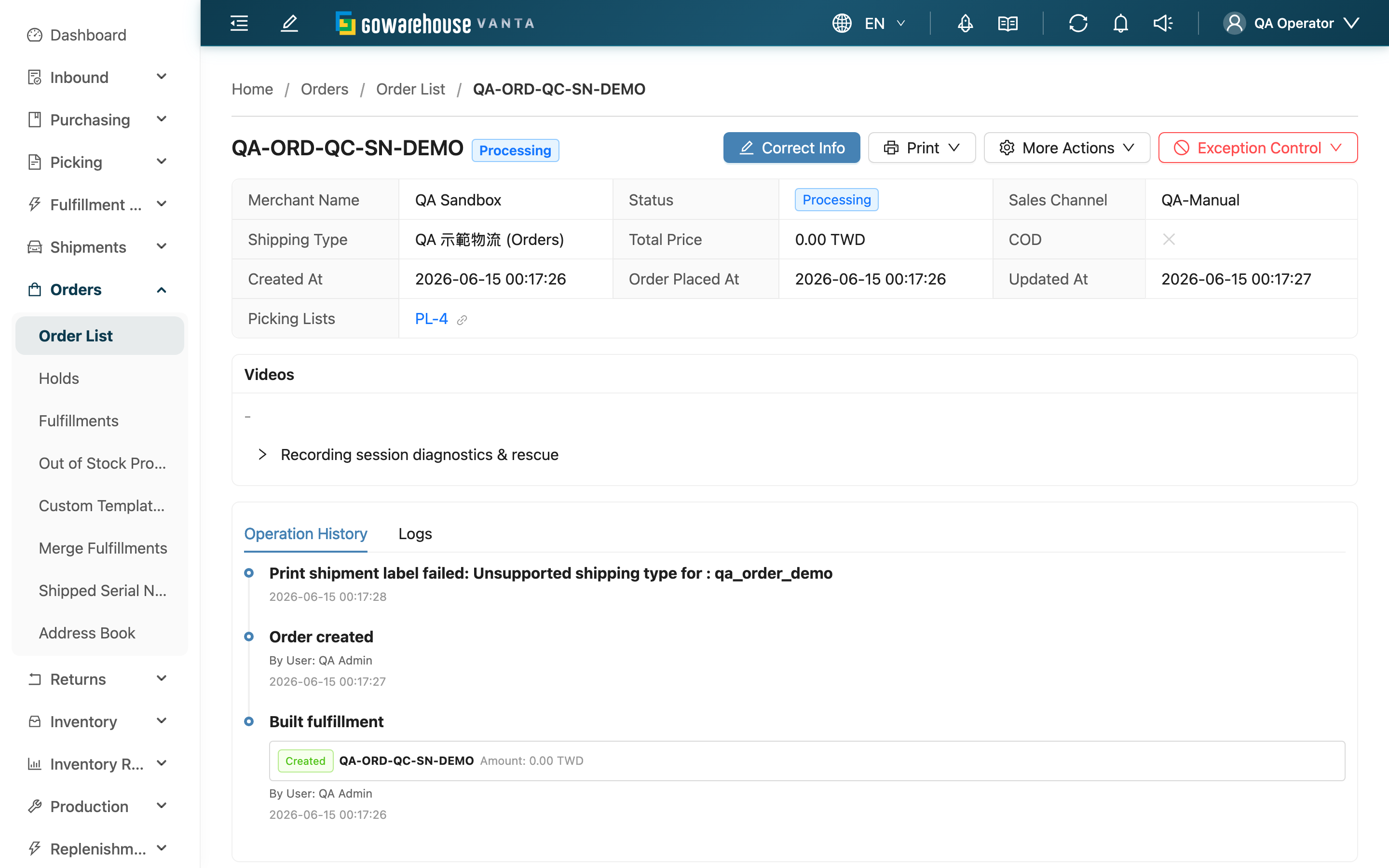
The order details page is your workbench for handling a single order. Here you see an order's full picture: recipient information, product details, fulfillments and shipments, allocated stock, action history and attachments — and you can hold, correct, cancel, resume, or print this order. The order's current status shows at the top, and all available action buttons appear or hide automatically by status, so you only see what you can do right now.
Quick jump: Page sections | Action buttons | Fulfillments and shipments
1.1 Page Sections
The page is split into the basic information at the top and the tabs below. The main sections are:
| Section | Content |
|---|---|
| Receiver Info | Recipient, phone, address, convenience-store code and other delivery info |
| Shipping Info | Shipments and delivery status |
| Items | Order line items: product, quantity, shipped quantity, batch, expiration, allocated stock |
| Fulfillments | Fulfillment list; see Fulfillments and shipments |
| Serial Numbers | Shipped serial number records |
| Parcels | Parcel contents, used to restore QC progress; a parcel the system generated automatically (created when a fulfillment ships without ever being packed) has no consumables |
| Value Added Services | Value-added service items; warehouse staff can add or adjust them here |
| Attachments | Order attachments to upload and download — a download opens in a new tab, and if your browser blocks pop-ups a message asks you to allow them first; attachments brought in by an import batch are shown read-only |
| Operation History | Action history, recording who changed what and when |
| Logs | E-commerce platform / integration sync records; failed webhook deliveries can be resent here |
In the "Logs" tab, any webhook delivery showing "Failed" or "Awaiting Retry" gets a "Retry" button on its row, so you can resend without leaving the order or digging through the data exchange log. The row turns to "Awaiting Retry" immediately; the system resends in the background, and that row's delivery status and "Retries" refresh automatically within about ten seconds. If they haven't updated by then (the target timed out, or this attempt failed again and was queued for the next automatic backoff), reload the page to see the latest result. Both your manual resend and the system's next scheduled retry go to the webhook's current URL: after you correct a wrong address, rows still sitting at "Awaiting Retry" switch to the new address on their own, with nothing to handle row by row; rows already at "Failed" are no longer retried automatically and still need this button. Expand the row to see the address each attempt was actually sent to — that is how you tell a target that never answered apart from one you were still calling at a retired address. Delivered webhooks, and rows from platform integrations or the Partners API, do not get this button. If a webhook fails 10 times in a row the system deactivates it and notifies you; while it is deactivated none of its rows show this button — reactivate it on the webhook settings page (reactivating resets the consecutive-failure count) and the button comes back.The action requires the "Logs - Write" permission.
If the order is held, a hold warning at the top of the page lists all hold reasons and who placed the hold.
If the platform has canceled an order but a restriction such as an existing shipment on its shared fulfillment prevents cancellation here, the system retains or creates a hold, including for out-of-stock orders. Restocking and reallocating inventory do not release it: the shared fulfillment cannot enter a picking list or complete shipping. Resolve the cancellation failure before releasing the hold.
1.2 Action Buttons
The action buttons at the top appear based on the order status. What each button does and when it's available:
| Action | What it does | When available |
|---|---|---|
| Edit | Open Edit Order to change recipient, products, shipping, etc. | Cancelable / canceled / partially shipped, and no fulfillment a picker is actively working on ; orders in merged fulfillments must first be removed from the merge |
| Remove from merge | Remove this order from all shared fulfillments; other orders and inventory reservations stay unchanged | Merged and splittable; requires order write permission |
| Correct Info | Correct only address, phone, convenience-store code and other fields that don't affect picking | When the order is held, or can be held (it auto-holds first, then corrects) |
| Hold Order | Hold the order to pause shipping | When the order can be held and has no active hold |
| Release Holds | Release the hold to resume the normal flow | When the order is currently held |
| Cancel Order | Cancel the order | When the order is cancelable (partially shipped and completed cannot be canceled) |
| Resume Order | Recover a canceled order and reallocate stock | When the order is canceled |
| Recheck Stock | Reallocate against current stock | Pending / allocated / partially allocated / out of stock / partially shipped |
| Finalize Draft | Convert a draft to a formal order and start allocating | When the order is a draft |
| Duplicate Order | Copy an identical new order, often for reshipping; a copy of a platform-imported order is no longer linked to the platform — see Copied orders are no longer linked to the platform | Any time |
| Generate PDF | Generate and download the fulfillment-sheet PDF | When the order has fulfillments |
| Reprint Shipping Label | Voids the current tracking number, re-requests one from the carrier, and issues a brand-new shipping label — except for a fulfillment that has already been billed, or one whose label was manually uploaded, which just reprints the existing label without changing the number | When there is a fulfillment with a reprintable shipping label |
| Download Packing Details | Download this order's packing details as an Excel file: one row per item per box (several entries of the same product from the same order in the same box are merged into one row with the quantities added up), with box sequence number, total boxes, SKU, product name, barcode, quantity, order number, fulfillment number and packed time; when the order has several packed fulfillments you first pick which ones to include, and the selection is merged into a single file | When the order has at least one shipped fulfillment that holds a box |
The full side effects and reversibility of change actions with preconditions (hold / cancel / correct / resume) are under Order List — Batch actions; the single-order actions here follow the same rules as the list's batch actions.
⚠️ Correcting info auto-holds first
When the order is not yet held but can currently be held, clicking "Correct Info" automatically holds the order first, then lets you edit the delivery info. This prevents the goods from being picked while you change the address. Correcting can only change address, phone, email, convenience-store code, note, and delivery / scheduled dates — fields that don't affect picking content. It cannot change products.
⚠️ Copied orders are no longer linked to the platform
Once an order imported from an e-commerce platform is copied, the copy leaves the platform behind and becomes the warehouse's own order. What that means in practice:
- Later platform-side changes land on the original order only: when the buyer changes the address or items on the platform, or the platform cancels the order, the sync updates the original order and never touches the copy. To change the copy, edit it here with "Edit" or "Correct Info".
- Shipping the copy does not report the tracking number back to the platform: the original order still reports as usual; the copy does not. This prevents two orders pointing at the same platform order, where the one shipped later would overwrite the earlier tracking number. Because no request goes to the platform either, a copy that still carries a platform-exclusive shipping type (one the platform ships for you) cannot obtain a tracking number at all: switch its shipping type to one of the warehouse's own carriers, request the tracking number again, and then pass that number on to the buyer yourself.
- The copy still carries the same e-commerce account: platform-specific settings such as the shipping type need it to resolve their names. The "EC Account" field on the order detail page gains a "Not linked to platform" tag so you can tell it apart from orders that are genuinely still syncing; orders still linked to the platform do not carry this tag.
1.3 Fulfillments and Shipments
An order maps to one or more fulfillments — the work order the warehouse actually uses to pick and ship. In the fulfillments tab, warehouse staff can do the following per fulfillment:
- Complete Shipment: Mark an in-progress fulfillment complete (ship it).
- Change: Change this fulfillment's shipping type.
- Split: Split one fulfillment into several by out-of-stock items or specified products.
- Merge: Select multiple fulfillments of the same status (allocated or out of stock) and merge them into one, handled under Merge Fulfillments.
- Print Packing Slip: Reprint the packing slip for every parcel currently on this fulfillment (one page per parcel, as a single PDF) — useful when the printed copy is damaged or you need an extra copy for a partner carrier. This button only appears when the fulfillment's status is "Processing" or "Shipped" (i.e. it has already been packed).
Each fulfillment shows its allocated stock, line items, shipments and status. If a fulfillment is shared with other orders (merged), the related orders shipping together are listed.
Complete Shipment's packing check and auto-pack: If this fulfillment has never been packed at all, the system automatically creates one parcel containing the products and quantities actually picked, with no weight, dimensions, or consumables recorded. If it has already been packed but some picked products are still not in any parcel, a dialog asks you to choose one of two paths: ship the packed quantity and put the rest back (ship what is in the box, and pick a shelf for the unpacked goods — the system completes shipping and the put-back together), or fill the box and ship (add the missing quantity into the first parcel so the fulfillment ships complete). Unpacked goods cannot simply stay in the picking tote — once shipped they belong to no document, and would count as available stock that nobody can pick, which is why one of the two is required. Serial-tracked products cannot use the fill option (filling requires rescanning serials); use the put-back option, or pack a second parcel at the QC station. A fulfillment that was short-picked but fully packed (packed everything it actually picked) is not affected and ships normally: the check compares against the quantity actually picked, not the quantity originally expected. The outbound QC fee follows whether this fulfillment was actually packed earlier: one already packed at the outbound QC station is charged, one that was never packed and only got the parcel auto-created by this button is not — an auto-created parcel is a system record, it does not count as QC.
Shopee virtual phone numbers
When Shopee provides both a virtual phone number and a query code, "Phone" shows the complete pair separated by a hyphen, for example 0928000888-54478768. If only one part is provided, that part is retained; if neither is provided, the recipient phone from Shopee is used. Newly generated KerryTJ labels retain the complete phone value.
Existing orders are not corrected immediately. On the next fetch, the Shopee order must still be ready to ship and the local order must still allow platform updates. Orders being picked or in a state that blocks updates retain their data. Resynchronization also imports other editable order data from the platform; existing shipments block updates that require rebuilding fulfillments under the usual safeguards. Check the phone and fulfillment progress before handling an older order. Downloading an existing label returns the original file; correcting the phone does not automatically replace that label.
Platform prices
When available, "Supply unit price" appears separately from Unit Price; see Supply unit price. momo imports the platform purchase price. Yahoo SCM separates supply and selling prices and calculates the order total from selling prices multiplied by quantities. PChome transfer orders provide no consumer selling price, so selling and original prices stay blank and the order total is 0. The supply price remains available here and is not included in the default packing slip. PChome imports are rejected when the selected carrier requires a minimum order amount.
Existing orders are not automatically backfilled. Orders that still allow platform updates receive the new mappings when fetched again; a resync caused only by the price-field mapping change preserves existing items and manual product mappings, quantities and notes. Changes to the order total still rebuild eligible fulfillments; existing shipments block the update and produce a sync failure under the usual rules. Frozen orders retain their existing data. Platforms that do not provide a supply price leave it blank. When the platform recipient data itself is unchanged, a price-mapping-only resync also preserves manually corrected addresses, phone numbers, recipient names and notes. Actual platform changes still follow the existing synchronization rules.
1.4 Invoices
“Invoice details” at the top of this tab shows the order’s invoice instructions, even before an invoice exists. To change them, select “Edit” beside the heading; this works for shipped and canceled orders too. Only the invoice instructions are saved: fulfillments are not rebuilt and issued invoices are not overwritten. See Edit Order for the field rules.
In the order instructions above, Carrier type, Carrier ID, and Donation code appear only when the merchant’s organization country is Taiwan, regardless of the recipient country, currency, or interface language. For other or unspecified countries, the tax field is labelled Buyer tax ID. Hiding fields does not clear saved values.
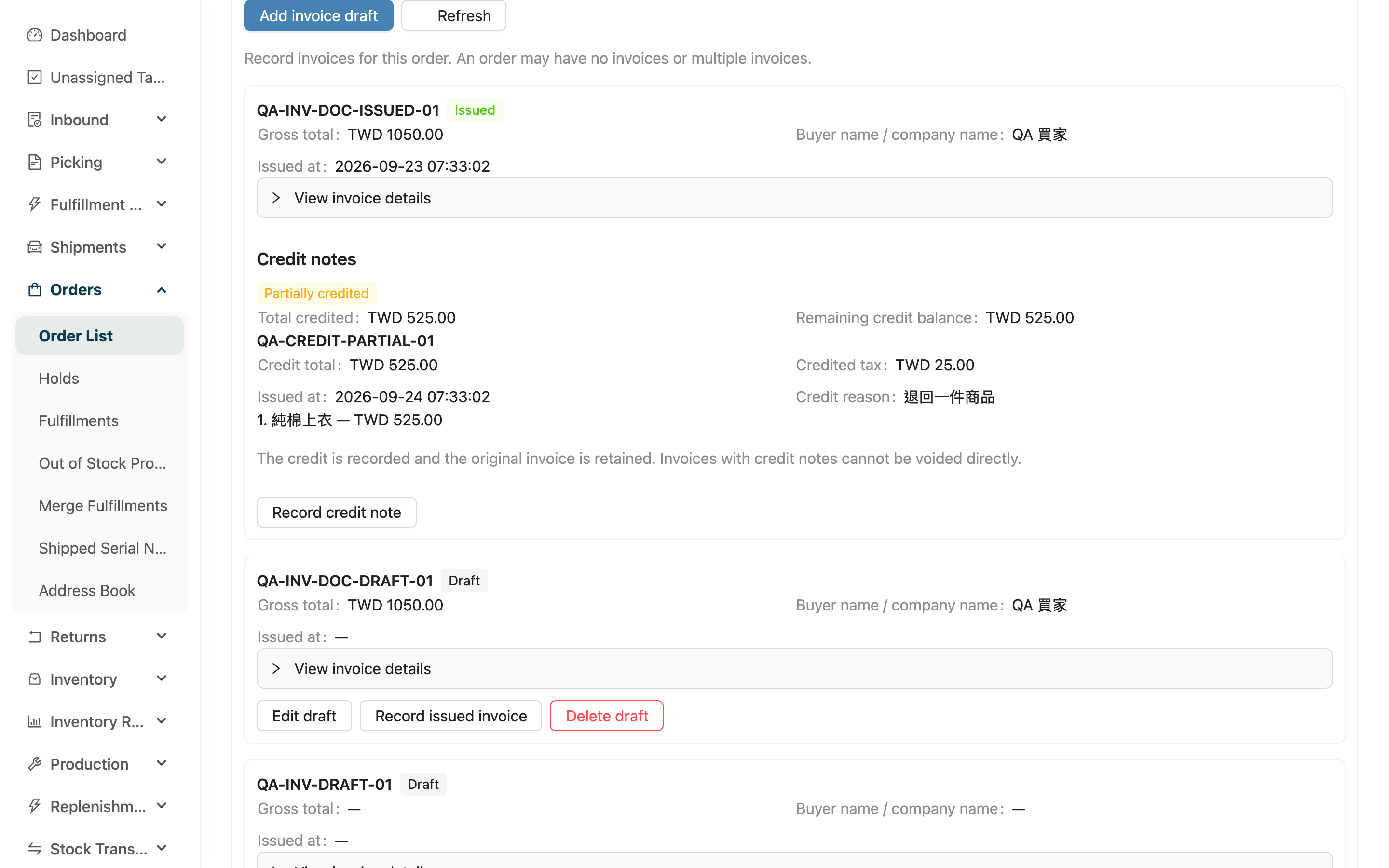
Use the Invoices tab to record external invoices and track issuance, voids, replacements, and credits. An order may have no invoices or multiple invoices. Invoice changes do not affect warehouse fulfillment.
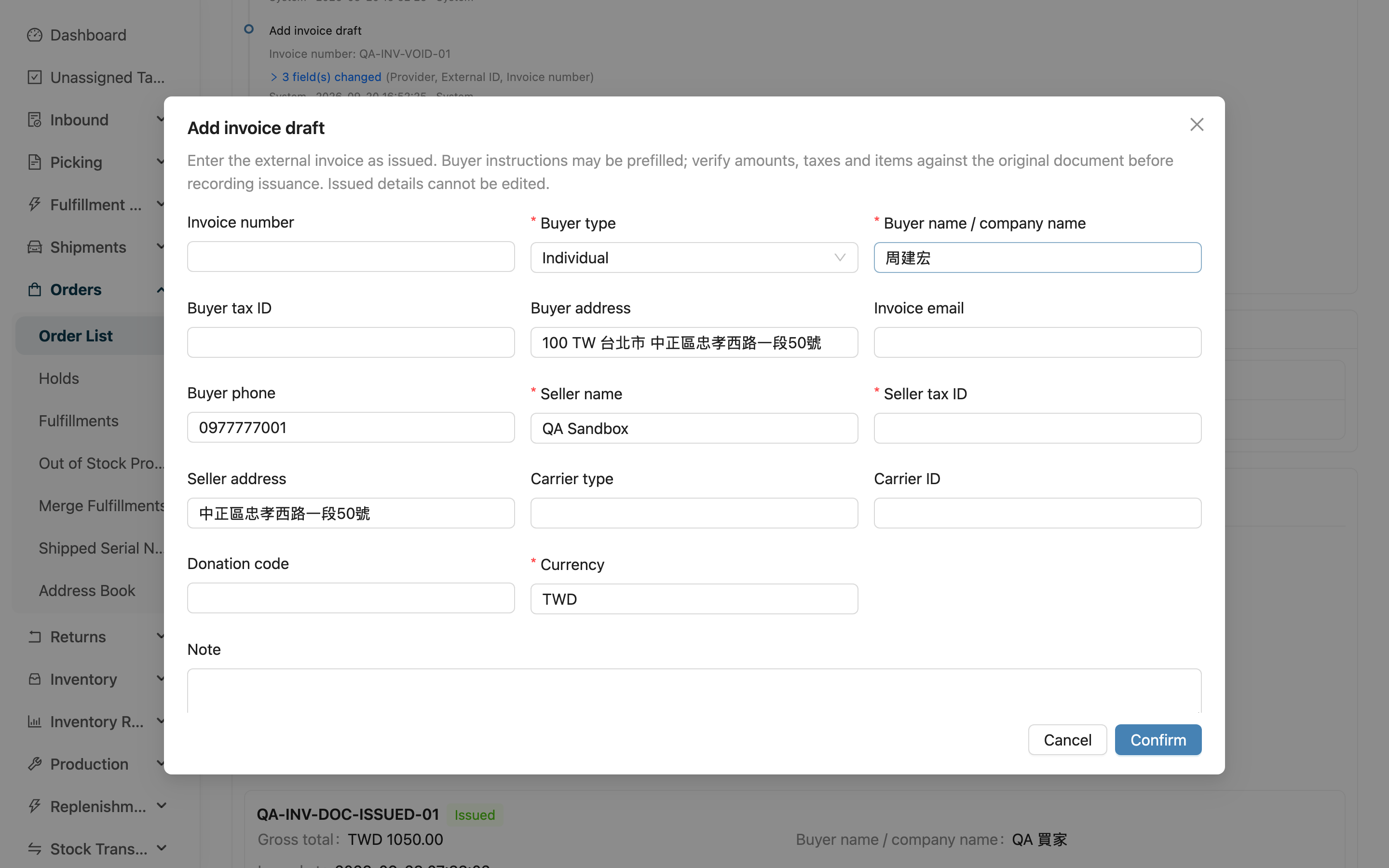
With order write permission, click Add invoice draft to add a draft. The order’s buyer details, currency, and items are prefilled. Blank buyer name, address, or phone fields fall back individually to the recipient name, full delivery address, or delivery phone. These values remain editable. The draft also prefills the owning merchant’s seller name, tax ID, and address. Complete any missing merchant details. Items use base-unit quantities and order prices. Missing prices or tax rates are not guessed; complete tax settings and amounts against the external invoice.
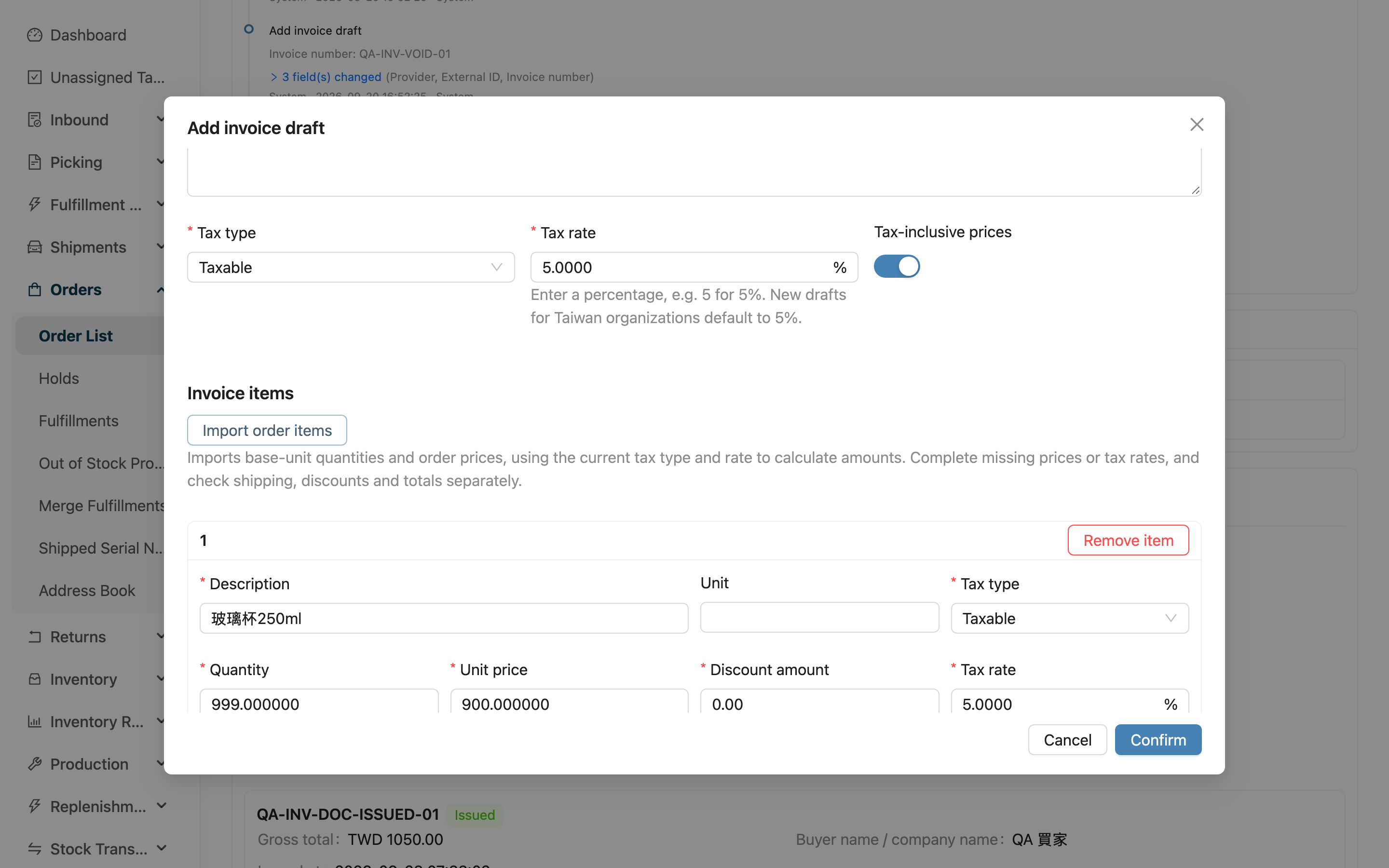
Click Import order items to import again and calculate amounts using the current tax type and rate. If lines already exist, confirm replacement; manual line edits will be overwritten. Check shipping, discounts, and invoice totals separately. Orders with more than 1,000 items cannot be imported in full; add lines manually to match the external invoice. You can also use Add item, edit or remove draft lines, or permanently delete the draft. These actions do not change order products. Editing or replacing an existing invoice preserves its original document instead of automatically importing the order again.
| Field | How to fill it in | Notes |
|---|---|---|
| Invoice number | Enter the original invoice number, including leading zeros | Optional for drafts; required to record issuance. Maximum 255 characters |
| Currency * | Enter a three-letter uppercase code, such as TWD | Credit notes use this currency |
| Tax rate | Enter a percentage, such as 5 for 5%. New drafts for Taiwan organizations default to 5%; other or unknown countries leave it blank | Enter 0 for exempt or zero-rated lines. Mixed-tax headers may leave this blank; each line still requires a rate |
| Invoice items * | Enter description, quantity, price, discount, tax type, rate, and net/tax/gross amounts | Between 1 and 1,000 lines; positive quantities; up to six decimals for quantity and price, two for amounts |
| Issued at * | Enter the actual issue time | Required when recording issuance |
| Void reason * | Explain why the external invoice was voided | Required when recording a void; retained afterward |
| Voided at * | Enter the actual void time | Must not precede the issue time |
Changing line quantity, price, discount, tax rate, or tax inclusion automatically recalculates tax, gross amounts, and invoice totals. Editing a net amount also updates tax and gross amounts. Header tax type or rate changes apply to all lines; mixed tax preserves individual line settings and sums their amounts. Shipping and invoice discounts use the header rate. When mixed tax makes the adjustment rate unknown, totals are left blank: complete them against the external document and use Calculate totals from items and tax to check them. Calculated values remain editable; verify consistency with the lines before saving.
Only gross totals are compared: item gross totals plus tax-inclusive shipping minus tax-inclusive discounts are checked against the header gross total. If they differ, Amount check warning appears without blocking registration of an issued invoice. Expand View invoice details to see header amounts, comparison amounts, and differences. Original amounts are preserved rather than replaced with calculated values. Check with the issuer; do not issue another invoice because of this warning. Differences in net/tax allocation or rounding do not generate separate warnings. For tax-exclusive pricing with shipping or discounts, the comparison is skipped because the actual tax on those adjustments is unavailable. Gross totals are still compared when both adjustments are zero. Warnings are recalculated after draft corrections; issued documents remain immutable. Basic checks still enforce valid amount formats, nonnegative values, and net plus tax equaling gross within each header and individual line.
After issuing the invoice in your invoicing service or ERP, click Record issued invoice, review the document, and enter its number and actual issue time. Buyer, seller, lines, amounts, number, and issue time become immutable. Use View invoice details to inspect them. Legacy number-only invoices without complete lines and amounts cannot receive credits or be completed after issuance.
To void an invoice, complete the external void first, then click Record void, check the number and amount, and enter the reason and time. A void cannot be undone. Use Create replacement draft on a voided record to copy its document and lines into a new draft with a new invoice number. The replacement links to the original, which is retained. Cancelling an order does not automatically void invoices.
After completing a credit externally, click Record credit note on an issued invoice with complete lines, currency, and remaining balance. Enter the credit number, reason, actual time, and net and tax amounts for each credited line; leave other lines at 0. Use remaining line balance fills a line's full remaining balance. Confirmed credits cannot be edited or deleted. Credit notes, cumulative totals, and remaining balance appear under the original invoice.
Multiple partial credits are supported. Cumulative net, tax, and gross amounts cannot exceed the original invoice or any line. Credits must reference invoice lines; shipping recorded only at header level cannot be credited separately. Registration is unavailable once all line balances are exhausted. A fully credited invoice remains issued. An invoice with credits cannot be voided directly. Order cancellation or returns do not automatically record credits, and credits do not change stock, payments, or refunds.
These actions only record facts already completed externally; they do not send issuance, void, or credit requests to a provider. If the data has changed, close the dialog and refresh the list before retrying. After a credit network error, retry with unchanged values. Before changing values, close the dialog, refresh, and check that no successful record exists to avoid duplicates. Invoice actions and credit registration appear in the order history.
2. FAQ
2.1 FAQ
▪ Why is "Edit" unavailable?
An order in a merged fulfillment shows a disabled edit button. Click "Remove from merge" in the page header and confirm to remove this order from all shared fulfillments, then use "Edit". Each shared fulfillment creates a separate fulfillment dedicated to this order. Other orders keep their original merged fulfillments, and reserved inventory stays unchanged.
The button is disabled when the order state does not allow splitting. Removal is also blocked if a shared fulfillment already has a shipment or active picking work, or involves cash on delivery. If amounts cannot be safely apportioned, an error is shown and the entire operation remains unchanged.
An order can be edited only when it is "cancelable / canceled / partially shipped" and has no fulfillment a picker is actively working on. If an order without shared fulfillments is in progress (Processing) or completed, the edit button does not appear. You can first use "Correct Info" to correct address-type fields.
▪ What's the difference between "Correct Info" and "Edit"?
Correct can only change delivery info (address, phone, convenience-store code, note, delivery dates, etc.); it doesn't touch products or rebuild fulfillments, and suits in-progress or partially shipped orders that still need an address change. Edit can change products and all fields, but rebuilds the unshipped fulfillments.
▪ Why does the order get held when I click Correct?
This is by design. If the address isn't held while you correct it, the goods may be in the middle of picking and the change comes too late. The system auto-holds with reason "Manual Hold"; just release it after correcting.
▪ How do I reship an identical order?
Use "Duplicate Order" to copy an identical new order, commonly for reshipping or resending. If the original came from an e-commerce platform, the copy no longer follows the platform — see Copied orders are no longer linked to the platform.
▪ After copying a platform order, does the copy follow address changes or cancellations made on the platform?
No. Platform-side address changes, item changes, and cancellations apply to the original order only; the copy is already detached from the platform, so every change to it has to be made in the system. Orders whose "EC Account" field carries the "Not linked to platform" tag are exactly these.
▪ Why can't I find the tracking number on the platform after shipping a copy?
This is by design. A copy does not report its tracking number back to the platform — with two orders pointing at the same platform order, the one shipped later would overwrite the earlier tracking number and the original order's tracking number would disappear.
For the same reason, a copy never asks the platform for a tracking number either. If the copy still carries a platform-exclusive shipping type, requesting a tracking number fails (the picking wave records one allocation failure): switch that order's shipping type to one of the warehouse's own carriers, request the tracking number again, and then take it from the "Fulfillments" tab and pass it on to the buyer yourself.
▪ How do I print the shipping label or fulfillment sheet for this order?
Use "Generate PDF" to generate the fulfillment-sheet PDF. To get a new shipping label, use "Reprint Shipping Label" — this voids the current tracking number and requests a brand-new label from the carrier, except for an already-billed fulfillment, or one whose label was manually uploaded, which just reprints the existing label without changing the number. If you only want to reprint the label you already have without changing the tracking number, each tracking number in the shipping info list has its own "Print Original Shipping Label" button for the original label.
If the order still contains items that have not been mapped to actual products (the item list marks them "Unknown Product"), the system does not create a fulfillment for this order, so generating the PDF reports "The selected order has no fulfillments, so this operation cannot be completed.". Go to the item list, click "Map This Product" to map the item to an actual product, then try again.
▪ How do I get the packing details for this order?
"Download Packing Details" at the top of the page produces an Excel file listing every box and every item of this order as one row each. Several entries of the same product from the same order in the same box are merged into one row with the quantities added up (for example, when the order split a product into two lines with different batches, the file shows one row); the same product from different orders stays on separate rows. Items inside a box are sorted by SKU so they are easy to tick off one by one. When only one packed fulfillment exists, clicking the button starts the export straight away; with several a dialog first lets you pick which ones to include — everything is selected by default — and the selection is merged into a single file.
The button only appears when the order has at least one fulfillment that is shipped and holds at least one box. A fulfillment still in processing is left out even if some boxes are already packed — more boxes may still be coming, and the summary is a reconciliation document for the recipient, so it must reflect the final contents. Fulfillments awaiting allocation, canceled ones, and those without any packing record are left out too. To print a document for floor work, use "Print Packing Slip" instead, which is available during processing. The file is produced in the background; when it is ready a notification appears in the top-right corner with a link to the file (the download does not start on its own). You can keep working on other pages meanwhile. If the order has no packing records yet, it reports that there is nothing to export.
The "box sequence number" column is the box's position within its own fulfillment, restarting at 1 for each fulfillment, matching the box number printed on the packing slip and the shipping label. To tell which fulfillment a box number belongs to, read the "fulfillment number" on the same row. The "total boxes" column on the same row is that fulfillment's box count, so the recipient can confirm "box N of M" and spot a missing box.
⚠️ Three things that are easy to misread: (1) with merged shipping (several orders combined into one fulfillment), a box may also hold items from another order, and those rows appear in the file too — tell them apart by the "order number" column; nothing was exported by mistake. (2) The "Box N" shown on the "Parcels" tab of this same page is numbered continuously across the whole order, which is not the same numbering as this file's "box sequence number" (restarting at 1 per fulfillment). Go by the Excel file and the packing slip on the box. (3) The file has no batch column, even though the items on the "Parcels" tab show a "Batch" column: that column shows the batch specified on the order, not the batch actually shipped. QC scans the product barcode, not the batch, so the system cannot tell which batch was actually shipped or which box it went into. The summary is a reconciliation document for the recipient, and printing a value that may not be the shipped batch is more misleading than leaving it out, so it is not listed; this also matches the default packing-slip PDF, which never prints batches.
▪ What happens when I cancel this order?
For merged shipping, only this order's items are removed. Other orders keep their original fulfillments and stock reservations without being split again. Canceled fulfillments remain as records. See Cancel Order for eligibility, shipment and picking restrictions, and what happens when you resume the order.
▪ What changes can I see in the order details history?
"Operation History" records the order's key changes: holds and releases, cancels and resumes, item edits, fulfillment rebuilds, shipment deletions and more — including who did it and when, for later tracing.
▪ Clicking "Complete Shipment" opens a two-option dialog — which one do I pick?
This means the fulfillment has already been packed, but some picked products are still not in any parcel; the dialog lists which products, how many, and which tote they are in.
- These goods are not shipping this time (customer asked for less, damaged item, box is full) → choose "ship the packed quantity and put the rest back", and pick a shelf for each row. The system pre-fills the shelf the goods were picked from, so usually you just confirm.
- These goods should ship together (they were simply missed) → choose "fill the box and ship"; the system adds the missing quantity into the first parcel.
Either option finishes in one step; you do not need to go back to the QC station. If the fill button is greyed out, the fulfillment contains serial-tracked products — filling requires rescanning serials, so use the put-back option, or pack the remaining goods into a second parcel at the QC station.
▪ Why does the wave's batch completion skip partially packed fulfillments?
Batch and automatic shipping have nobody on site to decide between putting back and filling, and cannot pick a put-back shelf, so those fulfillments are skipped with a note recorded in the order history. Complete them individually from the fulfillment to get the two-option dialog.
▪ The order was short-picked — can the fulfillment still be completed?
Yes. As long as everything actually picked is already packed (fully packed), a short pick is a normal, supported shipping outcome and is not blocked. The dialog only appears when the fulfillment has already been packed but some picked products are still not in any parcel.
2.2 Notices
⚠️ Important Notice
- "Correct Info" auto-holds the order when it's holdable; remember to release the hold after correcting, or the order won't continue shipping.
- Canceling an order releases allocated stock and cancels cancelable fulfillments; the shipped portion cannot be undone.
- When correcting the delivery info of a merged order (one that shares a fulfillment with other orders), the change applies to the related orders shipping together; the page warns which orders are affected before you proceed.
💡 Tip: Actions you don't see are usually disallowed by the current status, not a permission issue; just check the order status first. If a feature you should have is genuinely missing, contact your administrator to confirm permissions.
3. Related Features
| Feature | Description | Link |
|---|---|---|
| Order List | Back to the order list | Go |
| New Order | Create a new order manually | Go |
| Merge Fulfillments | Merge fulfillments of the same status | Go |
| Holds | Manage held orders in one place | Go |