
Create Sales Channel
Table of Contents
1. Feature Overview
On this page you create a new Sales Channels for a merchant and configure its acceptance, order-processing, and shipping-conversion rules. When you enter the page you must first pick a merchant — only after selecting one does the form appear, and the new channel is owned by that merchant. From then on every dropdown (inventory types, shipping types) lists only that merchant's data.
Quick jump: Basic Info | Acceptance Settings | Order Settings | Shipping Rules
1.1 Basic Info
Fields marked with * are required.
| Field | How to fill | Notes |
|---|---|---|
| *Channel Name | Enter the channel code; the system uses it to classify orders | Required; cannot be duplicated within the same merchant |
| Channel Code | The external channel code; import and export files use it to identify the channel | Required, unique within the merchant |
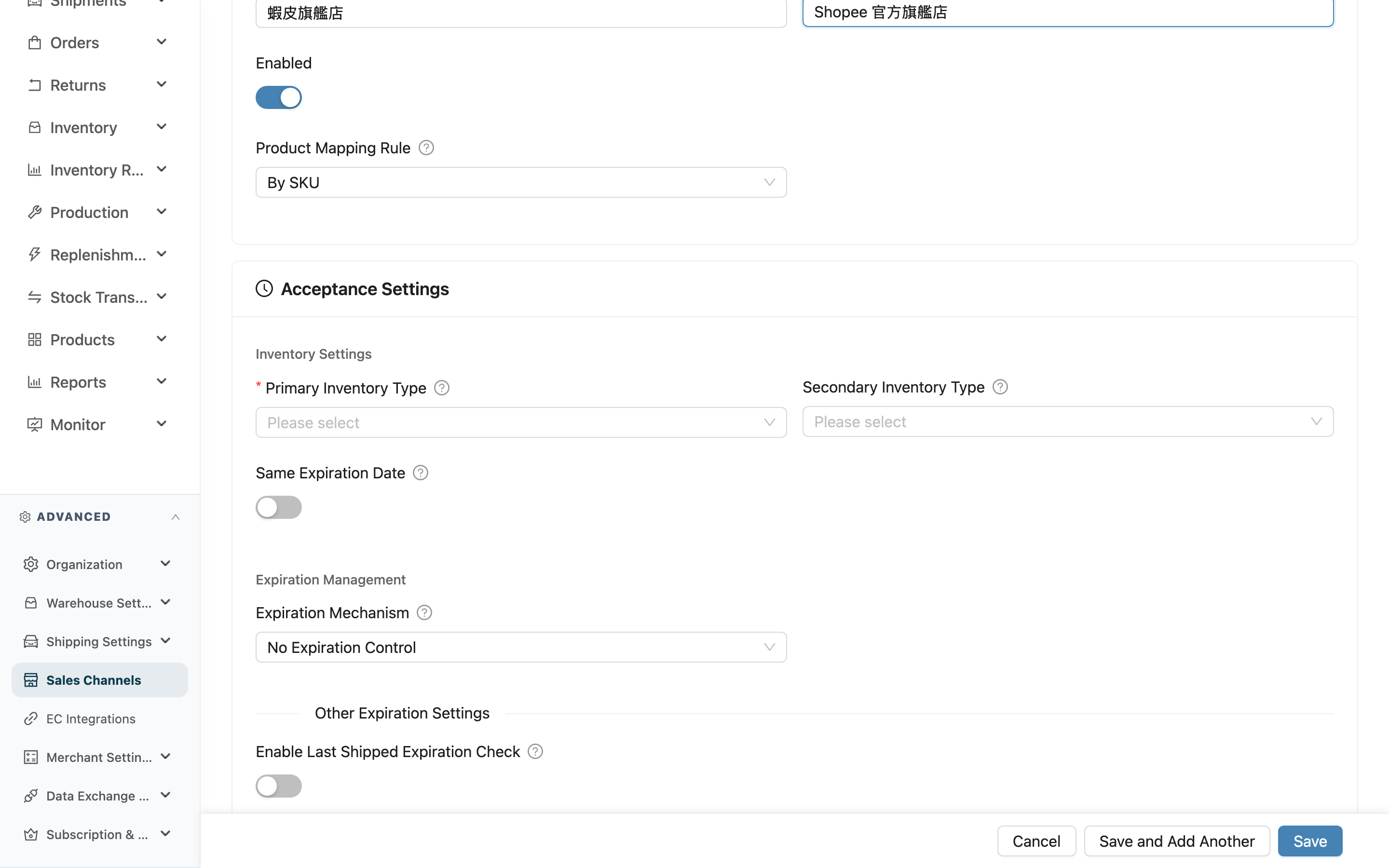
| Enabled | Toggle controlling whether this channel is active | On by default |
| Product Mapping Rule | Dropdown: pick "By SKU" or "By Barcode" to decide how the order SKU maps to a system product | Defaults to "By SKU". SKU = Order SKU must strictly match product SKU; barcode = Order SKU maps to product barcode (including main and secondary barcodes). Choosing "By Barcode" raises a warning reminding you to confirm product barcodes are correct and unique |
1.2 Acceptance Settings
Determines which inventory type orders on this channel draw stock from, and whether expiration dates are enforced.
Fields marked with * are required.
Inventory Settings
| Field | How to fill | Notes |
|---|---|---|
| *Primary Inventory Type | Dropdown; when an order locks stock it is deducted from this type first | Required; the dropdown lists only inventory types this merchant has enabled. If missing, set it up under "Inventory Types" first |
| Secondary Inventory Type | Dropdown; when the primary type runs short the system automatically tops up the shortfall from here | Optional |
| Same Expiration Date | Toggle; when on, the same product within one order must come from a single expiration-date batch, never mixing across dates | Optional |
Expiration Management
| Field | How to fill | Notes |
|---|---|---|
| Expiration Mechanism | Dropdown: "No Expiration Control", "By Days", "By Ratio" | Defaults to "No Expiration Control". The settings below appear only when you pick something other than no check |
| Days Before Expiration / Overseas Days Before Expiration | Appear when the mechanism is "By Days", unit in days. If a product's remaining days to expiry is below this value, that batch will not be locked for shipping | The overseas field is usually set higher to allow for transit time |
| Expiration Ratio / Overseas Expiration Ratio | Appear when the mechanism is "By Ratio", enter 0–100%. If the remaining-shelf-life ratio (remaining days ÷ original shelf-life days) is below this value, that batch will not be locked for shipping | The overseas field is usually set to a higher ratio |
| Tiered Expiration Rules | Optional, multiple rows allowed. Each row = original shelf-life threshold (days) + domestic acceptance + overseas acceptance, letting products with different original shelf lives use different acceptance standards | Threshold values cannot be duplicated (a warning blocks duplicates); the system sorts rows ascending by threshold and applies the matching rule based on the product's original shelf-life days |
| Enable Last Shipped Expiration Check | Toggle; when on, expiration dates shipped to this channel for the same product can only stay equal or get longer, and the system automatically excludes stock with an earlier date than the latest one ever shipped | Optional |
1.3 Order Settings
Controls how this channel's orders allocate stock and whether fulfillment completes automatically.
| Field | How to fill | Notes |
|---|---|---|
| Inventory allocation policy | Dropdown with three options; blank = inherit the merchant setting. "Partial allocation (hold out-of-stock lines)" = in-stock lines lock fully while out-of-stock lines are held as whole lines until restock, and a single line never locks a partial quantity; "Partial allocation (auto-split backorder)" = a line may lock part of its quantity, and the system splits the short portion into a new backorder fulfillment so the original fulfillment is fully allocated and can ship first; "Full allocation (all-or-nothing)" = if any line in a fulfillment is short, its allocated stock is released and the whole fulfillment is marked out of stock until every line can be fully allocated | Optional. Judged per fulfillment; other fulfillments are unaffected. Re-allocation after restock relies on "Auto Reallocate Orders" or a manual stock recheck. COD fulfillments cannot be split and behave like "Partial allocation (hold out-of-stock lines)" |
| Fulfillment Lot Policy | Dropdown: blank = inherit merchant setting; "Flexible (Auto-assign)" = stock with lot attributes can still ship even when the order specifies none; "Strict (Exact match)" = only matches stock that likewise has no corresponding lot attribute | Optional |
| Auto Complete Fulfillment | Toggle; when on, the fulfillment completes automatically once picking is done | Off by default |
| Auto Reallocate Orders | Toggle; when on, the system re-checks this channel's out-of-stock orders whenever stock changes | Off by default. When on, a "Priority" number field appears next to it; the smaller the number the higher the priority, and when stock is short the system uses this priority to decide which channel's out-of-stock orders get reallocated first |
1.4 Shipping Rules
Optional. Sets rules that automatically swap the original shipping type for a target shipping type when an order meets certain conditions. Multiple rows allowed.
| Field | How to fill | Notes |
|---|---|---|
| Original shipping | Dropdown; pick the shipping type to be converted | Only shipping types bound to this merchant can be selected |
| Condition | One of three: volume (≥ or ≤ N, plus a Volume unit next to the threshold: CBM / Sai / ft³, defaulting to the organization's current unit), weight (≥ or ≤ N, unit kg), postal code (list whole postal codes, e.g. 880, 881) | Optional. Numeric conditions include equality, so an order exactly at the threshold also triggers the rule. Postal codes must match exactly — listing 880 does not match 88001. Each volume rule keeps its own unit, so changing the organization's volume unit later doesn't affect existing rules |
| Target shipping | Dropdown; pick the shipping type to convert to when the condition is met | Only shipping types bound to this merchant can be selected |
When done, click "Save" at the floating bar to save and go to the detail page; to create several channels in a row, click "Save and Add Another" — on success the form clears so you can build the next one right away.
2. FAQ
2.1 FAQ
▪ Why must I pick a merchant before the form appears?
Because a channel belongs to a merchant, and the form's dropdowns (primary/secondary inventory type, original/target shipping type for conversion) list only the data enabled for that merchant. Only after you pick a merchant does the system know which lists to load, so the form appears.
▪ Can channel names be duplicated?
Not within the same merchant. Different merchants are independent of each other, so the same name may exist under different merchants.
▪ What's the difference between "Save and Add Another" and "Save"?
"Save" saves and takes you to the channel's detail page; "Save and Add Another" clears the form on success and keeps you on the create page, so you can build several channels for the same merchant in one go.
▪ What is the minimum I need to fill in to save?
The channel name and the primary inventory type — those two required fields. Everything else can be left blank or use its default.
▪ Why can't I find some shipping types in the conversion target?
Both the original and target shipping types in a conversion rule must be shipping types bound to this merchant. Unbound ones don't appear in the dropdown and would be rejected by the system anyway. If you need a particular shipping type, first confirm it is bound to this merchant under "Shipping Types".
2.2 Notices
⚠️ Important
- The channel name cannot be duplicated within the same merchant, otherwise it won't save.
- Tiered expiration rule thresholds cannot be duplicated; a duplicate raises a warning and blocks saving.
- The original and target shipping types in a conversion rule must belong to this merchant; using another merchant's shipping type is rejected by the backend.
💡 Tip: Before choosing "By Barcode" for product mapping, confirm product barcodes are set correctly and are unique, so orders don't fail to match a product.
3. Related Features
| Feature | Description | Link |
|---|---|---|
| Sales Channels | View and search all merchants' sales channels | Go |
| Sales Channel Detail | View the full settings of a single channel | Go |
| Edit Sales Channel | Modify an existing channel's settings | Go |
| Inventory Types | Source of the primary/secondary inventory types | Go |
| Shipping Types | The shipping types used by conversion rules | Go |