
Picking Lists
Table of Contents
1. Use Cases
Quick Links: Assign and Track the Day's Picking | Bulk Export Picking Data | Quickly Locate a Specific List When Asked
Scenario 1: A warehouse supervisor needs to assign and track the day's picking work
Situation: The morning shift has several pickers and a dozen picking lists running at the same time. The supervisor needs to know which are not yet picked, which are being picked, and which are done and ready to move to packing.
Use this feature: Use the status filter to see the overall distribution, and use the progress and wave in the list columns to track each list.
Result: Assign staff based on progress and decide the packing order, avoiding idle workers or lists with no one picking them.
Scenario 2: Shift handover or end-of-month reconciliation — take the picking data out in bulk
Situation: During a handover or reconciliation, the picking list details for the period, or the documents attached to each list, need to be pulled out in bulk for archiving.
Use this feature: Select the picking lists to process, then use Export or batch download attachments from batch actions.
Result: Obtain offline files for handover, reconciliation, or record-keeping.
Scenario 3: Customer service or the packing station asks about a list and you need to locate it fast
Situation: Customer service reports that an order has not shipped yet, or the packing station has a picking list in hand and wants to know which wave it belongs to and how much has been picked.
Use this feature: Search by picking list name, read the fulfillment count, total quantity, and status straight from the list, or click into the detail and follow the wave column to the wave.
Result: Locate the picking list's progress and ownership at a glance and reply right away.
2. Features
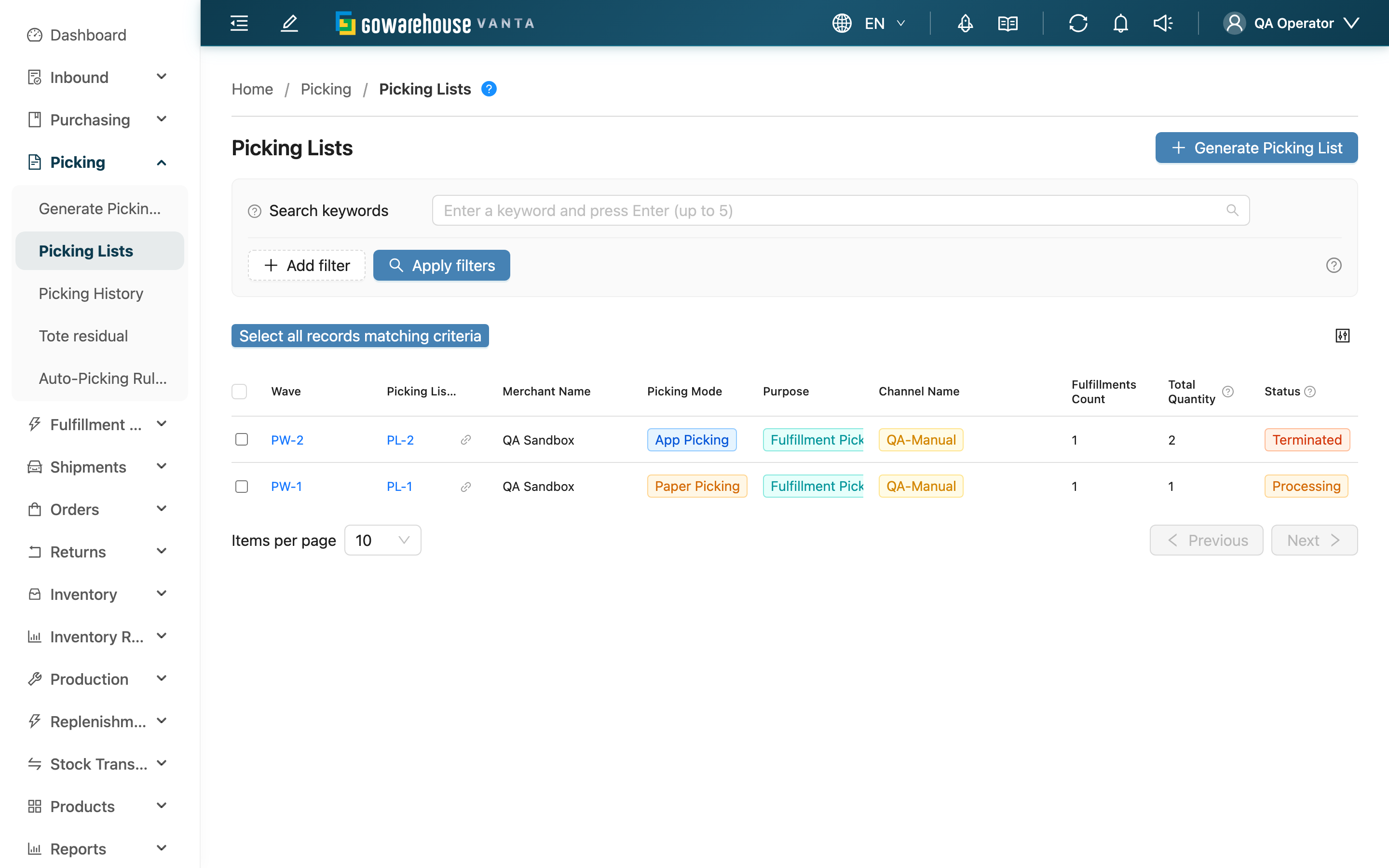
This is the entry point for your daily picking work, centralizing all the picking lists that have been generated. Here you can see each picking list's status, the wave it belongs to, the fulfillment count, and the progress; click in to start picking or print the paper sheet, and select lists to export in bulk or download several picking sheets and fulfillments at once. To create a new picking list, enter from Generate Picking List at the top right.
Quick Navigation: Search & Filter | List Columns | Batch Actions
2.1 Search & Filter
The search box at the top searches by picking list name. Other filters:
| Filter | How to filter |
|---|---|
| Picking Mode | Filter by Paper Picking / App Picking; both can be selected at once (selecting both is the same as no filter). Combine it with status to list the paper lists that have not come back yet; results match the picking mode column in 2.2 List Columns |
| Status | Filter by In Progress / Done / Terminated; status meanings are in 2.2 List Columns |
| Created At | Filter by creation date range |
| Merchant Name | Filter by merchant when working with multiple merchants (hidden for a single merchant) |
2.2 List Columns
| Column | Description |
|---|---|
| Wave | The wave this picking list belongs to; click to open the wave detail |
| Picking List Number | Picking list name; click to open the detail and start picking |
| Picking Mode | App Picking or Paper Picking |
| Purpose | Fulfillment Picking (for shipping) or Work Order Picking (for production picking) |
| Fulfillments Count | The number of fulfillments this picking list contains |
| Total Quantity | The total item quantity across all fulfillments |
| Status | The picking list's current status; see the status descriptions below |
The three picking list statuses:
| Status | Meaning |
|---|---|
| In Progress | Picking in progress, not yet complete |
| Done | All items picked; ended normally |
| Terminated | Manually terminated mid-way; no further picking |
2.3 Batch Actions
After selecting one or more picking lists, you can use the batch actions at the bottom. None of these actions changes the picking list's status or inventory — they only produce files. Files are generated in the background; when done, download them from "Background Jobs" at the top right:
| Action | Function | Note |
|---|---|---|
| Export | Export the selected picking lists' data to a file | At least one list must be selected first, otherwise it cannot run |
| Download Attachments | Package and download the documents attached to the selected picking lists | At least one list must be selected first |
| Download Picking Lists | Download the picking sheets of the selected picking lists in one go. Each uses the same layout as the download on the detail page, one after another, with no cross-list totals. Choose "Merged PDF" for a single PDF, or "ZIP (one PDF per picking list)" for a ZIP whose file names are the picking list names | Requires the Orders – Write permission; without it the option is not shown |
| Download Fulfillments | Download every fulfillment in the waves the selected picking lists belong to. Fulfillments belong to waves, so selecting several picking lists split from the same wave still yields that wave only once. "Merged PDF" orders pages by wave, then by picking slot number; "ZIP (one PDF per wave)" gives one PDF per wave, named after the wave. Each fulfillment uses the template bound to its order's sales channel | Requires the Orders – Write permission; Work Order Picking picking lists are skipped and the count is shown; a selection spanning several merchants can only use ZIP |
To act on every picking list matching your filters (not just the current page), first check the header checkbox, then click "Select all records matching criteria". The system selects all picking lists under the current filters, and you can then Export, Download Attachments, Download Picking Lists, Download Fulfillments or Assign picking. Up to 50,000 records can be selected at once; beyond that the page tells you how many were actually selected, and you need to narrow the filters to handle the rest in batches.
3. FAQ
Quick Navigation: FAQ | Important Notes
3.1 FAQ
▪ What does each status mean?
The meanings of In Progress, Done, and Terminated are in the status descriptions under 2.2 List Columns.
▪ How are the fulfillment count and total quantity calculated?
The fulfillment count is the number of fulfillments this picking list covers, and the total quantity is the sum of those fulfillments' item quantities. Hover over the column header to see the description the system provides.
▪ How do I start picking a specific picking list?
Click the picking list name to open the detail. With App picking you scan and pick on the detail page; with paper picking you print the sheet, pick, and then report on Confirm Picking once done.
▪ Where do I get the results of Export and batch download attachments?
Both produce files. Exported files can be retrieved from the system's downloads / notifications area; you must select at least one picking list before the action, and it will prompt that it cannot run if nothing is selected.
▪ Why does downloading fulfillments say "Skipped N material picking lists"?
Work Order Picking picking lists are for picking production materials and have no fulfillments to print, so they are skipped automatically and you are told how many; the rest are generated as usual. If every selected list is a Work Order Picking list, or none of their waves has any fulfillments, the system tells you there is nothing to download and produces no empty file. Downloading picking lists is unaffected — Work Order Picking lists are included as usual.
▪ Why is "Merged PDF" for fulfillments blocked and I'm asked to use ZIP?
When the selected picking lists belong to different merchants, their fulfillments cannot be merged into one PDF: a merged file can only use one paper size, and each merchant's fulfillment templates may use different paper. Choose "ZIP (one PDF per wave)" instead to get one PDF per wave. Picking lists have no such limit and can be merged across merchants.
▪ If I select two picking lists from the same wave, will the fulfillments be duplicated?
No. Fulfillments belong to the wave, not the picking list, so no matter how many picking lists from the same wave (for example, lists split by zone) you select, that wave's fulfillments appear only once. The picking list download, on the other hand, includes each picking list separately.
▪ What if the download fails partway through?
If any picking list or fulfillment fails to generate, the whole batch stops, so you never get a file with missing pages. When a particular one cannot be laid out, "Background Jobs" shows which picking list or fulfillment it was; check that one and download again.
▪ Why are some picking lists marked "Work Order Picking"?
The Purpose column distinguishes the purpose: Fulfillment Picking is for shipping orders, while Work Order Picking is for picking materials for production.
▪ Can a picking list be terminated or deleted?
Not directly from the list. To terminate a picking list, click into the detail to do so; if you only want to pull a few fulfillments out of it, go to the wave detail and return them.
3.2 Important Notes
⚠️ Important Reminders
- Batch export, batch download attachments, and downloading picking lists / fulfillments all require at least one picking list to be selected first; if nothing is selected, it will prompt that it cannot run. To cover every picking list matching your filters, remember to click "Select all records matching criteria" before running the action, otherwise only the items checked on the current page are processed.
💡 Tip: Filter for "Done" picking lists by status, then go to Residual Totes to check for totes that are picked but not yet emptied — this prevents inventory from getting stuck in the totes.
4. Related Features
| Feature | Description | Link |
|---|---|---|
| Generate Picking List | Filter fulfillments and generate a new picking list | Go |
| Picking List Detail | View a single picking list's items, pick, and handle residuals | Go |
| Picking History | View all picking and put-back activity records | Go |
| Tote residual | Find picking lists that have ended but whose totes still have residuals | Go |