
Operators
Table of Contents
1. Use Cases
Quick Links: Build your warehouse team | Scope merchant access | Off-board a departing member
Scenario 1: Build your warehouse team so everyone has the right access
Situation: Ahead of peak season you hired a batch of new receiving, picking, and inspection staff. Each needs their own login to work on the handheld and the back office, and different roles should see different functions — a receiving clerk should not touch shipping settings.
Use this feature: Operators is where you maintain accounts for the whole warehouse team. When someone joins, you can invite them to set their own password, or add an operator directly with credentials you assign; each member's warehouse and function permissions are set on the Edit Operator page.
Result: Every warehouse member has their own login and can only use the functions you grant, so responsibilities are clear and the risk of mis-operation drops.
Scenario 2: Lock a member's access to the merchants they handle
Situation: Your warehouse stores goods for several merchants (brand clients) at once. One operator only handles fulfillment for two of those brands, and you do not want them to see other merchants' inventory and orders.
Use this feature: Click Manage Merchants for that member in the list to open merchant access assignment and check the merchants they may access; when inviting a new member you set the merchant scope in the same step.
Result: After logging in, the member only sees the merchants you checked, achieving data isolation between merchants and meeting the confidentiality needs of multi-brand fulfillment.
Scenario 3: Revoke system access the moment someone leaves
Situation: An operator leaves today. You need to immediately stop them from logging into the handheld and back office, but you want to keep their past activity for later audit, so you cannot simply delete them.
Use this feature: Find the member in the list and use Enable / Disable to disable the account; the system immediately logs them out of every device. If a contract worker returns later, re-enable the same account.
Result: The departing member loses all system access at once, the activity history stays intact, and the account can be re-enabled anytime without rebuilding it.
2. Features
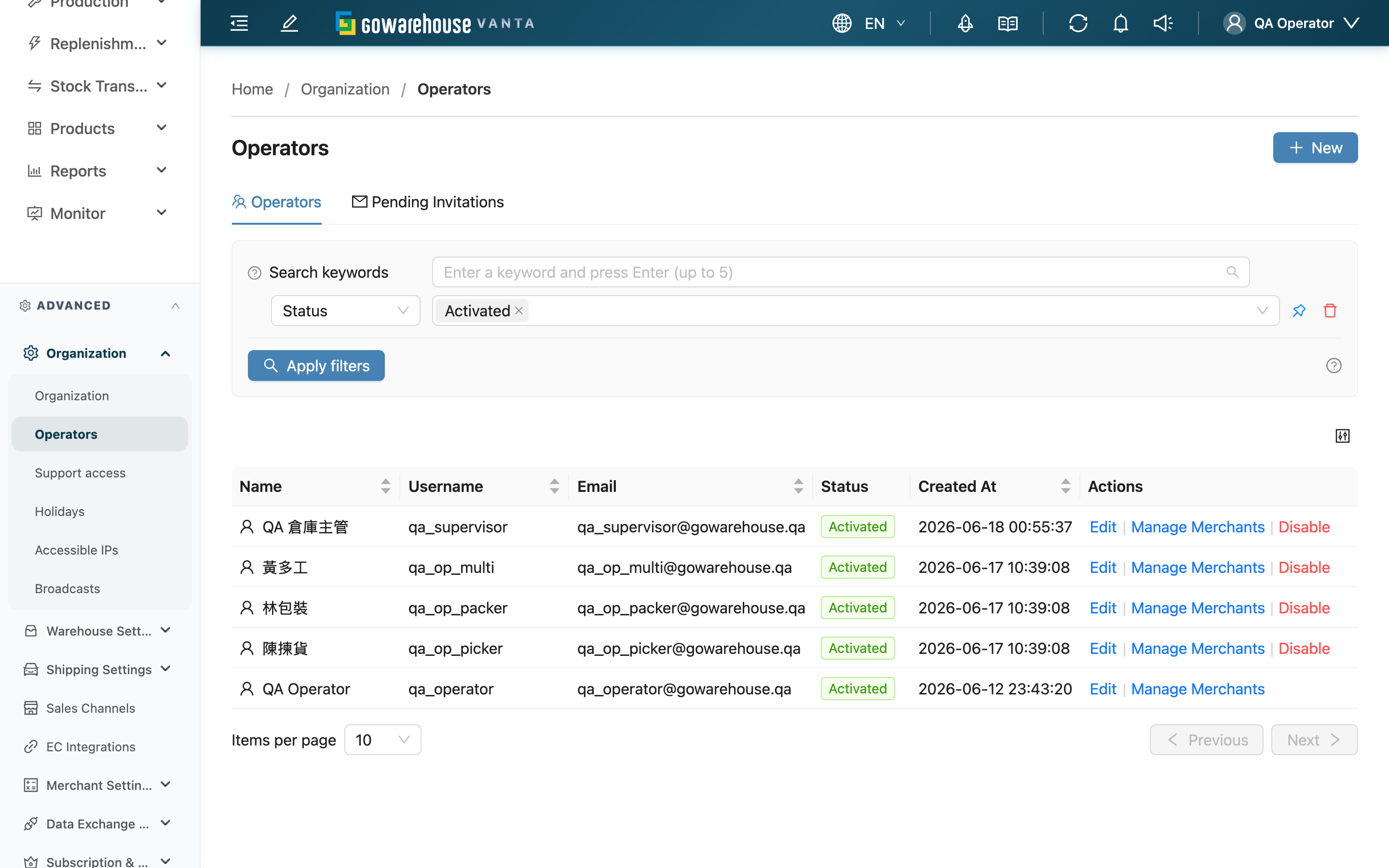
Operators lets you centrally maintain your warehouse team's logins, home warehouse, function permissions, and accessible merchants. New members can join via an invitation where they set their own password, or you can create accounts directly; existing members can have their permissions adjusted anytime or be disabled when they leave. This page shows only the members of your current warehouse — switching warehouses shows a different list.
Quick Jump: Two tabs | Search & filter | List columns | Invite a new member
2.1 Two tabs
The top of the page has two tabs:
| Tab | Contents |
|---|---|
| Operators | Members who have formally joined; searchable, with permission changes and disabling |
| Pending Invitations | Invitations that were sent but not yet accepted; once accepted, the member appears under the "Operators" tab |
2.2 Search & filter
- Keyword search: matches a member's Name, Username, and Email at once — any match is shown.
- Status: by default only active members are shown; to find disabled (departed) members, switch to "Deactivated".
2.3 List columns
Each row in the operators tab is one member, with action buttons:
| Column / Button | Description |
|---|---|
| Name | The member's display name |
| Username | The login account, unique within each organization |
| Contact email; shows "-" if blank | |
| Status | Shows Activated or Deactivated; a disabled account cannot log in |
| Edit | Open Edit Operator to adjust home warehouse, password, and permissions |
| Manage Merchants | Open merchant access assignment to check which merchants the member can access |
| Disable / Enable | Toggle the account's status; see the side effects below |
About disabling and enabling:
- When it can run: an active account can be disabled and a disabled account re-enabled; you cannot disable your own account.
- Side effects: disabling immediately logs the member out of the mobile App and the back office on all devices, and they cannot log in until re-enabled. Their in-progress tasks (picking lists, inbounds, etc.) are not released automatically — arrange reassignment first.
- Reversibility: disabling and enabling can be toggled back and forth anytime; no data is deleted and the activity history is kept.
2.4 Invite a new member
Clicking "New" at the top right opens the invitation dialog — the way to let a new member join by setting their own password. In the dialog you fill in:
Fields marked with * are required
| Field | How to fill | Notes |
|---|---|---|
| Enter the new member's email | The system checks whether the same email is already a member or has a pending invitation, and blocks duplicates | |
| *Username | Set the new member's login account | Cannot duplicate an existing member within the same organization |
| *Warehouse Name | Choose the home warehouse from the list | If not found, create the warehouse in Organization Settings first |
| Permission Template | Pick a preset permission set to apply a batch of permissions quickly | You can only grant permissions you hold; anything beyond that is stripped automatically |
| *Merchants | Check the merchants the new member may access | At least one is required; only merchants you can access are selectable |
After submitting, the system generates an invitation link you can copy and send. The recipient opens it, sets a password, and joins. Sent invitations are listed under the "Pending Invitations" tab, where you can copy the link, regenerate it (the old link expires), or cancel the invitation. An invitation link is valid for 48 hours; after that its status becomes "Expired", and regenerating it extends the validity again.
3. FAQ
3.1 Questions
▪ What is the difference between "Invite" and "Add directly", and which should I use?
Both create a new member account; the difference is who sets the password:
- Invite ("New" at the top right of this page): the recipient sets their own password via a link, so you never know their password. Best when the person has their own email and can complete setup themselves. Permissions and accessible merchants are also set at invitation time.
- Add directly: you type the account and password on the spot and hand the credentials to the member. Best for temporary, contract, or members without an email.
▪ Why don't I see the person I just invited in the list?
Until the invitation is accepted, the person appears only under the "Pending Invitations" tab, not the "Operators" tab. Only after they open the link and set a password do they become a formal member in the operators list.
▪ Why does the member list change when I switch warehouses?
This page shows only the members of your current warehouse. Each member belongs to one warehouse, so switching warehouses shows that warehouse's team — this is expected.
▪ After I disable an account, what happens to the picking list that person was working on?
Disabling only prevents login and logs the member out of all devices; it does not automatically release their in-progress tasks (picking lists, inbounds, etc.). Reassign those tasks to someone else before disabling the account.
▪ Why can't I disable my own account?
The system does not allow disabling yourself, to avoid locking yourself out. If a management account must be disabled, have another colleague with operator-management permission do it.
▪ Why is there no "Edit" button next to some members?
A disabled account is not editable; re-enable it first to modify its details.
▪ What if an invitation link is leaked by accident?
Go to the "Pending Invitations" tab and click "Regenerate" on that invitation; the old link expires immediately and a new one is generated to send again.
3.2 Notices
⚠️ Important
- Disabling an account immediately logs the member out of all devices and blocks login, but does not release their in-progress tasks — complete reassignment before disabling.
- An invitation link is effectively a login entry point, so send it only to the intended person; if it leaks, regenerate the link at once to expire the old one.
- You can only grant permissions you hold and merchants you can access; anything beyond your scope is stripped or blocked.
💡 Tip: To quickly find all departed, disabled accounts, switch "Status" to "Deactivated" to review them at once.
4. Related Features
| Feature | Description | Link |
|---|---|---|
| Create Operator | Create an account directly with credentials you assign | Go |
| Edit Operator | Adjust home warehouse, permissions, merchants, and reset password | Go |
| Organization Settings | Maintain organization details and warehouses | Go |
| IP Allowlist | Restrict the source networks allowed to log in | Go |