
Import Orders
Table of Contents
1. Use Cases
Quick links: Import a batch at once | Apply a merchant's own format
Case 1: The merchant sends a batch of orders at once
Situation: The merchant runs a campaign and sends the warehouse one Excel file with the few hundred orders to ship, asking you to enter them all into the system today to prepare for shipping. Adding them one by one would never finish in time.
Use this feature: After arranging the merchant's file into the system template format, use Import to create the whole batch of orders at once. The flow and fields are under Flow overview and Field reference.
Result: Hundreds of orders are created at once and enter the allocation flow together, saving the work of entering each one, so picking and shipping can start the same day.
Case 2: The merchant's file uses different column names
Situation: A certain merchant always sends files with their own column names ("Order No.", "Recipient", "Item code"...) that don't match the system template column names, and manually renaming columns before each import is tedious.
Use this feature: First build an import template for this merchant that maps their column names to the system fields; then select this template when importing, and the system reads the file by that mapping without renaming columns each time. The purpose of templates is under Flow overview.
Result: A regular merchant only sets up the template once, and from then on can import using their original file directly without converting columns.
2. Features
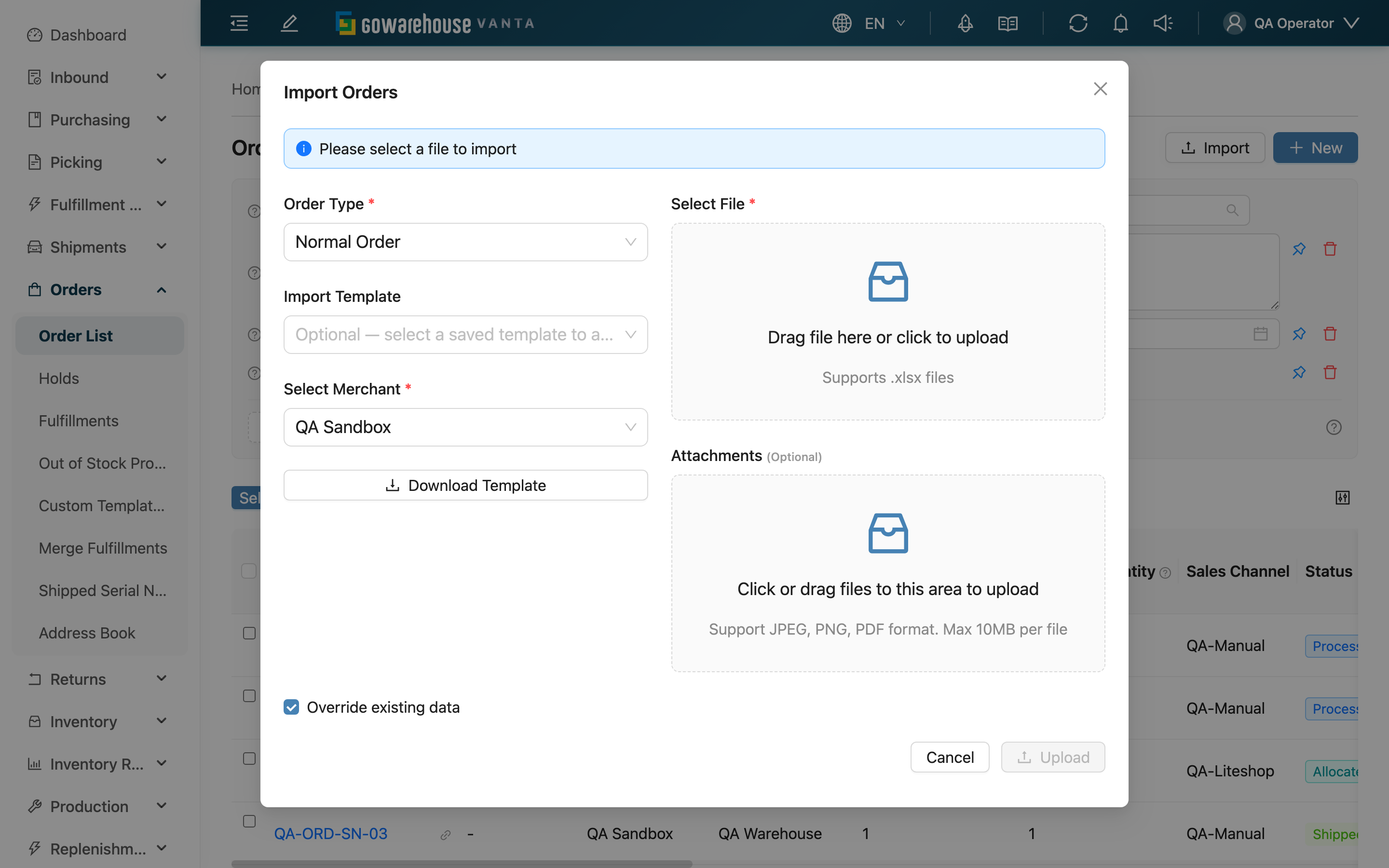
Import Orders lets you create a large number of orders from one Excel file, ideal when a merchant provides a batch of orders, or when orders exported from an external system are brought in. Import is opened from the "Import" button at the top right of the order list and runs as a pop-up flow: select the merchant, select the file, upload, and the system first checks the whole file, then creates the orders and products one at a time, reporting the outcome row by row in the import record.
Quick jump: Flow overview | Steps | Field reference
2.1 Flow Overview
The whole import flow is: open the import dialog → download the template, fill in data → select the merchant and upload the file → the system validates the whole file, then creates the orders → view results in the import list. Two concepts to clarify first:
- Import template (downloadable): The standard Excel format the system provides, with complete fields and correct column names. We recommend downloading the template and filling it in the first time.
- Import mapping template: A "column mapping" for a regular merchant. When a merchant's file column names differ from the system template, build a template in advance that maps their columns to the system fields; then selecting the template lets the system read their original file directly without renaming columns each time. You don't need to select one if there's no special format need.
You can also upload attachments (such as a shipping proof or invoice scan) when importing. These attachments are attached to the import batch and shown on every order detail page created by that import.
2.2 Steps
▸ Step 1: Download the template, fill in data
In the import dialog, click "Download Template" to get the standard format, and fill in the orders and products per the Field reference. Fields marked * are required. When an order has multiple products, the first row holds the order fields plus the first product; put each subsequent product on its own row with the order-number column left empty.
We recommend opening the template in Excel.
▸ Step 2: Select the merchant, select the file
In the dialog, select the merchant this batch belongs to (a single-merchant warehouse fills it in automatically), select an import template if needed, then use "Select File" to choose the filled file. The file must be Excel (.xlsx / .xls), up to 10MB per file.
▸ Step 3: Decide whether to overwrite existing orders
"Override existing data" decides how an "order number already exists" case is handled:
- Checked: Updates the existing order. But if that order is already shipped it can't be updated, and the whole import is aborted; the recipient name must also match the existing order when updating, and a mismatch aborts the whole import too. A canceled order can still be overwritten, and stays canceled after the update — take care not to overwrite one by mistake. If an order that was stuck on an unknown product is overwritten with a SKU the system already has, that unknown product is removed from the list automatically once no other order uses it.
- Unchecked: If any number in the file already exists, the whole import is aborted and nothing is overwritten.
▸ Step 4: Upload and view results
Click "Upload" to submit. Import runs in two stages. First the system checks the whole file: if any row is invalid (a missing required field, a bad format, a channel / shipping type / inventory type that cannot be found, a duplicate order number, and so on), the entire file is aborted and not one order is created, and the import record lists every problem row at once — fix them all, then re-upload the whole file. Only once every row passes does the system create the orders one at a time; at that stage a single order can still fail while it is written (most typically an SKU the system does not have, when the merchant is set to reject such orders), and the remaining orders are still created. After it finishes, go to "Import List" to view this import's status, success / failure counts, and the error reason for each row.
2.3 Field Reference
The names below are the column headers in the Excel template. Fields marked * are required, and their columns must not be deleted from the template. Even when a cell may be left empty on some rows (for example the order number on the following product rows of the same order), the column itself must stay; if the whole column is removed, the system reports a missing required field on row 1 and none of the file is imported. The one exception is a column that already has a default value in your import template and that template is selected under "Import Template" when you import — then the column may be left out of the file and the system fills in the template's default. A template that exists but is not selected for this import counts for nothing, and the column is still reported as a missing required field.
Order fields (filled on the first row of each order)
| Field | How to fill | Notes |
|---|---|---|
| *Order Number | This order's number | Must be unique within a merchant |
| *Receiver Name | Recipient's full name | Required |
| *Phone | Recipient's phone | Required |
| *Address | Delivery address | Required |
| *Channel Code | Channel code | The template includes a reference sheet listing every available code. The channel name is also accepted; it only fails when neither matches, and that failure aborts the whole file. Files using the old "Channel" header still import fine |
| *Shipping Type | The shipping type name | Only shipping types that are enabled for this merchant and not collected through an EC platform are accepted; a value that does not match aborts the whole file |
| COD Amount | COD amount (number) | Leave empty for non-COD |
The remaining order columns (Other Number, Email, Postal Code, City, District, Country Code, State/Province, E-Commerce Platform, Total Price, Currency, Urgent, Order Note, Delivery Date, Scheduled Shipping Date, Delivery Time, Store ID) are filled by column name; "Delivery Date" and "Scheduled Shipping Date" are date columns — see Date columns below. "Urgent" is a Y/N column: only Y or N changes the value; a blank cell, or a template with no such column at all, keeps the original value.
Product line fields (filled on every row)
| Field | How to fill | Notes |
|---|---|---|
| *Product SKU | The product's SKU | Prefer items that already exist in the system; an SKU the system doesn't have is created as an unknown product, or fails that one order (the other orders are still created), per merchant settings |
| *Inventory Type Code | The inventory type code | Must be a code enabled for this merchant |
| *Quantity | Order quantity | Must be greater than 0 |
The remaining product columns (Unit, Unit Quantity, Unit Price, Product Note, Batch, Expiration Date, Manufacturing Date, Internal Note) are filled as needed; "Expiration Date" and "Manufacturing Date" are date columns — see Date columns below.
Enter the merchant’s agreed supply amount per item in "Supply unit price", in the order currency. Leave it blank when unspecified; zero means free supply and negative values are rejected. It is imported and exported separately from Unit Price. See Supply unit price for the input rules.
Date columns
Write Delivery Date, Scheduled Shipping Date, Expiration Date and Manufacturing Date as YYYY-MM-DD. All four may be left empty, but once a cell is filled it must be a date the system can read: text such as "N/A" is rejected during validation and none of the file is imported.
⚠️ Never write a date such as "01/02/2026" or "01-02-2026", where the day and month order is ambiguous: the system always reads the day first, so it silently stores 1 February 2026 without reporting an error — this mistake never shows up in the failure list, it just sends the order into fulfillment with the wrong date.
3. FAQ
Quick jump: Common errors | Notices
3.1 Common Errors
The import details under "Import List" show the error reason for each row. The common categories are:
▪ Required field missing
Any missing receiver name, phone, address, shipping type, product SKU, quantity, or inventory type code aborts the whole file. Fill in the required fields per the Field reference. The order number has one extra rule: the very first data row of the file must have an order number, otherwise the system cannot tell which order that row belongs to and the whole file is aborted; but if a later order's first row is missing its order number, the system reports no error and silently merges those product rows into the previous order — that mistake never appears in the failure list, so check yourself that every new order's first row carries an order number.
▪ Data doesn't match system settings
The channel code, shipping type, or inventory type code isn't found in the system. Confirm the value matches the merchant's settings (copying from the template's reference sheet is recommended; the channel column accepts either the code or the channel name, and case is ignored). Leaving the channel code empty also lands in this category — the message reads "channel not found" rather than "required field missing". Every error in this category happens during validation, so none of the file is imported.
▪ Data conflict
The order number already exists. Without "Override existing data" checked, it fails; with it checked, it also fails if the order is shipped, or the recipient name doesn't match the existing order. These happen during validation, so none of the file is imported. Canceled orders are not in this list — they can be overwritten.
▪ Quantity or date format error
Quantity must be a number greater than 0. A date column filled with text the system cannot read (such as "N/A") aborts the whole file; an ambiguous day/month order does not fail, it is silently stored as the wrong date — see Date columns.
3.2 Notices
⚠️ Important Notice
- Import validates the whole file first and only then creates the orders one at a time: during validation a single bad row aborts the entire file and not one order is created. Check the failure count and reasons under "Import List", fix every listed error, then re-upload the whole file rather than only the failed rows.
- Checking "Override existing data" updates existing orders; shipped orders can't be updated, while canceled orders can still be overwritten (and stay canceled), and the recipient name must match the existing order when updating.
- When an order has multiple products, only the first row holds the order fields; leave the order-number column empty on the following product rows. Conversely, every new order's first row must carry an order number: if it is missing, the system reports no error and silently merges that order's products into the previous order.
💡 Tip: For your first import, download the standard format with "Download Template" and fill it in — the column names and order are least likely to go wrong. Consider building an import template only for regular merchants.
4. Related Features
| Feature | Description | Link |
|---|---|---|
| Order List | Back to the order list | Go |
| New Order | Create a single order manually instead | Go |
| Print Templates | Manage print templates for fulfillment details and other documents | Go |